FreeFree on WordPress.orgInstall it from your WordPress dashboard
01
Overview
Restaurant for WooCommerce turns your WooCommerce products into a fast, one-page online ordering menu. Customers browse your dishes, choose sizes and options in a popup, change quantities and go to checkout from a slide-in basket, without ever leaving the page.
There is no separate menu to maintain. Your product categories become the sections of the menu, and your prices, photos and stock are used as they are. Orders go through the normal WooCommerce cart and checkout, so your payment methods, delivery or local pickup, coupons, taxes and order emails keep working as usual.
The menu is built for phones first, with swipeable category chips and a basket bar at the bottom of the screen, and works just as well on desktops. Add it to any page with the [wxp_restaurant] shortcode. It suits restaurants, cafés, takeaways, pizzerias, bakeries, food trucks and cloud kitchens that take orders for delivery or collection.
02
Why store owners choose it
Customers order in a few taps: they add dishes, pick sizes and change quantities without page reloads or leaving the menu.
Your WooCommerce products are the menu, so prices, photos and stock stay in one place, with nothing extra to maintain.
Orders use your normal WooCommerce checkout, with your payment methods, delivery or local pickup, coupons and order emails.
Built for phones first and lightweight: no jQuery plugins or icon fonts, and scripts load only on pages that show the menu.
Free on WordPress.org, with no account or licence key required.
03
Features
One-page menu
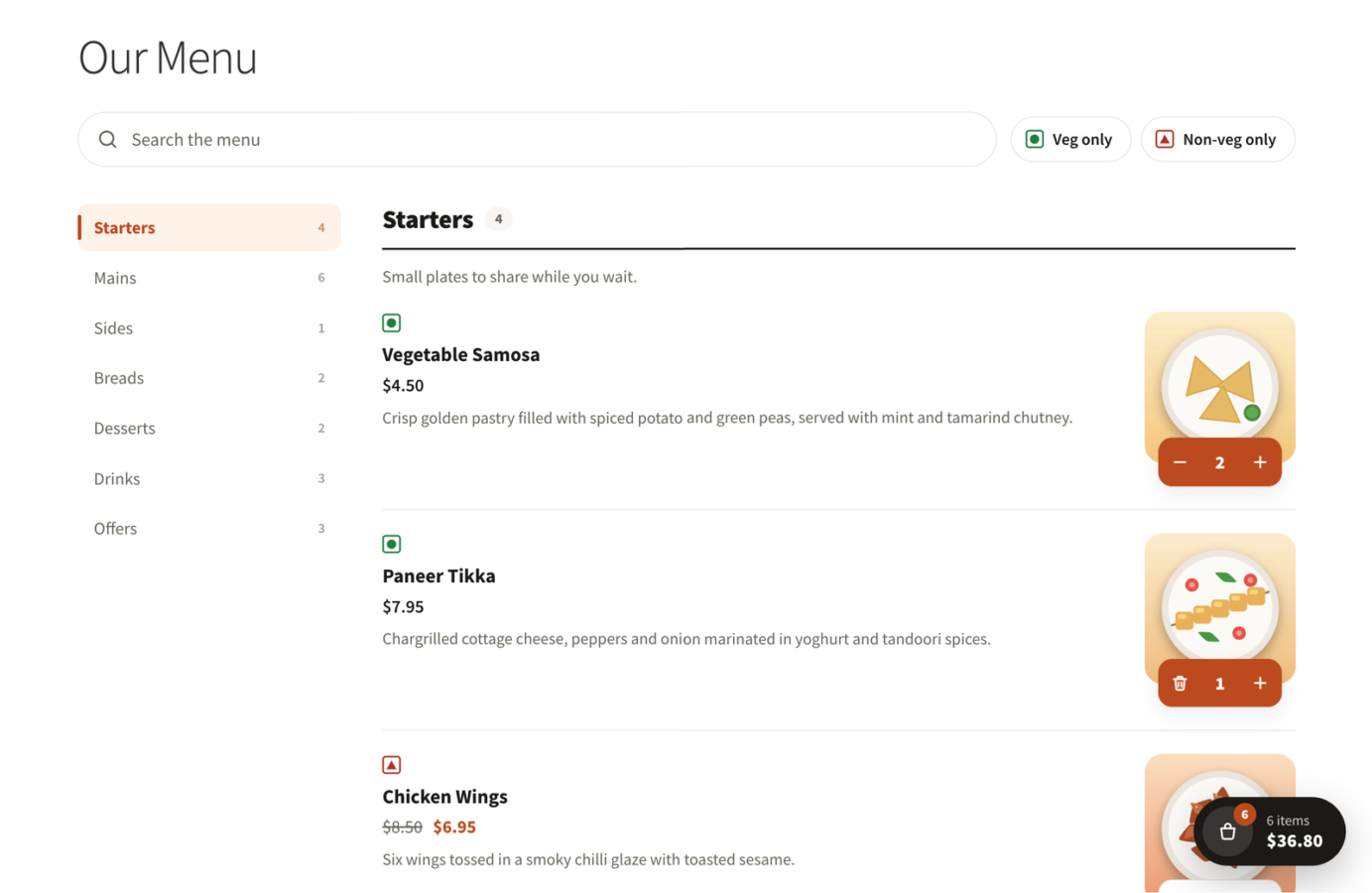
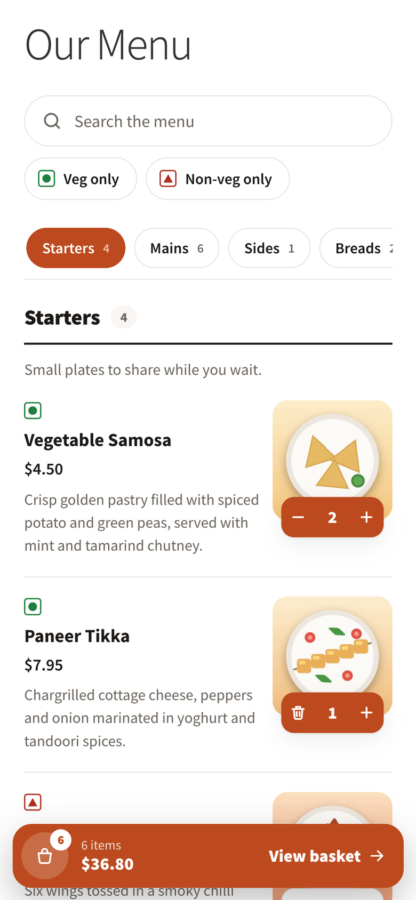
All categories and dishes on one page, with a sticky category list on desktop and swipeable category chips on phones, both following the scroll.
Dish rows
Each dish shows its photo, price (sale prices included), short description and a Vegetarian or Non-vegetarian mark.
Live search and Veg filter
Customers search dish names and short descriptions as they type, and narrow the menu with the “Veg only” or “Non-veg only” filter.
Add and quantity stepper
A one-tap Add button turns into a quantity stepper (- 2 +) once the dish is in the basket, so changing the amount is one more tap.
Dish popup with options
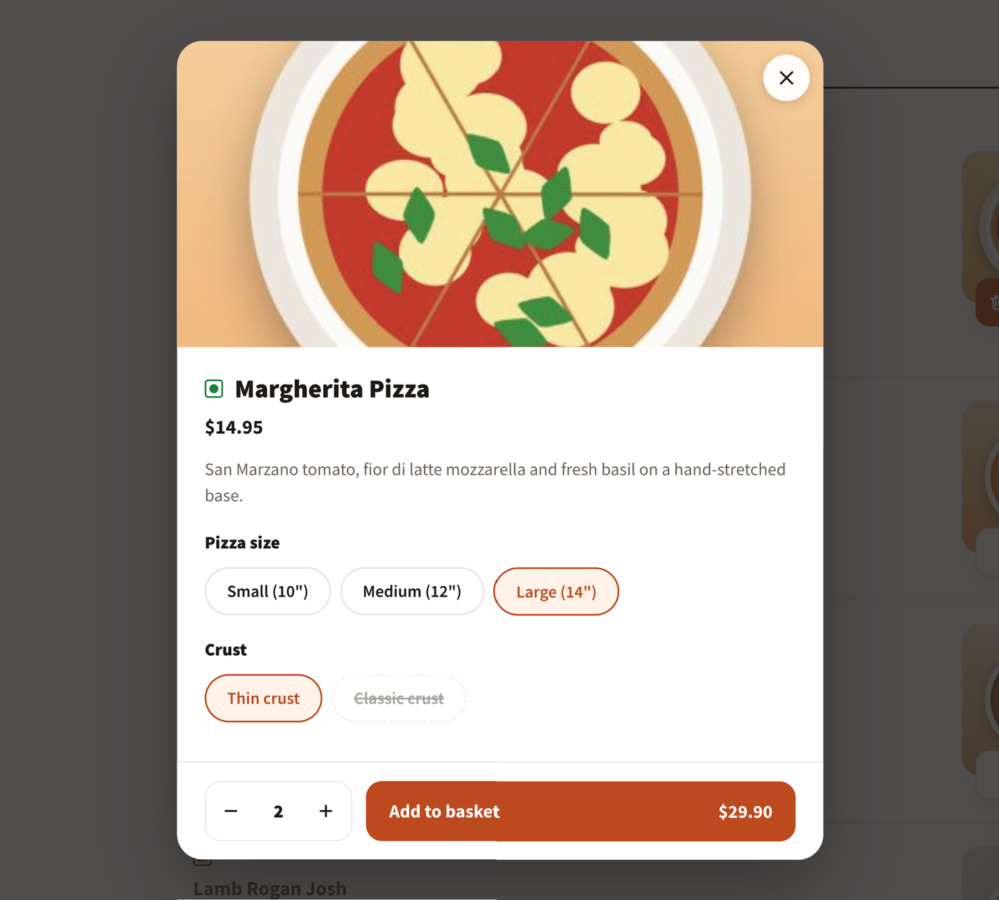
A large photo, the short description and option buttons for sizes, crusts or spice levels. Out-of-stock combinations are disabled and the price updates as customers choose.
Slide-in basket
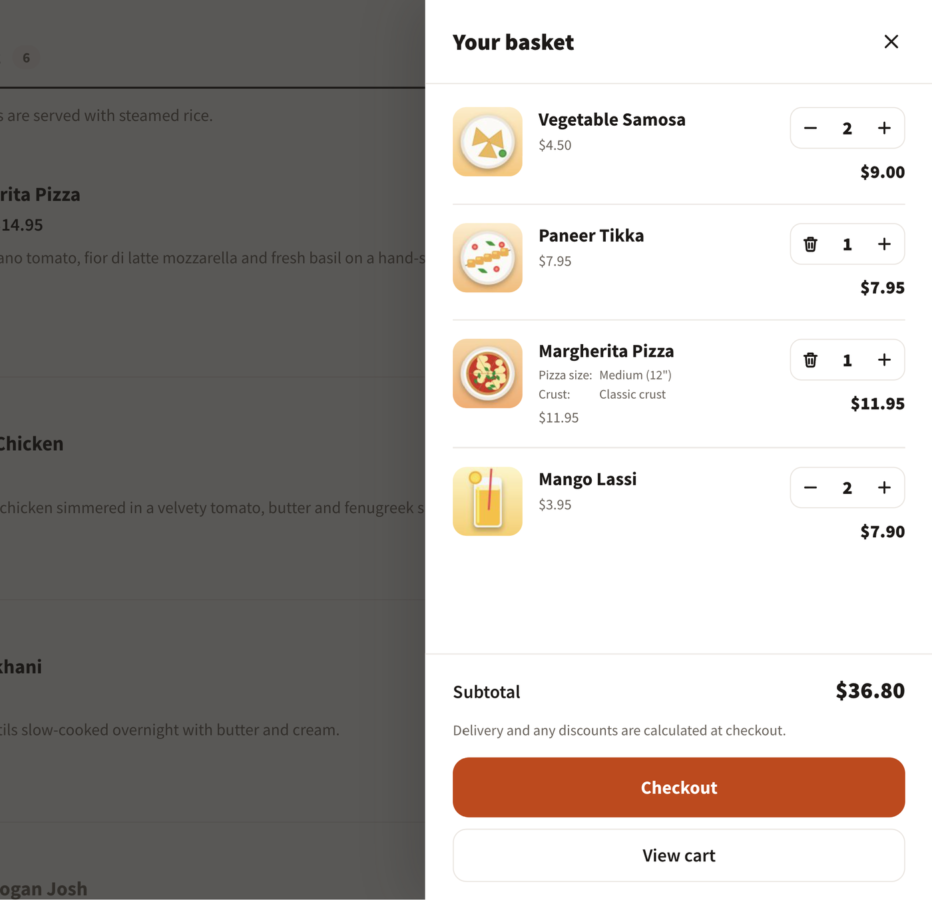
A floating basket button with the item count and total (a full-width bar on phones) opens a basket with quantity controls, subtotal, Checkout and View cart.
Sold-out dishes
Sold-out and unavailable dishes stay visible and are clearly marked. Stock limits and “Sold individually” apply to every order from the menu.
Your WooCommerce checkout
Orders go through the classic or block Cart and Checkout, so payment methods, delivery or local pickup, coupons, taxes and order emails work as usual.
Choose the categories
Show every category with [wxp_restaurant], or only some, in your order, with the categories attribute. Put different menus on different pages.
Easy to customise
Change the colours with a few CSS variables, and override the menu and basket templates in your theme.
Accessible
Real buttons, keyboard navigation, focus handling in the popup and basket, and support for reduced motion.
Works with your store
Compatible with HPOS, block themes and the Mini-Cart block, and an expired security token on a cached page is renewed automatically. Translation ready.
04
How it works
- 1
Install and activate
Install Restaurant for WooCommerce from WordPress.org and activate it. WooCommerce must be active.
- 2
Add your dishes as products
Put your dishes in product categories such as Starters, Mains and Drinks. Each category becomes a section of the menu; sizes and crusts are product variations.
- 3
Mark non-vegetarian dishes
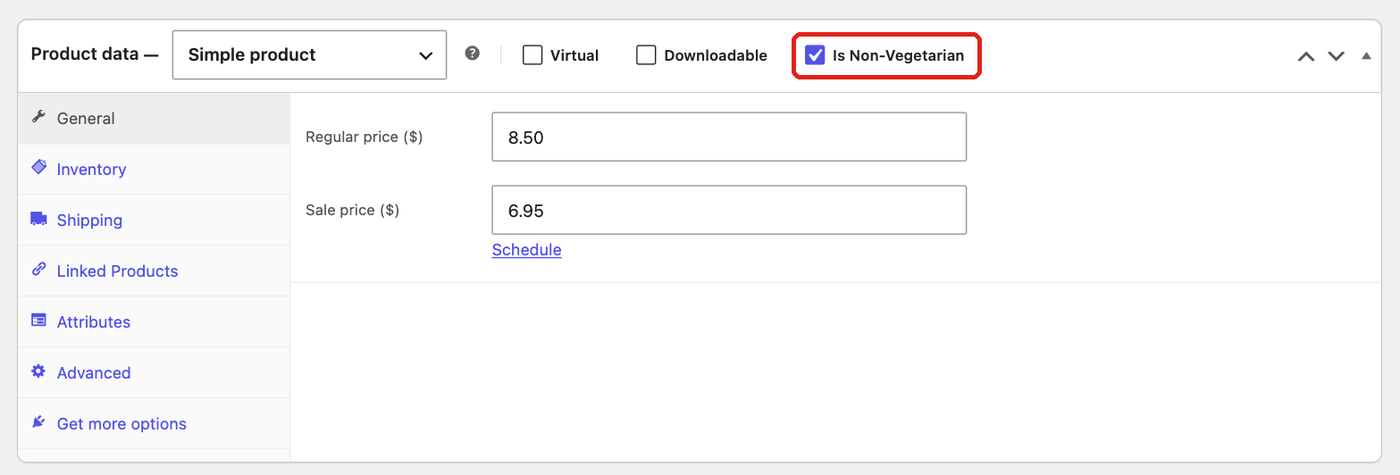
Tick “Is Non-Vegetarian” next to the product type for meat and fish dishes. Every other dish shows the vegetarian mark.
- 4
Add the menu to a page
Paste [wxp_restaurant] into a page with the Shortcode block and publish it. Customers can start ordering straight away.
05
Screenshots & demo
-
 The menu: category list, search, Veg / Non-veg filter and dish rows with Add buttons and quantity steppers.
 -
 Dish popup with option buttons for sizes and crusts, quantity and live price.
 -
 Basket drawer with quantity controls, subtotal and checkout.
 -
 The menu on a phone: swipeable categories and the basket bar.
 -
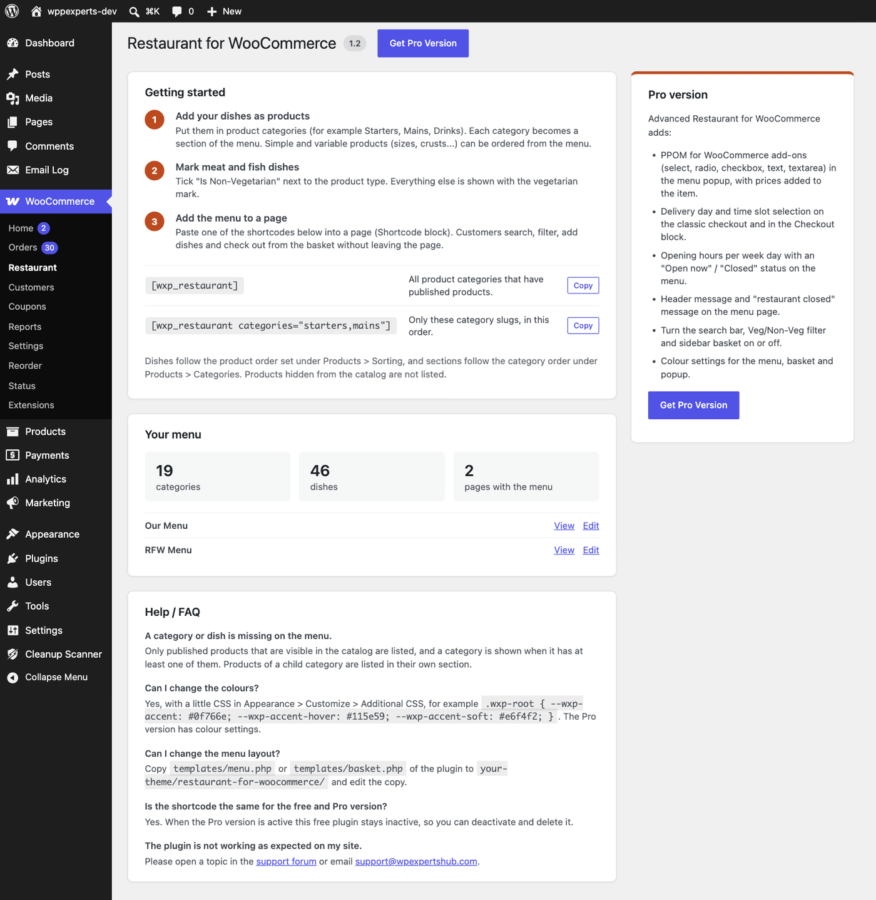
 WooCommerce > Restaurant: getting started, shortcodes to copy and the pages that show your menu.
 -
 Tick "Is Non-Vegetarian" in the product editor to show the non-veg mark on a dish.
06
Settings & configuration
Menu shortcode
SHORTCODE[wxp_restaurant] shows all product categories that have published products. Add it to any page with the Shortcode block.
Categories attribute
CATEGORIES[wxp_restaurant categories="starters,mains,drinks"] shows only these category slugs, in this order.
Is Non-Vegetarian
PRODUCTA checkbox next to the product type in the product editor. Ticked dishes show the non-veg mark; all others show the veg mark.
Dish and category order
ORDERCategories follow Products > Categories, with child categories after their parent. Dishes follow Products > Sorting.
WooCommerce > Restaurant
DASHBOARDGetting started steps, shortcodes to copy, the number of categories and dishes on your menu, and the pages that already show it.
Colours and templates
STYLEChange the colours with CSS variables such as --wxp-accent, and copy templates/menu.php or basket.php to your-theme/restaurant-for-woocommerce/ to change the layout.
07
Requirements & installation
Who it is for
It suits restaurants, cafés, takeaways, pizzerias, bakeries, food trucks and cloud kitchens that already run on WooCommerce, or want to, and take orders for delivery or collection. It gives them a quick, phone-friendly ordering page without a separate ordering system or monthly fees.
Requirements
- WordPress 6.3 or later (tested up to 7.1)
- WooCommerce 8.0 or later (tested up to 11.1)
- PHP 7.4 or later
Installation
- Make sure WooCommerce is installed and active.
- Go to Plugins > Add New Plugin, search for “Restaurant for WooCommerce”, then install and activate it.
- Put your dishes in product categories (for example Starters, Mains, Drinks) and tick “Is Non-Vegetarian” for meat and fish dishes.
- Add the shortcode
[wxp_restaurant]to a page (Shortcode block) and publish it.
WooCommerce > Restaurant in your dashboard shows these steps, the shortcodes to copy and the pages that already show your menu.
Shortcode
[wxp_restaurant]: all product categories that have published products.[wxp_restaurant categories="starters,mains,drinks"]: only these category slugs, in this order.
Customising the menu
- Colours: set CSS variables in Additional CSS, for example
.wxp-root { --wxp-accent: #0f766e; --wxp-accent-hover: #115e59; --wxp-accent-soft: #e6f4f2; }. - Basket position: if your theme has a mobile footer bar, raise the basket with
body { --wxp-basket-lift: 60px; }. - Layout: copy
templates/menu.phportemplates/basket.phptoyour-theme/restaurant-for-woocommerce/and edit the copy.
For developers
wxp_restaurant_menu_product_argsfilter: the product query for each menu section ($args,$slug,$atts).wxp_restaurant_menu_category_argsfilter: the category query for the menu ($args,$menu,$atts).wxp_restaurant_menu_item_datafilter: the data of each dish on the menu ($data,$product).
Upgrade your WooCommerce restaurant menu
Advanced Restaurant for WooCommerce lets customers customise their dishes and choose when their food arrives. It adds extras and add-ons (PPOM for WooCommerce fields) in the dish popup, delivery day and time slots on the classic and block checkout, opening hours with an “Open now” / “Closed” status, a closed switch, a header message, menu options and colour settings without code. It uses the same shortcode, so your menu pages keep working.
08
Documentation & support
DocumentationSetup guide and configuration reference. (opens in a new tab)
TutorialHow to Turn WooCommerce into a One-Page Restaurant Ordering Menu
WordPress.org listingDownload, changelog and installation notes.
Email supportsupport@wpexpertshub.com Include your order ID for faster help.
CustomisationNeed a change or an integration? Ask the developers who wrote it.
09
Frequently asked questions
How do I mark a dish as non-vegetarian?
Edit the product and tick “Is Non-Vegetarian” next to the product type. All other dishes show the vegetarian mark.
How do customers pay, and how do they get their food?
The menu uses the normal WooCommerce checkout, so customers can pay with any payment method you have enabled, including Cash on delivery. Use WooCommerce shipping methods for delivery and “Local pickup” for collection. Choosing a delivery day and time slot is part of Advanced Restaurant for WooCommerce.
Can customers choose extras such as toppings?
Sizes, crusts and other choices set up as product variations work in the free version, with the price updating in the popup. Paid extras such as toppings, sides and notes (PPOM for WooCommerce fields) are part of Advanced Restaurant for WooCommerce.
Can I show only some categories?
Yes: [wxp_restaurant categories="starters,mains,drinks"] shows only these category slugs, in this order. You can put different menus on different pages.
In which order are dishes and categories shown?
Categories follow the order under Products > Categories (child categories right after their parent) and dishes follow the order under Products > Sorting. Dishes in a child category are listed in that category’s own section.
Why is a dish or category missing?
Only published products that are not set to catalog visibility “Hidden” are listed, and a category is shown when it has at least one of them. With “Hide out of stock items” enabled in WooCommerce, out-of-stock dishes are hidden too.
Does it work with my theme?
The menu is designed to work with any theme and adapts to the width of your content area. It has been tested with Storefront and with the Twenty Twenty-Five block theme.
Does it work with page caching?
Partly. If a cached page carries an expired security token, the menu gets a fresh one and retries automatically. The basket state is printed when the page is built, so exclude the menu page from caching for visitors who already have a cart if you see an old basket.
Can I change the colours?
Yes. Add CSS in Appearance > Customize > Additional CSS (or Appearance > Editor > Styles > Additional CSS with a block theme), for example .wxp-root { --wxp-accent: #0f766e; --wxp-accent-hover: #115e59; --wxp-accent-soft: #e6f4f2; }
What if the floating basket covers my theme's mobile footer bar?
Raise it with body { --wxp-basket-lift: 60px; } (the height of the bar). Storefront’s handheld footer bar is handled automatically.
Can I change the layout?
Copy templates/menu.php or templates/basket.php from the plugin folder to your-theme/restaurant-for-woocommerce/ and edit the copy.
Can I use the free and Pro version together?
When Advanced Restaurant for WooCommerce is active this plugin stays inactive, so you can deactivate and delete it. The shortcode is the same, so your menu pages keep working.
Where can I get help?
See WooCommerce > Restaurant in your dashboard, or open a topic in the WordPress.org support forum.
10
Customer reviews
Thanks for your review!
It’s waiting for approval and will appear here soon. We’ll email you when it’s live.
Be the first to review it
Used Restaurant for WooCommerce on your store? A short review helps other store owners decide — and tells us what to improve.
Restaurant for WooCommerceFree
Download