$99One-time paymentUpdates & support included
01
Overview
Backup & Restore by WpExperts Hub makes complete, checked backups of your WordPress database and files, keeps copies off your server, and brings the site back, or moves it to a new address, without leaving it half-changed if something goes wrong.
A backup is called complete only after every archive was read back and verified. Copies are uploaded in resumable pieces to Google Drive, Dropbox or any SFTP server and checked again on arrival. A restore runs pre-flight checks, can be rehearsed with a dry run, switches the site in one atomic step and can be undone.
Everything runs in PHP in small steps that continue where they stopped, so it works on ordinary shared hosting. There is no backup service, no subscription and no data sent to us: your backups go from your site straight to your own storage.
It does one job well. It backs up a single WordPress site; there are no incremental backups, no multisite support, and OneDrive, WebDAV and S3 are not included in this version.
02
Why store owners choose it
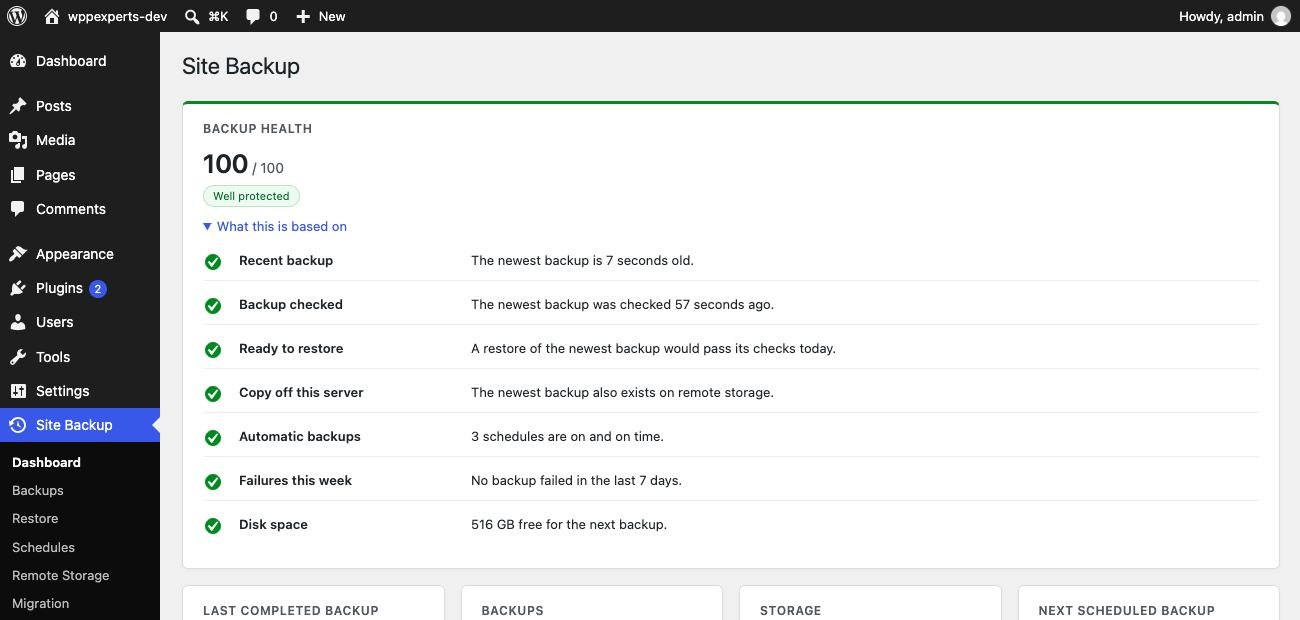
A backup only counts when it is checked: every archive is read back and verified, and the Dashboard health score tells you the moment something needs attention.
A restore you can rehearse and reverse: pre-flight checks, a dry run, one atomic switch and Undo, so a bad restore never leaves the site half-changed.
Copies go straight from your site to your own Google Drive, Dropbox or SFTP server. There is no backup service and no subscription in between.
Optional encryption with a passphrase that is never stored, so a stolen backup is just noise. Storage credentials are encrypted and never shown again.
It backs up one WordPress site. There are no incremental backups and no multisite support, and OneDrive, WebDAV and S3 storage are not included in this version.
03
Features
Full, database, files or custom backups
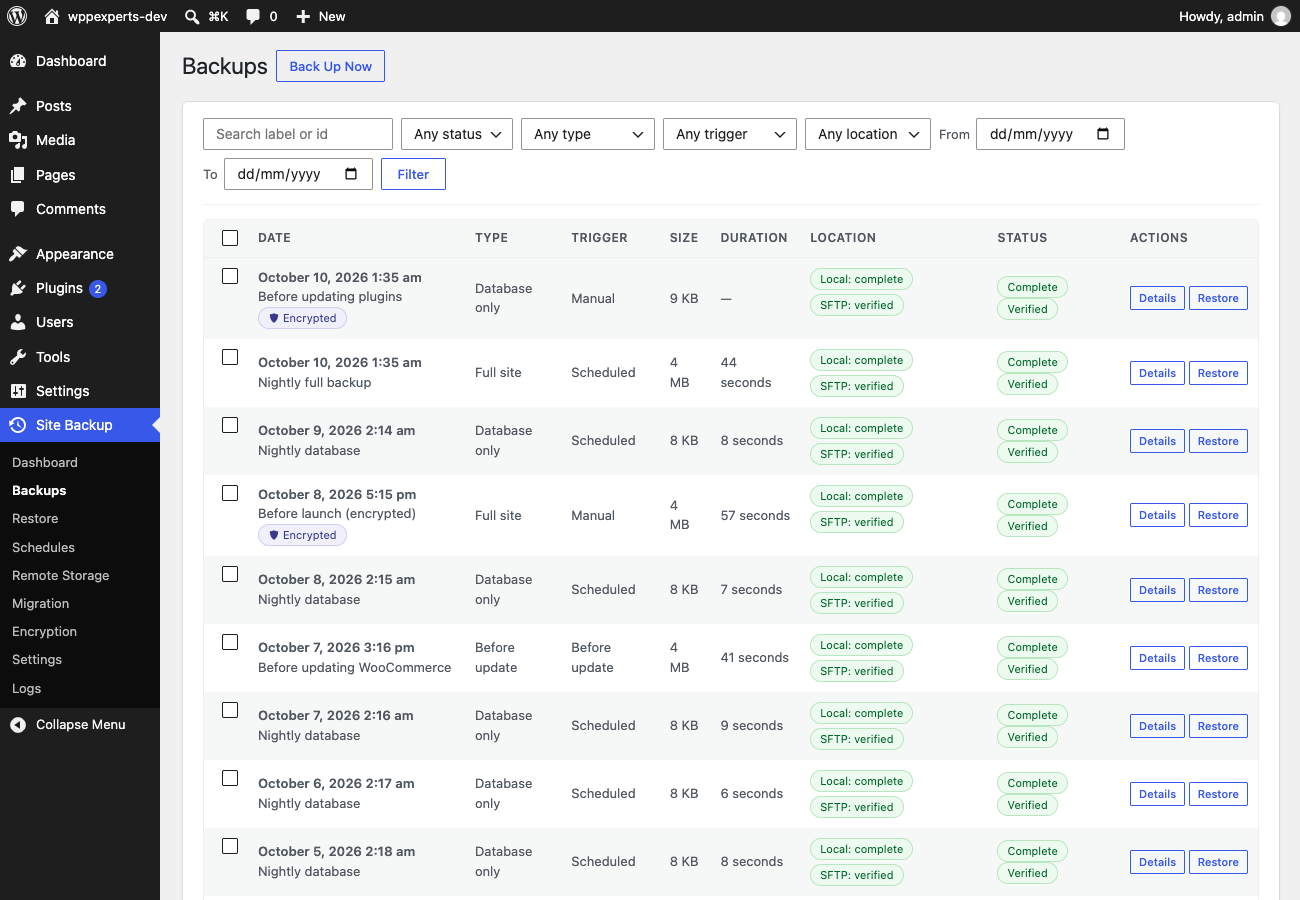
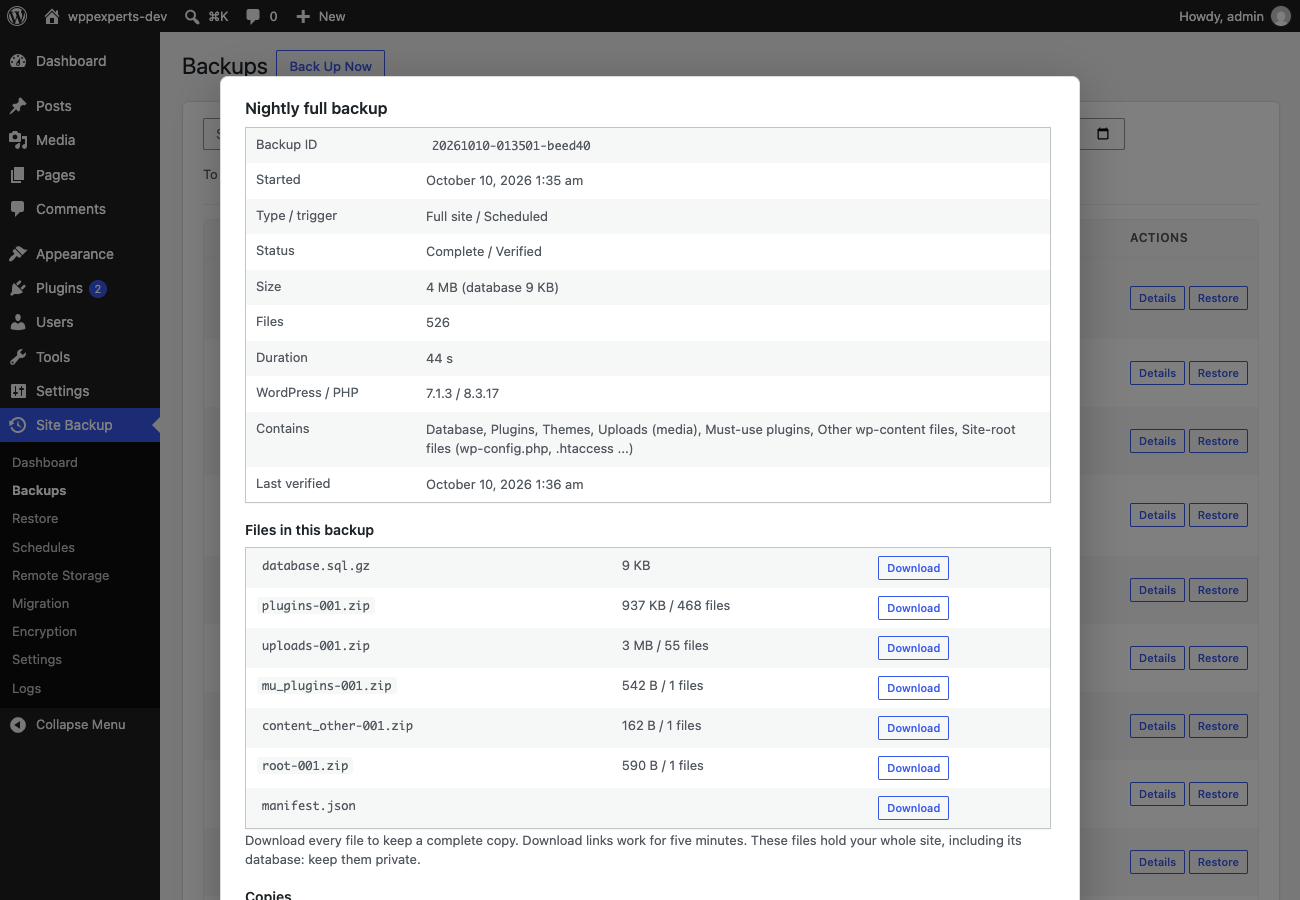
Back up the database and all files, only the database, only the files, or the parts you tick: plugins, themes, uploads, must-use plugins, other wp-content files and site-root files. Add a label such as “Before the WooCommerce update”. Caches, logs and upgrade folders are left out by default and the Estimate tool shows what a backup would contain.
Schedules and retention
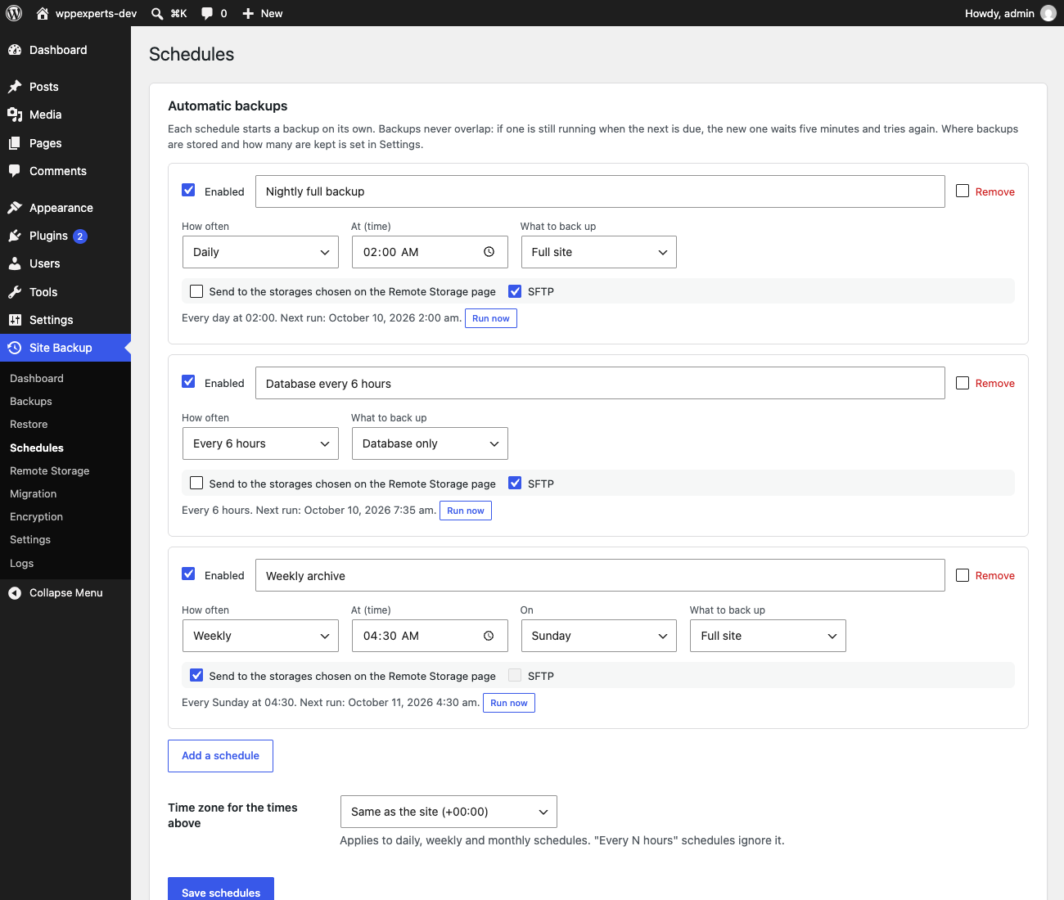
Up to five schedules: every 6 or 12 hours, daily, weekly, monthly or every N hours, each with its own type and destinations. Backups never overlap, late runs raise a warning, and retention keeps the newest N of each kind with a preview before anything is deleted. The only valid recovery point is never removed.
Checked, verified backups
Every archive is read back, its SHA-256 and structure are checked, and the dump is confirmed complete before a backup is called complete. Deep verify decompresses every entry, and automatic checks re-verify the newest backup weekly or monthly.
Google Drive, Dropbox and SFTP
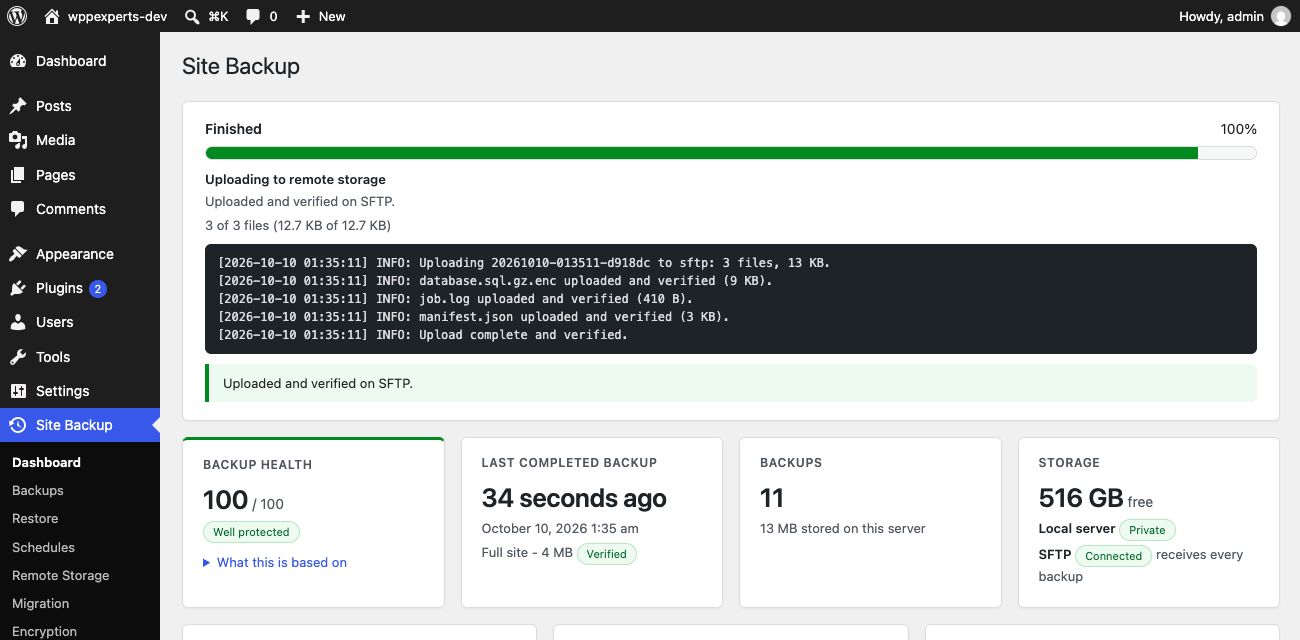
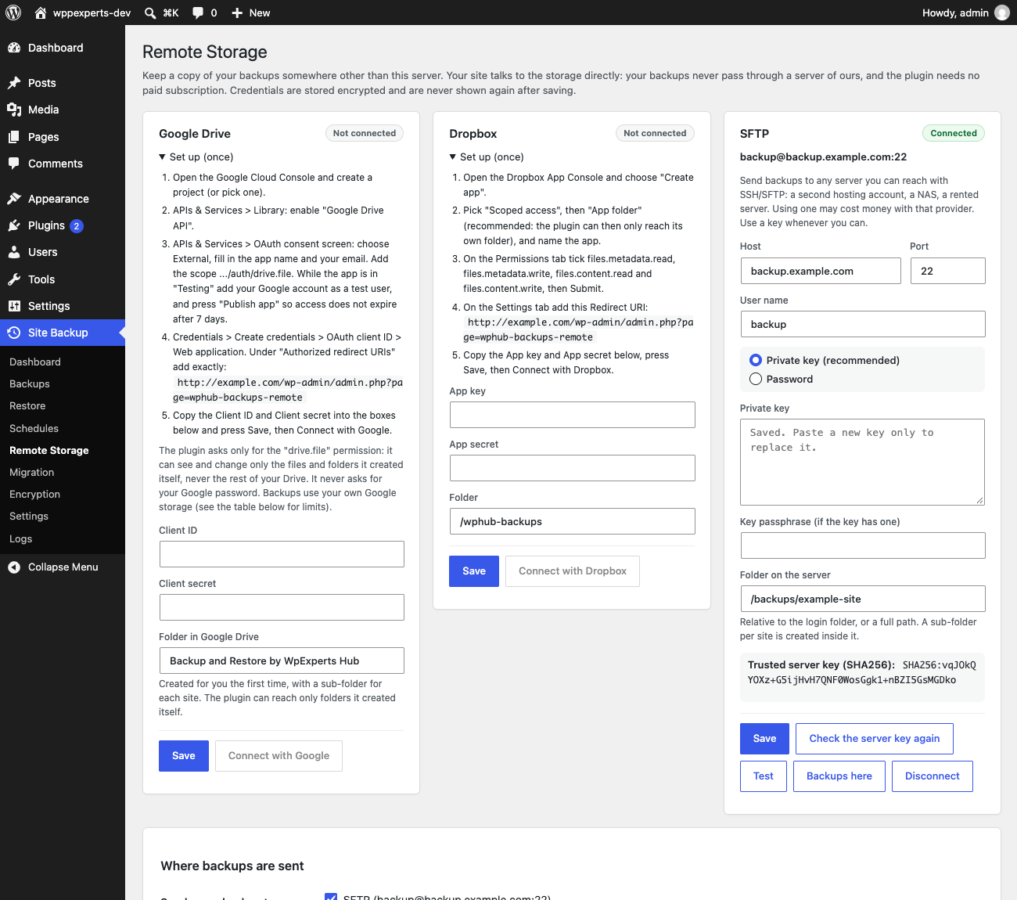
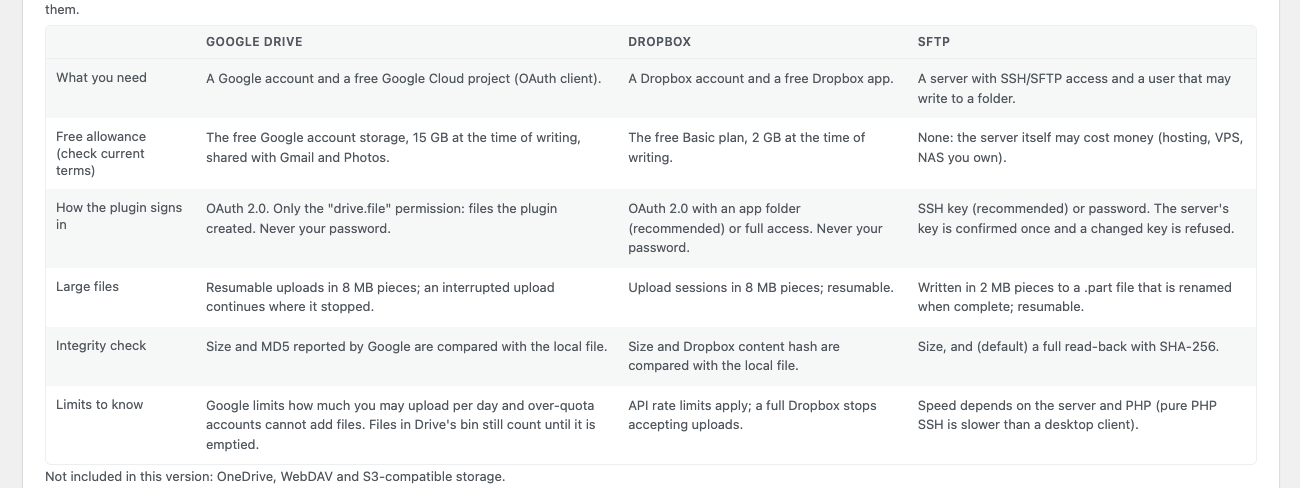
Resumable uploads in small pieces, verified on the far side. Google Drive uses only the drive.file permission, Dropbox can be limited to an app folder, and SFTP confirms the server key once and refuses a changed key. The manifest is uploaded last, so an unfinished upload is never offered for restore.
Encryption
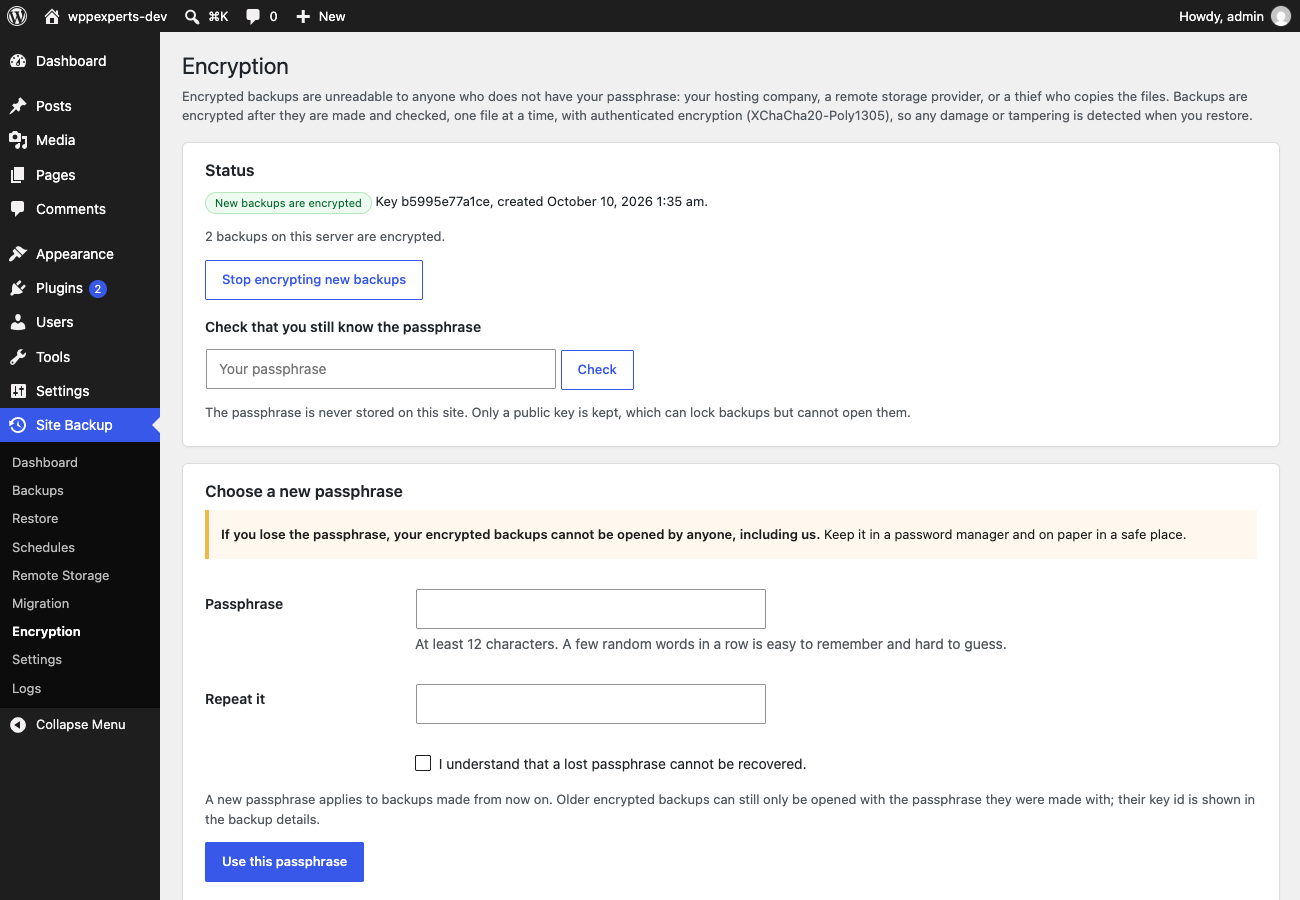
Argon2id turns your passphrase into a key pair and the site stores only the public key, so scheduled backups are encrypted with nobody present. Each file is encrypted in chunks with XChaCha20-Poly1305 and tampering is detected. The passphrase is typed for one job and never stored.
Safe restore with undo
Checksums are verified, the database loads into temporary tables, replaced files are copied to a safety folder and the swap is one atomic step. If anything fails before the swap everything is put back; after it, Undo restores the previous site. wp-config.php is never overwritten.
Pre-flight checks and dry run
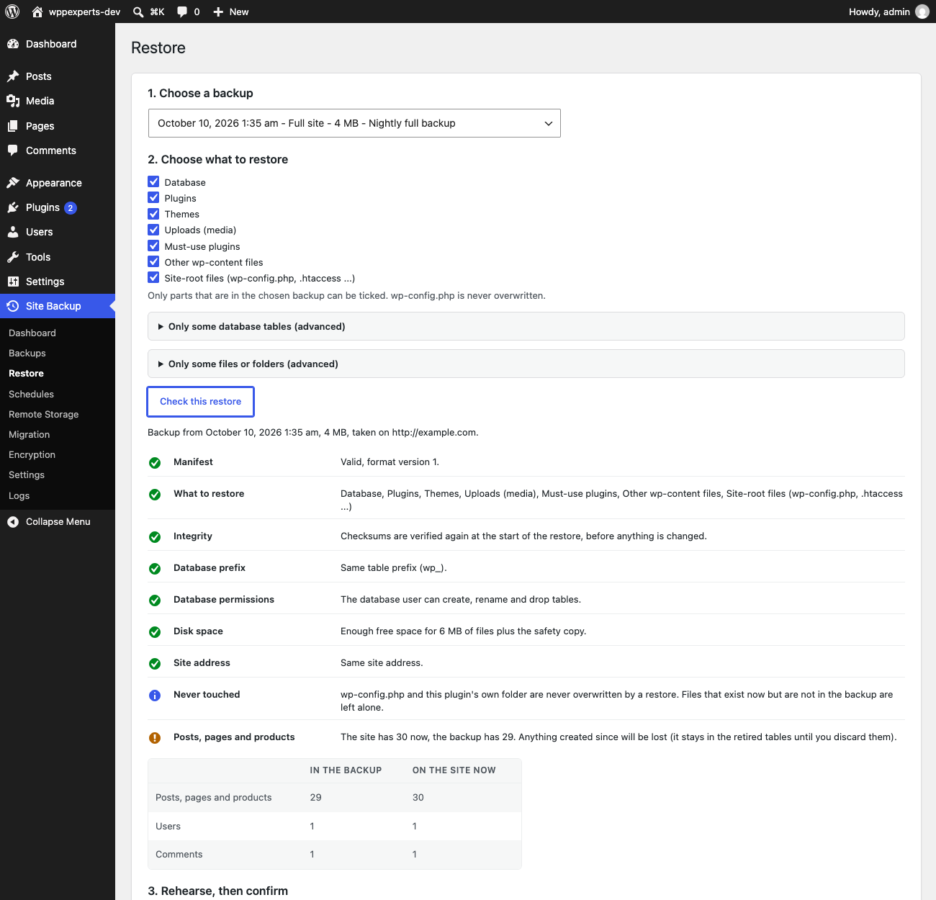
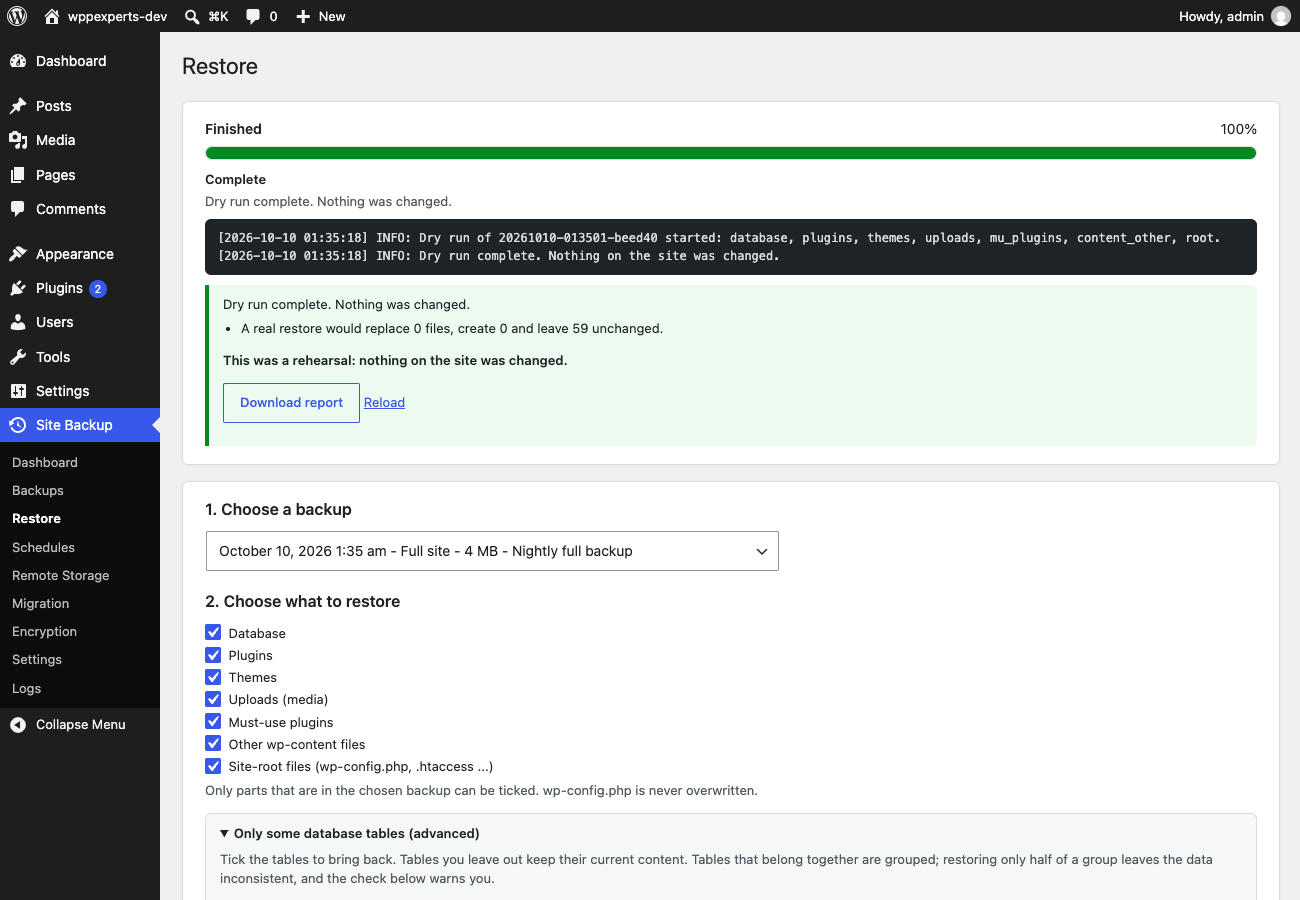
Before a restore the plugin proves the manifest and checksums, the database permissions, the free disk space and how many posts, users and comments would change. A dry run does everything except the final switch and gives you a report.
Restore only part of a backup
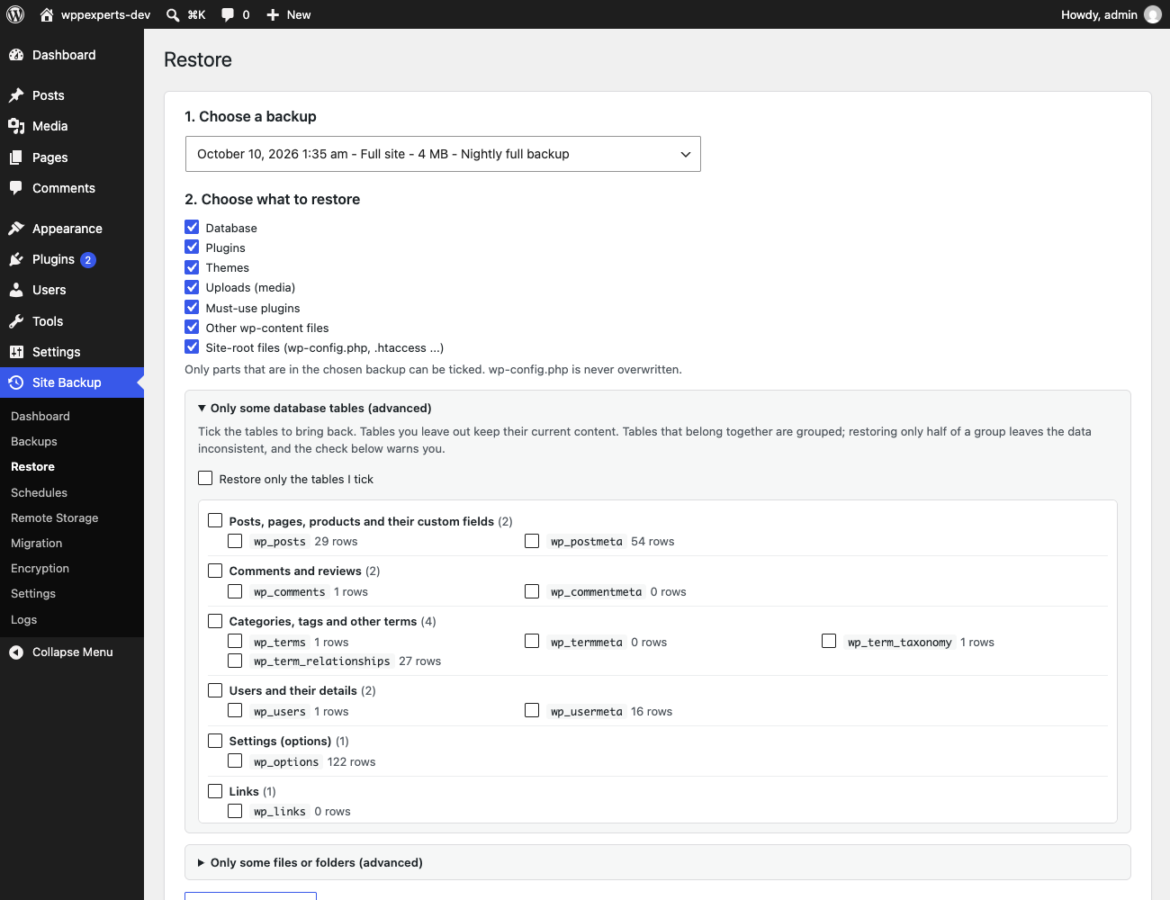
Restore single database tables (grouped as posts, comments, terms, users, settings and per-plugin tables, with a warning when you split a group) or single folders and files from the backup, with a file browser. Tables and files you leave out keep their current content.
Site migration
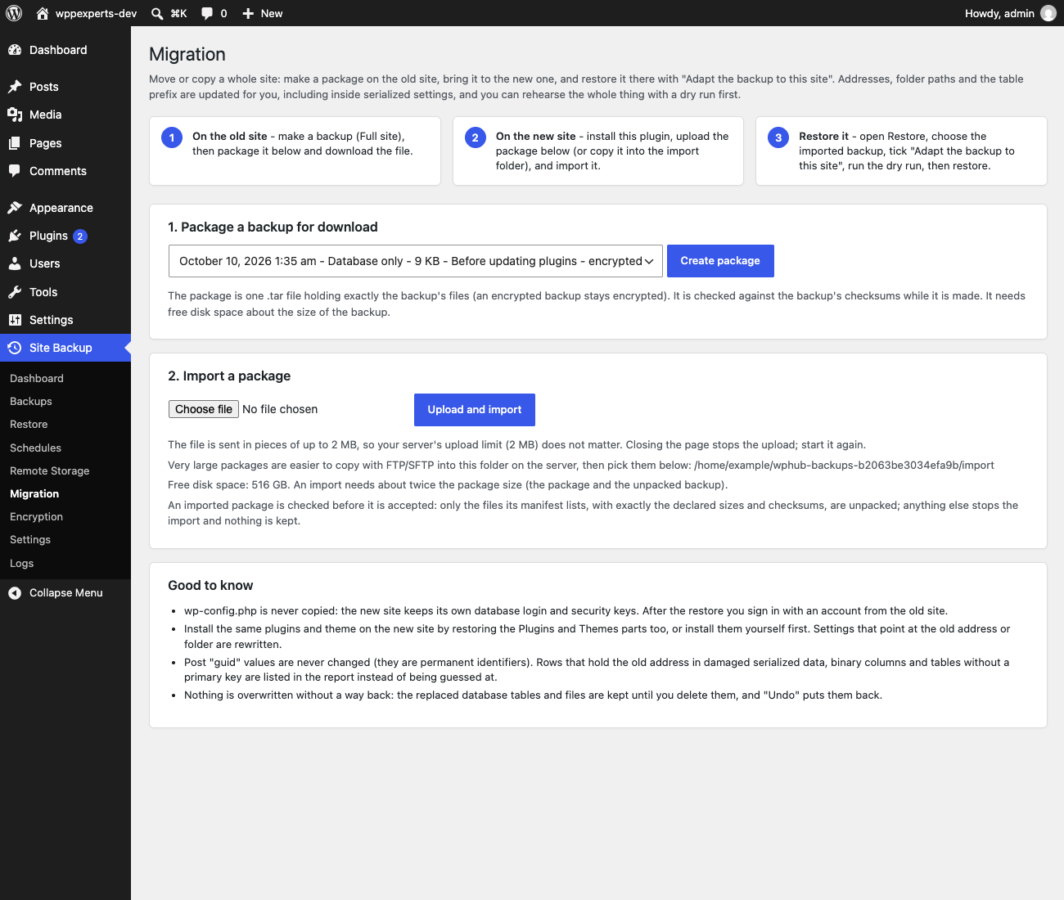
Move or clone a site: the address, the server folder path and the table prefix are rewritten, including inside serialized data and JSON, without ever calling unserialize(). Values that cannot be changed safely are listed in the report instead of being guessed at.
Portable packages
Turn a backup into one standard .tar file, upload it to the new site in pieces (PHP upload limits do not matter) and import it. Imports treat the package as untrusted: only files the manifest lists, with the declared size and checksum, are unpacked.
Reminder before updates
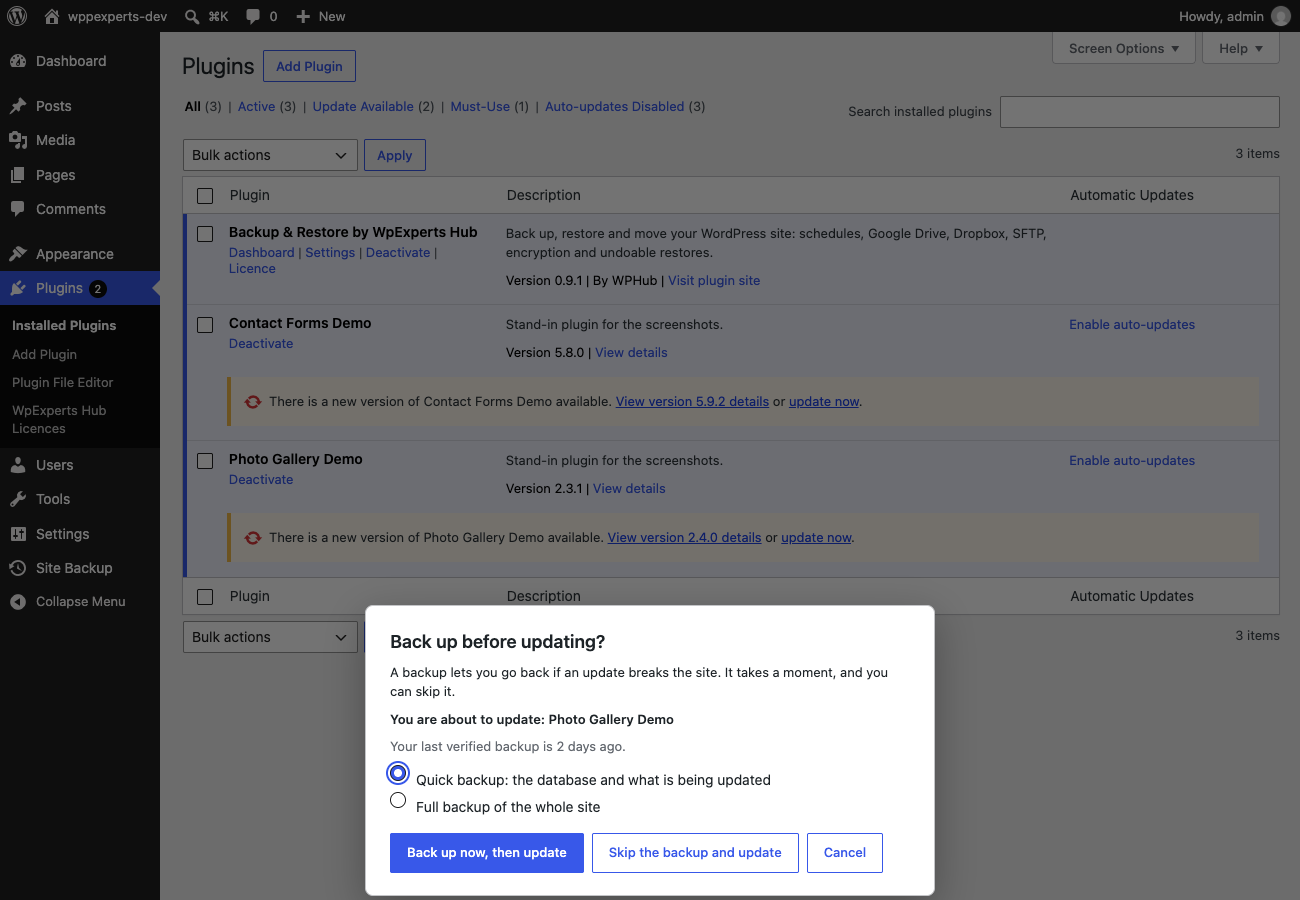
When you start a plugin, theme or core update and your last verified backup is old, a dialog offers a Quick or Full backup first, or lets you skip. Nothing is blocked and nothing is automatic, and every update is logged with the backup that preceded it.
Backup health score
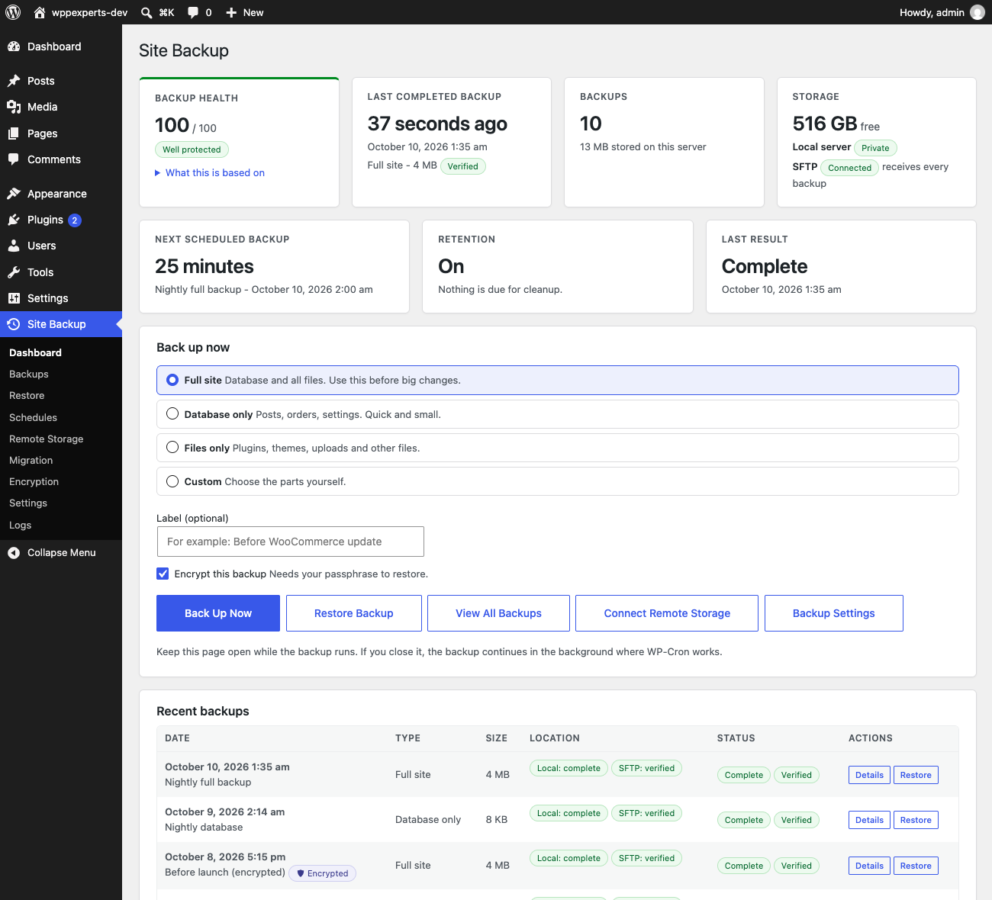
A 0 to 100 score from seven checks: a recent backup, a recent verification, restore readiness, a copy off the server, automatic backups on time, no failures this week and free disk space. It tells you what to improve.
Compare two backups
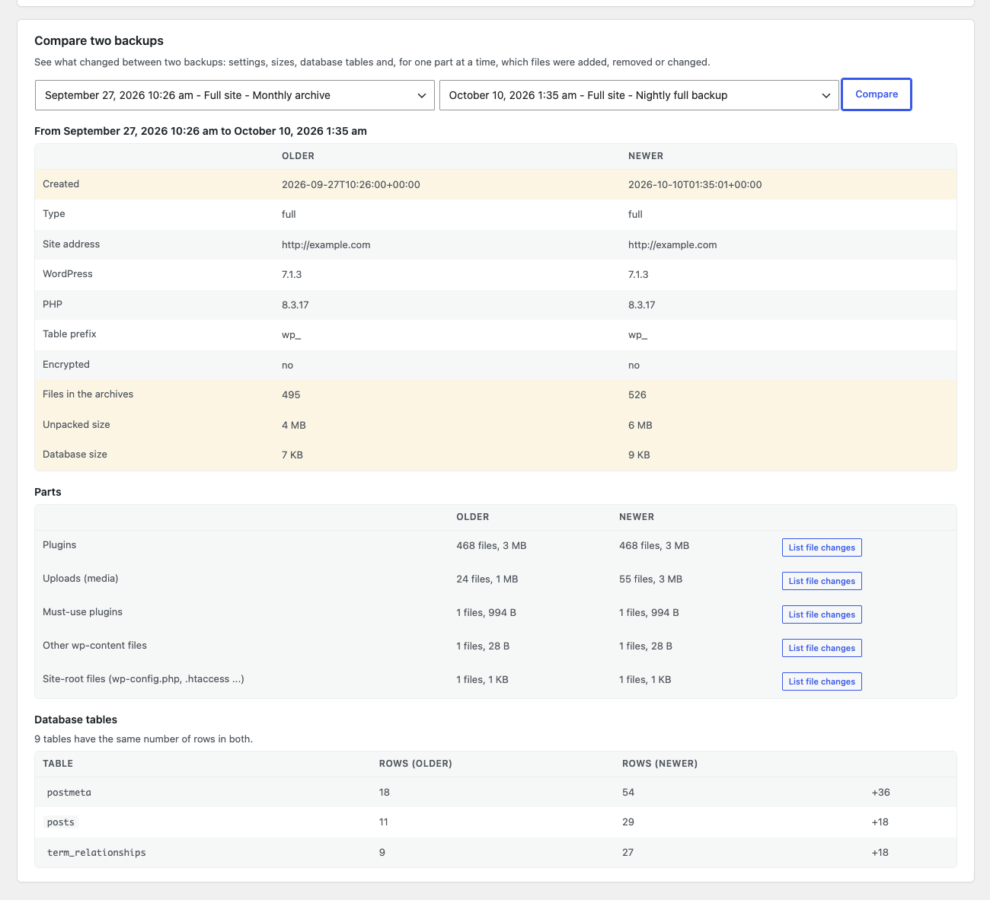
See what changed between two backups: settings, sizes, database tables added, removed or changed in rows and, for one part at a time, which files were added, removed or changed.
Email alerts
Get an email for failed backups, late schedules, restores, low disk space, cleanup problems and remote storage trouble, and optionally for successes. Emails never contain download links, and passwords and keys are removed from every message.
WP-CLI
Every action has a wp wphub-backup command: backup, verify, restore, upload, fetch, export, import, compare, status and more. Passphrases come from the environment or a file, never from an argument, and status exits with an error when health is poor so a monitor can alert you.
Audit trail, logs and diagnostics
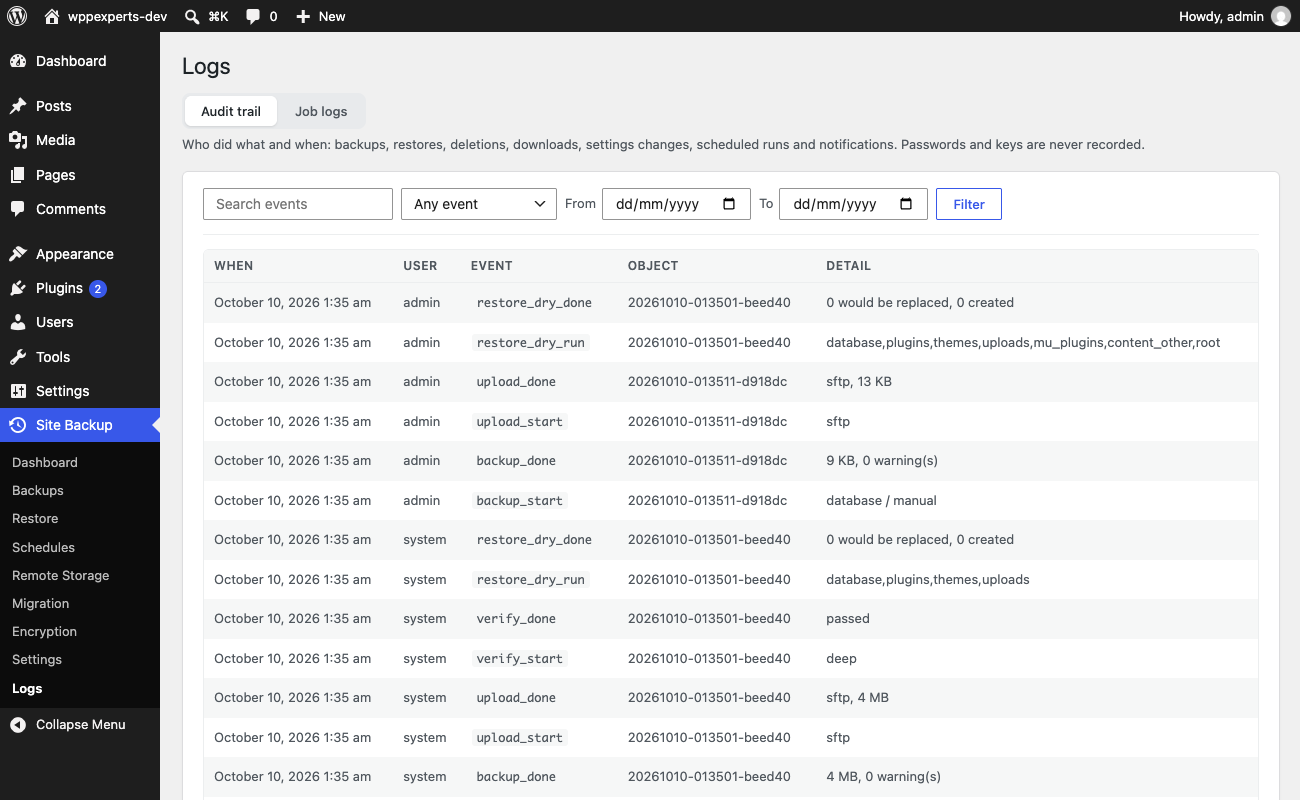
An audit trail of who did what and when, the step-by-step log of every job, a system check, and a diagnostic report for support with no secrets in it. The documentation also explains how to recover by hand, with plain unzip and mysql, if WordPress is down.
04
How it works
- 1
Install and activate
Upload the plugin and activate it. It creates two small tables, prepares a private backup folder and adds a Site Backup menu in wp-admin.
- 2
Make a first backup and a schedule
Press Back Up Now on the Dashboard for a Full site backup, then add a schedule such as daily at 02:00 so backups happen without you.
- 3
Connect storage and encryption
Open Remote Storage to connect Google Drive, Dropbox or SFTP and press Test, then choose a passphrase under Encryption if the copies should be unreadable to anyone else.
- 4
Verify and rehearse
Verify a backup, then open Restore, choose it and run a Dry run. You learn that a restore works while the live site is untouched, and the health score confirms your protection.
05
Screenshots & demo
06
Settings & configuration
Backup Folder
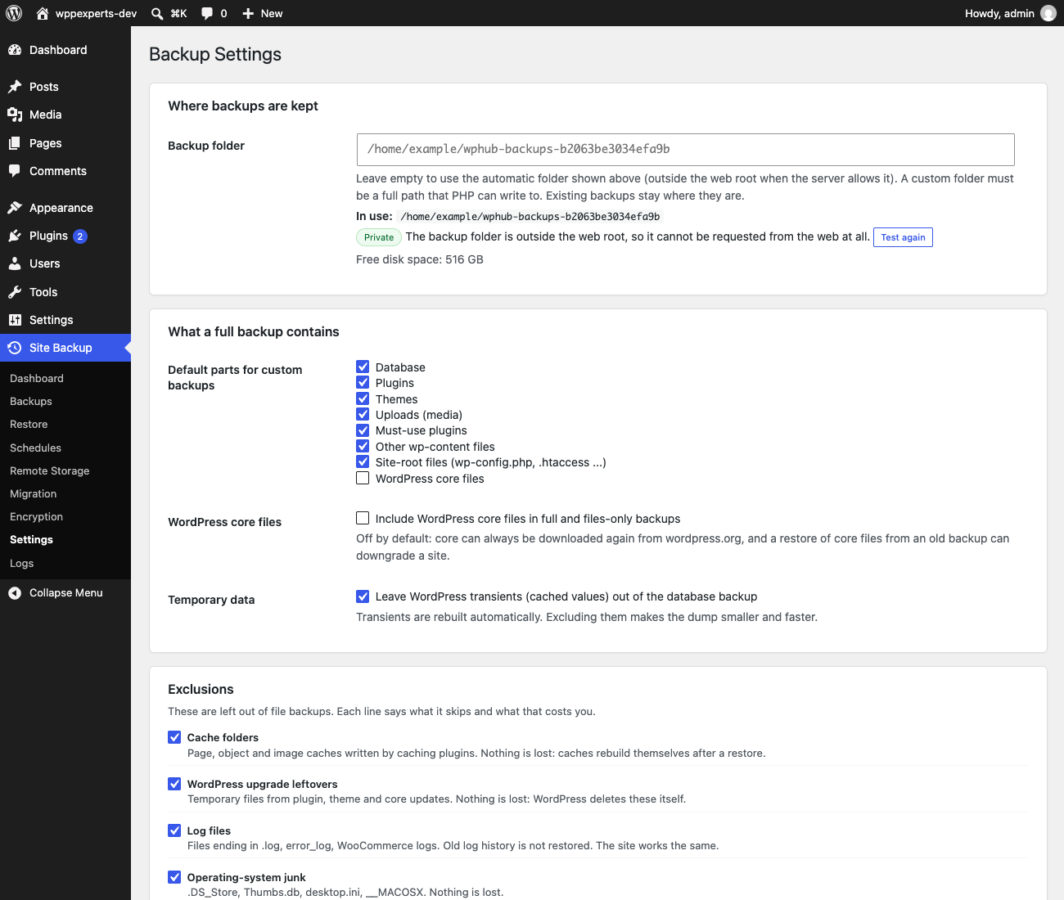
FOLDERThe plugin chooses a private folder outside the web root with a random name and tests that the web server blocks it. Set your own full path if you prefer; existing backups stay where they are.
What a Full Backup Contains
CONTENTChoose the default parts for custom backups, whether to include WordPress core files (off by default) and whether to leave transients out of the database backup (on by default).
Exclusions
EXCLUDECache folders, upgrade leftovers, log files, OS junk, version-control folders and other backup plugins’ archives are skipped by default, each with a plain explanation. Add paths, patterns and tables of your own and preview the effect.
Compression and Archive Size
ARCHIVESet the compression level (6 by default) and the size of each archive part (256 MB by default). A smaller part size helps small hosts.
Keeping and Cleaning Up
RETENTIONKeep the newest N full, database and before-update backups (10, 10 and 5 by default), delete after N days, set a size cap and always preserve the newest verified backups. Preview cleanup shows exactly what would go.
Automatic Checks
CHECKSRe-verify the newest backup weekly or monthly in the background and get an email if a check fails.
Email Notifications
EMAILChoose the recipients and which events to send: failures, late schedules, restores, low disk space, cleanup and remote storage problems, and successes.
Reminder Before Updates
UPDATESSwitch the reminder on for plugins, themes and core, set how recent the last verified backup must be (6 hours by default) and choose a Quick or Full backup as the default.
When the Plugin Is Deleted
UNINSTALLKeep everything (default), remove only the settings and tables, or remove everything including the backup files. Deactivating never deletes anything.
System Check
SYSTEMTests PHP and its extensions, memory and time limits, the backup folder, free disk space, the web server and WP-Cron, and creates a diagnostic report with no secrets.
07
Requirements & installation
Who it is for
It suits site owners, agencies and WooCommerce stores that want backups they can trust and a restore they can rehearse, without paying a monthly fee to a backup service. It is a good fit for sites that update often, sites that must be moved between hosts, and anyone who wants encrypted copies on storage they already own.
Requirements
- WordPress 6.5 or later (tested up to 7.1), single site
- PHP 8.1 or later with the sodium, zlib and mysqli extensions
- A database user that can create, rename and drop tables
- Free disk space about the size of your site for each backup you keep
- WooCommerce is optional; its data is part of the database and is backed up with everything else
- A free Google Cloud project, a Dropbox app or an SSH/SFTP server, if you want remote copies
- WP-Cron, or a real server cron job on quiet sites, for scheduled backups
Installation
- Download the plugin zip from your account.
- In WordPress, go to Plugins > Add New > Upload Plugin, choose the zip file and click Install Now.
- Activate the plugin. It creates two small tables, prepares a private backup folder and adds a Site Backup menu.
- Open Site Backup > Dashboard and press Back Up Now for a first backup.
- Open Remote Storage to connect Google Drive, Dropbox or SFTP, and Schedules to make backups automatic.
- Activate your licence under Plugins > WpExperts Hub Licences to receive updates.
08
Documentation & support
09
Frequently asked questions
Where are my backups stored?
In a private folder on your server (outside the web root when possible) and on every storage you connect: Google Drive, Dropbox or an SFTP server. Settings shows the exact folder.
Is a backup on the same server enough?
No. If the server fails or is hacked, the backups go with it. Connect Google Drive, Dropbox or SFTP; the health score only counts a backup as safe when a copy exists off the server.
Can a restore damage my site?
A restore cannot half-apply. Checksums are verified first, the database loads into temporary tables, replaced files are copied to a safety folder and the swap is one atomic step. If anything fails before the swap everything is put back, and after the swap Undo restores the previous state. Run a dry run first to see what a restore would do.
How do I move my site to a new domain or host?
Use Migration: make a Full site backup, create a package, import it on the new site and restore it with “Adapt the backup to this site” ticked. Run the dry run first. The address, the folder path and the table prefix are rewritten, including inside serialized data.
Does it back up WooCommerce?
Yes. Orders (including HPOS tables), products, customers and settings are part of the database, and product images are in the uploads, so a Full site backup covers a store.
Does it work without a licence?
Yes. The licence is only for updates. Every backup, restore and migration feature works without it.
Does it contact any outside server?
Only the storage you connect (Google, Dropbox or your SFTP server), directly from your site, and wpexpertshub.com for the licence and update check, which sends the licence key, your site address and the plugin version. Backups never pass through our servers.
What happens if I lose my encryption passphrase?
Encrypted backups cannot be opened by anyone, including us. There is no reset and no back door. Keep the passphrase in a password manager and on paper in a safe place.
Is the backup folder safe from visitors?
The folder is outside the web root when the server allows it, has a random name and holds files that deny web access. The Dashboard tests whether the server really blocks it and warns if it does not. Downloads use signed links that expire after five minutes and need a logged-in administrator.
Will it slow my site down?
No work happens on visitor requests. Backups run in short steps from the admin and the background. On a small host, lower the compression level or the archive part size.
Can it back up a large site?
Yes. Files are archived in parts (256 MB by default), each step is short, and uploads are resumable. The limits are free disk space and, for a single file, 2 GB (the ZIP format used for parts).
Why did my scheduled backup run late?
WordPress runs scheduled tasks when someone visits the site. On a quiet site add a real server cron job; the Schedules screen shows a ready-made line for it.
Does it do incremental backups?
No. Every backup is complete and self-contained, so a restore never depends on a chain of earlier backups.
Does it work on multisite?
No. The plugin refuses to load on a multisite network.
Which storages are supported?
Google Drive, Dropbox and SFTP. OneDrive, WebDAV and S3-compatible storage are not included in this version. Developers can add their own provider through a documented interface.
What if WordPress is down and I cannot restore from the dashboard?
A backup is standard ZIP files plus a gzip SQL dump, so you can restore by hand with unzip and mysql. The documentation lists the steps, and includes a short script that opens an encrypted backup without WordPress.
What happens to my backups if I delete the plugin?
By default nothing: settings, backup records and backup files are kept. You can choose in Settings to remove only the settings and tables, or everything including the backup files. Deactivating never deletes anything.
How is this different from a backup service?
There is no service. The plugin runs on your site and writes to storage you own, so there is no subscription, no storage quota to buy from us and no third party holding your data.
Is it tested with real Google Drive and Dropbox accounts?
Google Drive and Dropbox follow the services’ public OAuth and upload protocols and were tested against simulated servers; SFTP was tested against a real SSH server. Press Test after connecting your storage, and rehearse a restore on a staging copy before you rely on it.
How do I get support?
Email support@wpexpertshub.com with your order ID. The diagnostic report in Settings gives support everything useful and contains no passwords, keys or tokens.
10
Customer reviews
Thanks for your review!
It’s waiting for approval and will appear here soon. We’ll email you when it’s live.
Be the first to review it
Used Backup & Restore by WpExperts Hub on your store? A short review helps other store owners decide — and tells us what to improve.
Backup & Restore by WpExperts Hub$99