$79One-time paymentUpdates & support included
01
Overview
Advance Invoices for WordPress & WooCommerce is a small invoicing application inside WordPress. Invoices and estimates are two separate systems, each with its own screens, numbering and statuses, and both produce clean A4 PDFs in five designs. Estimates are optional and off by default.
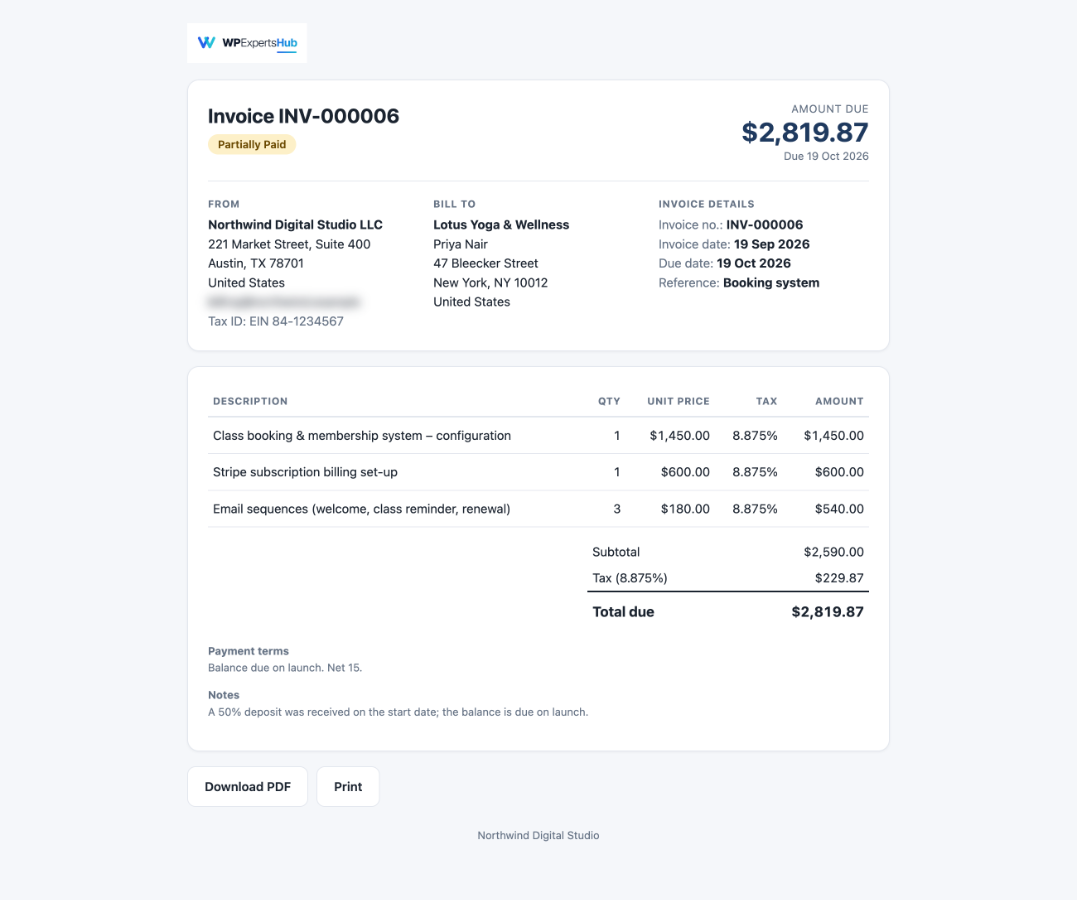
Every document gets a private link. Customers open it to view the document, download the PDF and pay by Stripe or PayPal on the gateway's own secure page, or to accept or decline an estimate. Partial payments go into a payment ledger, and each payment can get a numbered PDF receipt.
WooCommerce is optional. With it you can search customers, import orders, attach the invoice PDF to order emails and create invoices automatically. Without it, everything else works the same, with customers typed in by hand.
02
Why store owners choose it
Send a clean A4 PDF in one of five designs. The preview, the download and the email attachment come from the same renderer, so they always match.
Let customers pay on their own private invoice page with Stripe or PayPal. Card details never reach your site.
Record partial payments and issue numbered PDF receipts. The invoice status follows the payments recorded.
Works on its own or with WooCommerce: import orders, attach the PDF to order emails and create invoices automatically.
Estimates and online payments are off until you switch them on, so a new install starts simple.
03
Features
Invoices you can edit
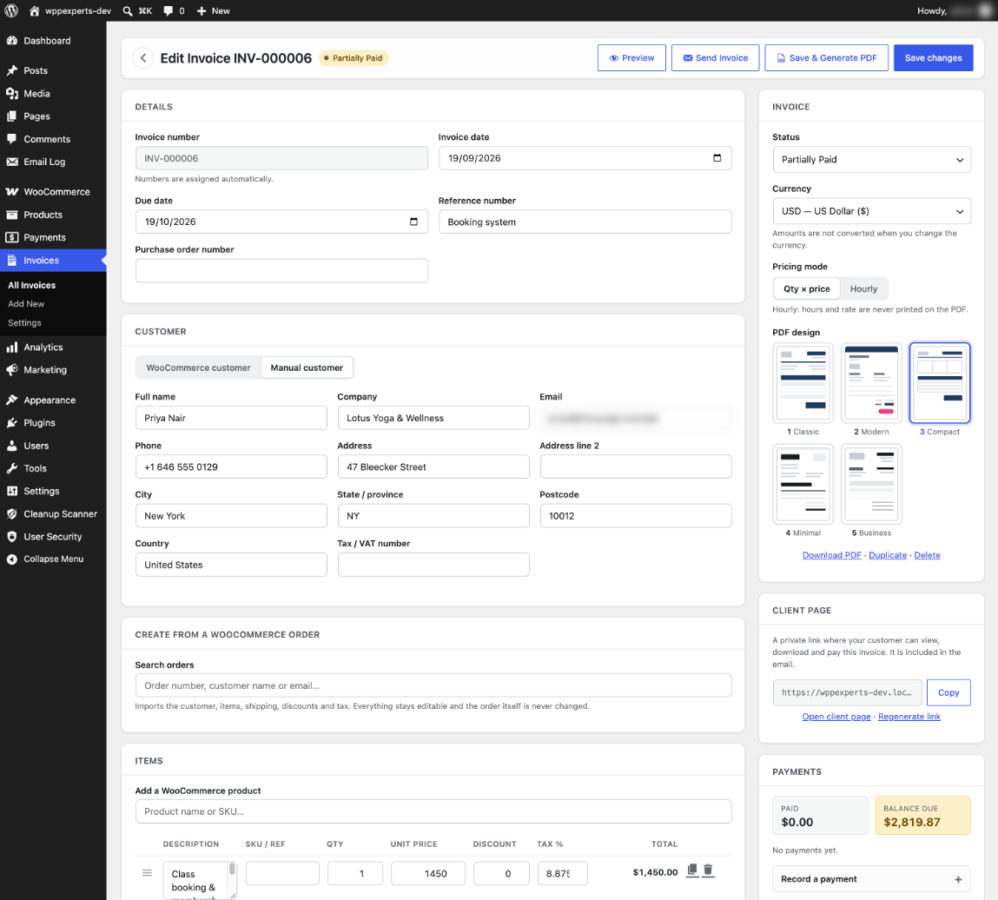
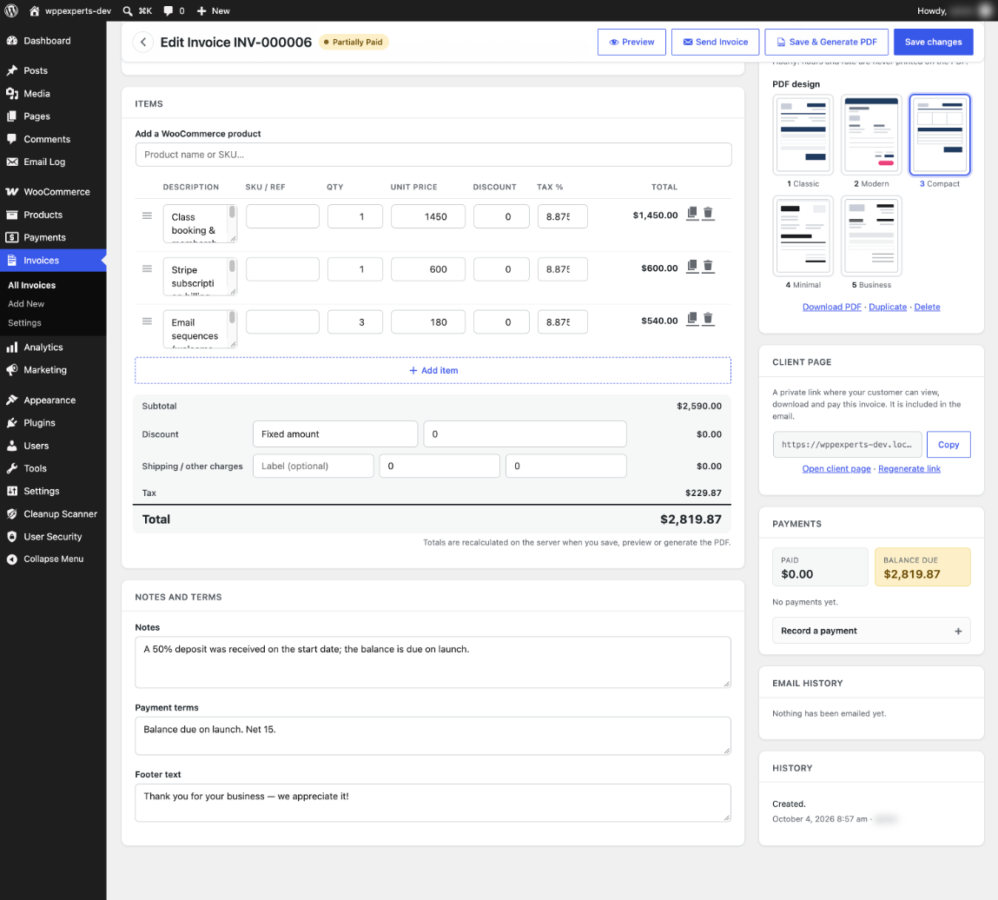
Create an invoice by hand, for a WooCommerce customer or from an order. Items have quantity, unit price, discount and tax, and rows can be reordered and duplicated. Totals are recalculated on the server, never trusted from the browser.
Optional estimates
Off by default, with their own numbering, statuses and valid-until date. Customers accept or decline from a private page, and Convert to Invoice creates a new invoice and leaves the estimate’s content unchanged.
Five PDF designs
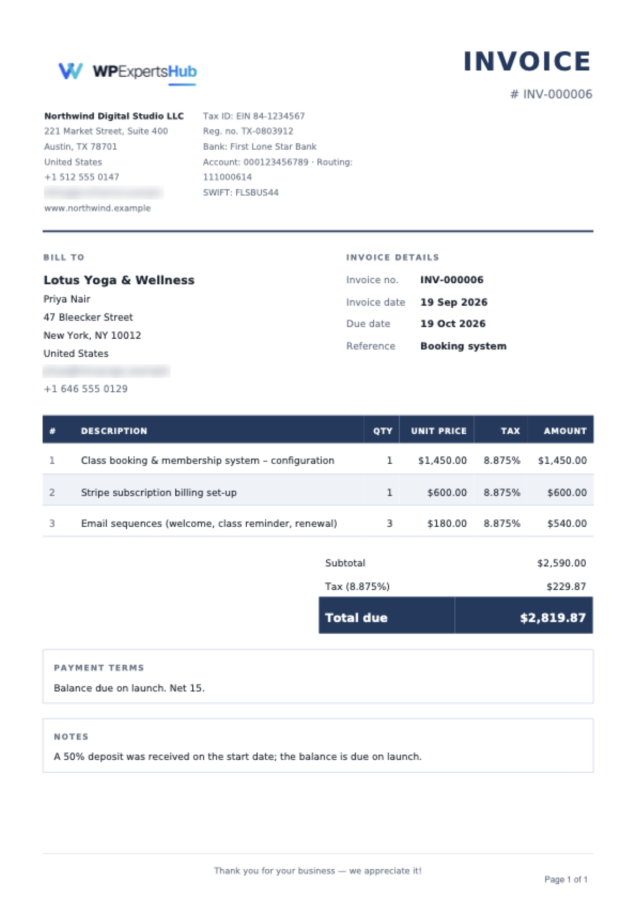
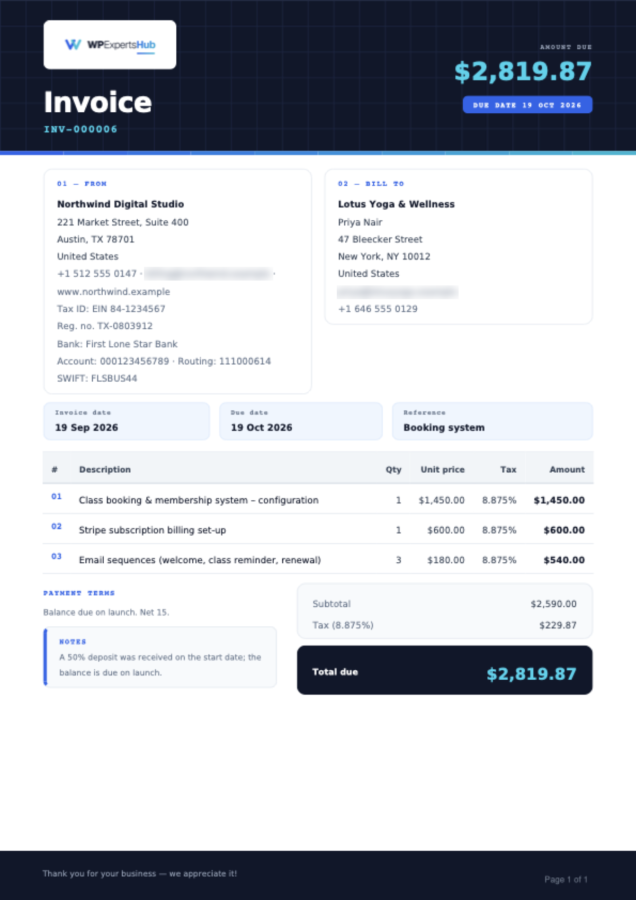
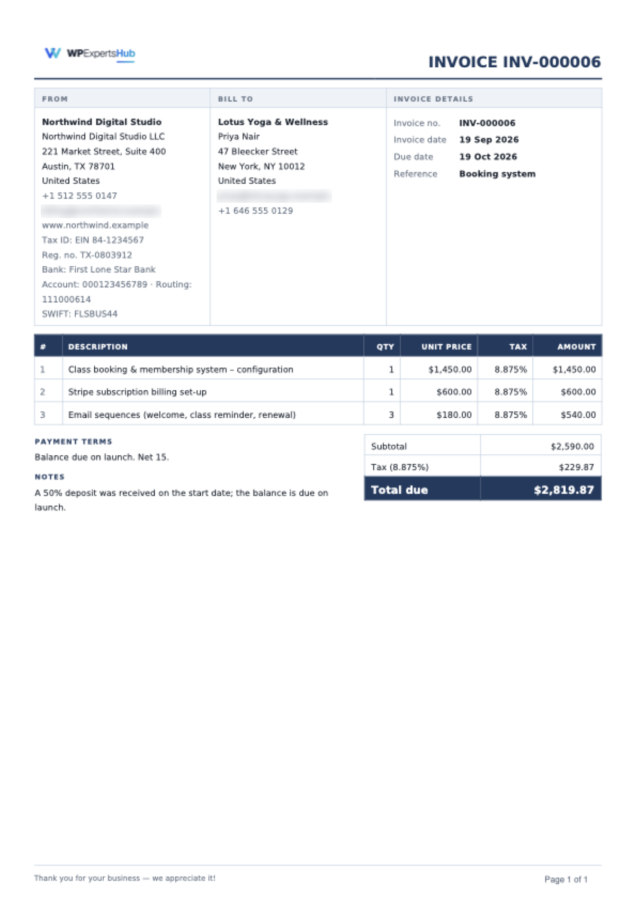
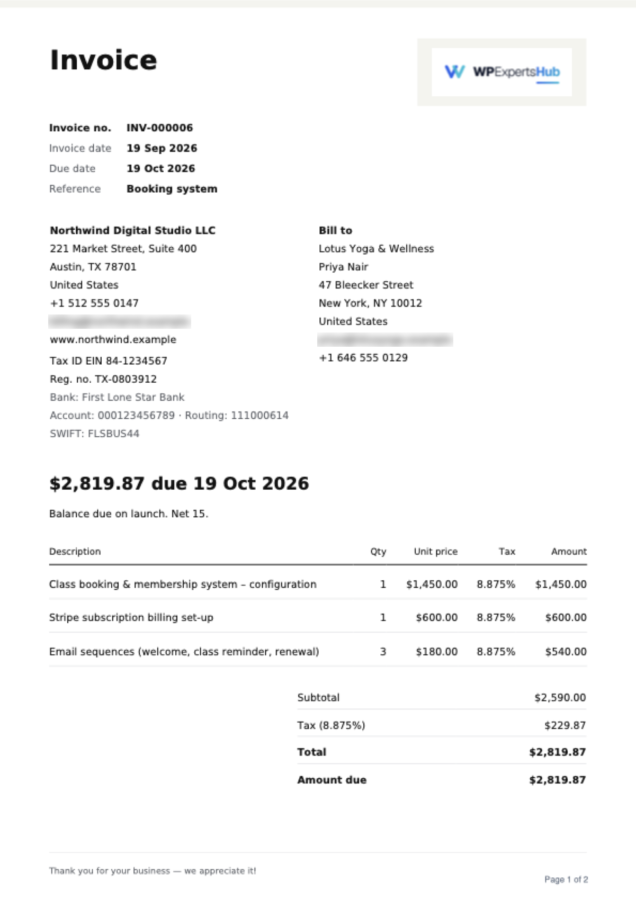
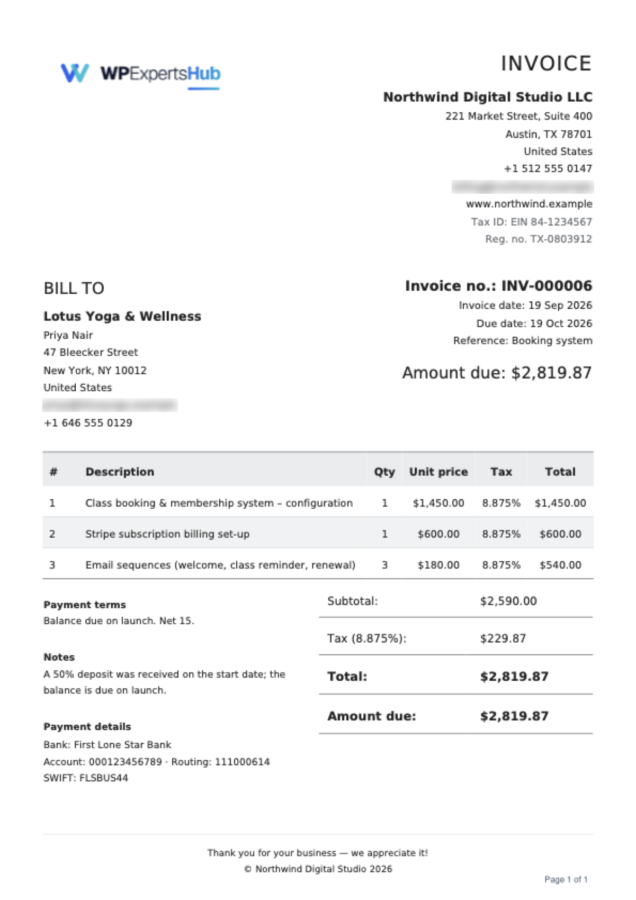
Classic, Modern, Compact, Minimal and Business, for invoices and for estimates. Add your logo, preview every design with your own company details, and pick a design for each document.
Overall or hourly pricing
Price a job as a total or by the hour. The hours and rate are used for the maths only and are never printed on the PDF.
Email with the PDF attached
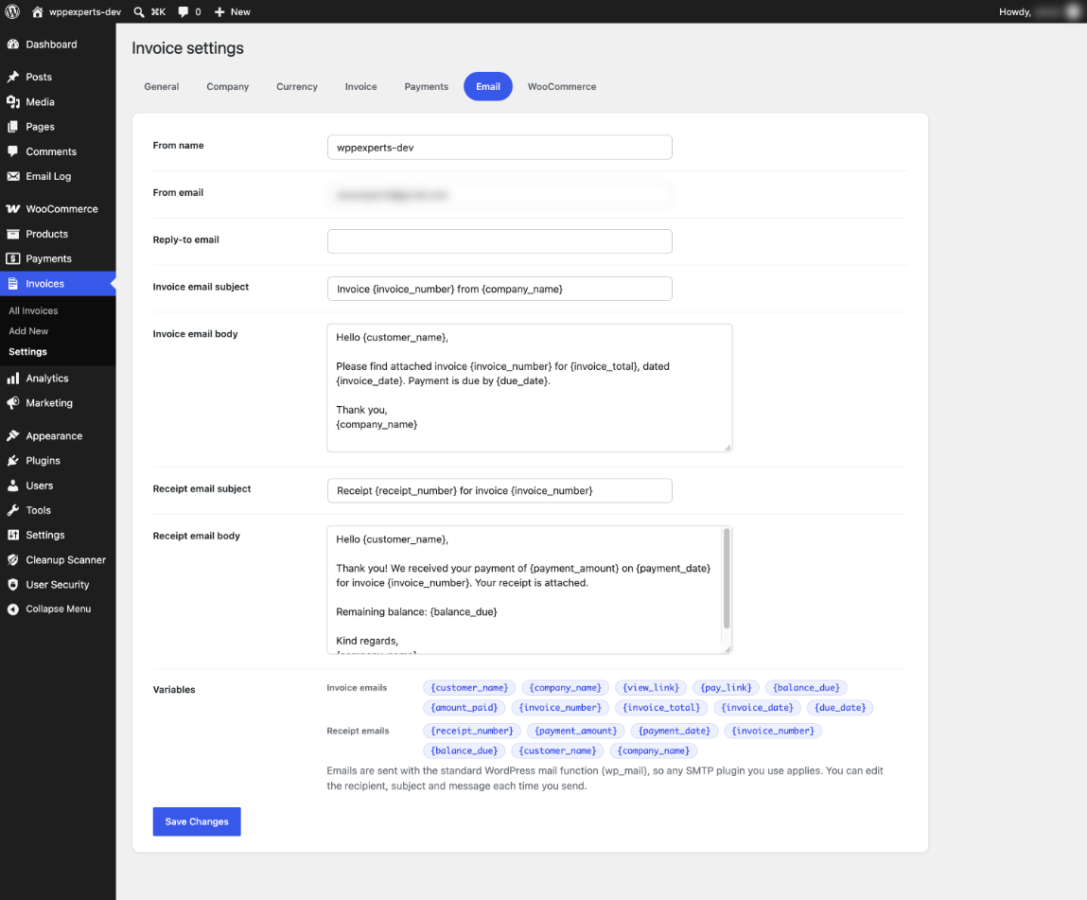
Send from the editor with an editable message and variables such as {view_link}, {balance_due} and {due_date}. Every attempt is logged, and each document keeps a history of changes.
Private client page
Each document has a private link where customers view it, download the PDF, pay or respond. Drafts return a 404, pages are marked noindex, and you can regenerate a link at any time.
Stripe and PayPal
Stripe Checkout and PayPal open on the gateway’s own secure page. Payments are recorded from the customer’s return and from signed webhooks, and a repeated webhook never counts twice.
Partial payments and receipts
A payment ledger on every invoice records online, bank transfer, cash and cheque payments. Partially Paid and Paid follow the ledger, refunds made in Stripe or PayPal are recorded through their webhooks, and each payment gets a numbered PDF receipt.
Seven currencies
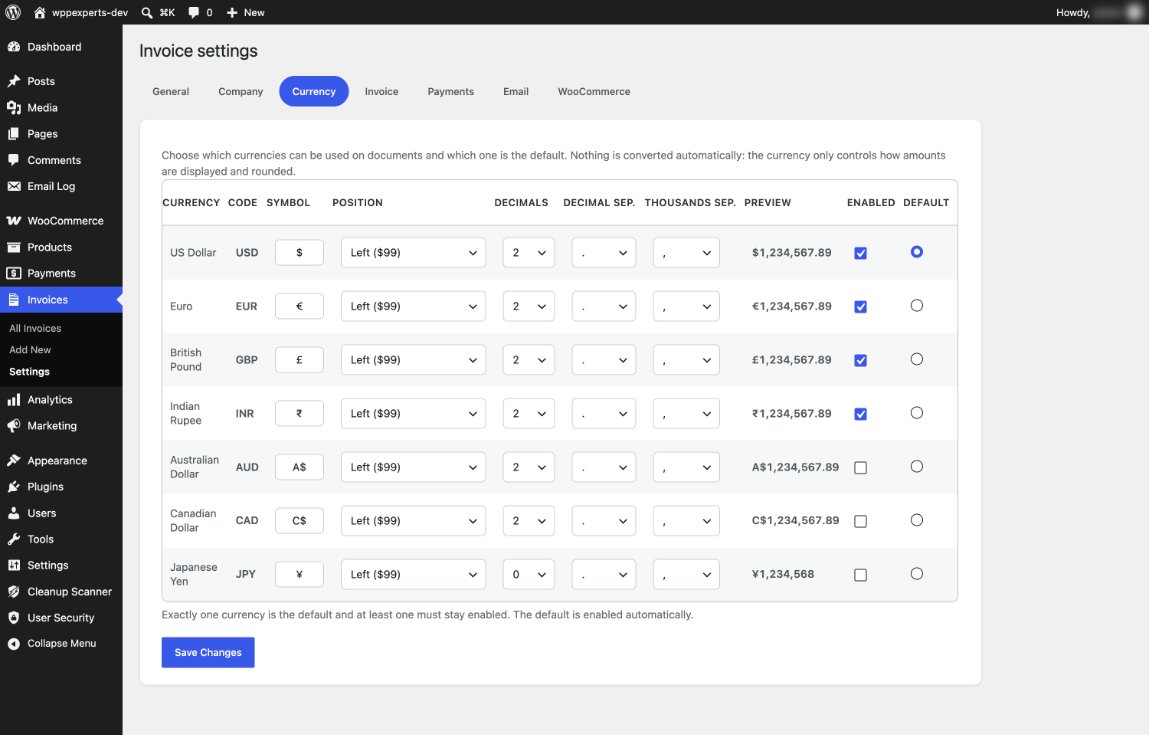
USD, EUR, GBP, INR, AUD, CAD and JPY, each with its own symbol, position, decimals and separators. The PDF font includes the rupee sign. Nothing is converted automatically.
WooCommerce integration
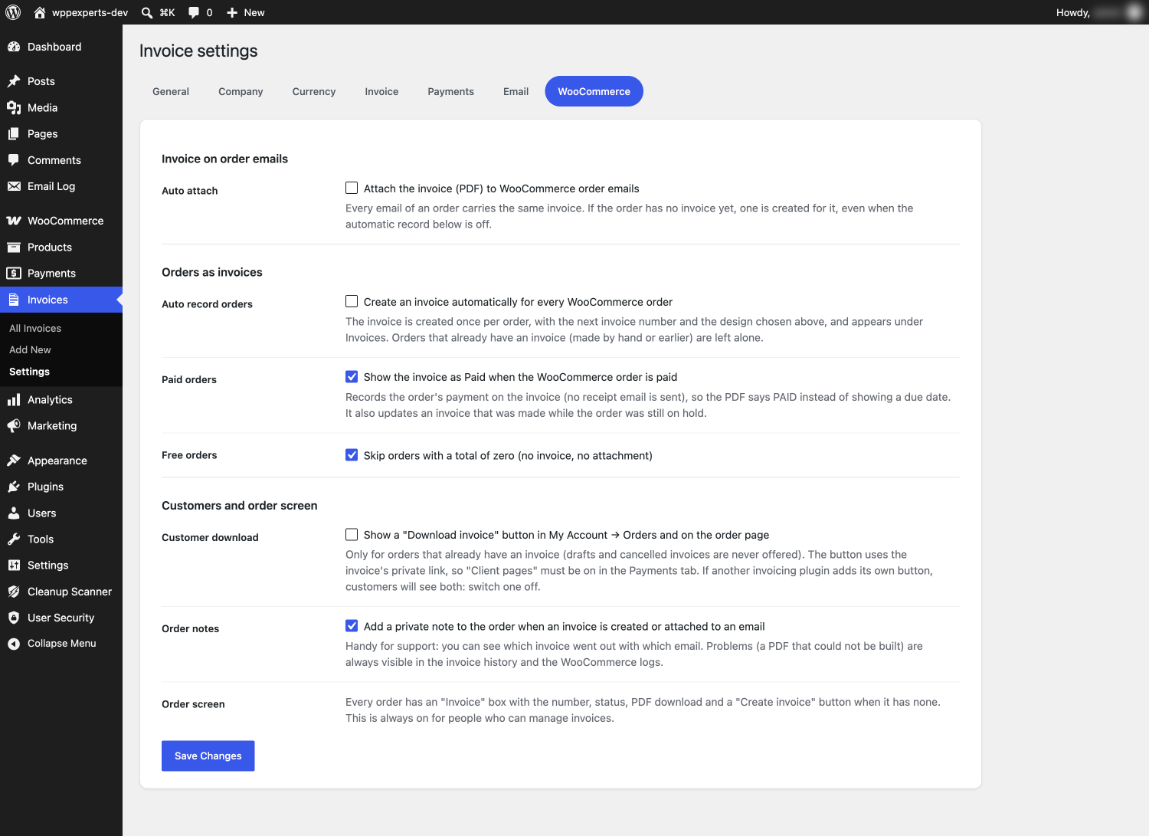
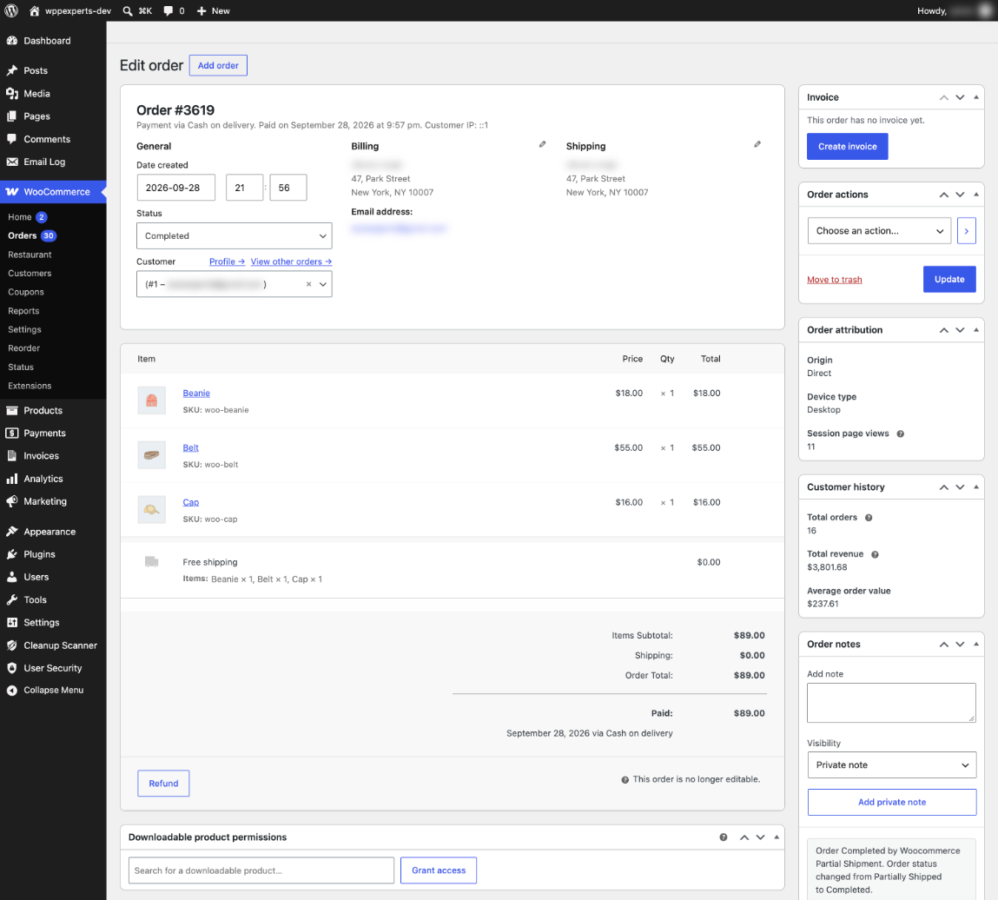
Search customers, import orders and add products. Attach the PDF to order emails, create an invoice for each order at the statuses you choose, and offer a Download invoice button in My Account. Orders are only read.
Summary tiles and search
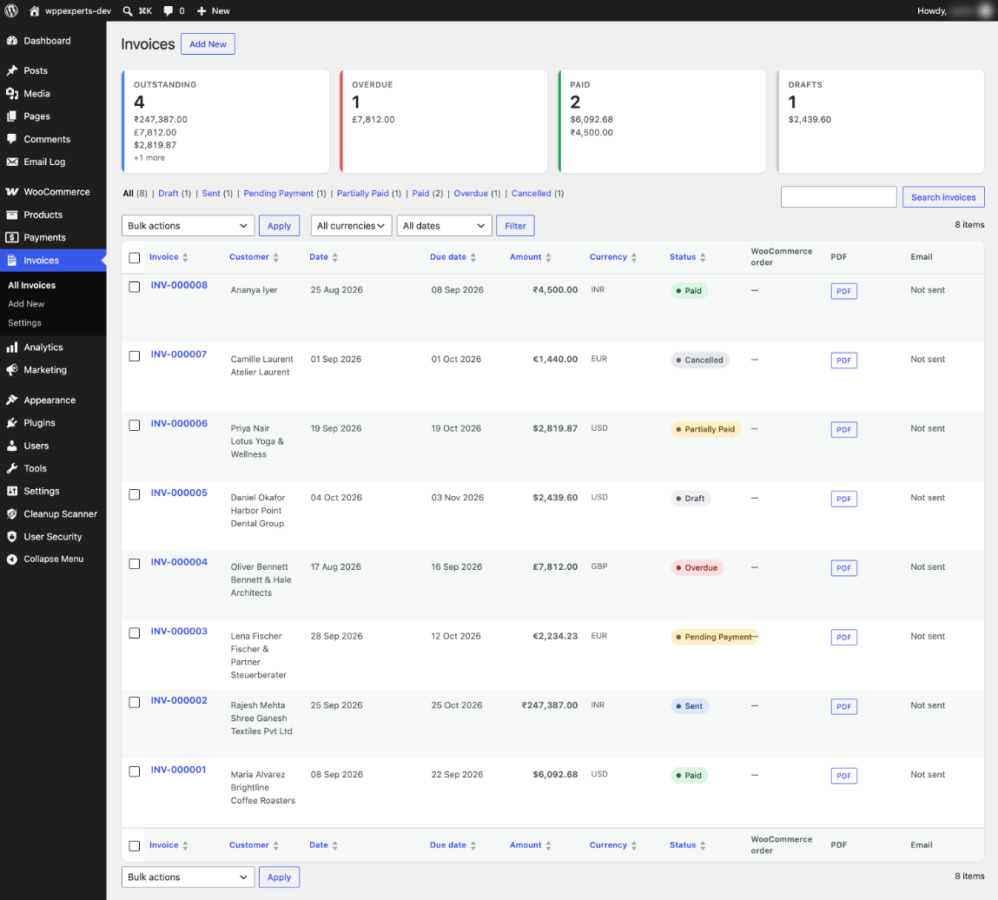
Tiles show outstanding, overdue, paid and draft amounts for each currency. Search, filter, sort and bulk-mark the list, and unpaid invoices turn Overdue automatically each day.
04
How it works
- 1
Install and activate
Upload the plugin and activate it. An Invoices menu appears in wp-admin. PDF files need the dom and mbstring PHP extensions, and gd for logos.
- 2
Set up your company
Under Invoices → Settings, add your company details and logo, choose currencies, numbering and a default design. Switch on estimates, online payments or WooCommerce options if you need them.
- 3
Create and send
Add an invoice, preview the PDF, then email it or share the private link. Record bank transfers and cash by hand, or let customers pay online.
- 4
Get paid
Payments update the status and the balance. A receipt can be emailed for each payment, and the list shows what is outstanding and overdue.
05
Screenshots & demo
-
 Invoices
 -
Invoice editor
-
Items and totals
-
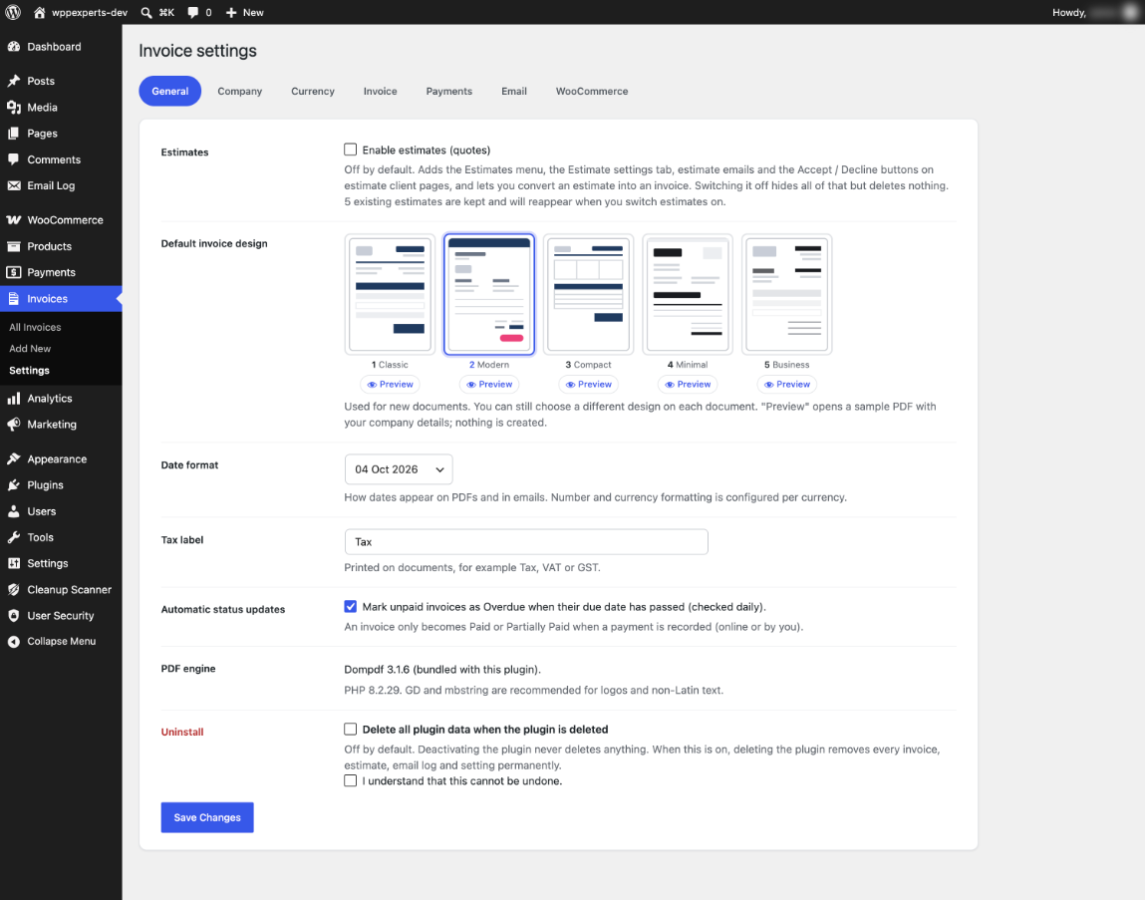
 Settings: General
 -
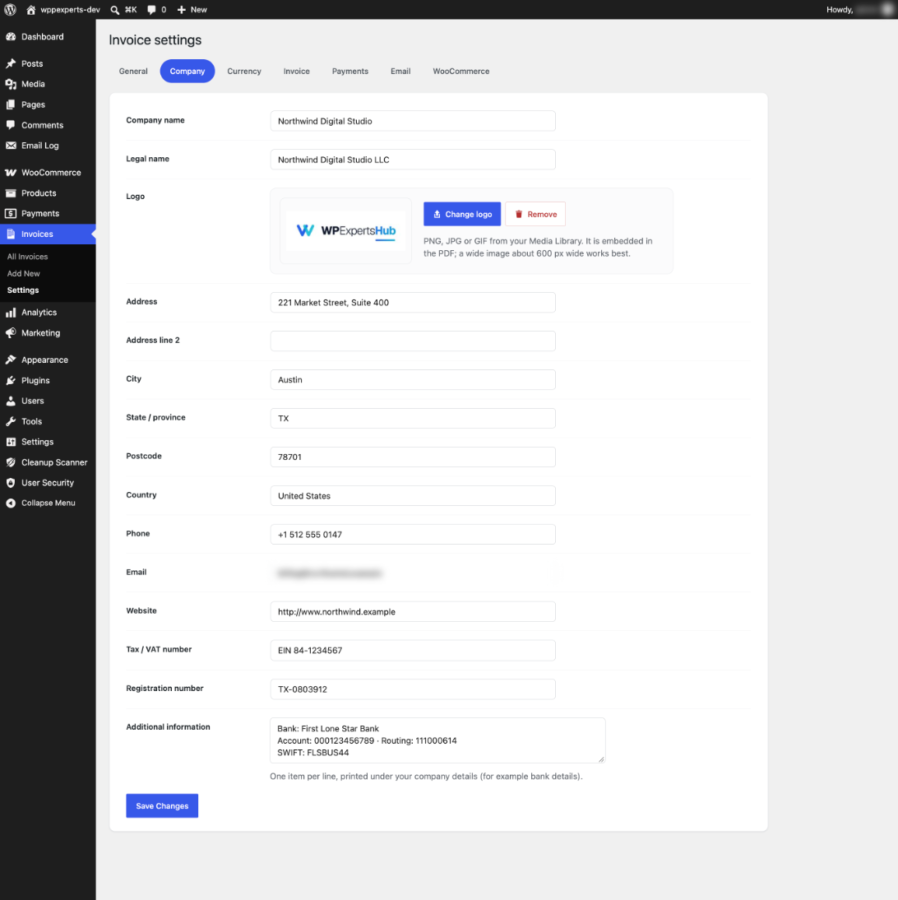
 Settings: Company
 -
 Settings: Currency
 -
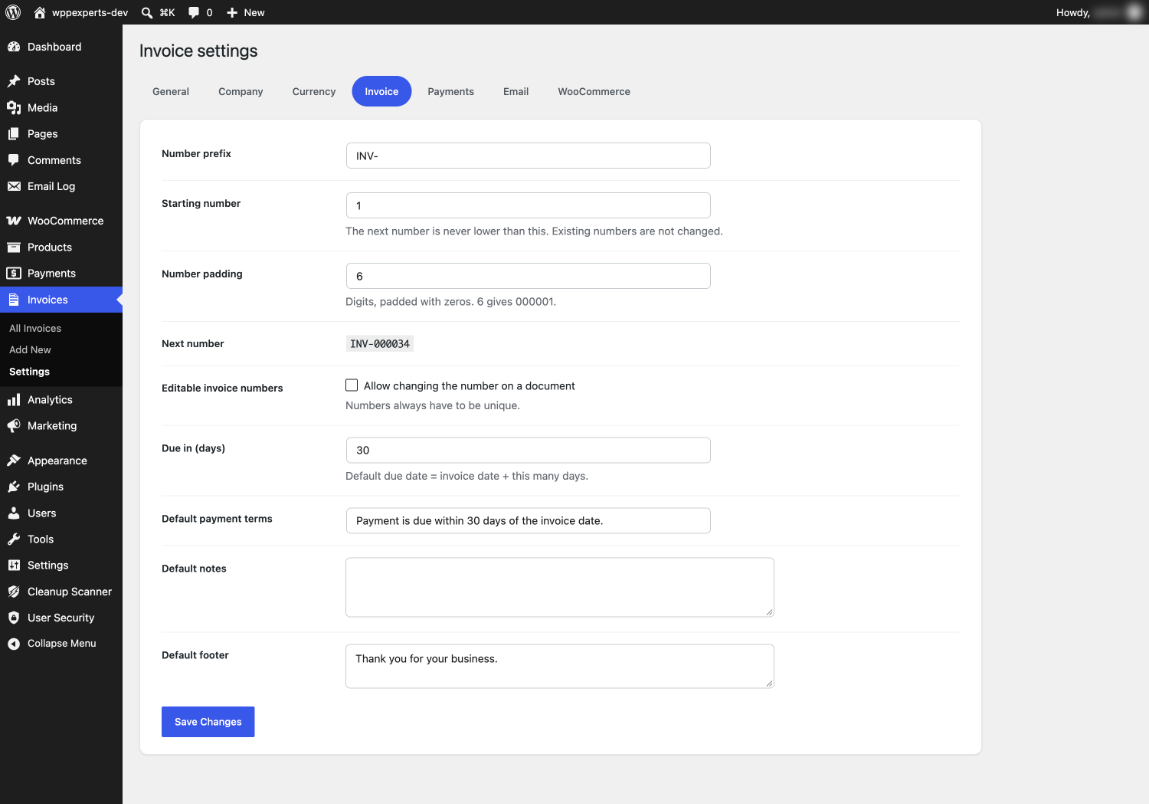
 Settings: Invoice
 -
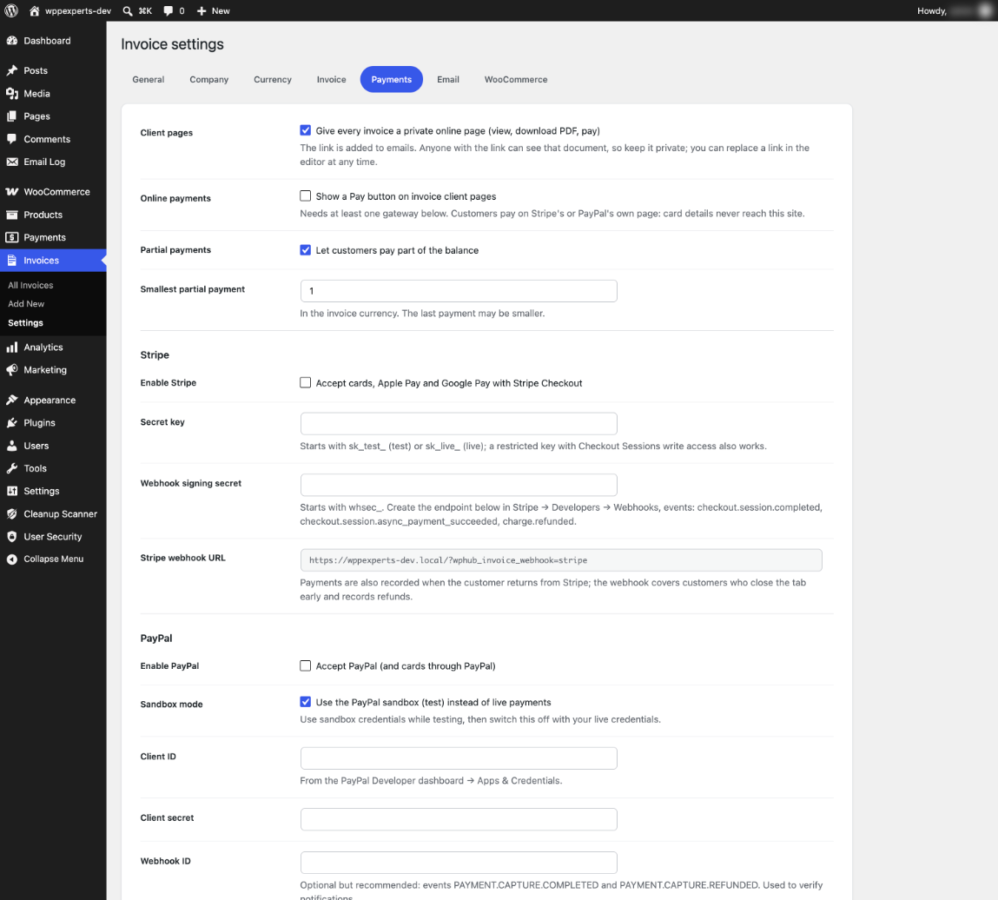
Settings: Payments
-
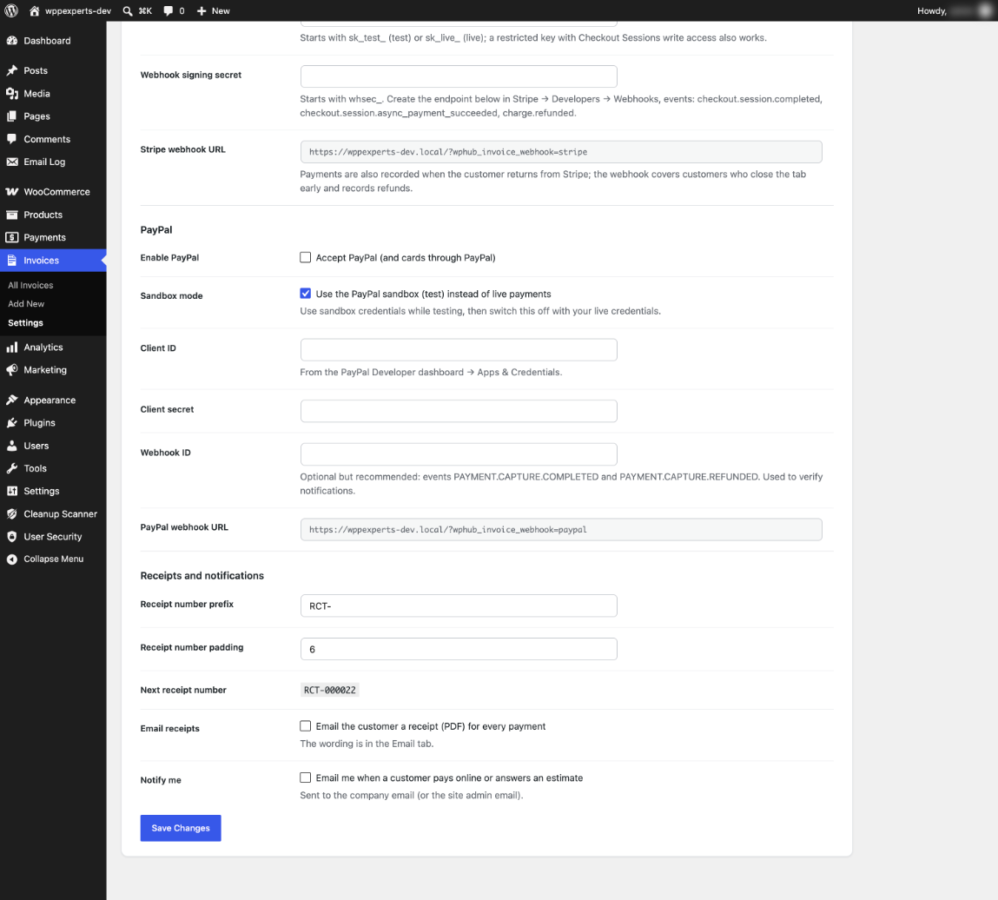
Settings: PayPal and receipts
-
 Settings: Email
 -
 Settings: WooCommerce
 -
WooCommerce order screen
-
 Client page
 -
 PDF design: Classic
 -
PDF design: Modern
-
PDF design: Compact
-
PDF design: Minimal
-
PDF design: Business
06
Settings & configuration
Estimates and Designs
GENERALSwitch estimates on or off, pick the default design for invoices and estimates, set the date format and tax label, and let unpaid invoices turn Overdue automatically.
Company Details
COMPANYName, legal name, address, tax and registration numbers, logo, and extra lines such as bank details printed under your company block.
Currencies
CURRENCYEnable the currencies you need, choose one default, and set the symbol, position, decimals and separators of each.
Numbering and Terms
NUMBERINGPrefix, starting number and padding (INV-000001 by default), due-in days, default payment terms, notes and footer. Numbers are claimed atomically, so parallel requests never produce duplicates.
Client Pages and Payments
PAYMENTSTurn client pages, online payments and partial payments on, with a smallest partial amount. Add your Stripe and PayPal keys, webhook secrets and receipt numbering.
Email Templates
EMAILFrom name and address, reply-to, and the subject and message of invoice, estimate and receipt emails, with variables.
WooCommerce Tab
WOOCOMMERCEShown when WooCommerce is active. Attach the PDF to order emails, record orders as invoices at chosen statuses, follow cancellations and refunds, and show a Download invoice button in My Account.
07
Requirements & installation
Who it is for
It suits freelancers, agencies and small businesses that want invoicing inside WordPress, and WooCommerce stores that need numbered PDF invoices on order emails. It does not calculate tax, send reminders or create recurring invoices.
Requirements
- WordPress 6.4 or later (tested up to 7.1)
- PHP 7.4 or later, with the dom and mbstring extensions (gd for logos)
- MySQL or MariaDB
- Optional: WooCommerce 9.0 or later (tested up to 11.1)
- Compatible with WooCommerce High-Performance Order Storage (HPOS)
- Optional: a Stripe and a PayPal account for online payments
Installation
- Download the plugin zip from your account.
- In WordPress, go to Plugins > Add New > Upload Plugin, choose the zip file and click Install Now.
- Activate the plugin and open Invoices > Settings.
- Add your company details, logo, currencies and numbering.
- Optional: activate your licence under Plugins > WpExperts Hub Licences to receive updates.
- Open Invoices > Add New to create your first invoice.
08
Documentation & support
09
Frequently asked questions
Does it need WooCommerce?
No. Without WooCommerce you type customers in by hand and everything else works the same. With WooCommerce you also get customer, order and product search, order import and the WooCommerce settings tab.
Does it change my WooCommerce orders?
No. Orders and products are only read, and an invoice keeps its own copy of the data. The one thing written to an order is an optional private order note, which you can switch off.
Are estimates included?
Yes, but they are off by default. Switch them on under Invoices → Settings → General → Estimates. Switching them off again hides them without deleting anything.
Which payment methods can customers use?
Stripe Checkout and PayPal. The wallets and cards offered depend on what is enabled in your Stripe and PayPal accounts. Bank transfer, cash and cheque payments are recorded by hand. Run a test payment in Stripe test mode or the PayPal sandbox before you go live.
Is card data safe?
Customers pay on Stripe’s or PayPal’s own page. The plugin has no card fields and never sees card details. It stores only the API keys and secrets you enter.
Can a customer pay part of an invoice?
Yes, when Partial payments is on. You set the smallest amount. The invoice becomes Partially Paid, and the balance shows on the client page and the PDF.
Are invoices marked Paid automatically?
Yes, when a Stripe or PayPal payment or a payment you record covers the total. You can also set a status by hand, which changes the status only and does not create a payment.
Does it send overdue reminders or create recurring invoices?
No. A daily task turns unpaid invoices past their due date to Overdue, but sends no email. There are no recurring invoices, late fees or credit notes.
Does it calculate tax or convert currencies?
No. Tax is a percentage you enter per line, with a label such as VAT or GST. Currencies change the symbol and format only, and no amounts are converted.
Does the PDF support the rupee sign and other scripts?
Yes. The PDF font covers the rupee, euro, pound and yen signs and UTF-8 text. Chinese, Japanese, Korean, Arabic and other right-to-left text are not supported.
Can the invoice be attached to WooCommerce emails?
Yes. Under Settings → WooCommerce, choose a design and tick the customer emails: On-hold, Processing, Completed and Customer invoice. Admin emails never get the PDF, and an order keeps one invoice number.
What happens to the invoice when an order is cancelled or refunded?
With Auto record orders on, the invoice follows the order. A cancelled order cancels its invoice, a refund adds a negative line so the total is what the customer paid, and a fully refunded order marks the invoice Refunded.
Does it work with WooCommerce Subscriptions?
Subscription orders are normal orders, so the first order and every renewal can get their own invoice. The subscription itself is not invoiced. Test one renewal on your own setup first.
What happens if I uninstall it?
Deactivating deletes nothing. Deleting the plugin keeps your invoices unless you ticked Delete all plugin data and its confirmation box first.
How do I get updates?
Activate your licence key (from your purchase email or My Account → Downloads) under Plugins → WpExperts Hub Licences. New versions then appear under Dashboard → Updates and on the Plugins screen and install like any plugin update. You can also upload the new zip under Plugins → Add New → Upload Plugin and choose Replace current with uploaded. Your settings and data are kept.
How do I get support?
Email support@wpexpertshub.com with your order details and a description of the issue, and our team will help you.
10
Customer reviews
Thanks for your review!
It’s waiting for approval and will appear here soon. We’ll email you when it’s live.
Be the first to review it
Used Advance Invoices for WordPress & WooCommerce on your store? A short review helps other store owners decide — and tells us what to improve.
Advance Invoices for WordPress & WooCommerce$79