$49One-time paymentUpdates & support included
01
Overview
SMTP and Email Logs for WordPress records every email your site sends, lets you open each one to see what happened, and can send all of it through your own SMTP server. It covers WordPress itself (password resets, new users, comment notices), WooCommerce order emails, contact forms and any plugin that sends through wp_mail().
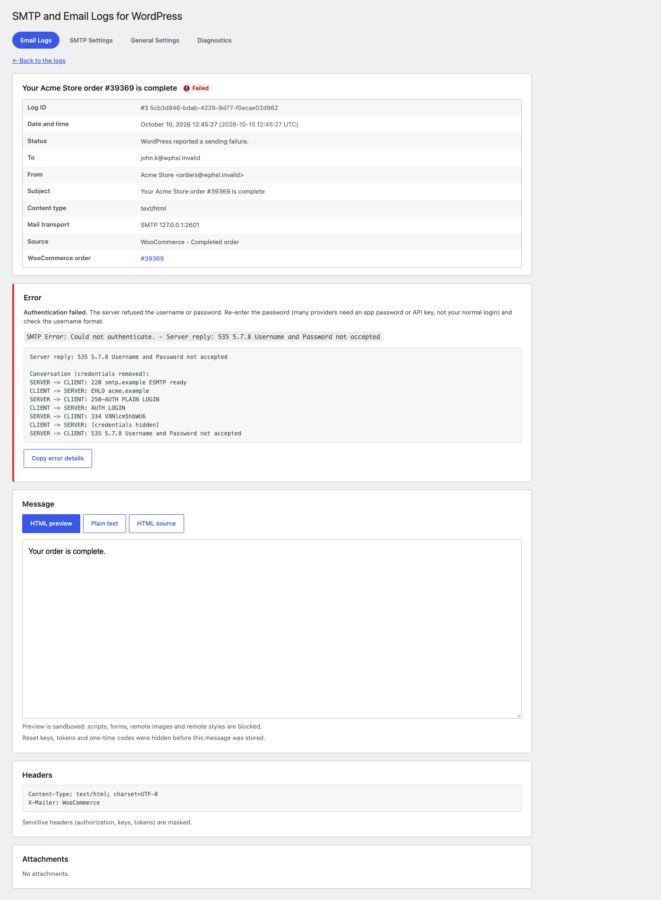
When an email fails you see the error in plain language, the server's reply with credentials removed and advice on what to check, with a button that copies the details for your host or mail provider. A safe preview shows the message without ever running its code.
SMTP settings include a test email and a connection check that tell you the real outcome before you rely on them. Logs are deleted automatically after the number of days you choose, and everything runs on your own site: no subscription and no outside service.
02
Why store owners choose it
The status is honest. Sent means the mail transport accepted the message, Failed carries the real error and server reply, and Unknown means it could not be determined. Nothing claims an email reached the inbox when WordPress cannot know that.
Safe by default. The SMTP password is stored encrypted and never shown again, reset links and one-time codes are hidden before a message is saved, and a hostile email cannot run scripts in the preview.
Wrong SMTP settings never send mail another way. If SMTP is on but incomplete, the email fails with a clear message instead of silently going through a route you did not choose.
Logs clean up after themselves. A daily job deletes logs older than the retention period you choose, in small batches that are safe to interrupt, and it deletes nothing else.
It records email sent through WordPress's wp_mail() function. A plugin that talks to a mail service through its own API bypasses WordPress and cannot be logged, and no plugin can prove that an accepted email reached the inbox.
03
Features
Every email, one log
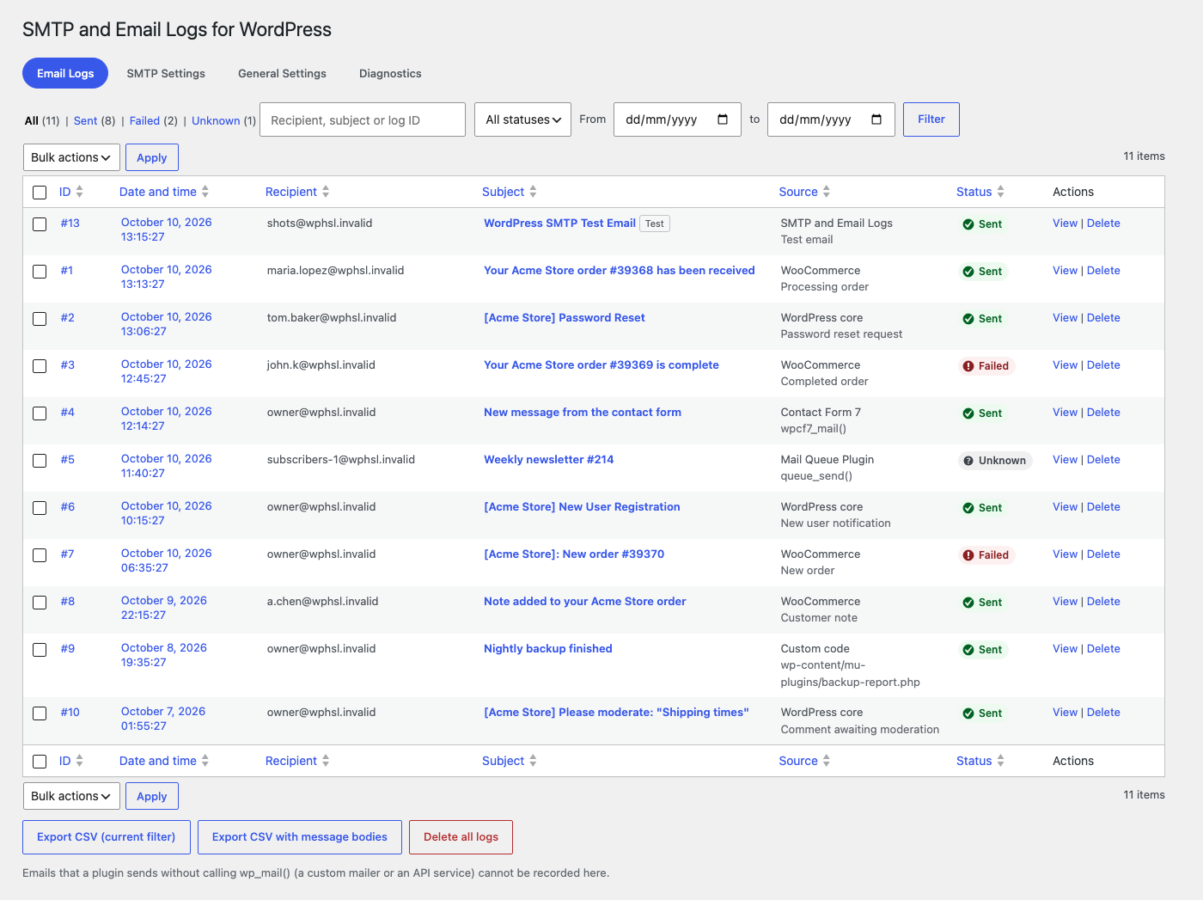
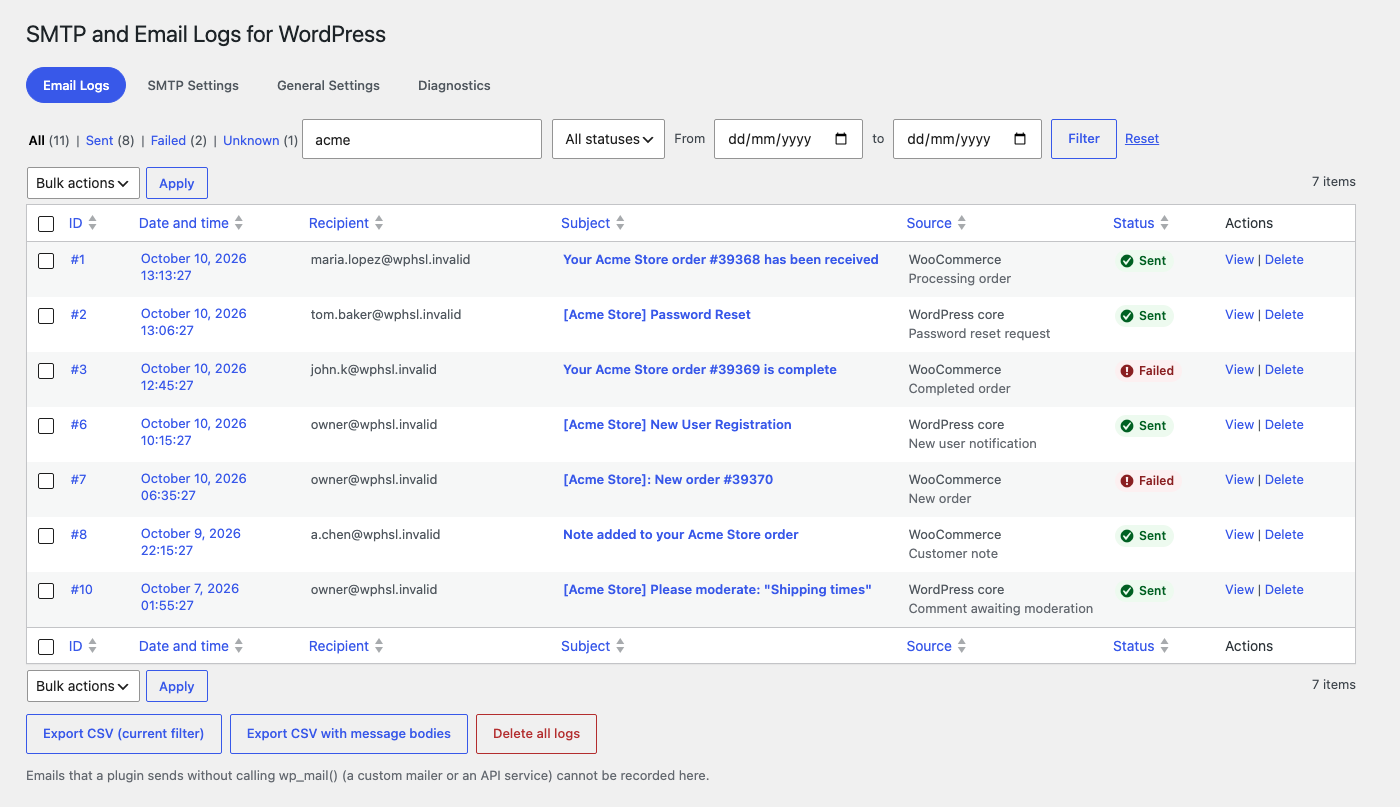
Each email sent through wp_mail() gets a row with the date, recipients (to, cc, bcc, reply-to), sender, subject, status, error, mail transport and attachments. It also records which plugin, theme or WordPress function sent it, and links the related user and WooCommerce order.
Honest Sent, Failed and Unknown
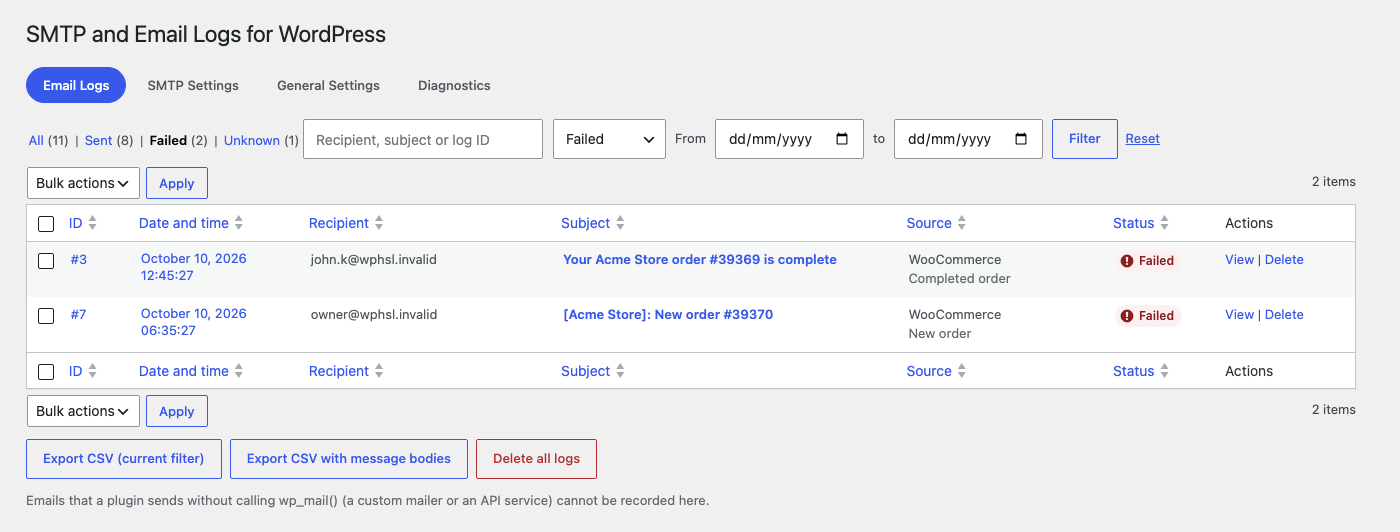
Sent means the mail transport accepted the message, Failed means WordPress reported an error, and Unknown means the outcome could not be determined, for example when another plugin handled the sending. The plugin never guesses and never claims delivery.
Find any email fast
Search by recipient, subject or log ID, filter by status and date range, sort every column and page through thousands of logs. Delete one log, many with a bulk action, or all of them, each with a confirmation.
A safe message preview
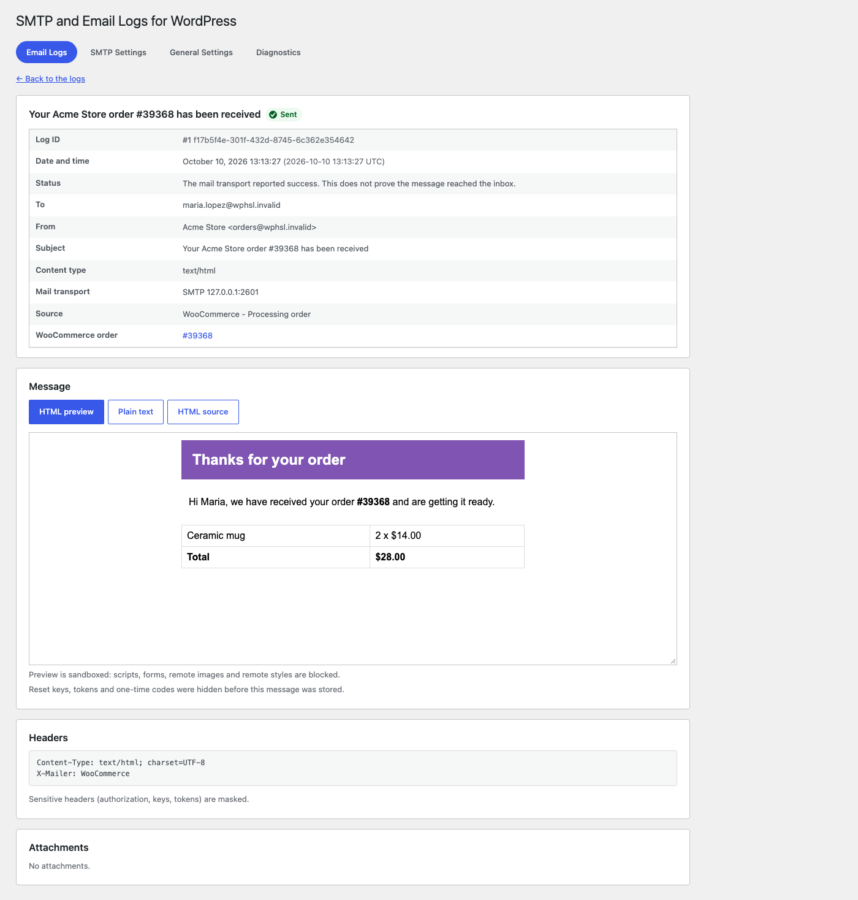
Open a log to read the message as an HTML preview, plain text or HTML source, with headers (sensitive ones masked) and attachment names and sizes. The preview is sandboxed with no scripts, forms or remote content, so a hostile email cannot run code in your admin.
Send through your SMTP server
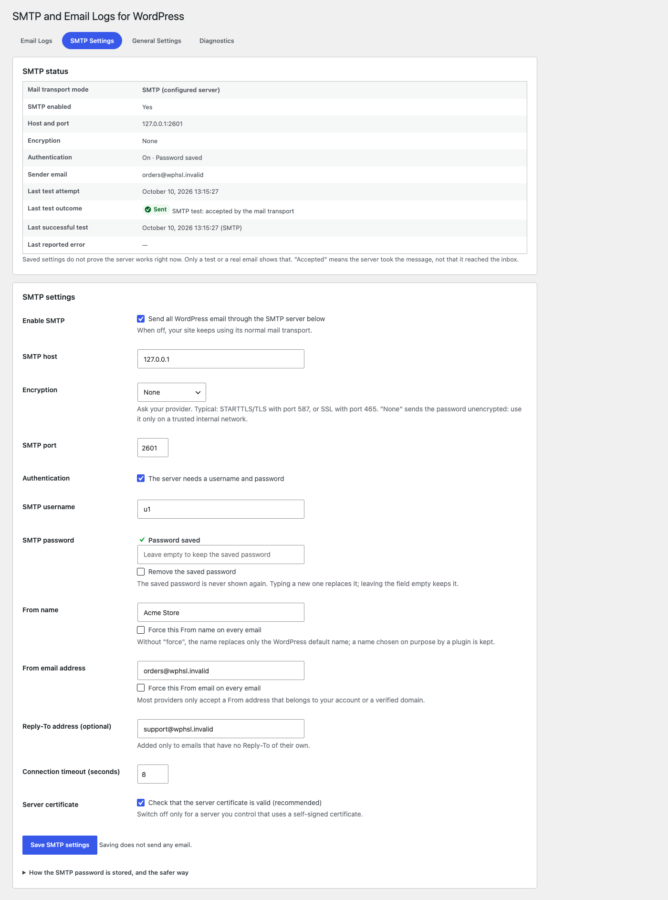
Enter your provider’s host, port, encryption (none, SSL or STARTTLS), login, From name and address, Reply-To, timeout and certificate check. It uses WordPress’s own PHPMailer, and with SMTP off your normal mail transport is left alone.
Test email and connection check
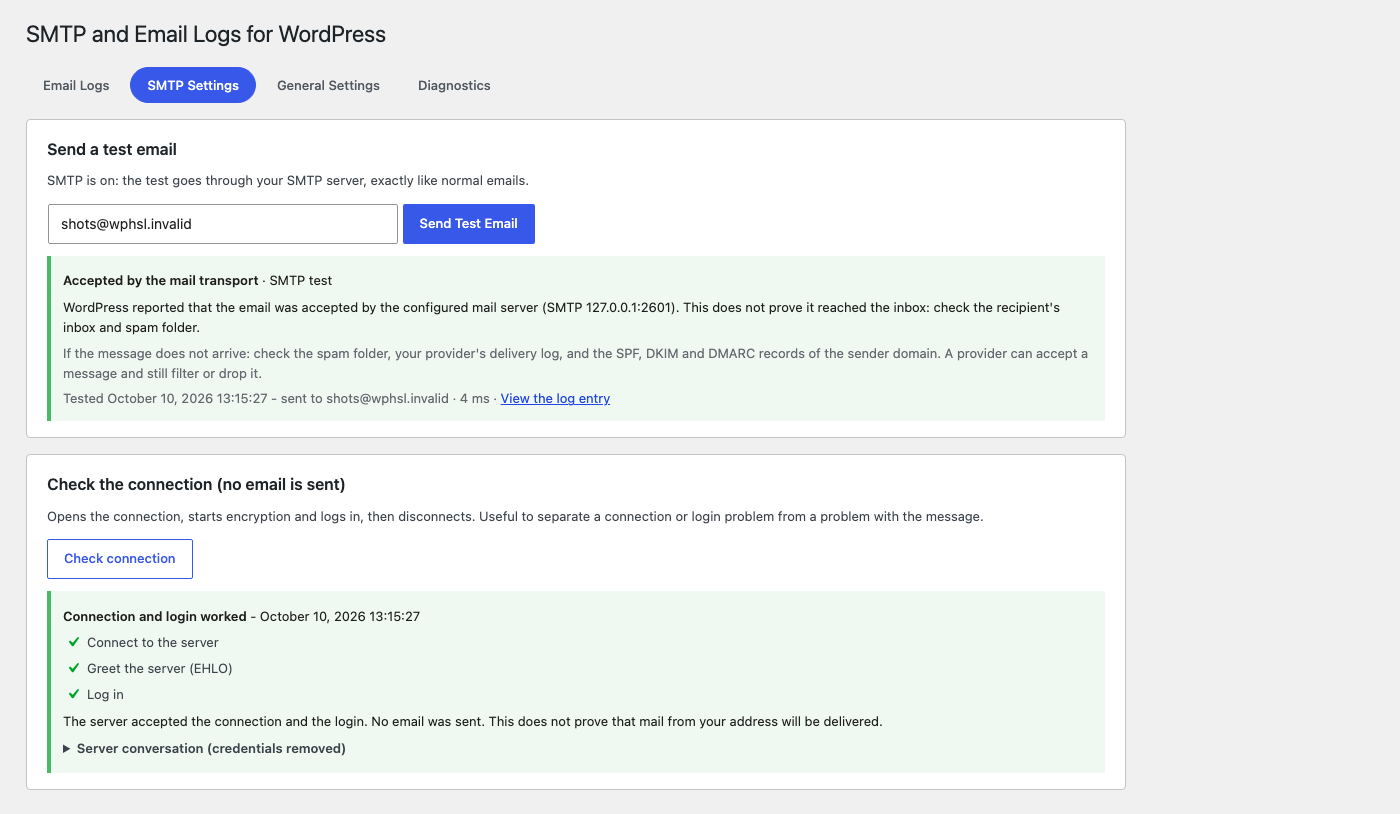
Send a real test email and see whether the transport accepted it, with plain-language advice for authentication, TLS, firewall and sender problems. Check the connection to connect, start encryption and log in without sending anything.
Password stored encrypted
The saved SMTP password is encrypted, never shown again, never logged or exported, and an empty field keeps it. For production, define every setting as a constant in wp-config.php: constants win and lock the field.
No silent fallback
If SMTP is on but incomplete, emails fail with a clear message and an admin notice tells you what to fix. They are never quietly sent through PHP mail, so you notice a problem instead of sending through a route you did not choose.
Failure details you can hand over
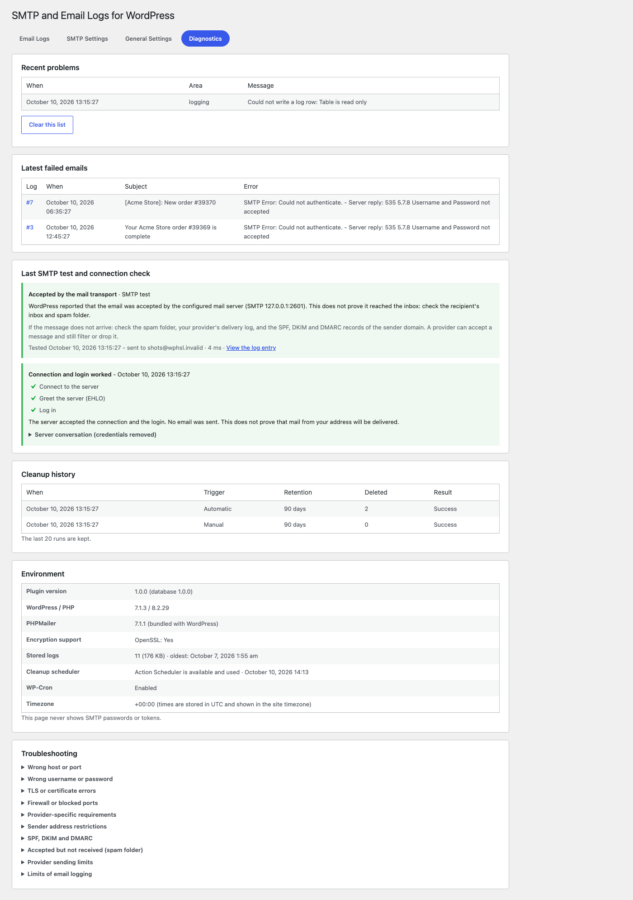
A failed email shows what the error means, the exact error text, the server reply and the conversation with credentials removed. Copy error details puts it all on your clipboard for your host or provider.
Automatic log cleanup
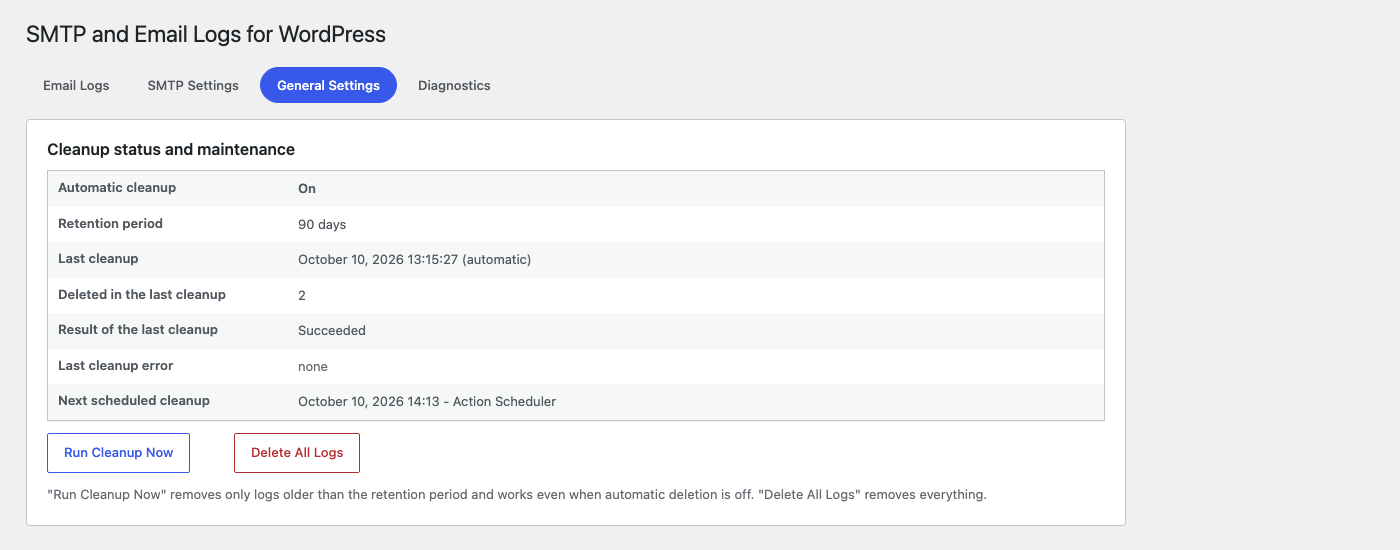
Delete logs older than 7, 15, 30, 60, 90, 180 or 365 days or a custom number, once a day. It uses Action Scheduler when available, otherwise WP-Cron, in batches of 500, and an interrupted run resumes safely. Run Cleanup Now works even when automatic deletion is off.
Privacy controls
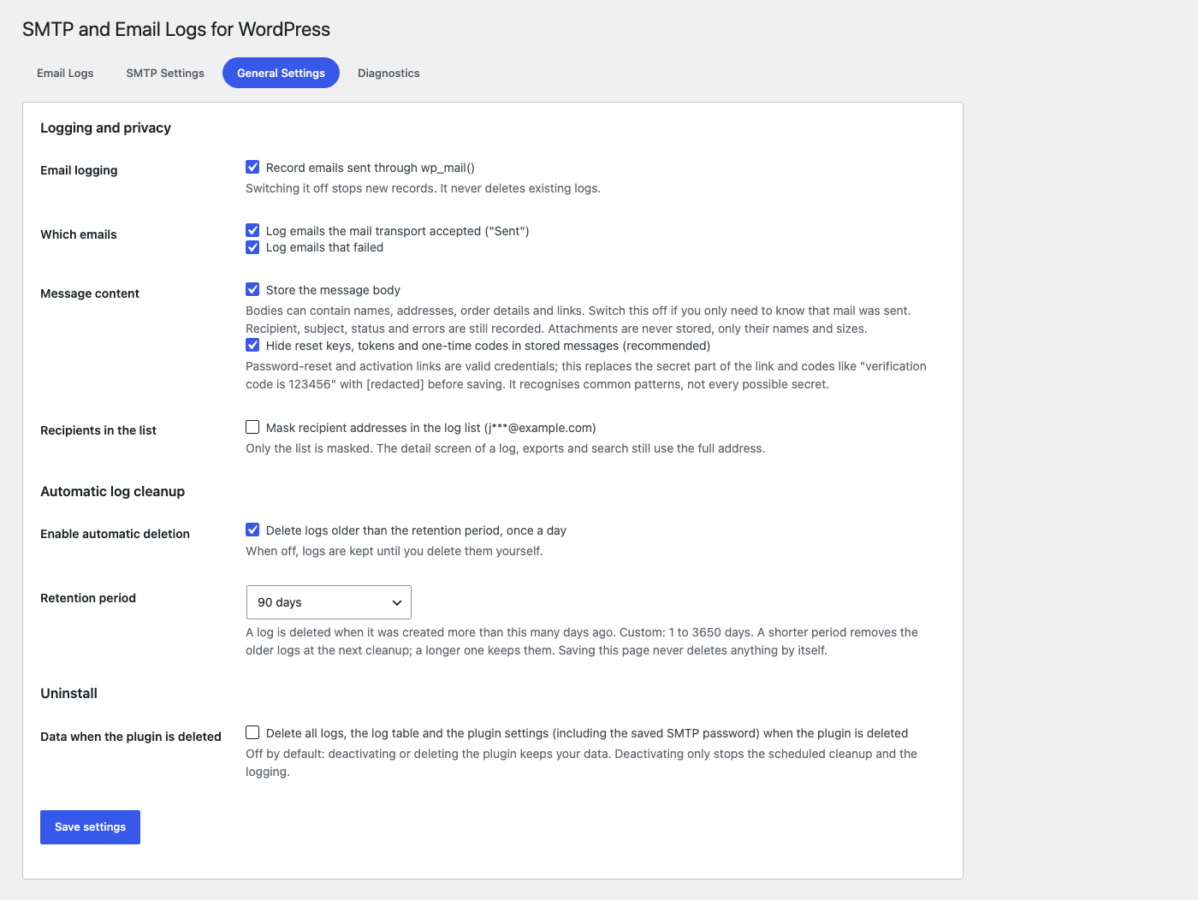
Separate switches for logging, storing message bodies, logging sent and logging failed emails. Reset links and one-time codes are hidden before saving, recipients can be masked in the list, and only administrators can see anything.
CSV export
Export the current filter to CSV, with message bodies only if you choose that button. The file opens correctly in Excel, and spreadsheet formulas hidden in email data are neutralised.
Personal data tools
Logs are included in WordPress’s personal data export and erase requests, matched by recipient, cc, bcc, sender address or linked user, and a privacy policy text is suggested.
Diagnostics screen
One screen lists problems the plugin found, the latest failed emails, the last test and connection check, the cleanup history and your environment, with a troubleshooting checklist. It never shows a password or token.
Works with WooCommerce
WooCommerce is not required. When it is active, order and customer emails are labelled with their WooCommerce email and linked to the order, so you can see what a customer was sent and whether it failed.
Clean uninstall
Deactivating or deleting the plugin keeps your logs and settings unless you tick the delete option. Then the log table, the options (including the encrypted password) and transients are removed.
04
How it works
- 1
Install and activate
Upload the plugin and activate it. Logging starts immediately and SMTP stays off, so nothing about how your site sends mail changes yet.
- 2
Watch the emails arrive in the log
Open Tools, Email Logs. Every email WordPress, WooCommerce and your plugins send appears with its status, source and recipient.
- 3
Connect your SMTP server
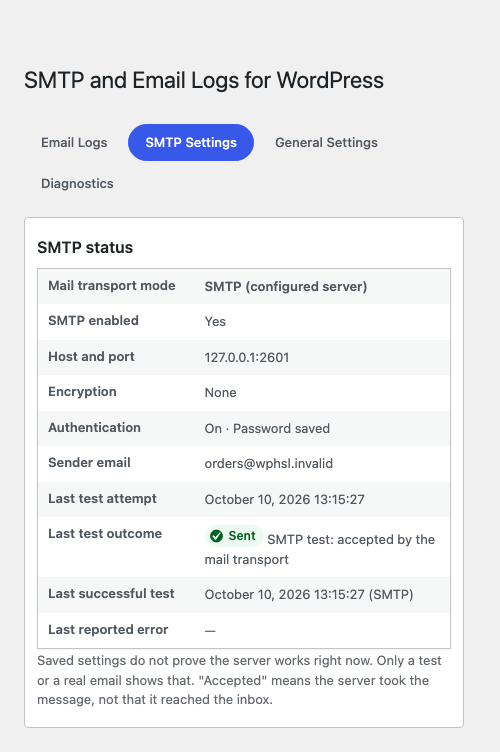
Enter your provider’s details under SMTP Settings, tick Enable SMTP, then press Check connection and Send Test Email to see the real result.
- 4
Fix problems with the facts
Open any failed email to read the error in plain words, the server reply and what to check, and let the daily cleanup remove old logs by itself.
05
Screenshots & demo
06
Settings & configuration
What Is Logged
LOGGINGSwitch logging on or off and choose whether to record emails the transport accepted, emails that failed, and the message body. Switching logging off never deletes existing logs.
Bodies, Codes and Recipients
PRIVACYHide reset keys, tokens and one-time codes before a message is stored (on by default), and mask recipient addresses in the list. Details and exports still use the full address.
Server and Login
SMTPHost, port, encryption (none, SSL or STARTTLS/TLS), authentication, username and password. The password is encrypted and never shown again, and wp-config.php constants can replace every field.
From and Reply-To
SENDERA From name and address for your emails, with optional force switches that override a plugin’s own choice, and a Reply-To added only to emails that have none.
Timeout and Certificate
CONNECTIONSet how many seconds to wait for the server and whether its certificate is checked. The timeout also applies to every reply, so a silent server fails quickly.
Test Email and Connection Check
TESTSend a real test message to any address and see the transport’s answer, or check the connection and login without sending an email.
Retention Period
CLEANUPAutomatic deletion is on by default with 90 days. Choose a preset from 7 to 365 days or a custom number up to 3650, and run the cleanup now whenever you like.
When the Plugin Is Deleted
UNINSTALLNothing is removed unless you tick the option to delete all logs, the log table and the plugin settings, including the saved SMTP password.
07
Requirements & installation
Who it is for
It suits site owners who need to know whether password resets and order emails actually go out, WooCommerce stores that want proof of what customers were sent, and agencies that set up reliable email delivery for client sites without paying a monthly fee for a logging service.
Requirements
- WordPress 6.2 or later (tested up to 7.1)
- PHP 7.4 or later
- WooCommerce is optional
- For SMTP: the host, port and login from your email provider, and outgoing connections allowed on that port
Installation
- Download the plugin zip from your account.
- In WordPress, go to Plugins > Add New > Upload Plugin, choose the zip file and click Install Now.
- Activate the plugin. Logging starts immediately; SMTP stays off until you switch it on.
- To send through SMTP, open Tools > Email Logs > SMTP Settings, enter your provider’s details, tick Enable SMTP, save, then press Send Test Email.
- Activate your licence under Plugins > WpExperts Hub Licences to receive updates.
08
Documentation & support
DocumentationSetup guide and configuration reference. (opens in a new tab)
TutorialHow to Send WordPress Email Through SMTP and Keep an Email Log
Email supportsupport@wpexpertshub.com Include your order ID for faster help.
CustomisationNeed a change or an integration? Ask the developers who wrote it.
09
Frequently asked questions
Does "Sent" mean the email arrived?
No. It means the mail transport (your SMTP server, or the server’s own mail function) accepted the message. Delivery to the inbox can still fail or end up in spam, which WordPress cannot see.
Which emails are logged?
Everything sent with wp_mail(): WordPress core (password resets, new users, comment notices), WooCommerce order and customer emails, contact form plugins and any plugin that uses the standard function. The source column shows which plugin or function sent each one.
Can it log emails sent by a mail service plugin?
Yes, if that plugin sends through wp_mail(). A plugin that calls a mail service directly through its own API never reaches WordPress and cannot be logged. If another plugin takes over the sending, the log shows Unknown instead of guessing.
Do I have to use the SMTP part?
No. SMTP is off by default and logging works on its own. With SMTP off your site keeps using its normal mail transport.
What happens if SMTP is on but the settings are wrong?
Emails fail, the log says why and an admin notice tells you what to fix. They are never quietly sent another way.
Is my SMTP password safe?
It is never displayed, logged, exported or included in test results, and it is stored encrypted with your site’s secret keys. For production sites define the credentials as constants in wp-config.php so they are not in the database at all.
Are message bodies stored? Is that safe?
Optionally, and on by default. Bodies can contain personal data, so switch storage off if you only need to know that mail was sent. Reset links and one-time codes are hidden before saving, only administrators can see logs and they are deleted after the retention period.
Can a malicious email harm my admin screen?
No. Messages open in a sandboxed frame without scripts, forms, remote images or remote styles, and exports neutralise spreadsheet formulas.
How long are logs kept?
90 days by default. Choose 7, 15, 30, 60, 90, 180 or 365 days or a custom number, or turn automatic deletion off. Cleanup runs once a day.
Will cleanup delete anything besides logs?
No. It deletes only log rows created before the cutoff. Saving settings or opening a page never deletes logs.
A test email says "accepted" but nothing arrived. What now?
Check the spam folder and your provider’s delivery log, and make sure SPF, DKIM and DMARC are set up for the From domain. Many providers also reject a From address they do not own.
Does it work without WooCommerce?
Yes. WooCommerce is not required. When it is active, order emails are linked to their order.
Will it slow my site down?
Logging adds one small database write per email. Nothing runs for visitors, and the admin assets load only on the Email Logs screen.
Can I export my logs?
Yes. Export the current filter to CSV from the Email Logs tab, with message bodies only if you choose that button.
Does it work on multisite?
Network activation creates the table on every site and each site keeps its own logs and settings. It has not been tested on a large network.
Does the plugin contact any outside server?
Only the SMTP server you configure, when you enable SMTP, and wpexpertshub.com for the licence and update check if you activate a licence. That check sends the licence key, your site address and the plugin version, and never any email, log or recipient.
Does it work without a licence?
Yes. The licence is only for updates.
How do I get support?
Email support@wpexpertshub.com with your order ID, the plugin version and what you see on the Diagnostics tab.
10
Customer reviews
Thanks for your review!
It’s waiting for approval and will appear here soon. We’ll email you when it’s live.
Be the first to review it
Used SMTP and Email Logs for WordPress on your store? A short review helps other store owners decide — and tells us what to improve.
SMTP and Email Logs for WordPress$49