$49One-time paymentUpdates & support included
01
Overview
WebP/AVIF Images for WordPress writes a WebP copy beside every JPEG and PNG in your media library, and beside every size WordPress made from it. Your front-end pages then point at the smaller copies. photo-300×300.jpg gains photo-300×300.jpg.webp, and the original file is never changed.
Conversion needs no server configuration. The plugin rewrites the finished page HTML, so it works on hosts where nginx serves images directly, with any theme. It uses Imagick or GD, with no binaries and no external service.
It also loads the first large image of each page before everything else, makes image sizes that are missing under your current theme, and lists the images that have no alternative text so you can write it.
02
Why store owners choose it
Serve smaller images without touching your originals. The copies sit beside them, and turning serving off brings the old pages back.
Load the main image first. The first large image of each page is fetched before everything else and is never lazy-loaded.
No server rules to edit. It rewrites the page HTML, so it works on nginx hosts that serve image files directly.
Find images with no alt text and write it in the list. Nothing is filled in automatically.
Pages keep showing your originals until you tick Serve to visitors, so you can convert and check the results first.
03
Features
A WebP copy of every size
Writes photo-300×300.jpg.webp next to photo-300×300.jpg for the image and every size WordPress made. Uses Imagick or GD directly, with no binaries and no external service.
Originals never changed
Files, the Media Library and stored URLs are only read. Deactivate the plugin and the site shows what it showed before. A copy that is not smaller than the original is discarded.
Automatic on upload
New and edited images convert in the background about a minute after they arrive, using Action Scheduler when it is installed and WP-Cron when it is not.
Bulk conversion
Convert the existing library from Media → Image optimisation, with an estimate of time and disk space first. Run it on screen, in the background with the browser closed, or with WP-CLI.
Optional AVIF
A second copy for image tags, kept only when it is smaller than both the original and the WebP. It is served once the web server is checked to send .avif files as image/avif.
Sharp graphics
PNG logos, icons and flat artwork stay lossless when that is no more than 10% bigger than lossy. Photographs stay lossy at the quality you choose, from 40 to 95.
Load first
The first large image on each page, an image tag or an inline background, is fetched with high priority and never lazy-loaded. Pages where WordPress or the theme already chose one are left alone.
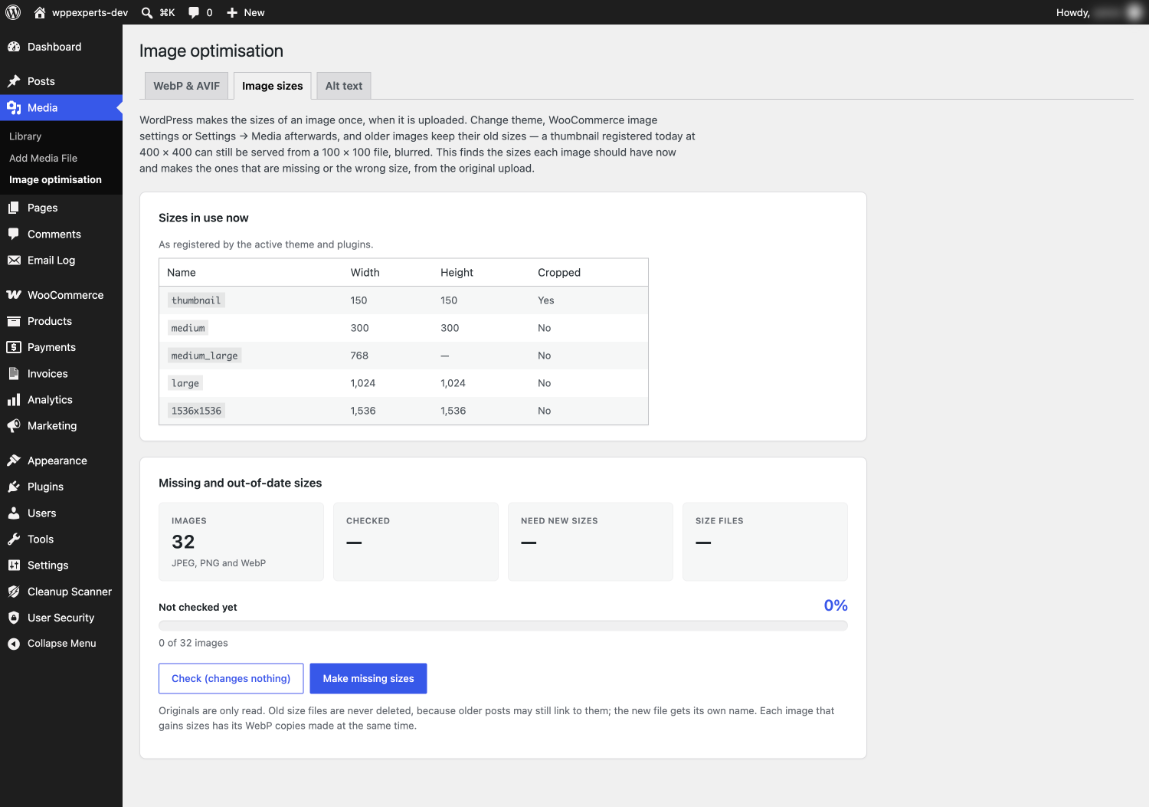
Missing image sizes
Finds the sizes each image should have under your current theme and settings, and makes them from the original. Old size files are never deleted.
Media Library column
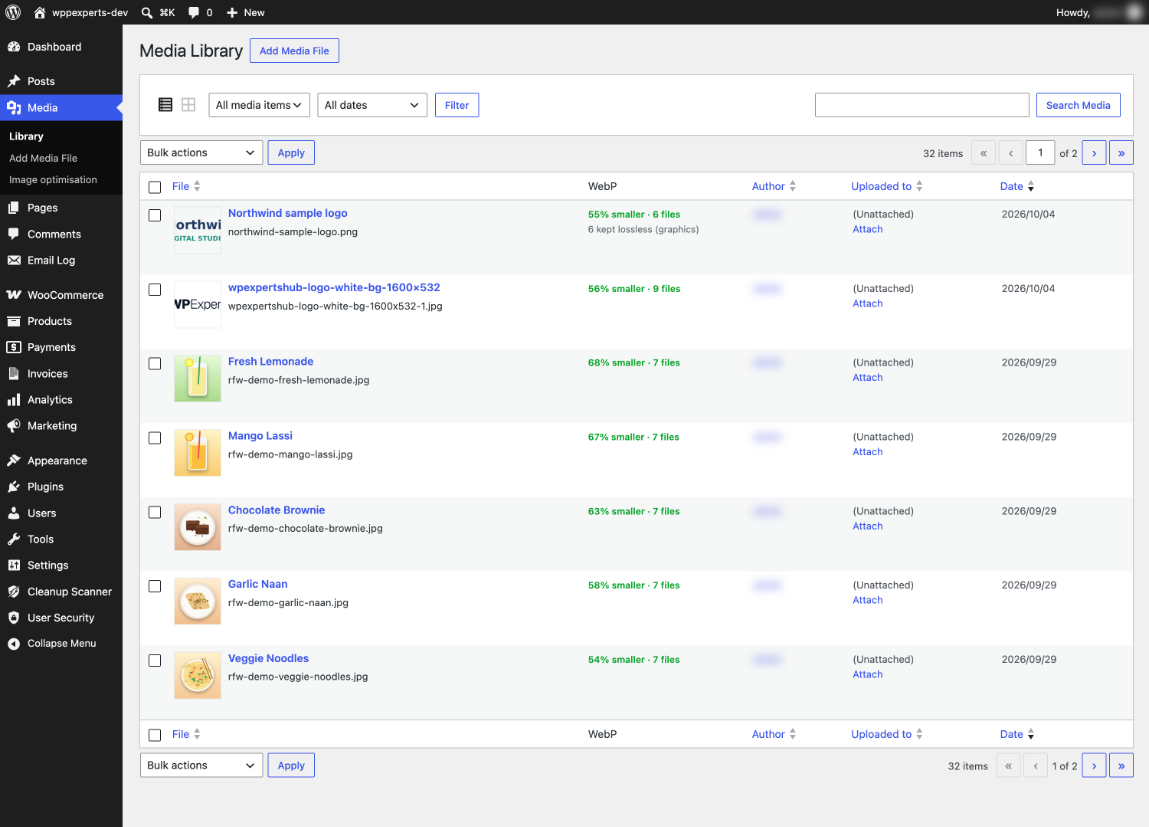
A WebP column shows the saving for each image, or the reason it could not be converted. Convert to WebP and Re-convert are on every image and in the attachment details panel.
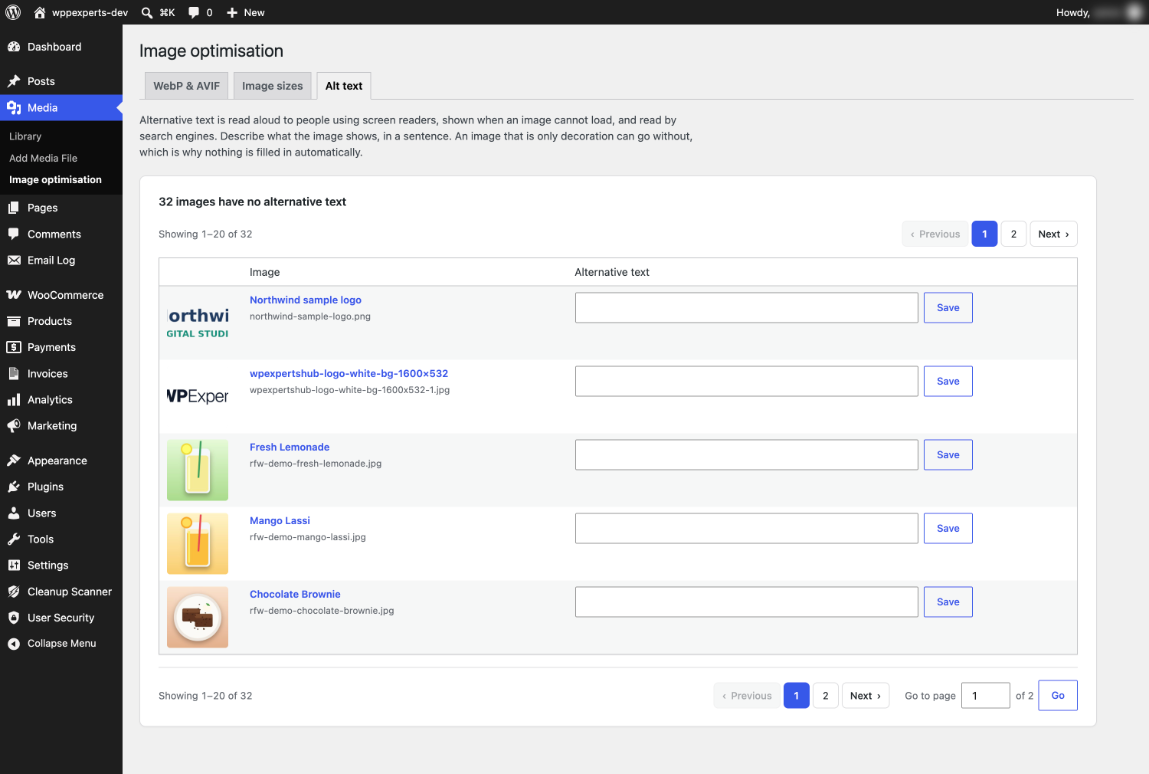
Alt text list
Lists every image with no alternative text, 20 per page, with a box to write it in. Nothing is filled in for you.
Safe fallback
A tiny inline script switches an image back to AVIF, then WebP, then the original if a browser cannot show it. Emails, feeds, sitemaps, Open Graph and Twitter tags and JSON-LD keep the original URLs.
04
How it works
- 1
Install and activate
Upload the plugin and activate it, then open Media → Image optimisation. New uploads start converting in the background.
- 2
Convert your library
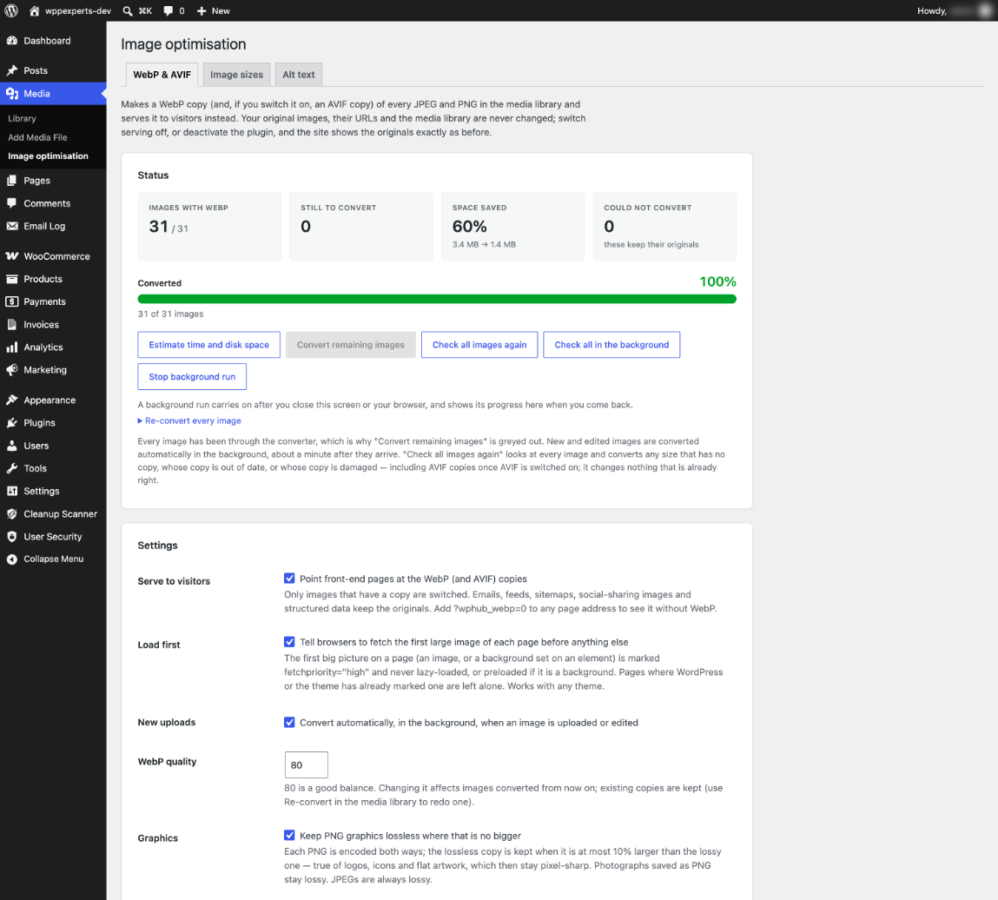
Press Estimate time and disk space, then Convert remaining images, or Check all in the background. Large libraries run in short batches that respect your host’s time limits.
- 3
Serve the copies
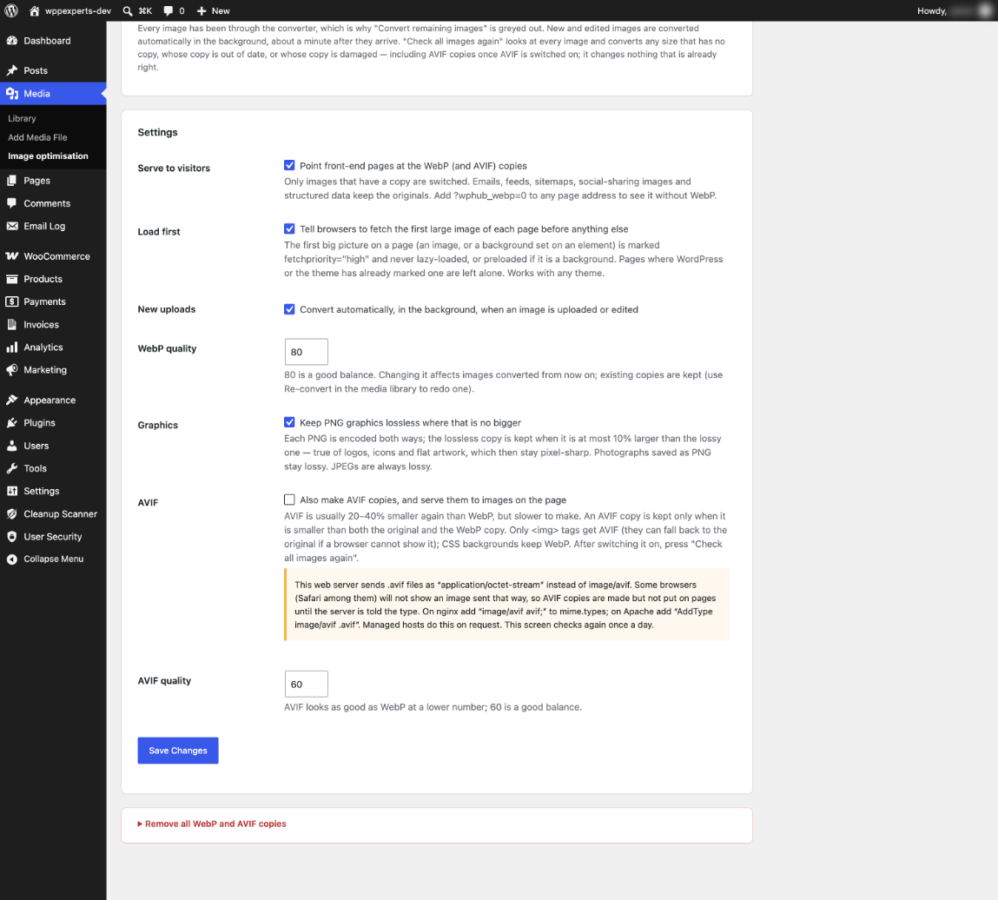
Tick Serve to visitors and save. Pages now point at the WebP copies and the first large image loads first. Add ?wphub_webp=0 to any address to compare with the original page.
- 4
Maintain
Use Image sizes to fill in missing sizes and Alt text to add missing descriptions. Remove all copies at any time from the same screen.
05
Screenshots & demo
-
 Status
 -
Settings
-
 Image sizes
 -
 Alt text
 -
 Media Library
06
Settings & configuration
Serve to Visitors
SERVEOff by default. Tick it to point front-end pages at the WebP and AVIF copies. Only images that already have a copy are switched.
Load First
PRIORITYOn by default. Fetches the first large image of each page before anything else, and works even while serving is off.
New Uploads
UPLOADSOn by default. Converts new and edited images automatically in the background.
WebP Quality
QUALITYFrom 40 to 95, default 80. A change applies to images converted from then on; re-convert to redo existing copies.
Keep PNG Graphics Lossless
GRAPHICSOn by default. Each PNG is encoded both ways, and the lossless copy is kept when it is at most 10% bigger.
AVIF Copies and Quality
AVIFOff by default. Quality from 30 to 90, default 60. AVIF is made only if the server can write it, and served only after the image/avif check passes.
07
Requirements & installation
Who it is for
It suits any WordPress site with a media library full of JPEG and PNG images, from blogs and shops to agency sites. It is useful on hosts where nginx serves image files directly and rewrite rules are never consulted.
Requirements
- WordPress 6.5 or later (tested up to 7.1)
- PHP 8.0 or later
- Imagick or GD with WebP support; AVIF needs Imagick or GD with AVIF support
- WooCommerce is optional
Installation
- Download the plugin zip from your account.
- In WordPress, go to Plugins > Add New > Upload Plugin, choose the zip file and click Install Now.
- Activate the plugin and open Media > Image optimisation. Optional: activate your licence under Plugins > WpExperts Hub Licences to receive updates.
- Press Convert remaining images and check the results in the Media Library.
- Tick Serve to visitors, save, and clear any page cache.
08
Documentation & support
09
Frequently asked questions
Does it change or delete my original images?
No. Conversion only reads your files and writes copies named like photo.jpg.webp. Deactivate the plugin and your pages show the originals again. The Image sizes tab does add new size files and update the size data of an image, but it never deletes old ones.
Do I need to edit .htaccess or nginx rules?
No. The plugin rewrites the finished page HTML. Only AVIF needs the web server to send .avif files as image/avif, and the screen tells you how to fix that on nginx or Apache if it does not.
Is it switched on after I install it?
New uploads are converted, and Load first is on. Serving the copies to visitors is off until you tick Serve to visitors, and AVIF is off until you tick it.
Can it convert my existing library?
Yes. Use Convert remaining images, Check all images again, or the background versions that keep running with the browser closed. WP-CLI works too: wp wphub-webp convert.
What if the WebP copy is bigger than the original?
The copy is deleted and the original is kept. The Media Library column shows it as kept as original, and the plugin does not try that file again unless it changes.
Will my logos and icons go blurry?
No. With Keep PNG graphics lossless on, each PNG is also tried lossless and that copy is kept when it is at most 10% bigger. Photographs stay lossy.
Which images does it handle?
JPEG and PNG, for the full-size image and every generated size. GIF and SVG files are left alone.
Does it work with WooCommerce?
Yes, but WooCommerce is not required. Because it works on the page HTML, it also switches the product gallery zoom, lightbox and variation images. Structured data (JSON-LD) keeps the original URLs.
Will it affect SEO or social sharing?
Pages get faster. Image addresses on pages change to .webp, so image search will crawl them again, and the original addresses keep working. Open Graph and Twitter tags, JSON-LD, sitemaps, feeds and the REST API keep the original URLs.
What about browsers that cannot show WebP or AVIF?
A tiny inline script steps a failing image back from AVIF to WebP to the original. AVIF is only served after the server check passes.
What does it not cover?
Background images set in external CSS files, images from another host or a CDN domain, and theme or plugin images outside the uploads folder are not rewritten. Inline backgrounds are.
What does my host need?
PHP 8.0 or later and Imagick or GD with WebP support. If neither can write WebP, the screen says so and conversion is disabled. AVIF needs Imagick or GD with AVIF support.
Should I clear my cache?
Yes, after you switch serving on or off, clear any page cache so visitors get the updated pages.
Can I use it with Media and Database Cleaner for WordPress?
Yes. The .webp and .avif copies are plain files without a Media Library record. In Media and Database Cleaner, untick WEBP and AVIF under Cleanup Scanner → Settings so they are not offered for removal.
How do I remove it cleanly?
Turn Serve to visitors off, press Remove all copies (or run wp wphub-webp purge), deactivate your licence under Plugins → WpExperts Hub Licences, then delete the plugin. Uninstalling removes the settings and records but leaves any remaining .webp and .avif files on disk and the licence options.
Does it write alt text for me?
No. The Alt text tab lists images that have none, and you write each description yourself.
How do I get updates?
Activate your licence under Plugins → WpExperts Hub Licences and new versions then appear under Dashboard → Updates like any plugin update. Without a licence, download the new zip from My Account → Downloads, upload it under Plugins → Add New → Upload Plugin and choose Replace current with uploaded. Your settings and data are kept.
How do I get support?
Email support@wpexpertshub.com with your order details and a description of the issue, and our team will help you.
10
Customer reviews
Thanks for your review!
It’s waiting for approval and will appear here soon. We’ll email you when it’s live.
Be the first to review it
Used WebP/AVIF Images for WordPress on your store? A short review helps other store owners decide — and tells us what to improve.
WebP/AVIF Images for WordPress$49