$99One-time paymentUpdates & support included
01
Overview
User Security Guard for WordPress protects who can sign in to your WordPress site. It counts failed logins per IP address, username and email, notices when many addresses attack one account, recognises bots and scripts, and scores every authentication request with one risk engine before it allows, flags or blocks it.
When an attacker changes address on every request, no per-address limit ever fires. So the plugin also counts the different addresses of one network (an IPv4 /24, an IPv6 /64) and blocks the network when ten of them attack; a bot that hops between neighbouring networks is stopped at the /20 (IPv6 /48) around them, and the /16 is available as an opt-in. Safeguards leave a network alone when customers sign in from it, and a wide range lifts by itself after 48 hours.
Every block stores a reason you can read. The password field, cookies and request bodies are never written to the database, and no sign-in data, IP address or username ever leaves your site.
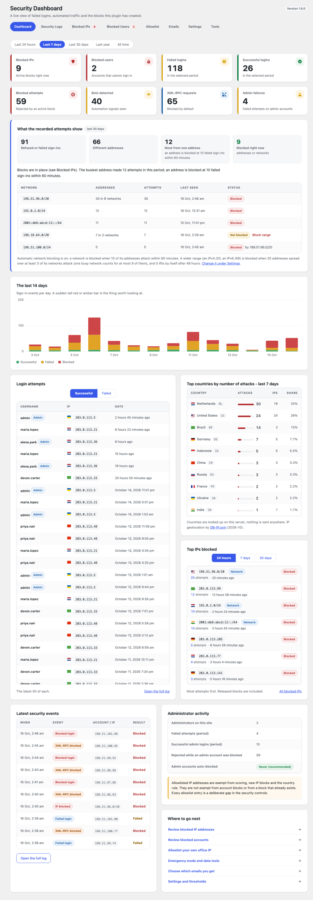
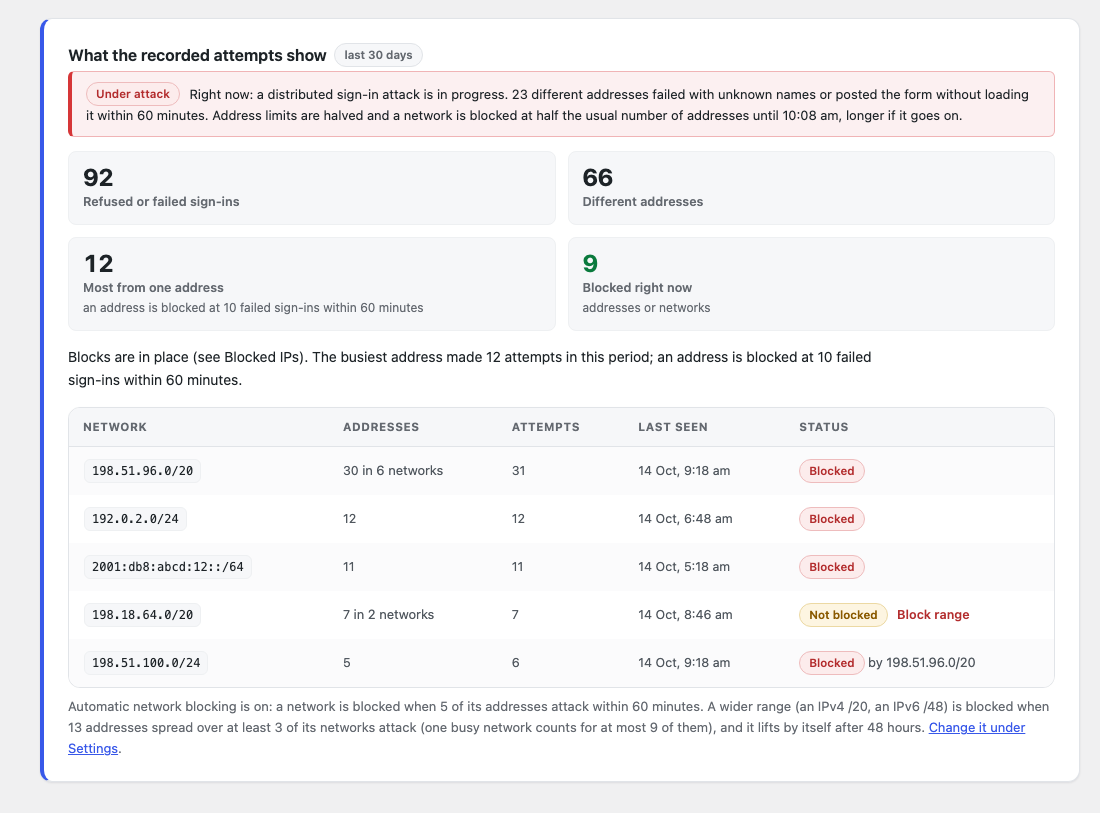
The Dashboard and the Security Logs open with a card that says in plain words what the recorded attempts show: how many addresses attacked, how often the busiest one tried against the limit, and which networks to block with one click. It also sends a calm weekly security digest, shows which IP address it sees for you, and warns when another login-limiting plugin is active.
It does one job: there is no firewall, no file scanning and no hardening score. Pair it with a malware scanner if you need that too.
Since 1.4.0 it also stops the password sprays that post credential lists straight at the sign-in form from a different address each time: every sign-in form carries a signed token, a post without one is refused before the password is looked at, many addresses attacking at once halve the limits for a while, the REST users list and ?author=N are closed to visitors, and search-engine crawlers are verified by DNS so SEO is never touched.
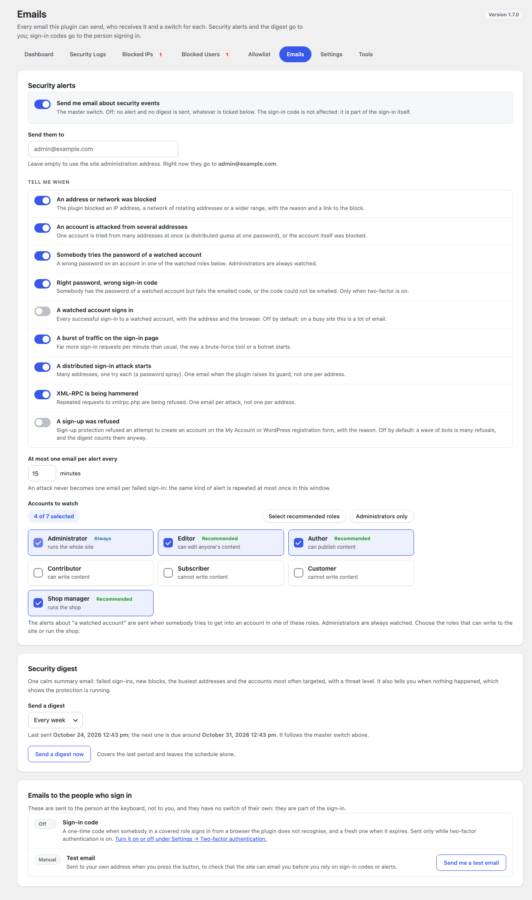
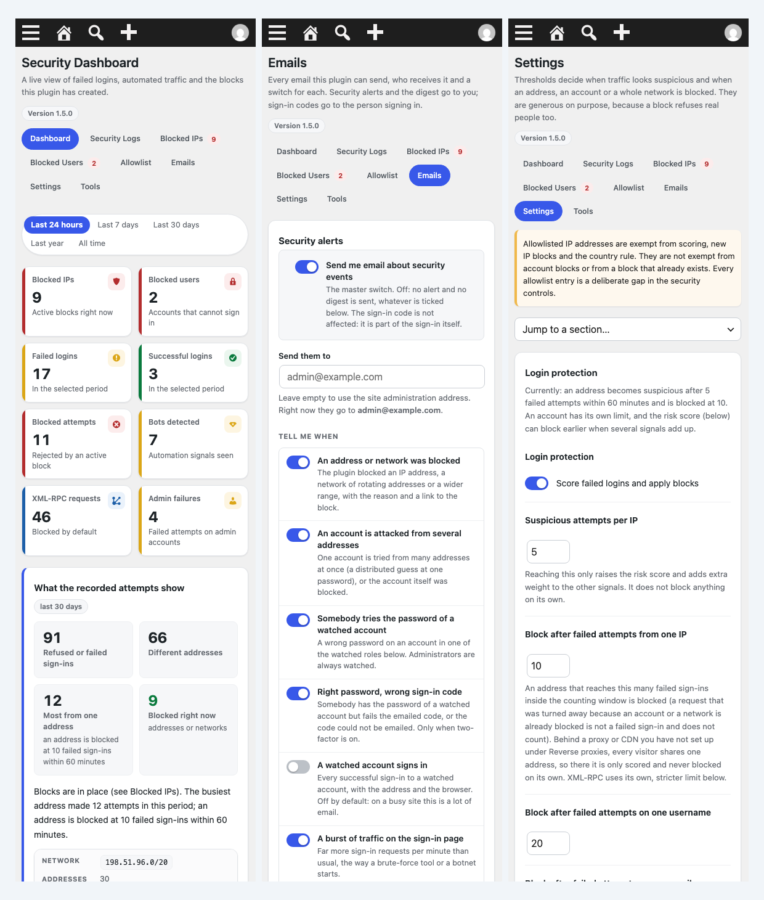
Since 1.5.0 every email the plugin can send sits on one Emails screen with a switch for each, the address they go to, the repeat window and the digest schedule, so a busy site can thin the alerts out in a minute or turn them all off with one switch. And every screen works on a phone: the tabs wrap, the tables stack, and Settings gets a jump-to-section select, so a block can be lifted from wherever the alert reaches you.
Since 1.7.0 it also stops fake customer accounts. Account-creation bots that solve the CAPTCHA are refused on the WooCommerce My Account and wp-login.php registration forms by checks they cannot fake cheaply: the page's JavaScript, the time it took to fill in the form, a hidden field, the email domain and the browser. A fake account that still gets through is marked as fake on the Users screen: the plugin learns its address, its domain and the domain's mail server, and deletes it.
02
Why store owners choose it
It blocks the attacker, not your customers: bot signals alone can never block a normal browser, administrator accounts are never auto-blocked unless you choose it, and a network or range is left alone when your customers sign in from it.
Every block, log entry and alert shows the reason, the IP address and the account, so you can see why something was refused.
Blocks stay until you remove them (a wide range lifts after 48 hours), so the list is an honest record. Allowlist your own address, and use WP-CLI as the way back in.
The password field, cookies and tokens are never stored, failed logins give one generic error, and no sign-in data, IP address or username ever leaves your site.
It protects sign-ins and sign-ups only. There is no firewall, file scanning or hardening score, and no sign-in data leaves your site.
03
Features
Login protection
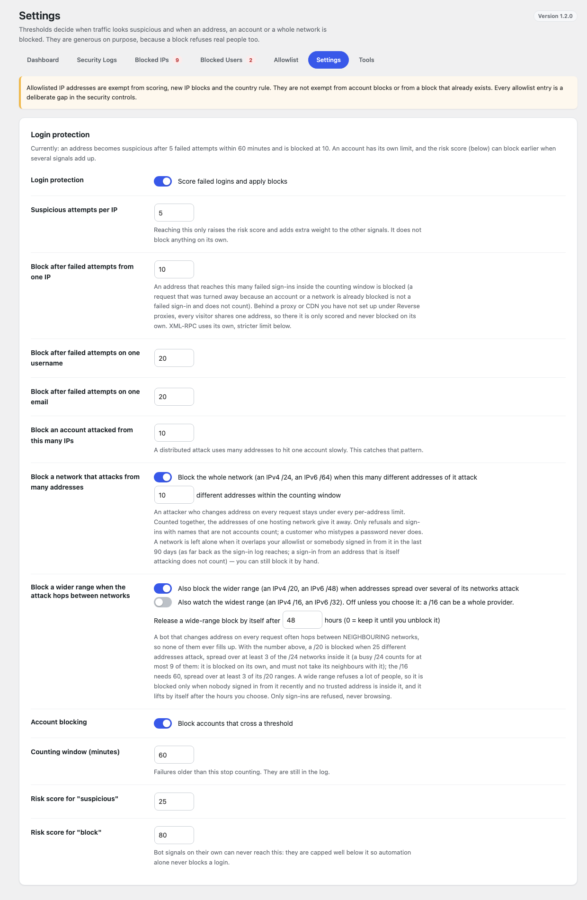
Counts failed logins per IP address, username and email in a rolling window and scores each request with one risk engine. Defaults, within 60 minutes: suspicious at 5 failures; an address is blocked on its 10th failed sign-in (the limit counts the attempt that reaches it) and an account after 20 failures. Every limit is a setting.
Distributed attack detection
Catches slow attacks where dozens of addresses guess one account. When an account is targeted from 10 different IP addresses (the default), the account is blocked too.
Rotating-address protection
A bot that changes address on every request stays under every per-address limit. The plugin counts the different addresses of one network (an IPv4 /24, an IPv6 /64) and blocks the whole network when 10 of them are refused or try names that are not accounts. A real customer’s typo never counts.
Range escalation
A bot that hops between neighbouring networks is caught one level up: 25 addresses spread over at least three networks block the IPv4 /20 (IPv6 /48) around them, and the /16 (IPv6 /32) is an opt-in. A wide range lifts by itself after 48 hours, and is left alone when customers sign in from it or a trusted address is inside.
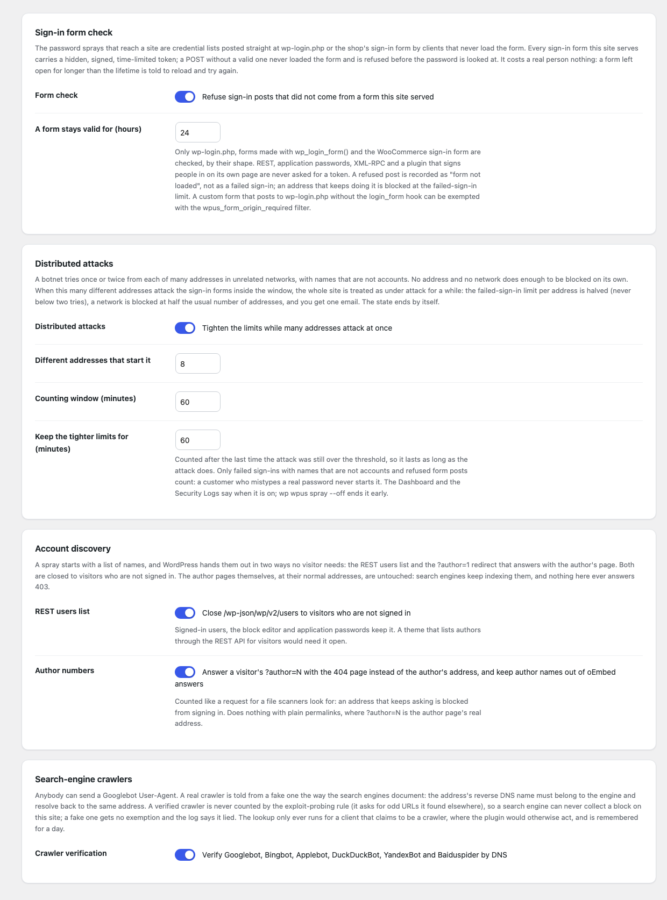
Sign-in form check
Every sign-in form carries a hidden, signed, time-limited token. A sign-in post without a valid one never loaded the form: it is refused before the password is looked at, recorded as “form not loaded”, and an address that keeps doing it is blocked. REST, application passwords, XML-RPC and plugins that sign people in on their own page are never asked.
Distributed attack mode
When 8 different addresses (your choice) fail with unknown names or post without the form inside an hour, the site is under attack for an hour: per-address limits are halved, a network is blocked at half the usual count, you get one email, and the Dashboard shows it until it ends by itself.
Account discovery closed
The REST users list and ?author=N are closed to visitors who are not signed in, so a spray cannot learn your usernames. Author pages stay as they are. Googlebot, Bingbot and the other engines are verified by DNS and never counted as scanners, so your search ranking is never touched.
Sign-up protection
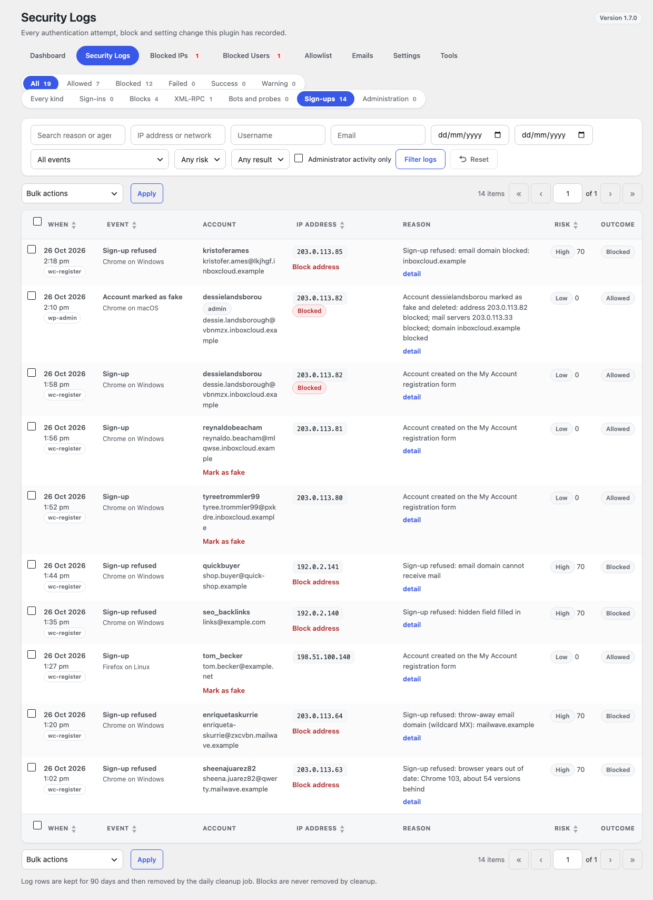
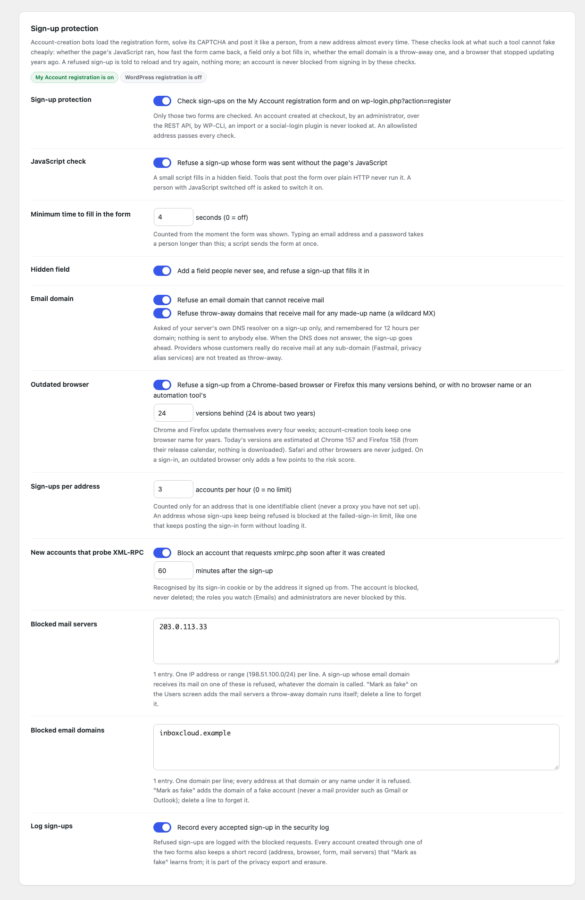
Account-creation bots that solve the CAPTCHA are refused on the WooCommerce My Account and wp-login.php registration forms: no JavaScript, a form sent in a second, a hidden field filled in, a throw-away email domain, a browser years out of date, too many sign-ups from one address. A refused person sees the form again with one short message; checkout and the admin are never checked.
Mark as fake
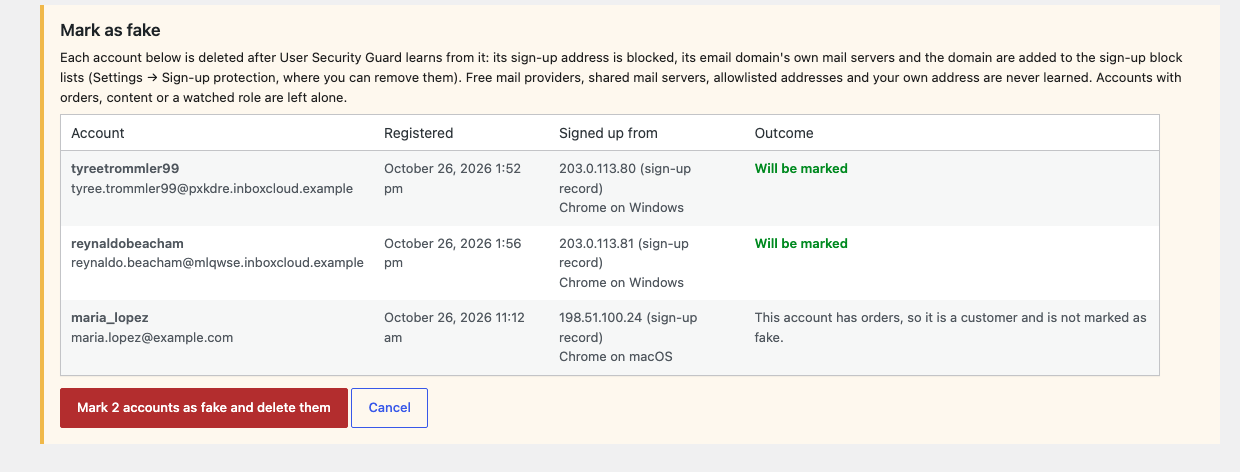
A fake account that got through is marked on the Users screen: the plugin blocks the address it signed up from, adds its domain and the domain’s own mail server to the sign-up block lists, and deletes it, so the next one is refused at once. It never learns Gmail, Outlook or your own domain, and leaves customers with orders alone.
What the recorded attempts show
The Dashboard and the Security Logs open with a card that counts the addresses that attacked, shows how often the busiest one tried against the limit, says in one plain sentence whether an attack is going on, and lists the networks to block with a one-click Block network or Block range.
Who is knocking
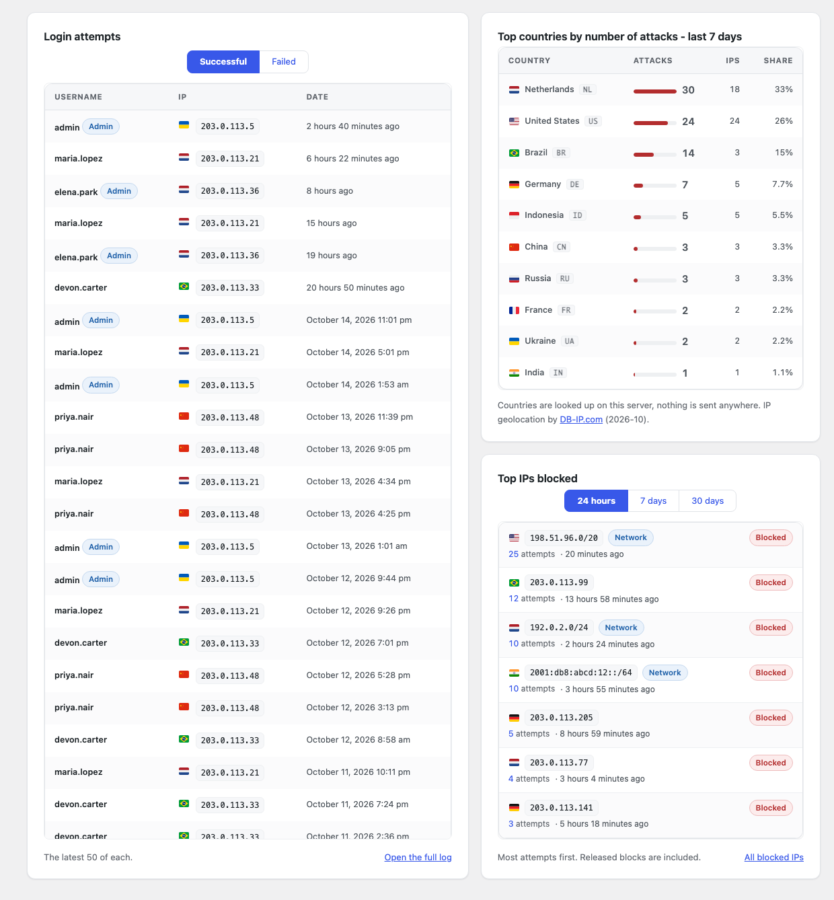
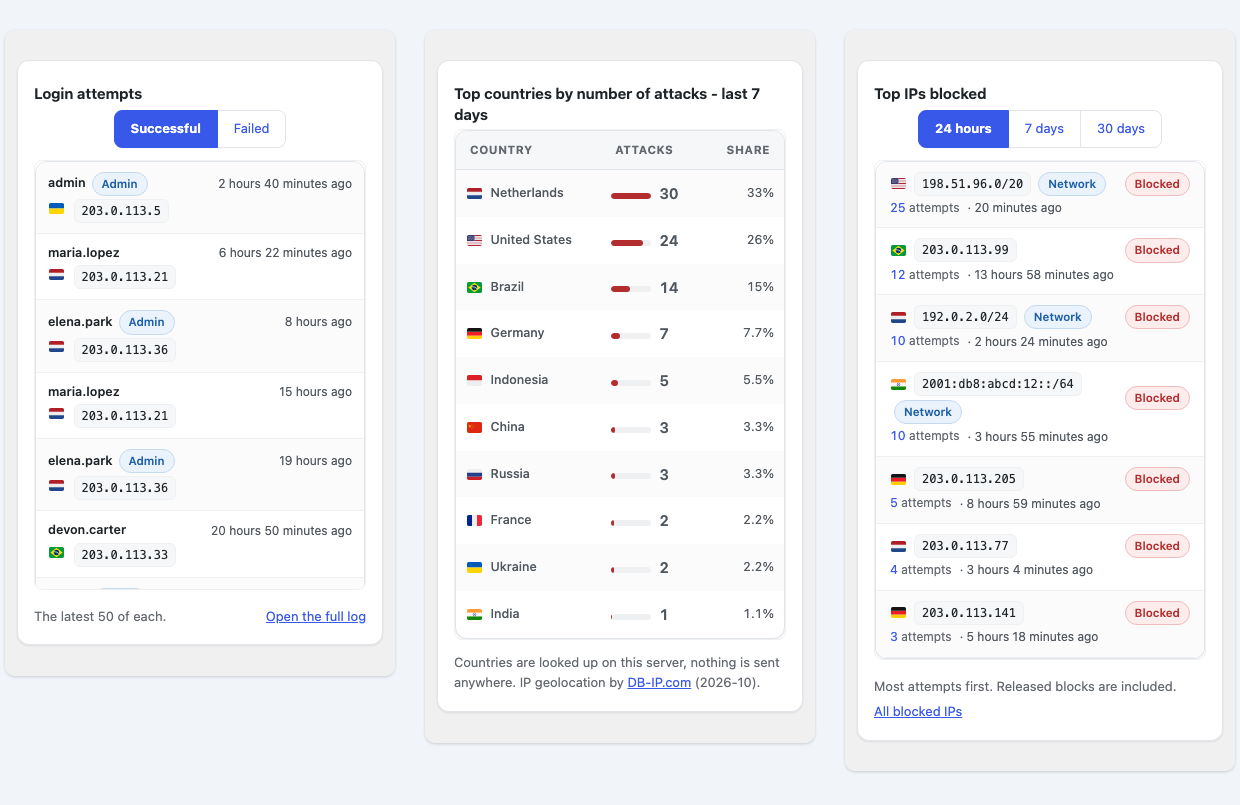
Three Dashboard cards: the latest successful and failed sign-ins with username, address, country flag and age; the top countries by number of attacks over the last 7 days, with a bar, the number of addresses and the share; and the top blocked IPs for the last 24 hours, 7 days or 30 days, networks included. Countries come from a small file inside the plugin (the free IP to Country Lite database by DB-IP.com), so nothing is sent anywhere.
Administrator protection
Administrators get a stricter limit of 5 failures, dedicated success and failure logging, and a guard rail: an administrator account is never auto-blocked unless you switch that on.
Bot detection
Looks at request frequency, missing browser headers, automation user agents and sustained hammering. All bot signals together are capped below the block threshold, so a normal browser is never blocked on bot grounds alone.
XML-RPC protection
Blocks XML-RPC with a generic 403 by default and blocks an address that keeps hammering it. You can allow XML-RPC, and separately allow authentication through it, for Jetpack or the mobile app.
Default username traps
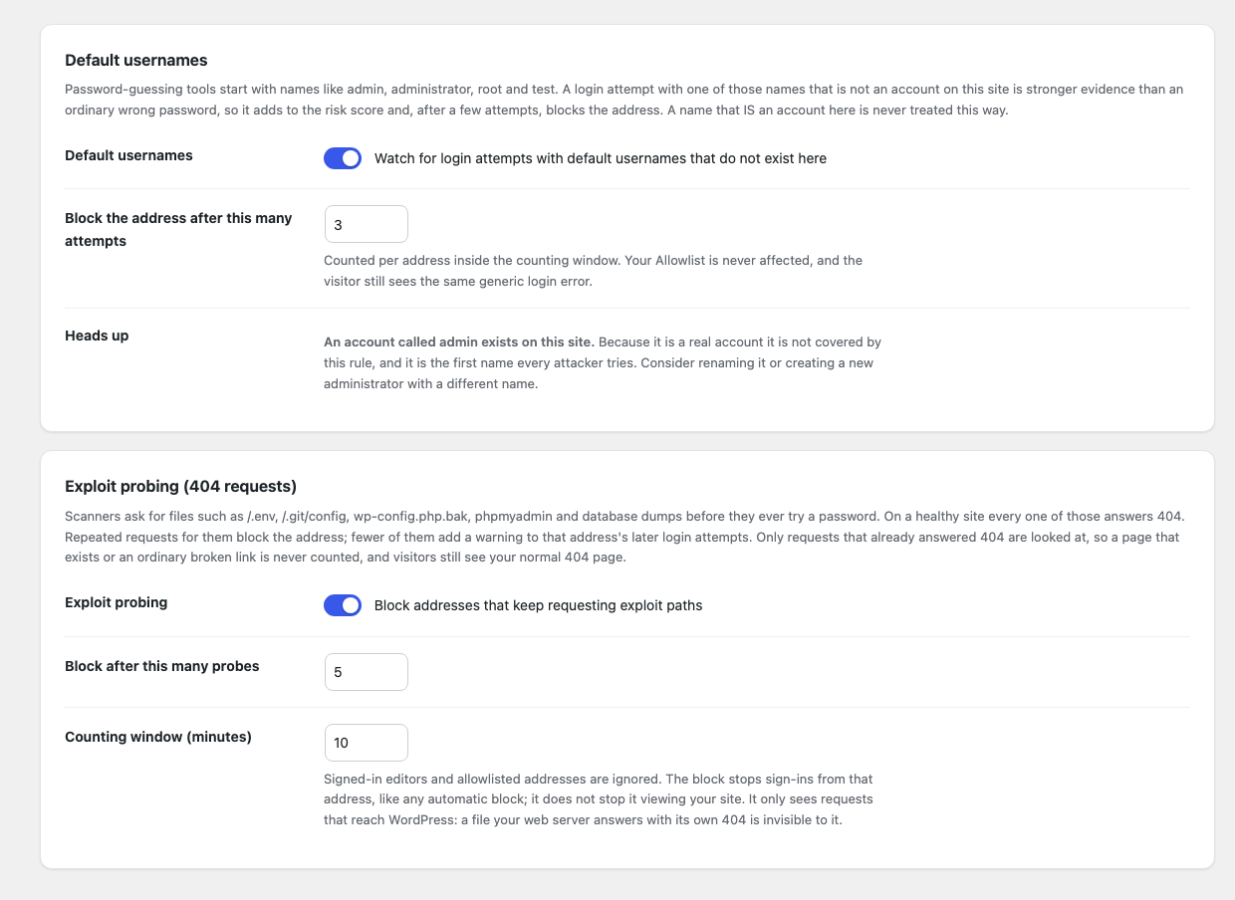
A login attempt with admin, administrator, root or test that is not an account on your site is stronger evidence than a wrong password. A few of them block the address; a name that is a real account is never treated this way.
Exploit scanner blocking
Counts requests that answer 404 for /.env, /.git/config, wp-config.php.bak, phpmyadmin, web shells and database dumps. Five in 10 minutes blocks sign-ins from that address. Visitors still see your normal 404 page.
Email sign-in code
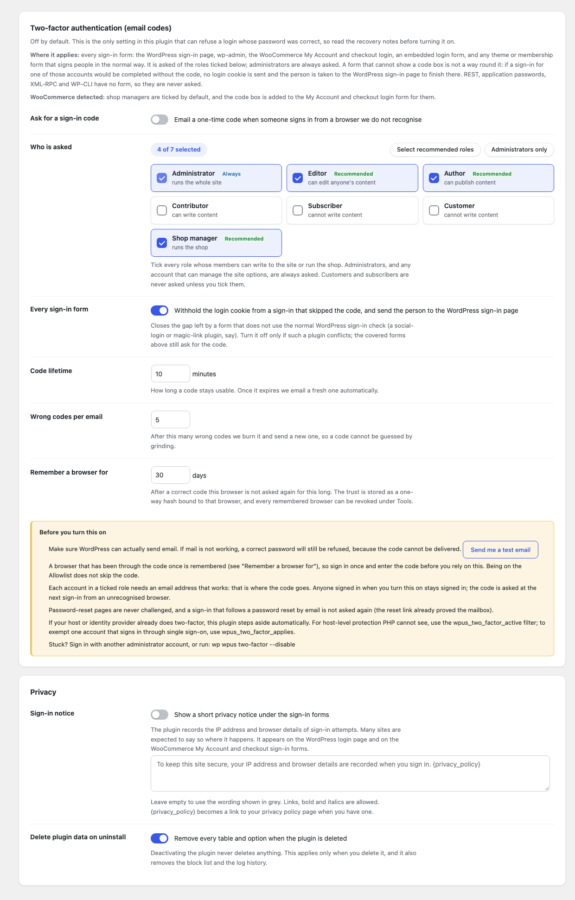
Optional. Emails a one-time code when someone signs in from an unrecognised browser, on every sign-in form, for the roles you tick. A sign-in that would skip the code gets no login cookie. Includes a test email button and a trusted-browser cookie.
WooCommerce sign-in
Detected automatically. Wrong passwords on My Account and the checkout login are counted, scored and blocked like wp-login.php. Viewing My Account or browsing the shop is never scored.
Country rule
Optional. Refuse sign-ins from chosen countries, or from every country you do not choose, using the country header your CDN or host adds, such as Cloudflare CF-IPCountry. There is no GeoIP database to download.
Blocks and allowlist
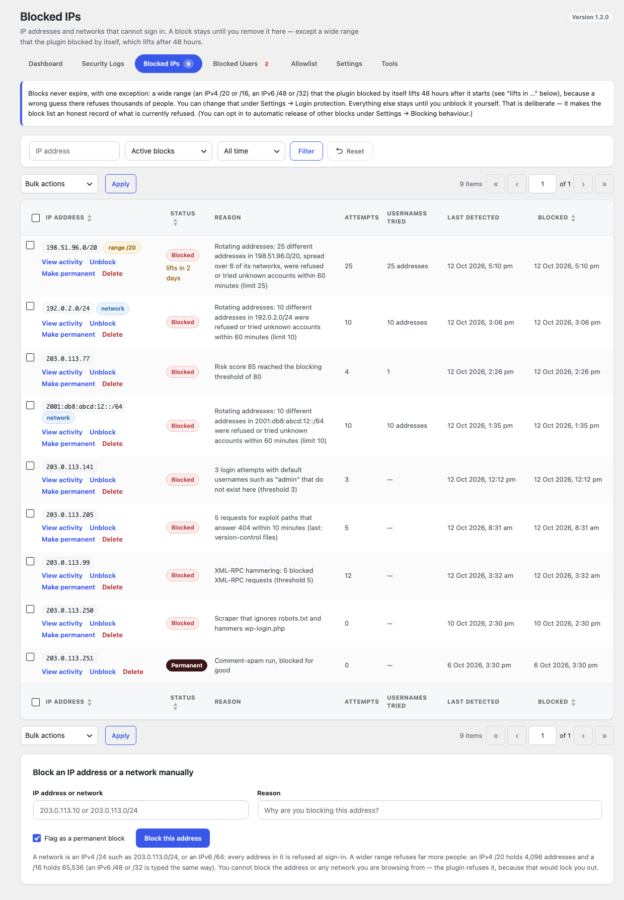
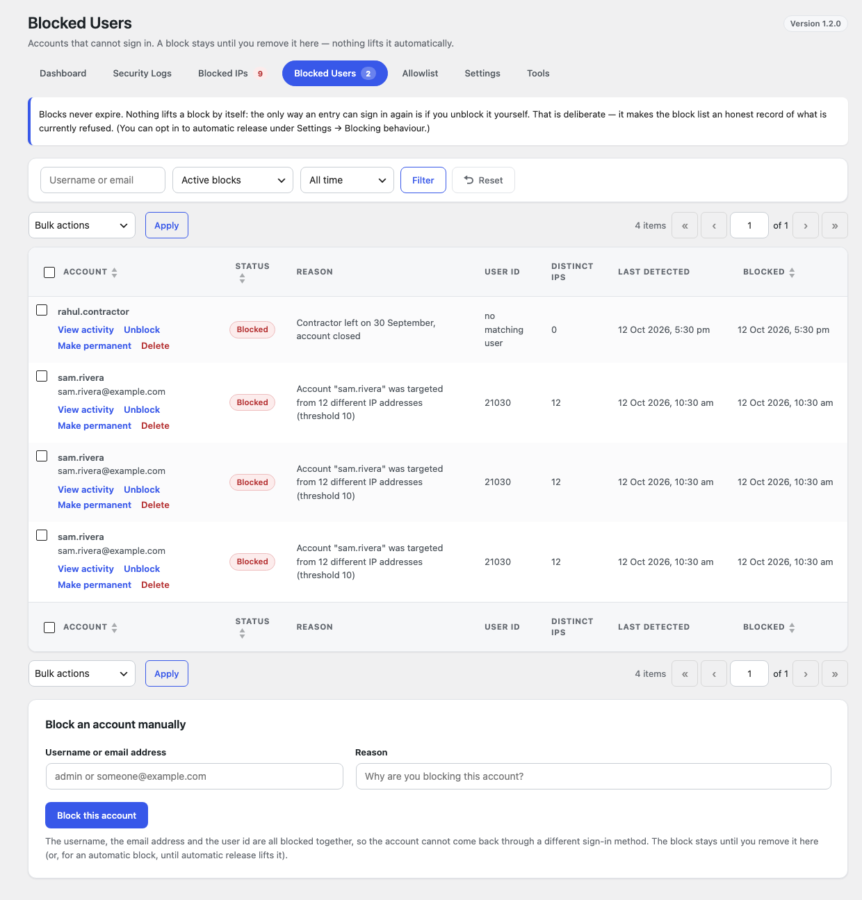
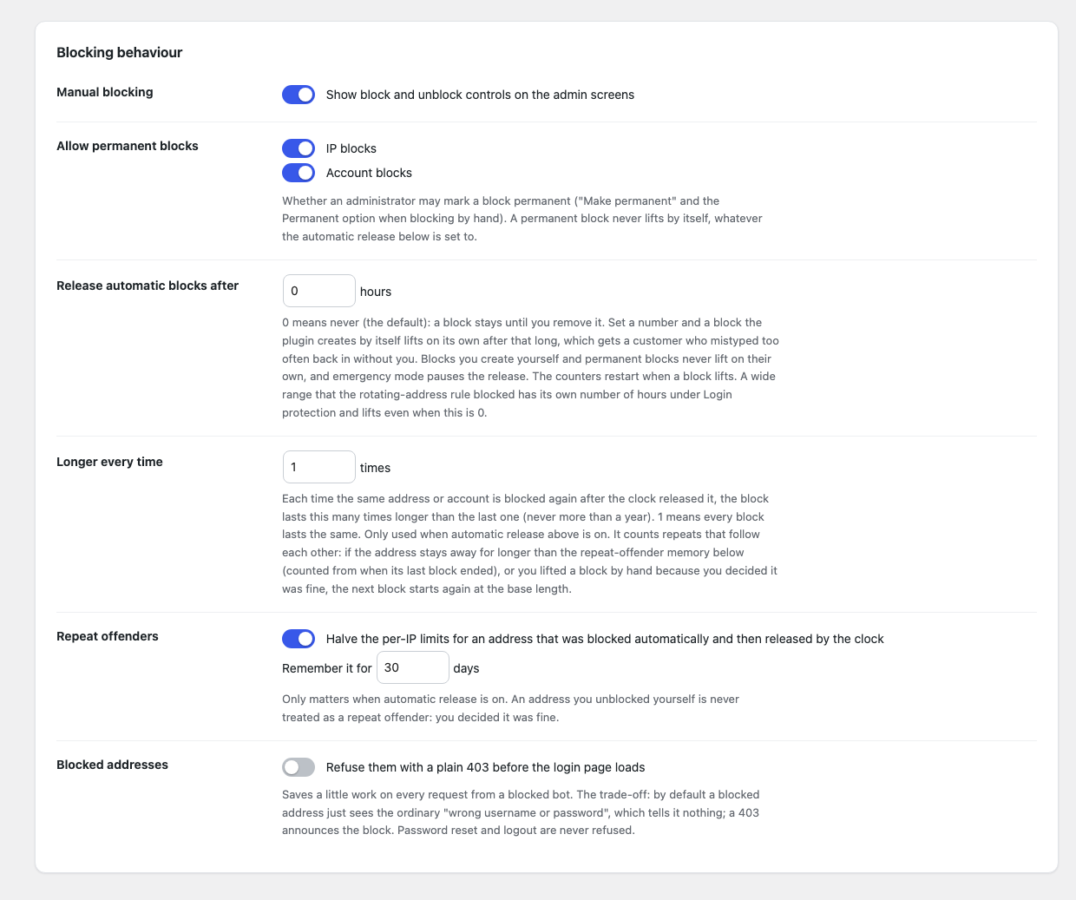
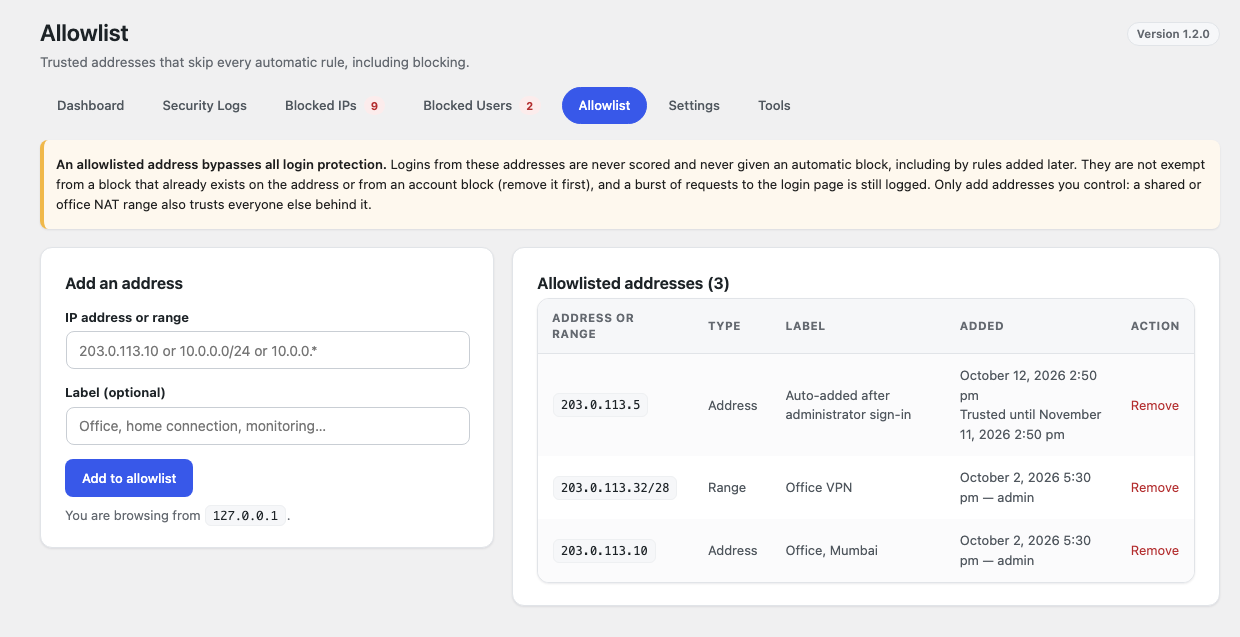
Blocked IPs and Blocked Users screens with View, Unblock, Make permanent and Delete; Blocked IPs also takes networks and ranges (203.0.113.0/24, 178.239.192.0/20). An Allowlist for exact IPs, CIDR ranges and 10.0.0.* shorthand. Optional automatic release after N hours, off by default (a wide range that the plugin blocked lifts after 48 hours), with an optional multiplier that makes each repeat block last longer, up to a year.
Logs, dashboard and alerts
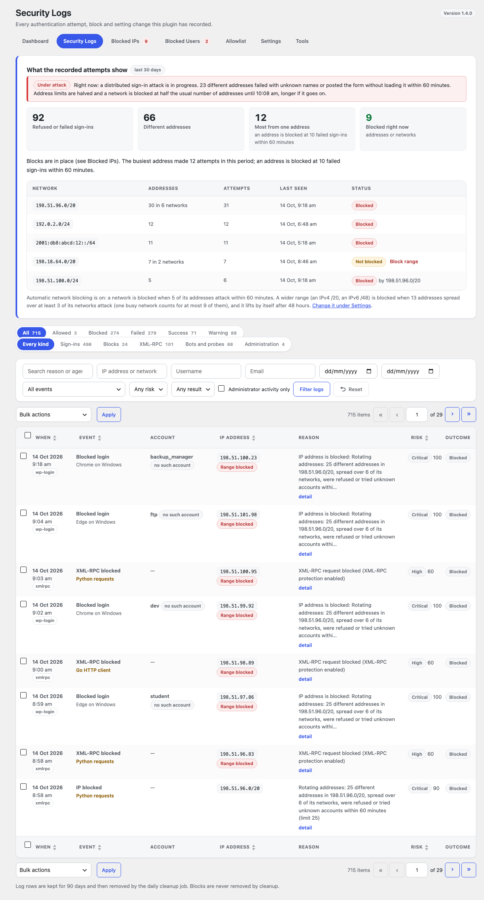
A dashboard with status tiles, a 14-day chart and the summary card, the Login attempts, Top countries and Top IPs blocked cards, a dashboard widget, a compact filterable security log with 20 event types (the name typed into a failed sign-in, a one-click Block address, a detail panel with the counters next to the limits), and throttled email alerts for new blocks, targeted accounts, attack spikes and watched accounts.
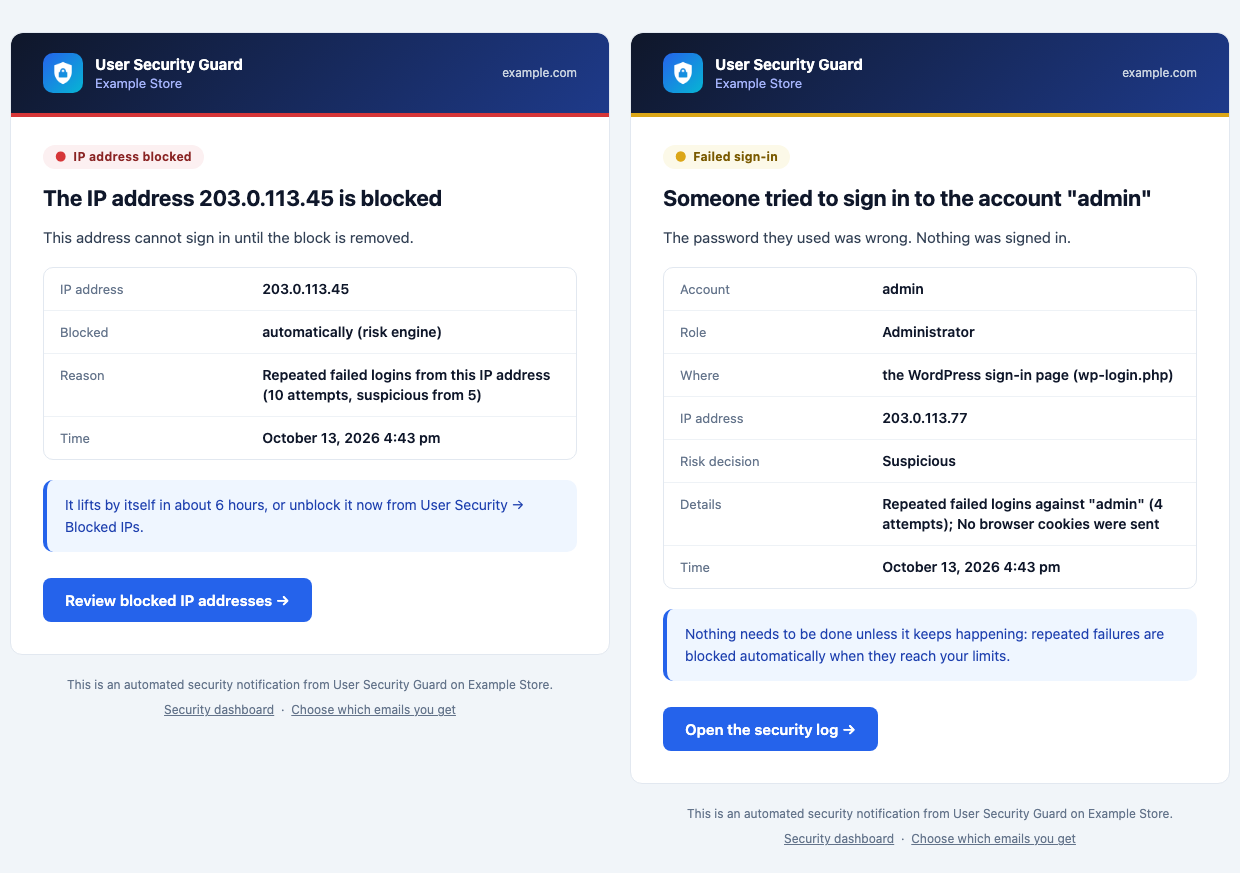
Clear security emails
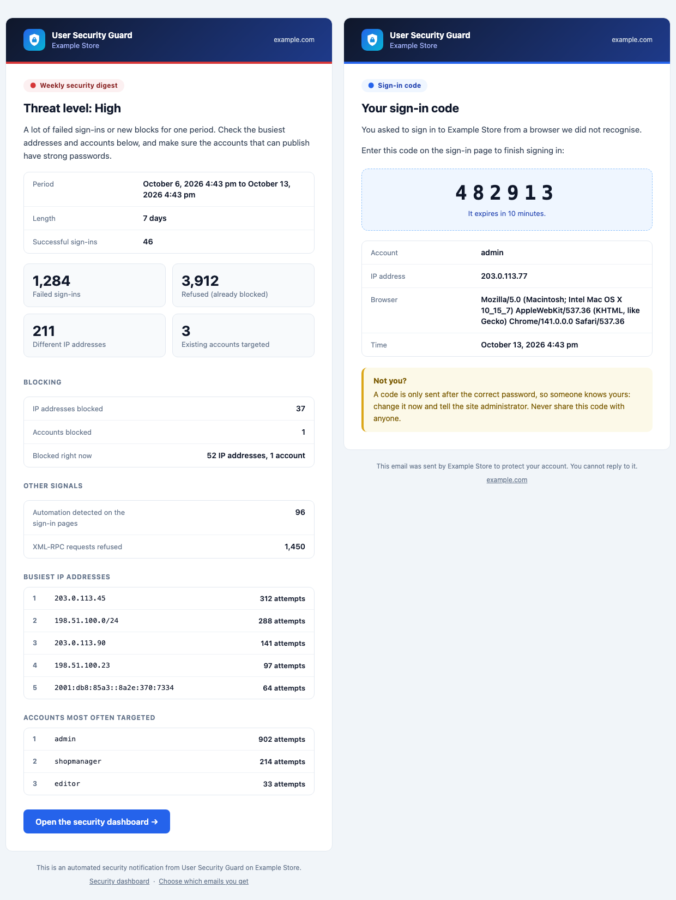
Every alert, the security digest and the sign-in code arrive as a clear card: the plugin icon, a colour for how serious it is (red attack, amber warning, blue information, green all clear), the facts in a table, what to do next and a button to the right screen. A plain-text version is included, nothing is loaded from a server, and the subjects stay the same, so your mail filters keep working.
One Emails screen
Every email the plugin can send on one screen with a switch for each: the master switch, the address they go to, the eight security alerts (each explained in a line), the repeat window, the accounts to watch, the digest schedule with last sent and next due, and the sign-in code and test email that go to the person signing in. Saving it never touches the other settings.
Security digest
A scheduled email, daily, weekly (the default) or monthly, with failed sign-ins, new blocks, the busiest addresses, the accounts most often targeted and a Low, Medium or High threat level judged per day. A quiet period says so. It is sent only while email notifications are on, the first one arrives a full period after the daily job first sees it switched on, and Tools has a send-now button.
Sign-in diagnostics
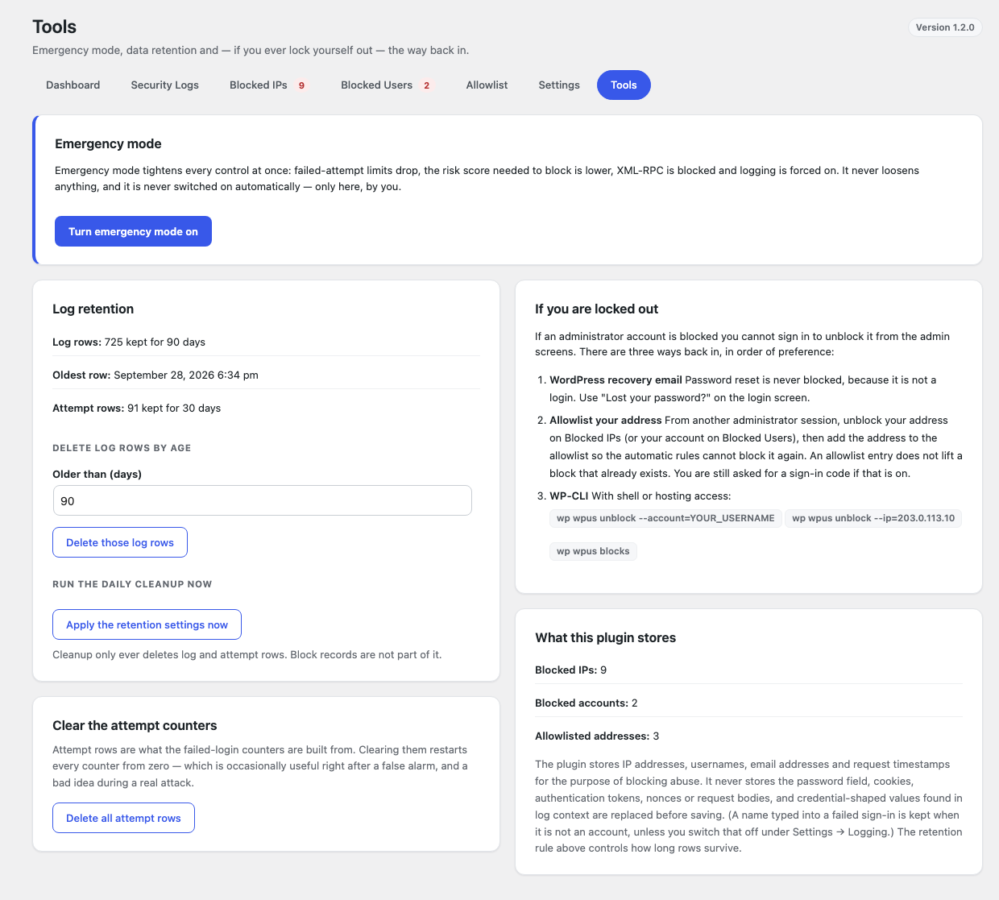
Tools shows which IP address the plugin sees for you and which proxy header to choose, lists every callback on the sign-in with the plugin it comes from, flags any that run after this plugin’s final check, and names other login-limiting plugins such as Limit Login Attempts Reloaded, Loginizer or Wordfence.
Export and import
Download the security log, blocks and allowlist as formula-safe CSV, and the settings as JSON. Paste a settings file from a staging site to import it. Thirteen site-specific or risky settings, among them the proxy settings, notification address, country rule, sign-in code switch, emergency mode and the uninstall choice, are never imported.
Privacy tools
An optional notice under the sign-in forms says that the IP address and browser details are recorded, with a link to your privacy policy. Suggested privacy-policy text and a WordPress personal-data exporter and eraser are included. The password field, cookies and tokens are never stored; the name typed into a failed sign-in is kept and can be switched off.
Works on a phone
The tabs wrap instead of scrolling sideways, the dashboard tiles sit two to a row, the compact tables stack as labelled lines, the new Dashboard cards show every row as two short lines, the list tables use WordPress’s own phone layout and Settings gets a jump-to-section select, so you can lift a block or switch an alert off from wherever the email reaches you.
04
How it works
- 1
Install and activate
Upload the plugin and activate it. It creates its tables, seeds the default settings and adds a User Security menu in wp-admin, right below Users.
- 2
Allowlist your own address
Open Allowlist and add the IP address you work from, so a false positive can never lock you out.
- 3
Let it watch sign-ins and sign-ups
Failed logins, bots, default usernames, exploit probes, XML-RPC requests and attacks that change address on every request are scored, logged and blocked when they cross a limit, and account-creation bots are refused on the My Account and wp-login.php registration forms. Ordinary page views do no database work.
- 4
Review and unblock
Open the Dashboard: the first card tells you in plain words what the recorded attempts show. Review Security Logs and the Blocked screens to see every reason, or read the weekly digest email. Unblock anything that should not be there, or make a block permanent. A fake account that got through is one click away from Mark as fake on the Users screen.
05
Screenshots & demo
-
 Dashboard
 -
 Who is knocking: login attempts, top countries, top blocked IPs
 -
 Sign-ups: fake accounts refused
 -
 Mark as fake on the Users screen
 -
 What the recorded attempts show
 -
 Blocked IPs: networks and ranges
 -
 Security Logs
 -
 Blocked Users
 -
 Settings: login protection
 -
 Settings: sign-up protection
 -
 Settings: default usernames and exploit probing
 -
 Settings: blocking behaviour
 -
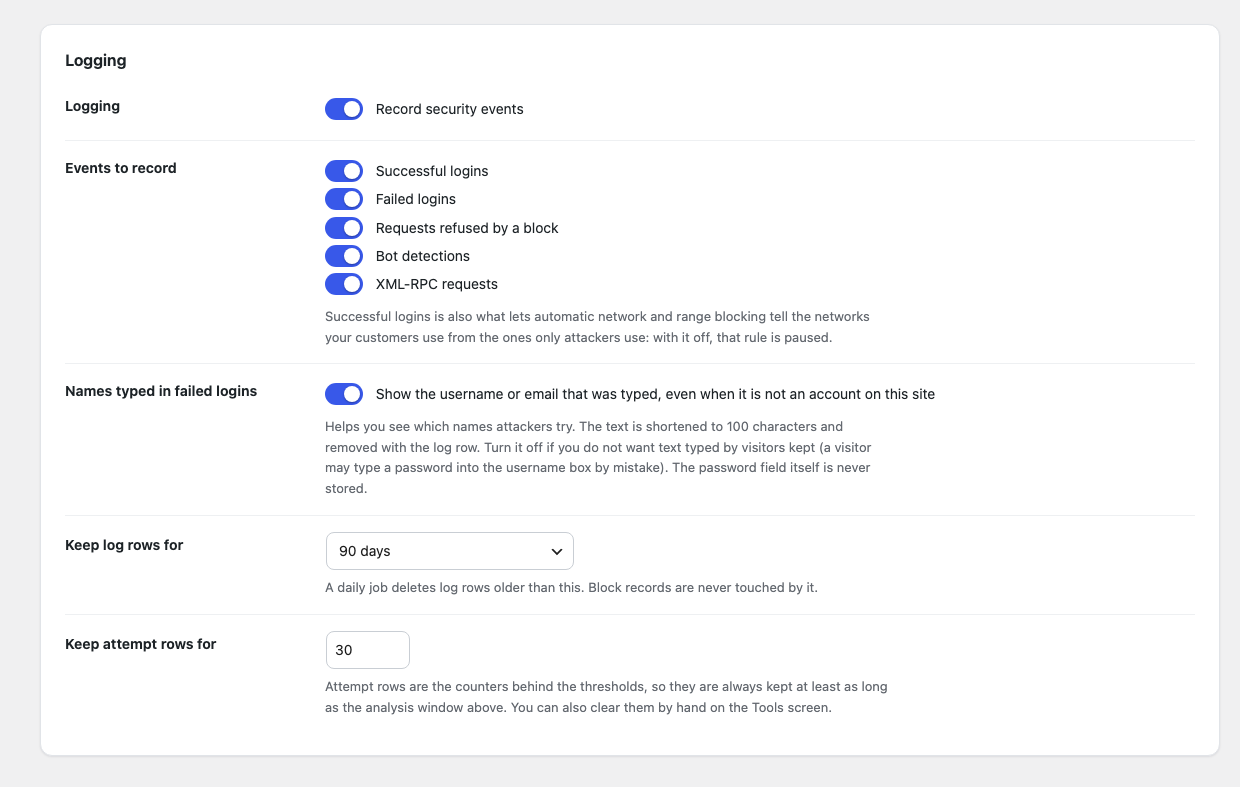
 Settings: logging
 -
 Emails: every email with a switch
 -
 Settings: email sign-in code and privacy
 -
 Allowlist
 -
 Tools
Tools -
 Security alert emails
 -
 Security digest and sign-in code emails
 -
 Settings: sign-in form check, distributed attacks, account discovery, crawlers
 -
 On a phone: Dashboard, Emails and Settings at 390 pixels
 -
 The new cards on a phone (390 pixels)
06
Settings & configuration
Login Protection
LOGINSet the suspicious and block limits per IP, username and email, the account-attack IP count, the network and range rules (10 addresses for a /24, 25 for a /20, the /16 as an opt-in, release after 48 hours), the counting window (60 minutes) and the risk scores for suspicious (25) and block (80).
Administrator Protection
ADMINChoose the stricter limit for administrators and whether an administrator account may be blocked automatically. That option is off by default.
Default Usernames and Exploit Probing
RULESTurn each rule on or off and set how many attempts or probes block an address, and over how many minutes. Both are on by default.
Form Check, Distributed Attacks, Discovery, Crawlers
SPRAYSTurn the sign-in form check on or off and set how long a form stays valid (24 hours), set how many different addresses start the distributed-attack state (8), its window and hold time (60 minutes each), close the REST users list and ?author=N to visitors, and verify search-engine crawlers by DNS. All on by default.
Sign-up Protection
SIGN-UPSSwitch each check on or off: the JavaScript check, the minimum time to fill in the form (4 seconds), the hidden field, the two email-domain checks, the outdated-browser limit (24 versions), sign-ups per address (3 an hour) and the XML-RPC watch for new accounts (60 minutes). See and edit the mail servers and domains Mark as fake has learned, and choose whether accepted sign-ups are logged. All on by default.
Blocking Behaviour
BLOCKSAllow permanent blocks, release automatic blocks after a number of hours (0 means never), make each repeat block 1 to 10 times longer (1 keeps the same length), halve the limits for repeat offenders, and optionally refuse blocked addresses with a plain 403.
Reverse Proxies
PROXYTurn on Trust proxy headers and choose X-Forwarded-For, CF-Connecting-IP, X-Real-IP or True-Client-IP, so the plugin sees the visitor and not your CDN. Tools shows which address it sees.
Emails
EMAILSIts own screen since 1.5.0: the master switch, the email address, one switch per alert with a line that says when it is sent (nine alerts; the new “A sign-up was refused” is off by default), the repeat window (15 minutes), the roles to watch (administrator, editor, author and shop manager by default), the security digest schedule (weekly by default, or daily, monthly or never) with Send a digest now, and the Send me a test email button.
Email Sign-in Code
CODEOff by default. Choose who is asked, the code lifetime (10 minutes), wrong codes allowed (5) and how long a browser is remembered (30 days).
Logging and Retention
LOGSChoose which events are recorded, whether the name typed into a failed sign-in is kept, and how long log rows are kept, from 30 days to forever. The default is 90 days. Attempt rows are kept 30 days.
Privacy
PRIVACYShow an optional notice under the sign-in forms and write its wording, and choose whether deleting the plugin also deletes its tables and options. Deleting data on uninstall is on by default.
Diagnostics, Export and Import
TOOLSCheck which address the plugin sees, review the callbacks on the sign-in, send a digest now, download the log, blocks, allowlist and settings, and import a settings file. Emergency mode and the retention buttons are on the same screen.
07
Requirements & installation
Who it is for
It suits site owners, agencies and WooCommerce stores that want login protection that does one job carefully, without a firewall, a malware scanner or a hardening score. It is a good fit for sites with customers or editors who sign in, for sites that are being hit by password guessing, and for shops whose customer list keeps filling with fake accounts.
Requirements
- WordPress 6.2 or later (tested up to 7.1)
- PHP 7.4 or later
- WooCommerce is optional; its sign-in and registration forms are protected when it is active
- Behind Cloudflare or another proxy, turn on Trust proxy headers and choose the header it sets
- Working email delivery, if you turn on the email sign-in code or want the digest
- The log of successful sign-ins (on by default): network and range blocking use it to tell your customers’ networks from attackers’ networks
Installation
- Download the plugin zip from your account.
- In WordPress, go to Plugins > Add New > Upload Plugin, choose the zip file and click Install Now.
- Activate the plugin. It creates its tables, seeds its default settings and adds a User Security menu.
- Open User Security > Allowlist and add your own IP address, so a false positive can never lock you out.
- Open the Dashboard and review Settings. The defaults work without changes.
- Activate your licence under Plugins > WpExperts Hub Licences to receive updates.
08
Documentation & support
DocumentationSetup guide and configuration reference. (opens in a new tab)
TutorialLimit Login Attempts on WordPress to Stop Brute-Force Attacks
Email supportsupport@wpexpertshub.com Include your order ID for faster help.
CustomisationNeed a change or an integration? Ask the developers who wrote it.
09
Frequently asked questions
Will it lock me out of my own site?
Not by default. Administrator accounts are never auto-blocked unless you switch that on, and allowlisting your own IP address removes the risk. If you are locked out anyway, run wp wpus unblock –account=your-login from the command line, or use password reset, which is never blocked.
How is this different from an all-in-one security plugin?
It does one thing. There is no file scanning, no firewall and no hardening score. It protects accounts and sign-ins; pair it with a malware scanner if you need that too.
Does it slow my site down?
No. On ordinary page views the plugin does no database work. Its queries run only on login, XML-RPC, REST authentication and application-password requests, and rate counters live in transients. On a sign-up it also looks up the email domain once, and remembers the answer for 12 hours.
Why is XML-RPC blocked by default?
It is a legacy endpoint that amplifies credential stuffing and is almost never needed. If Jetpack, the mobile app or another tool uses it, turn it back on under Settings → XML-RPC.
Can bot signals block a real visitor?
No. All bot signals combined are capped below the block threshold, so a normal browser with normal headers is never blocked on bot grounds alone.
Does it work behind Cloudflare or a reverse proxy?
Yes, but you must tell it. Turn on Trust proxy headers and choose the header your proxy sets. It is off by default because those headers are easy to fake when there is no proxy in front. The Tools screen shows which address the plugin sees for you and names the header to choose.
What if an attacker changes address on every request?
Then no address reaches a limit, so the plugin counts the different addresses of one network instead. When 10 different addresses of one IPv4 /24 (IPv6 /64) are refused or try names that are not accounts, the whole network is blocked. A bot that also hops between neighbouring networks is caught one level up: 25 addresses spread over at least three networks block the /20 (IPv6 /48) around them. The Dashboard card “What the recorded attempts show” tells you in plain words what is happening and offers Block network or Block range.
Can a network or range block lock out my customers?
It refuses sign-ins from that network or range, never browsing or guest checkout. Before blocking, the plugin leaves a network alone when somebody signed in successfully from it in the last 90 days, when a trusted address or Allowlist entry is inside it, or when the successful sign-ins of customers are not logged (then the rule is paused). A wide range lifts by itself after 48 hours, you can unblock it at any moment, and an address on your Allowlist is never refused because of it.
Do blocks ever lift on their own?
Not by default, with one exception. A block lasts until an administrator removes it. You can opt in to releasing automatic blocks after a number of hours. Blocks you make by hand and permanent blocks never lift on their own. The exception is a wide range (an IPv4 /20 or /16, an IPv6 /48 or /32) that the plugin blocked by itself: it lifts after 48 hours, because a wrong guess there refuses thousands of people. You can change the hours, or set 0 to keep it until you unblock it.
Can an address that keeps coming back be blocked for longer?
Yes, if you turn on automatic release. Set the multiplier under Settings → Blocking behaviour, and each time the same address or account is blocked again after the release, the block lasts that many times longer than the last one, never more than a year. A block you lifted by hand, or an address that stayed away for longer than the repeat-offender memory, starts again at the base length.
Does it protect the WooCommerce login form?
Yes, and it finds WooCommerce by itself. Wrong passwords on My Account and the checkout login are counted and blocked like wp-login.php. Browsing the shop is never scored. You can switch it off under Settings → WooCommerce sign-in. Since 1.7.0 the My Account registration form gets Sign-up protection too; accounts created at checkout are never checked.
Does it protect the REST API and application passwords?
Yes. A blocked IP address or account cannot authenticate with an application password, and every REST credential failure gets the same generic answer. Only requests that carry credentials are looked at.
How does the email sign-in code work?
It is optional and off by default. When on, it is asked on every sign-in form for the roles you tick, from a browser the plugin does not recognise. Because it can refuse a correct password when mail does not work, use the test email button first. wp wpus two-factor –disable is the way back in.
Does the exploit-probing rule block my visitors?
No. It only looks at requests WordPress already answered with a 404 for a known probe path, and the only consequence is a block on sign-ins from that address. Signed-in editors, allowlisted addresses and shared addresses such as a CDN edge are never counted.
How do I choose which emails I get, or switch them all off?
Open User Security → Emails. The master switch at the top turns every alert and the digest off; below it every email the plugin can send is listed with its own switch and one line that says when it is sent, with the address they go to, the repeat window and the accounts to watch. The sign-in code has no switch there because it is part of two-factor authentication, which you switch off under Settings.
Does it send reports?
One, by default: a weekly security digest to the notification address. It lists failed sign-ins, new blocks, the busiest addresses, the accounts most often targeted and a threat level. It is sent only while email notifications are on, and the first one arrives one full period after the daily job first sees it switched on. Choose daily, weekly, monthly or never under Settings → Notifications. Tools has a Send a digest now button, wp wpus digest prints one and wp wpus digest –send emails it.
What do the security emails look like?
Each email is a card with the plugin icon and your site name at the top, a coloured label for how serious it is, a headline, the facts in a table (IP address, account, role, which sign-in form, time), advice on what to do next and a button that opens the right screen: the blocked addresses, or the security log filtered to that address or account. The sign-in code is shown large, so it is easy to read and copy. Every email also carries a plain-text version for mail apps that prefer it, and nothing is loaded from a server, so nothing is blocked and nothing tracks the reader. Developers can change any email with the wpus_email_message filter, or send plain text only with wpus_email_html.
Can I use it with Limit Login Attempts Reloaded, Loginizer or Wordfence?
You can, but two plugins that count the same failed sign-ins and lock addresses can lock the wrong person out and double the alerts. If another login-limiting plugin is active, Settings and Tools name it. Keep one of them.
Can I use the admin screens on my phone?
Yes, since 1.5.0. The tabs wrap instead of scrolling sideways, the dashboard tiles sit two to a row, the compact tables stack as labelled lines, the list tables use WordPress’s own phone layout, and Settings gets a Jump to a section select. Only the 14-day chart still scrolls sideways, because its labels would be unreadable any smaller.
Can I copy my settings from a staging site?
Yes. On the staging site, download the settings as JSON from Tools, then paste the file into Import settings on the other site, or run wp wpus import-settings. Thirteen settings are never imported: the proxy settings, the notification address, the country rule, the sign-in code switch, emergency mode, blocking of administrator accounts, trusted administrator addresses, automatic release of blocks with its multiplier, and the uninstall choice. The result lists every setting that changed.
Does it show a privacy notice on the login page?
Only if you turn it on under Settings → Privacy. It adds a short line under the WordPress login form and the WooCommerce My Account and checkout login forms, saying that the IP address and browser details are recorded, with a link to your privacy policy. You can write your own wording.
I was told the sign-in form had expired. What happened?
Every sign-in form the plugin knows carries a hidden token that is valid for a day (Settings > Sign-in form check). Your form was open for longer than that, or the page came from a copy made before the plugin was switched on. Reload the page and sign in again. Bots that post credential lists without ever loading the form get the same message, which is the point.
Will the form check break my custom login form?
Not if it is one of the usual kinds: wp-login.php, a form made with wp_login_form() (most themes and page builders), the WooCommerce My Account and checkout forms, or a plugin that signs people in on its own page. A hand-made form that posts straight to wp-login.php without the login_form hook is the one case: exempt it with the wpus_form_origin_required filter, or switch the check off.
Does it stop fake customer accounts?
Yes, since 1.7.0. Sign-up protection checks the WooCommerce My Account and the wp-login.php registration forms. An account-creation tool that does not run the page’s JavaScript, sends the form in a second, fills in a hidden field, uses a throw-away email domain or a browser years out of date, or creates many accounts from one address is refused, even when it solved the CAPTCHA. A fake account that still gets through can be marked as fake on the Users screen, which blocks what it came from and deletes it.
Can it refuse a real customer's sign-up?
Rarely, and it says why. Every refusal is in Security Logs under the kind Sign-ups with the check that refused it, and the person sees the form again with a message to reload and try again. A failed DNS lookup never refuses, Safari and unknown browsers are never judged, an allowlisted address passes every check, and accounts created at checkout are never checked.
What does Mark as fake learn, and can I undo it?
The address the account signed up from (an IP block), the mail servers its email domain runs itself and the domain (two lists under Settings > Sign-up protection), then the account is deleted. It never learns Gmail, Outlook and the other free providers, a shared mail server or your own address, and it leaves accounts with orders or content and watched roles alone. The deletion cannot be undone; what was learned can: unblock the address and delete the lines.
Will any of this affect my search ranking?
No. Refusals happen on wp-login.php, the shop sign-in form and xmlrpc.php, which crawlers never post to. A visitor’s ?author=1 gets the ordinary 404 page while author pages at their real addresses stay as they are, a real crawler is recognised by DNS and never counted by the exploit-probing rule, and the plugin never answers 403 for a page, a 404 or a public REST route. The plugin’s own test-suite checks that over real HTTP.
Where do the countries on the Dashboard come from?
From a small file that ships with the plugin (about 5 MB, the free IP to Country Lite database by DB-IP.com, credited under the card). Each address is looked up in it on your own server, so nothing is downloaded or sent anywhere, and sign-in attempts recorded before 1.6.0 get a country too. It is a display only: the optional country rule still reads only the header your CDN or host adds. Private addresses and addresses the file does not know are listed as Unknown or private network, and a country is only as exact as such a database can be, so a VPN or a mobile network can show another country. The file is refreshed with plugin updates.
Does it send data anywhere?
No sign-in data leaves your site. No IP address, username or login attempt is sent anywhere, and there is no tracking, online lookup or blocklist feed (the countries on the Dashboard come from a file that ships inside the plugin). Sign-up protection asks your own server’s DNS resolver about the email domain of a sign-up (the domain only, never the address). The one outside contact is the WpExperts Hub licence and update check with wpexpertshub.com. It goes through WordPress’s normal update check and the Plugins → WpExperts Hub Licences screen, its answer is cached for 12 hours, and it sends your site address, the plugin’s folder name and version and your licence key. It is never made while a sign-in is being checked, and the protection does not depend on it.
What happens when I delete the plugin?
Deactivating deletes nothing. Under Settings → Privacy, Delete plugin data on uninstall is ticked by default; when it is ticked, deleting the plugin removes its tables, options, transients and the sign-up records of the accounts. Untick it first to keep your block list and logs.
How do I activate my licence and get updates?
Your licence key is emailed after purchase and is also shown in My Account → Downloads. In WordPress go to Plugins → WpExperts Hub Licences, paste the key and click Activate licence. New versions then appear on the normal Dashboard → Updates screen. The plugin works without a licence; the key only unlocks updates. You can also upload a new zip under Plugins → Add New → Upload Plugin and choose Replace current with uploaded. Your settings and data are kept.
How do I get support?
Email support@wpexpertshub.com with your order details and a description of the issue, and our team will help you.
10
Customer reviews
Thanks for your review!
It’s waiting for approval and will appear here soon. We’ll email you when it’s live.
Be the first to review it
Used User Security Guard for WordPress on your store? A short review helps other store owners decide — and tells us what to improve.
User Security Guard for WordPress$99