$30One-time paymentUpdates & support included
01
Overview
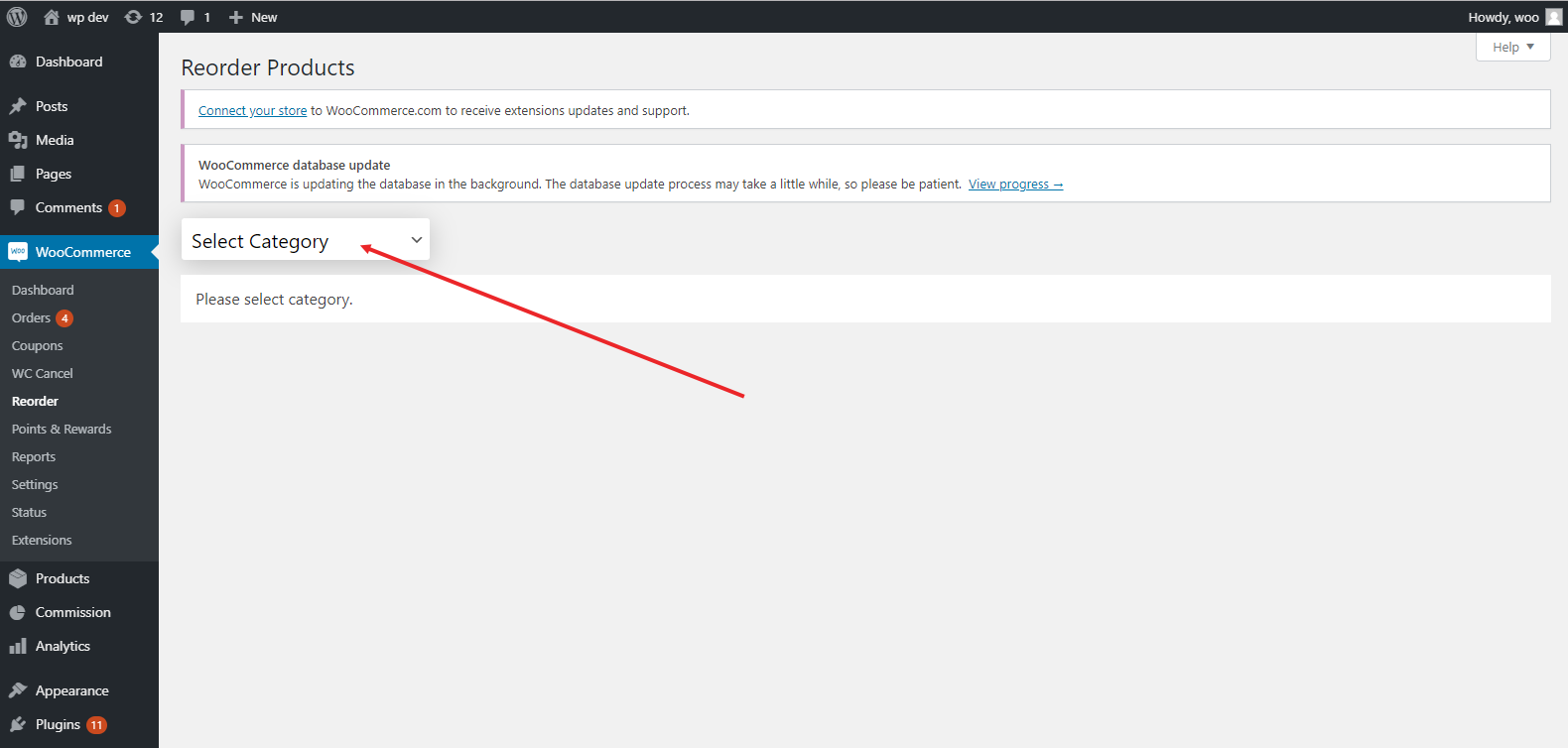
Category Products Reorder for WooCommerce adds a Reorder screen under the WooCommerce menu. Pick a product category, drag the products into the order you want and the order is saved automatically. Each category keeps its own order, so the same product can sit first in one category and last in another.
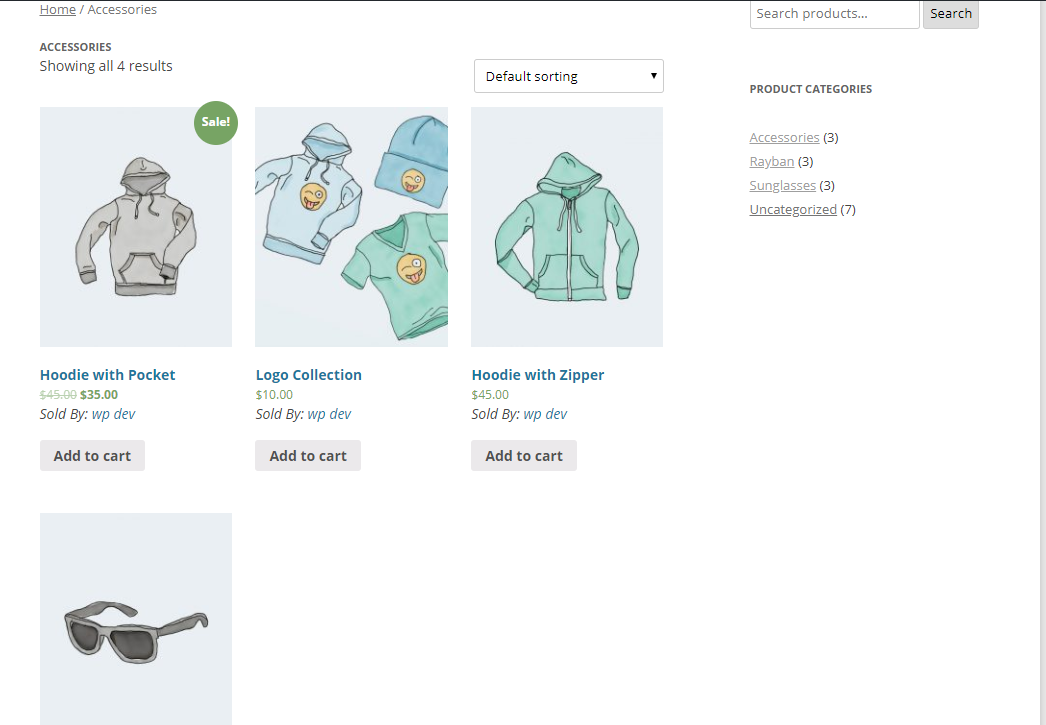
The saved order is applied to the category page whenever the default WooCommerce sorting is selected, both on classic themes such as Storefront and on block themes using the Products by Category template. Product Collection blocks filtered to a single category with the default sort follow the same order. Shoppers can still switch to price, popularity, rating or latest sorting.
Products from sub-categories that appear on a category page can be positioned too, new products appear after the ones you have ordered, and a Reset button returns a category to the default WooCommerce order.
02
Why store owners choose it
Put the products you want to sell first at the top of each category page.
Every category keeps its own order, independent of the others.
Works on classic and block theme category pages.
Drag, drop and it is saved; no settings to configure.
Everything happens on one screen: WooCommerce → Reorder.
03
Features
Drag and drop ordering
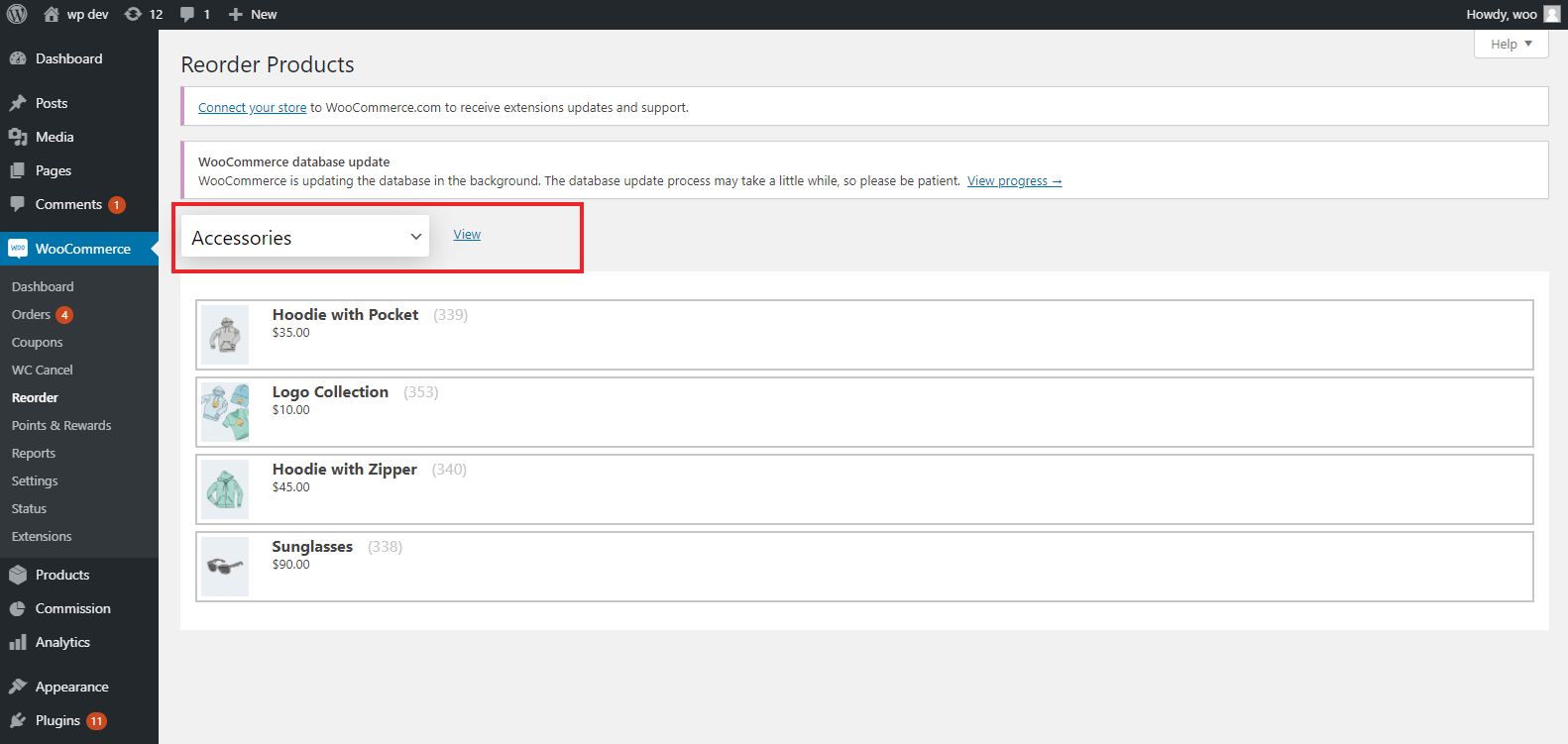
Arrange the products of a category by dragging them in a list, or use the move buttons or keyboard. Each change saves the new order automatically.
Per-category order
Each product category has its own order, and with Polylang each language does too. Products of sub-categories that appear on the category page can be positioned too.
Classic and block themes
Applied on category archives in classic themes and on the block Products by Category template, plus Product Collection blocks filtered to one category.
Shopper sorting still works
The custom order is used with the default sorting only, so price, popularity, rating and latest sorting keep working. The store’s default sorting must be “Default sorting”.
Plan ahead
Draft, pending, private and scheduled products are listed with their status so you can position them before launch.
Reset any time
One click removes the custom order of a category and returns it to the default WooCommerce order.
Lightweight
Positions are stored in a small indexed table and applied with a single join, and cleaned up when products are deleted permanently or categories are deleted.
04
How it works
- 1
Install and activate
Upload the plugin and activate it; WooCommerce must be active.
- 2
Open WooCommerce → Reorder
Choose the product category you want to arrange from the dropdown.
- 3
Drag and drop
Move products up or down the list. The order is saved automatically after each drop.
- 4
Check the category page
Use the View category link: with the default sorting, products appear in your order.
05
Screenshots & demo

06
Settings & configuration
Category selector
CATEGORYHierarchical list of all product categories with product counts, plus a link to view the category page.
Sortable product list
ORDEREvery product shown on the category page, with image, name, ID, SKU, price and status, in its current order.
Reset to default order
RESETRemoves the saved order of the selected category so WooCommerce’s default sorting is used again.
07
Requirements & installation
Who it is for
It suits store owners and merchandisers who want to promote best sellers, new arrivals or seasonal products. They can reorder products on any WooCommerce category page and move those items to the top. Also, they never need to change product names or dates.
Requirements
- WordPress 6.5 or later
- WooCommerce 8.0 or later
- PHP 7.4 or later
Installation
- Upload the plugin via Plugins > Add New > Upload Plugin and activate it. WooCommerce must be active.
- Open Plugins > WpExperts Hub Licences and activate your licence key to receive updates. The plugin works without a licence.
- Go to WooCommerce > Reorder.
- Select a category, then drag and drop the products into the order you want.
- Open the category page with “View category” to check the result.
08
Documentation & support
09
Frequently asked questions
Where is the order used?
On product category pages whenever the default sorting is selected: classic theme archives, the block Products by Category template, and Product Collection blocks filtered to a single category with the default (menu order) sort.
Can customers still sort by price or popularity?
Yes. When a shopper picks another sorting option, that sorting is used instead of your custom order.
Does it change the global product menu order?
No. Positions are stored per category in the plugin’s own table, so each category can have a different order and your products are not modified.
What happens to new products?
Products without a saved position appear after the ordered ones in WooCommerce’s default order until you place them.
Does it work with block themes?
Yes. The plugin does not look for particular templates: any product query, including the Products by Category template and Product Collection blocks, is ordered when it is limited to one category and uses the default sorting.
How do I activate my licence and get updates?
Your licence key is emailed after purchase and is also shown in My Account → Downloads. In WordPress go to Plugins → WpExperts Hub Licences, paste the key and click Activate licence. New versions then appear on the normal Dashboard → Updates screen. A key can be active on as many live sites as you purchased; staging and local development sites do not count.
How do I get support?
Email support@wpexpertshub.com with your order ID.
10
Customer reviews
Thanks for your review!
It’s waiting for approval and will appear here soon. We’ll email you when it’s live.
Be the first to review it
Used Category Products Reorder for WooCommerce on your store? A short review helps other store owners decide — and tells us what to improve.
Category Products Reorder for WooCommerce$30