Restaurant for WooCommerce turns your product categories into a one-page menu with search, a Veg filter, dish popups and a slide-in basket. Extras, opening hours and delivery slots need the paid upgrade.
Contents9 sections
To turn WooCommerce into a one-page restaurant ordering menu, install the free Restaurant for WooCommerce plugin, put your dishes in product categories and add the [wxp_restaurant] shortcode to a page. Customers search the menu, choose sizes in a popup and fill a slide-in basket without leaving the page. One limit to know before you start: the free plugin has no settings, no opening hours and no delivery slots, so orders are accepted whenever WooCommerce accepts them.
Why a one-page menu, and what this one leaves out
A standard WooCommerce shop sends customers through category and product pages. The plugin lists every category and dish on one page instead. It keeps no menu of its own: names, photos, prices, short descriptions, stock and categories all come from your products. Orders are ordinary WooCommerce orders, so your payment methods, shipping methods, coupons, taxes and emails work as they do today.
- It has no settings. WooCommerce → Restaurant is a help screen, so colours change with a little CSS and the layout with a copy of a template file.
- It has no extras or add-ons, no opening hours or “Open Now” status, and no choice of delivery day or time. Those are in the paid plugin (see the last section).
- It does not change the cart, the checkout or your emails, and it does not stop orders at any time of day.
- It is a shortcode only, with no block or widget, and no kitchen screen, table or QR ordering or printing.
- Search looks in the dish name and short description only.
What you need
- WordPress 6.3 or later and PHP 7.4 or later.
- WooCommerce 8.0 or later (tested up to 11.1), active. Without it the plugin does nothing and shows no message of its own, and the shortcode is printed as plain text.
- Dishes as simple or variable WooCommerce products, sorted into product categories.
- Any theme. The menu adapts to the width of its container, and the readme names Storefront and Twenty Twenty-Five as tested.
Step-by-step setup
- Make sure WooCommerce is active. Open Plugins → Add Plugin, search for “Restaurant for WooCommerce”, then click Install Now and Activate.
- Open Products → Categories. Make each menu section a category (Starters, Mains, Drinks) and drag them into the order you want. Child categories are listed after their parent.
- Edit each dish and give it a category, a price, a photo and a short description. The short description is the text shown on the menu and in the popup.
- For meat and fish dishes, tick Is Non-Vegetarian in the row of check boxes next to the product type, then update the product. Every dish that is not ticked shows the vegetarian mark.
- For dishes with sizes, crusts or spice levels, make a variable product with variations. Customers choose them in a popup.
- Create a page, add a Shortcode block, type
[wxp_restaurant]and publish it. - Check the Shipping and Payments tabs under WooCommerce → Settings. Delivery uses a shipping method, collection uses Local pickup, and Cash on delivery is a payment method.
- Test it: open the page, click Add on a simple dish, add a variable dish from its popup, try the search box and the Veg filter, then open the basket and click Checkout. You should land on your normal WooCommerce checkout.
To show only some categories, or to put different menus on different pages, give the shortcode a list of category slugs:
[wxp_restaurant]
[wxp_restaurant categories="starters,mains,drinks"]
The first form lists every product category that has published products. The second lists only those slugs, in the order you give them. Use the slug shown in Products → Categories, not the name; a slug that matches no category is ignored. WooCommerce → Restaurant shows how many categories and dishes the menu lists and which pages contain the shortcode.
Which dishes appear, and in what order
- Dishes: only Published products, in the order set with the Sorting link in Products → All Products, then by title. A product with catalog visibility Hidden is left out.
- Sections: a category appears when at least one of its dishes can be listed. A dish in a child category appears in the child’s section only.
- Out of stock: with Hide out of stock items from the catalog on (WooCommerce → Settings → Products → Inventory), out-of-stock dishes are not listed. With it off they stay on the menu marked Sold out. A dish that is in stock but cannot be bought, such as a product without a price, shows Unavailable.
- Other product types: external, grouped and similar products are not ordered from the menu. They show a button that opens the product’s own address or page.
What the customer sees
Finding a dish
Where the menu is narrower than 760px, the categories are a sticky bar of swipeable chips; wider menus get a sticky list on the left. The “Search the menu” box filters as you type and ignores case and accents. “Veg only” and “Non-veg only” are two check boxes that work like radio buttons: ticking one unticks the other. If nothing matches, the page shows “No dishes match your search.” and a “Show the whole menu” button.
Ordering a dish
- Simple dish: Add puts one in the basket and becomes a stepper with minus, quantity and plus. At a quantity of 1 the minus button becomes a bin icon. Plus is disabled for products sold individually and at the maximum quantity.
- Dish popup: clicking a name or photo opens a popup with the photo, price and short description, a quantity stepper and an Add to basket button showing the line total. The long description is not shown.
- Variable dish: it carries the note “Customizable”, and Add opens the popup. Each attribute is a group of option buttons, defaults are preselected, combinations that cannot be bought are disabled, and the price and photo follow the variation.
- Same dish twice: if two sizes of one dish are in the basket, minus on the menu opens the basket instead of guessing which line to reduce.
The basket
A floating button shows the item count and subtotal, and once it holds items it becomes a full-width bar on screens up to 640px wide. It opens a drawer titled “Your basket” with each line’s thumbnail, options, price, stepper and line total. The footer shows the subtotal, the note “Delivery and any discounts are calculated at checkout.” and the buttons Checkout and View cart. Every change goes through WooCommerce’s cart, so stock limits, “Sold individually” and other plugins’ add-to-cart checks apply, and their messages reach the customer.
Changing colours and layout
Colours are CSS variables on the .wxp-root class. Set --wxp-accent, --wxp-accent-hover and --wxp-accent-soft under Appearance → Customize → Additional CSS (with a block theme, Appearance → Editor → Styles → Additional CSS). For the layout, copy templates/menu.php or templates/basket.php to your-theme/restaurant-for-woocommerce/ and edit the copy. If the floating basket covers a fixed footer bar on phones, add body { --wxp-basket-lift: 60px; }.
Good to know and troubleshooting
- The page shows [wxp_restaurant] as text: the plugin is not running, usually because WooCommerce is not active.
- “There is nothing on the menu yet. Please check back soon.”: no category has a listable dish. Check that products are published, in categories, not hidden from the catalog and not out of stock while the hide setting is on. With the categories attribute, check the slugs.
- Add does nothing, or “Something went wrong. Please try again.”: a firewall, security plugin or cache rule may block
?wc-ajax=rfw_add_to_cart, a theme script may have failed, or an optimiser may have removed the plugin’s script. The response in the browser’s network tab should be JSON. - “Your session has expired. Please reload the page and try again.”: a cached page carried an expired security token. The menu retries once with a fresh one, so you see this only if the retry fails. Keep the page’s cache lifetime at 12 hours or less.
- The basket shows an old state: the cart state is printed when the page is generated and is not requested again on load. Exclude the menu page from page caching for visitors who have a cart.
- A dish shows the wrong diet mark: the flag is saved only from the product editor. Quick edit, bulk edit, imports and the REST API leave it as it is, so open the product and update it. The tick box exists for simple and variable products only; other types always show the vegetarian mark.
The full documentation covers the developer filters, the AJAX endpoints, privacy and the changelog.
When you need delivery or pickup, opening hours and time slots
Advanced Restaurant for WooCommerce is the paid upgrade. It replaces the free plugin rather than extending it: when both are active only the paid one works, and a notice on the Plugins screen says the free plugin is not used. The shortcode, the Is Non-Vegetarian flag, the menu design, the dish popup and the basket drawer are the same, so you switch without redoing your products or your page. Its settings are on WooCommerce → Restaurant. Version 2.0 adds:
- Delivery or pickup. Customers choose on the menu, in the basket and at checkout; the choice is saved on the order. Pickup orders only see your Local pickup shipping rates, delivery orders the other rates.
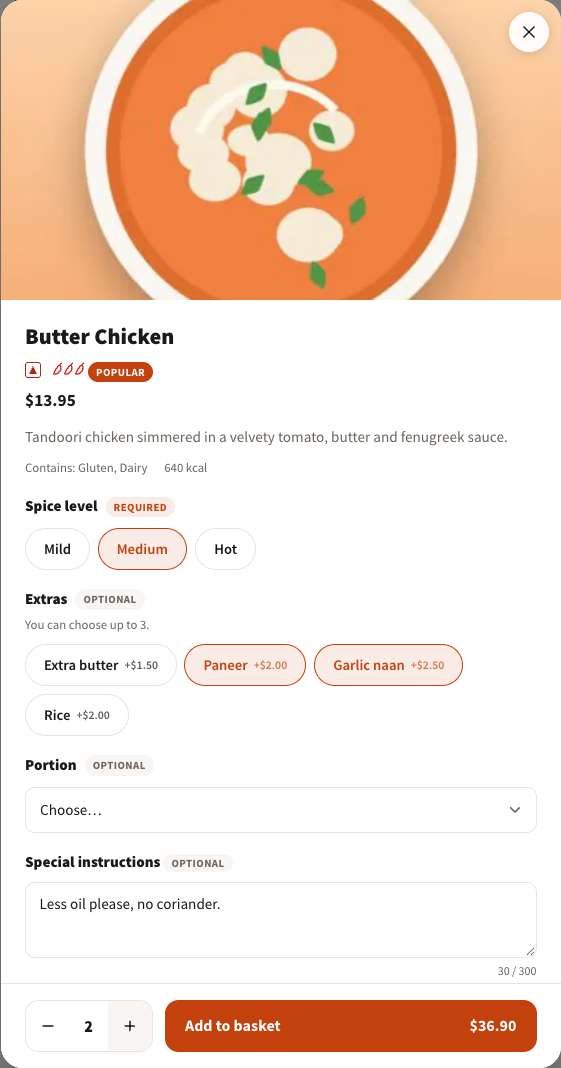
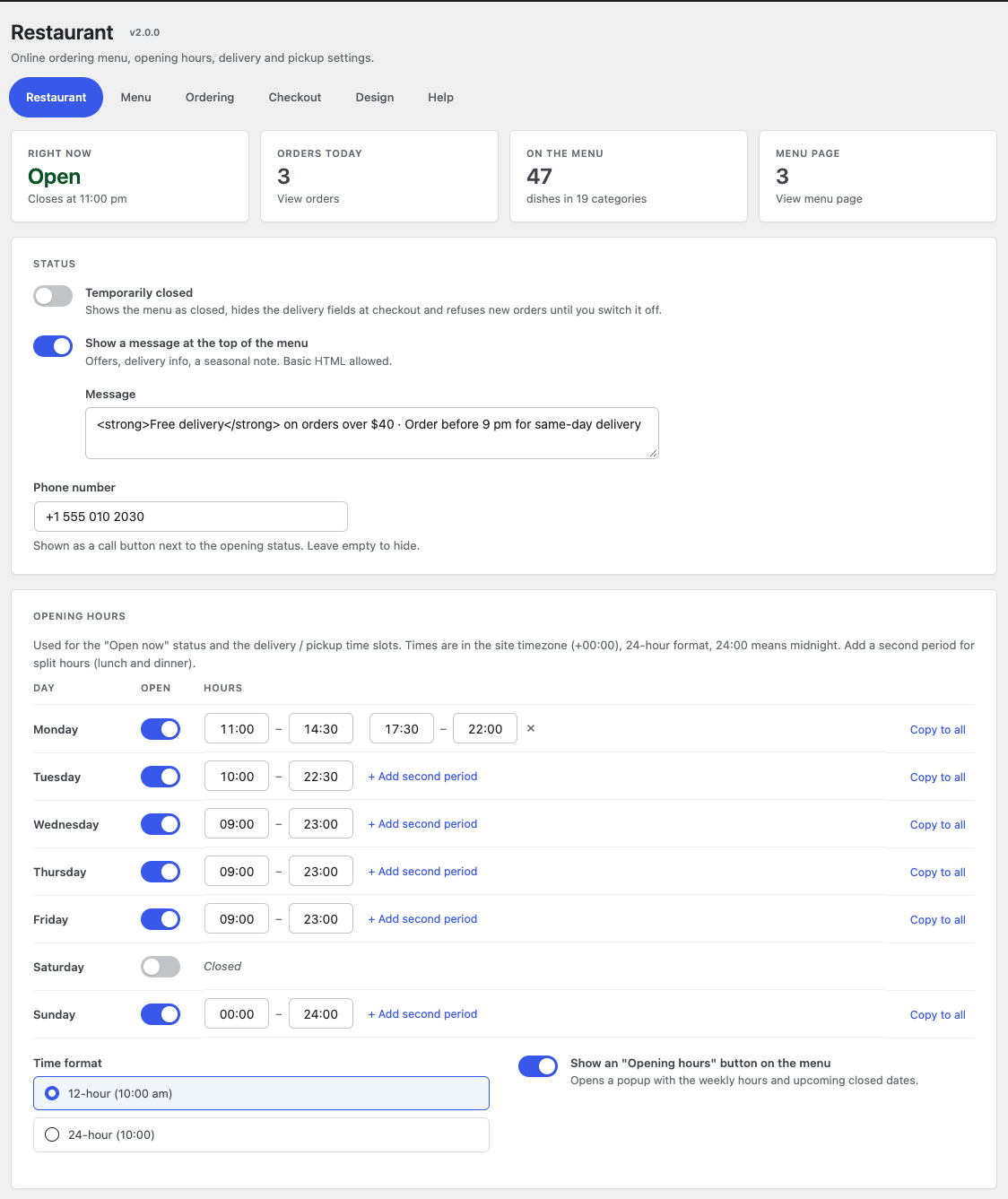
- Opening hours that mean something. Up to two periods per day (lunch and dinner), closed dates for holidays, a “Temporarily closed” switch with its own message. The menu says “Open now · Closes at 10:00 pm” or “Closed · Opens Tuesday at 10:00 am”, with a popup of the weekly hours and a call button.
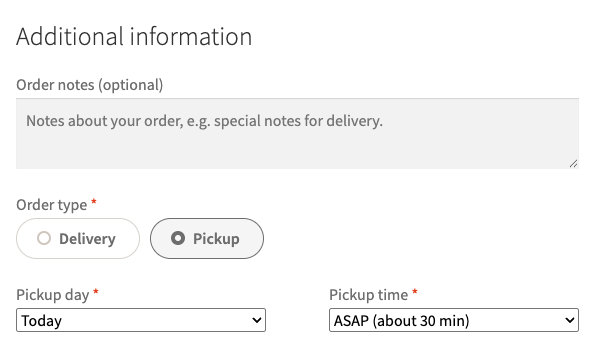
- A day and a time slot at checkout. Slots are built from the opening hours, start after your preparation time (“ASAP (about 30 min)” while you are open) and are offered for the next days you choose. Classic checkout and the Checkout block.
- Your rules while closed. Accept pre-orders for the next opening, or grey out the Add buttons and block the checkout outside opening hours. A minimum order amount with a progress bar in the basket, and an “Add $12 more for free delivery” hint.
- Dish details. A Restaurant tab on every product for the spice level, labels (Popular, New, Chef’s special, Vegan, Gluten-free, Dairy-free), allergens and calories, shown on the menu with Vegan and Gluten-free filter chips.
- Add-ons and notes. Extras from PPOM for WooCommerce (select, radio, checkbox with minimum and maximum, text and textarea fields) with fixed or percentage prices in the popup, and a “Special instructions” box per dish that travels to the order and the e-mails.
- Orders you can work with. Order type, day and time on the thank-you page, in the e-mails, on the order screen and in a Restaurant column of the orders list.
- Design settings. Nine colour tokens, a corner-radius slider and a custom CSS box instead of hand-written CSS; the same CSS variables as the free plugin still work.
Setting up the paid plugin
- Upload and activate it, then deactivate and delete the free plugin. Activate your licence under Plugins → WpExperts Hub Licences.
- On WooCommerce → Restaurant → Restaurant switch each day on, type the hours (24-hour format, 24:00 for midnight, a second period for dinner), add closed dates and your phone number.
- On Ordering choose delivery and pickup (or one of them), the preparation time, how many days ahead customers can order, what happens while you are closed, and a minimum order if you want one.
- On Checkout switch on “Ask for a day” and “Ask for a time slot” and set the slot length; the preview below shows the slots customers will get.
- Under WooCommerce → Settings → Shipping add a Local pickup method next to your delivery method, so pickup orders carry no delivery fee.
- Fill the Restaurant tab of your dishes, then open the menu page: add a dish, switch to pickup, open the basket and go to the checkout.
Know these before you switch. One set of opening hours applies to the whole site, not per location, and a period cannot cross midnight (use 24:00 as the closing time). Pickup orders lose their delivery fee only when the shipping zone has a Local pickup method. Add-ons need the free PPOM for WooCommerce plugin and work on simple products, not on variable ones. Template copies for the free plugin go into a different theme folder for the paid one (your-theme/advanced-restaurant-for-woocommerce/). And if you update the paid plugin from version 1.x, your site stays delivery-only until you enable pickup, and the old colour settings are not carried over.
Links
Plugin pages: Restaurant for WooCommerce and Advanced Restaurant for WooCommerce. Documentation: free plugin and paid plugin. More tools: Browse all plugins.