Add conditions to a WooCommerce product category or tag with Collection for WooCommerce and matching products join it automatically. You decide whether products that stop matching leave, and hand-picked products can stay.
Contents13 sections
- 01What a collection is, and what it is not
- 02What you need
- 03Step-by-step setup
- 04Choosing conditions
- 05Decide what happens to products that do not match
- 06When products join and leave
- 07Seeing what the plugin changed
- 08Showing collections in your shop
- 09Changing or removing a collection
- 10Stores that use Polylang
- 11Coming from version 2
- 12Good to know and troubleshooting
- 13Links
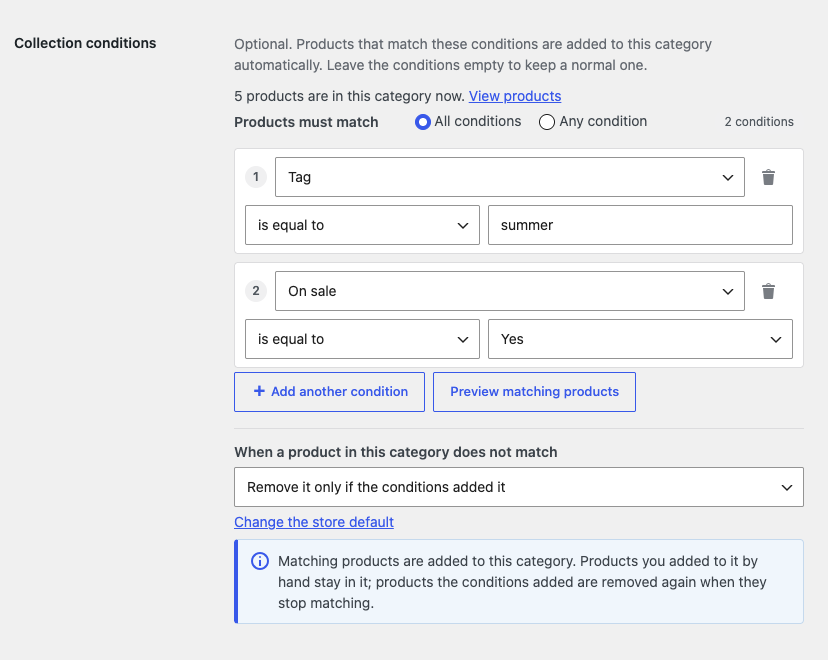
To create product collections in WooCommerce, install Collection for WooCommerce, open Products → Categories, add or edit a category and fill in its Collection conditions, for example “Tag is equal to summer” and “On sale is equal to Yes”. The plugin puts every matching product into that category. You also decide what happens to products that stop matching: take them out, take them out only if the conditions put them in, or never take anything out. Product tags work the same way.
What a collection is, and what it is not
Normally you tick a category on every product yourself. With this plugin you add conditions to a category (or a tag), such as “Title contains summer” or “Price is less than 25”, and choose whether a product must match all of them or any of them. From then on the plugin keeps the category up to date. Because the result is a normal product category or tag, its archive page, menu entries, widgets, filters and blocks work as before.
Know these limits before you plan your collections:
- There is no separate collection type, shortcode or block. A collection is a category or tag with conditions, and the plugin only changes which categories and tags a product has.
- It does not create categories or tags. Create the term first. A term without conditions is never touched, and neither are a product’s other categories and tags.
- It does not order the products in a collection. WooCommerce decides the order on the category page.
- Conditions cannot test custom (local) product attributes or custom fields. The Attribute condition uses global attributes from Products → Attributes and reads the terms set on the product, not on single variations.
What you need
- WordPress 6.5 or later and PHP 7.4 or later. Version 3.0.0 is tested with WordPress 7.1.
- WooCommerce 8.0 or later, active (tested with 11.2). WordPress does not activate the plugin while WooCommerce is inactive.
- Action Scheduler, which comes with WooCommerce. It runs the background checks.
- A Shop Manager or Administrator account (the capability
manage_product_termsormanage_woocommerce). - Polylang, only if your store is multilingual.
- A licence key for updates. No feature of the plugin checks the licence.
Step-by-step setup
- Download the plugin zip under My Account → Downloads on wpexpertshub.com.
- In WordPress, open Plugins → Add Plugin → Upload Plugin, choose the zip, click Install Now, then Activate Plugin.
- To receive updates, open Plugins → WpExperts Hub Licences, paste your key into Licence key and click Activate licence.
- Open WooCommerce → Settings → Collections and check the defaults, above all “When a product does not match” (see below).
- Open Products → Categories. For a new collection, enter a name such as “Summer Sale” and scroll to Collection conditions. To turn an existing category into a collection, click its name instead.
- Under Products must match, choose All conditions (the default) or Any condition.
- Set the first condition: pick a field such as Tag, a condition such as “is equal to” and a value such as summer. Tag, Category and Attribute values suggest your existing names as you type. Click Add another condition for more.
- Under “When a product in this category does not match”, keep the store default or pick another setting. The notice below it explains what will happen.
- Click Preview matching products. It says how many products match and, on the edit screen, how many would be added and removed.
- Click Add new category, or Update on the edit screen. If the new conditions would take products out of the category, the plugin lists them first and asks.
Choosing conditions
Each condition has a field, an operator and a value. A collection can have up to 50 conditions, a value can be up to 255 characters, and a row without a value is ignored.
- Title, Description, Short description, SKU: is equal to, is not equal to, starts with, ends with, contains, does not contain. Case, accents and extra spaces are ignored.
- Category, Tag, Attribute: the same operators, compared by name. Attribute needs an attribute chosen in its own list. “is not equal to” and “does not contain” also match a product that has no such term at all.
- Price: is equal to, is not equal to, is greater than, is less than. It uses the current price, so the sale price while a sale runs. A variable product matches when any of its variations does.
- Inventory: the same four operators, for products that manage stock. A product that does not manage stock has no quantity and never matches; use Stock status for those.
- On sale, Stock status, Product type: is equal to or is not equal to, with the value chosen from a list.
Three examples of complete collections:
- Summer Sale: Tag is equal to summer, and On sale is equal to Yes, with All conditions.
- Under $25: Price is less than 25. Products on sale for less join while the sale runs.
- Last few (a tag): Inventory is less than 5, and Stock status is equal to In stock.
A condition can name another collection (“Category is equal to Summer Sale”, “Tag is equal to Last few”). Collections are checked together, so a chain of them is complete after one check.
Decide what happens to products that do not match
This is the most important choice, because it decides whether the plugin may take products out of a category you already use. You set a store default under WooCommerce → Settings → Collections and can choose differently on every collection:
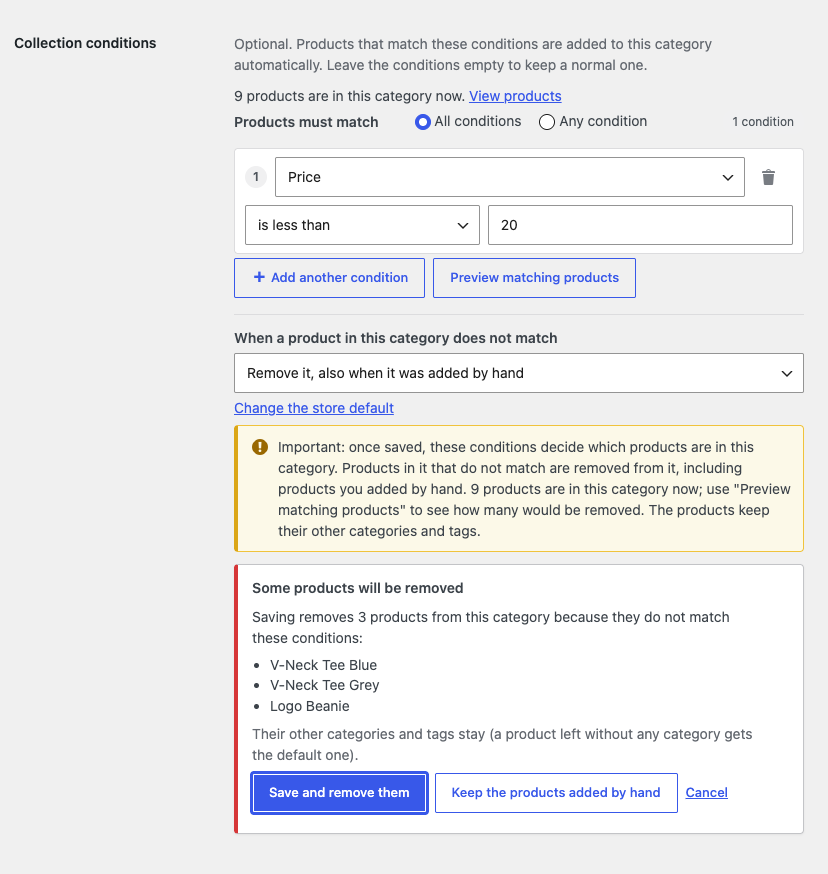
- Remove it, also when it was added by hand: the collection holds exactly the matching products, like a Shopify collection. A product you tick by hand that does not match is taken out again. Good for Sale, New arrivals or Under $25.
- Remove it only if the conditions added it: matching products come and go, but products that were already in the category, or that you add by hand, always stay. Good for categories you also fill yourself.
- Keep it (only add products, never remove): products are added and never taken out.
Before changed conditions are saved, the plugin checks the products in the category. If any would be removed, it lists them with three buttons: Save and remove them, Keep the products added by hand (switches the collection to the middle setting and checks again) and Cancel.
When products join and leave
- At once: when a product is created or updated (edit screen, Quick Edit, Bulk Edit, REST API, imports, other plugins) or when its stock, price or variations change.
- In the background: all products, after you change a collection’s conditions or setting, and on a schedule: every hour, twice a day, once a day or never (WooCommerce → Settings → Collections → Background checks). Action Scheduler runs this check in small batches.
- On demand: the Re-check all products now button in the panel at the top of Products → Categories.
While a check runs, the panel reads “Checking your products: X of Y done”; afterwards it shows when the last full check ran and how many products it checked and updated. Planning a large import? Untick Automatic assignment in the settings first. Nothing is changed and the conditions are kept, and all products are checked when you switch it back on.
Seeing what the plugin changed
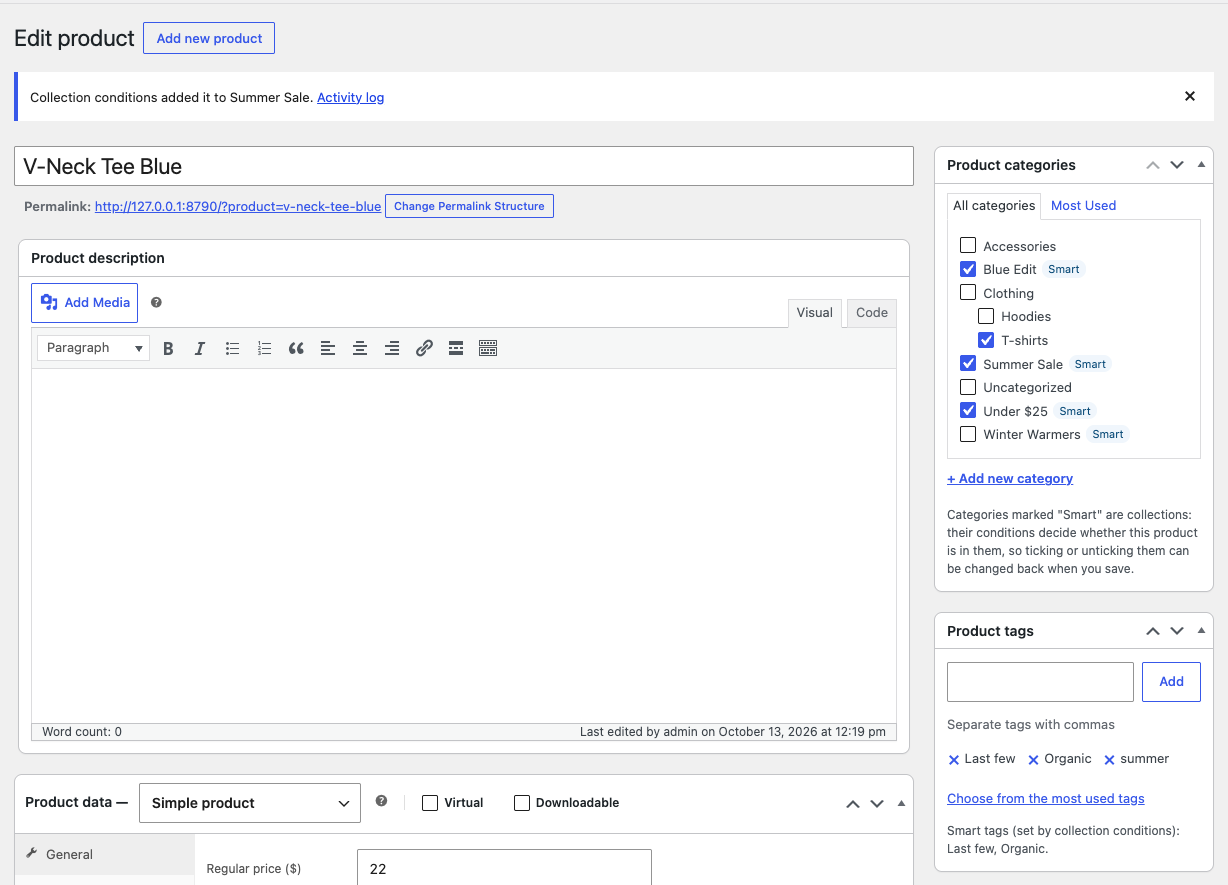
On the product edit screen, collections are marked Smart in the Product categories box, and after you save a product a notice says what the conditions changed, for example “Collection conditions added it to Summer Sale.” The activity log under WooCommerce → Settings → Collections lists every category and tag the conditions added or removed, with the reason and what triggered it (the last 500 changes).
Showing collections in your shop
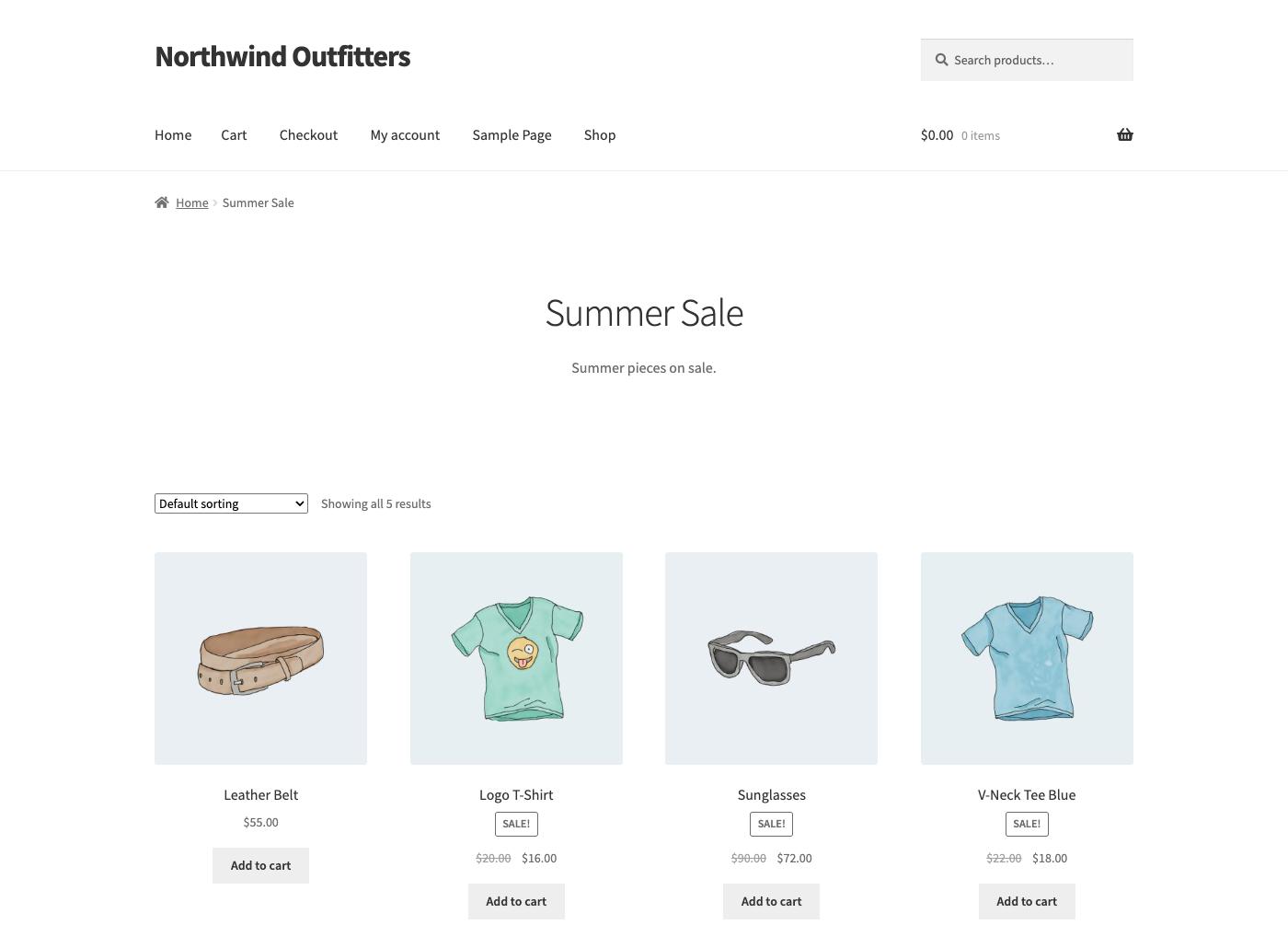
The plugin adds nothing to the front end. You show a collection the way you show any product category or tag: through its archive page, in menus, and in the widgets, filters and blocks that list categories and tags. In the admin, the Collection rules column on Products → Categories and Products → Tags shows which terms are collections, with a badge such as “2 rules (match all)” and the collection’s setting.
Changing or removing a collection
- Edit the conditions: change them on the edit screen and click Update. The check above runs first, then all products are checked in the background.
- Empty rows: if some rows have a value and others do not, the first click on Update stops with a warning. Fill them in, delete them or click Update again.
- Rename or delete a term: renaming a category, tag or attribute term updates the “is equal to” and “is not equal to” conditions that name it. Conditions such as “contains” are not rewritten, so edit those yourself.
- Remove all conditions: save the term with no condition and it becomes a normal category or tag again. Its products stay.
- Deactivate or delete the plugin: deactivating stops all checks. Deleting it keeps the conditions unless you tick “Also delete the conditions of all collections and these settings” first. The categories, tags and their products always stay.
Stores that use Polylang
Add the conditions on the category of each language. The values are names in that language, so the French category “Chaussures” uses French tag names. A collection only collects products of its own language, and a product only joins collections of its own language.
Coming from version 2
Version 3 lives in a new plugin folder. Upload and activate it next to version 2: it switches version 2 off, takes over its conditions and licence and says so, and then you delete the old plugin. If you clicked Update now on version 2 instead, WordPress installed version 3 but left it switched off and may say “Plugin file does not exist”. Go to Plugins and click Activate, and nothing is lost. Never delete version 2 before version 3 has been activated once, because the old uninstall routine removes its conditions.
Good to know and troubleshooting
- A product did not join the collection: check the Collection rules column first (a dash means no valid condition is saved) and the activity log. Common causes are a condition without a value, an Attribute condition with no attribute chosen, All conditions with one that cannot match, a name that differs from the typed value, an Inventory condition on a product that does not manage stock, a different Polylang language, or Automatic assignment switched off. Use Preview matching products, then Re-check all products now.
- A category I ticked by hand disappeared from a product: the category is a collection set to “Remove it, also when it was added by hand” and the product does not match. Switch it to “Remove it only if the conditions added it”.
- The Collection conditions box is missing: conditions are switched off for categories or tags in the settings, WooCommerce is not active, or your user cannot manage product terms.
- The panel says “Checking your products” for a long time: open Tools → Scheduled Actions and look for pending
wphub_collections_batchactions. If they stay pending, WP-Cron may not be running on your site. - Products never leave a collection: its setting, or the store default, is “Keep it”.
Developers can decide the setting in code with the wphub_collections_mode filter, for example to make one category only ever add products:
add_filter( 'wphub_collections_mode', function ( $mode, $stored, $term_id ) {
	return 42 === (int) $term_id ? 'add_only' : $mode;
}, 10, 3 );
The full documentation covers every setting, the developer filters and actions, the data the plugin stores, privacy and the changelog.
Links
Plugin page: Collection for WooCommerce. Full reference: Collection for WooCommerce documentation. More tools: Browse all plugins.