$49One-time paymentUpdates & support included
01
Overview
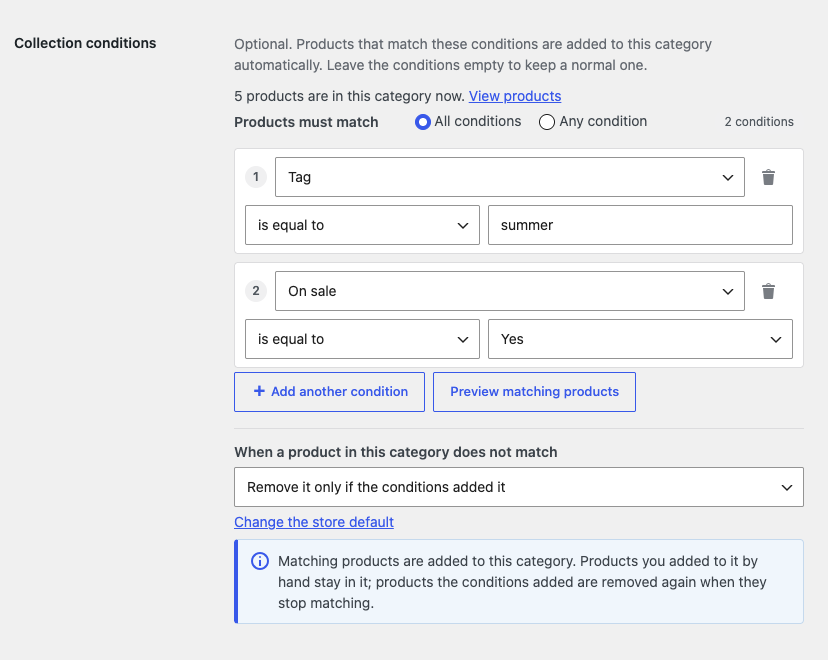
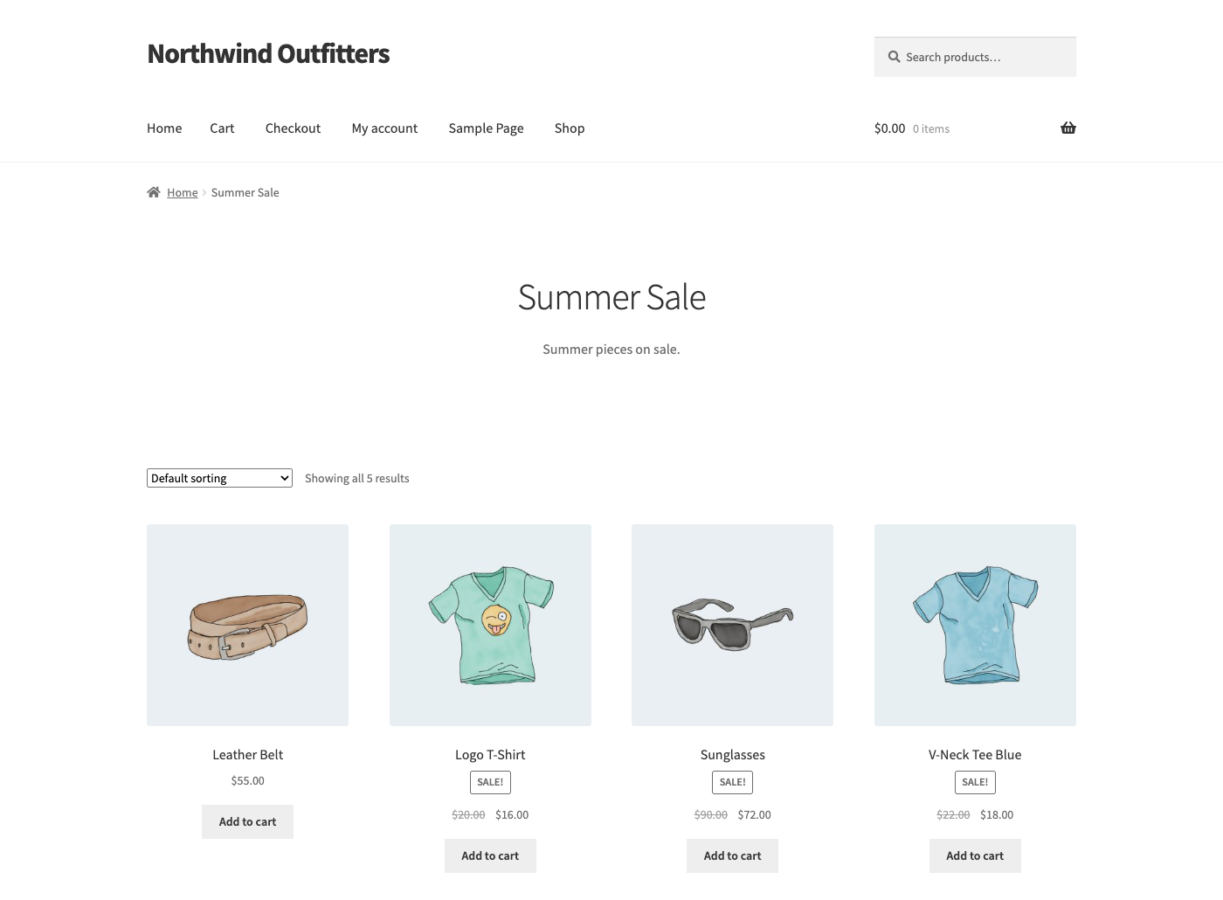
Collection for WooCommerce turns product categories and tags into smart collections, the way collections work in Shopify. Add conditions such as "Tag is equal to summer" and "Price is less than 25" to a category, choose whether products must match all or any of them, and every matching product is put into it automatically.
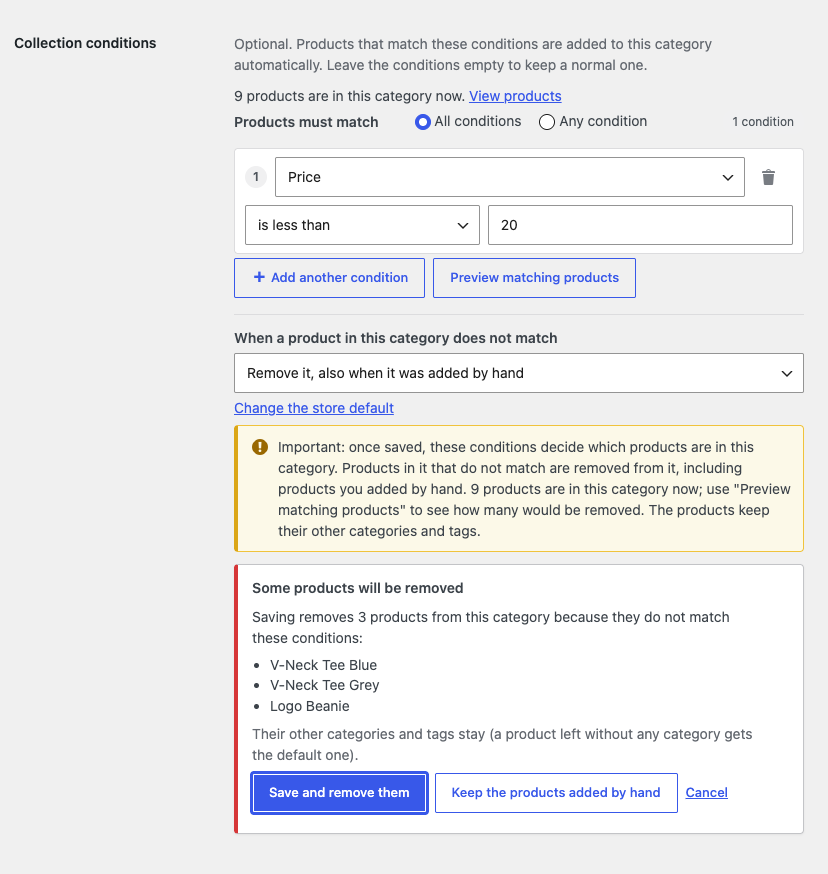
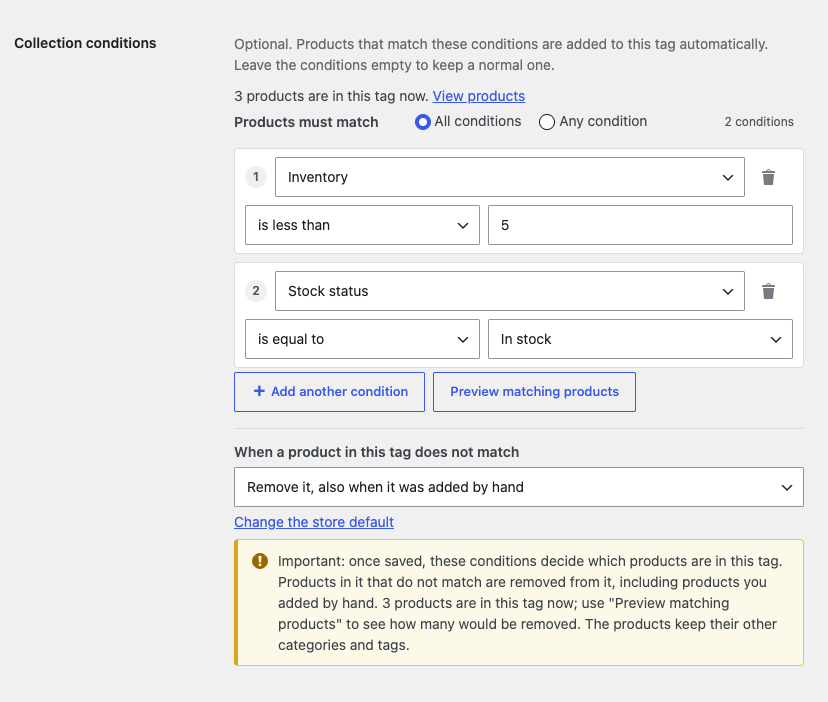
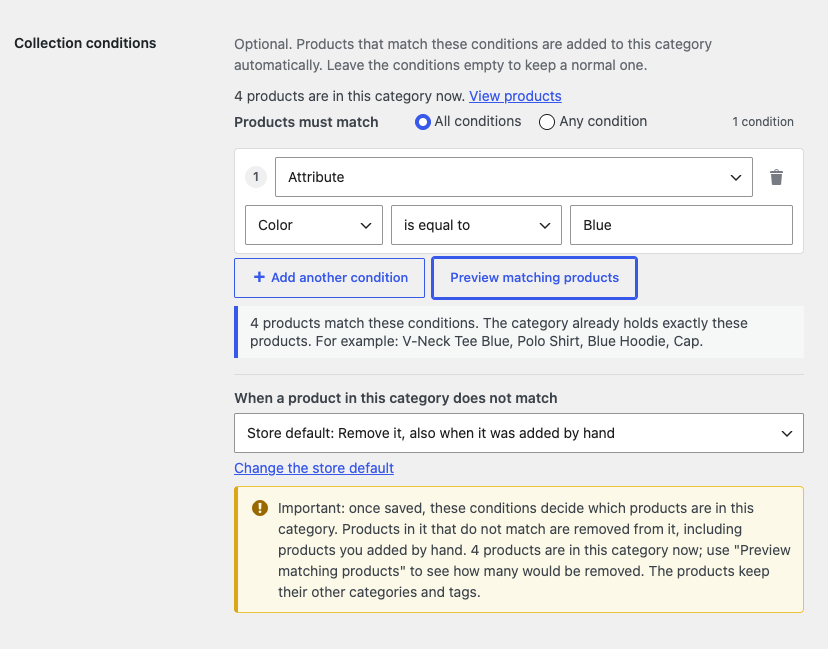
You decide what happens to products in the category that do not match: remove them, remove only the ones the conditions added (products you put in by hand stay), or never remove anything. A notice explains the choice, and before changed conditions are saved the plugin lists the products they would remove.
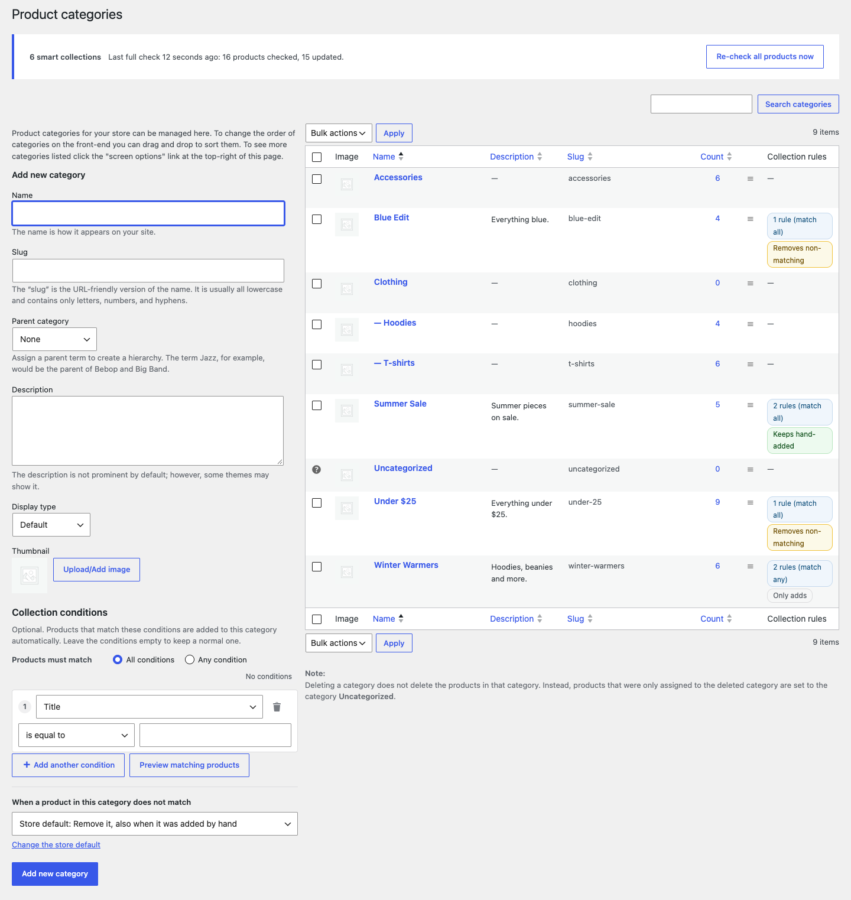
Products are checked as soon as they are created, edited, imported or their stock changes, and all products are checked in the background after a rule change and on a schedule. Collections are normal categories and tags, so their pages, menus, filters and blocks work as usual. Settings live under WooCommerce → Settings → Collections.
02
Why store owners choose it
Categories and tags fill themselves from conditions instead of manual ticking.
Per collection you choose whether products that stop matching are removed, and products added by hand can stay.
No surprises: before changed conditions are saved, the plugin lists the products they would remove.
Collections are normal categories and tags, so pages, menus, filters and blocks just work.
Conditions live on each category and tag (Products → Categories or Tags → Collection conditions); the defaults under WooCommerce → Settings → Collections.
03
Features
Smart categories and tags
Add up to 50 conditions to any product category or product tag, all or any, and matching products are put into it automatically.
Twelve condition fields
Title, description, short description, SKU, category, tag, global attribute, price, on sale, inventory, stock status and product type.
Keep products added by hand
Per collection: remove products that do not match, remove only the ones the conditions added, or only ever add.
Check before saving
Before changed conditions are saved, the products they would remove are listed, with Save, Keep the products added by hand and Cancel.
Preview matching products
See how many products match, which would be added and which removed, before anything changes.
Instant updates
Products are re-checked when saved, imported, edited by Quick or Bulk Edit, the REST API or other plugins, and when stock, prices or variations change.
Background checks
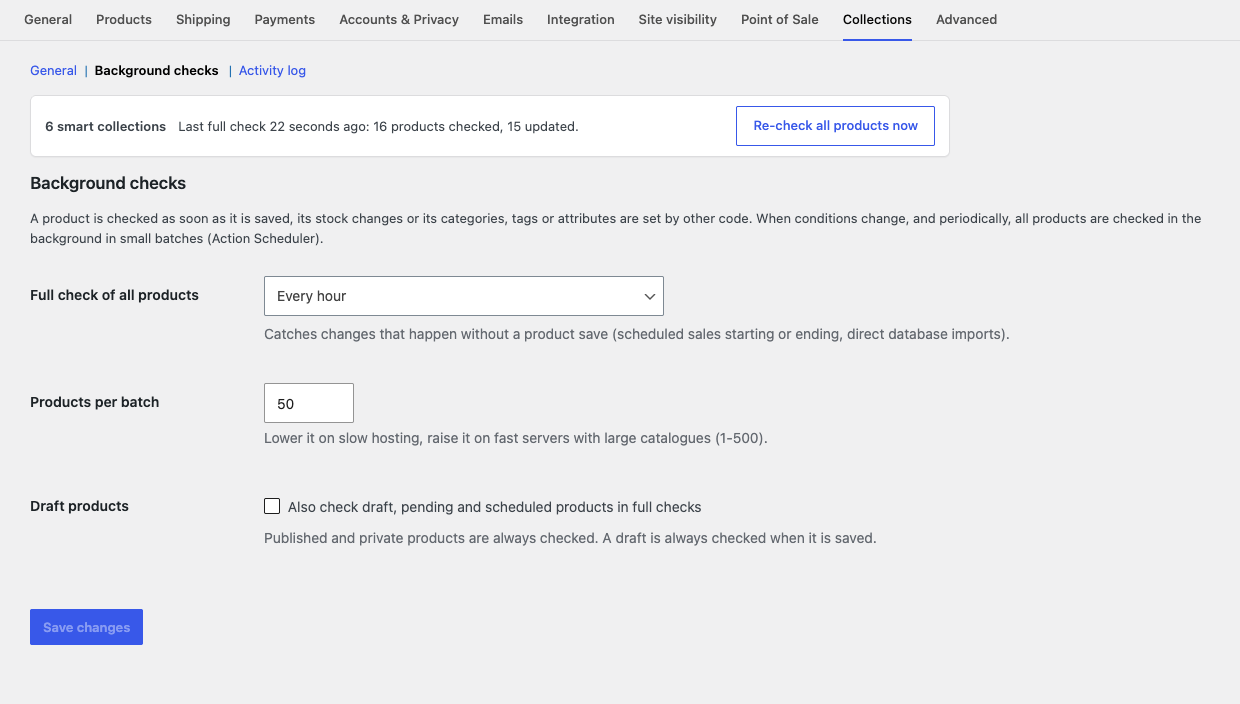
After a rule change and on a schedule, all products are checked in small, time-boxed batches with Action Scheduler.
Activity log
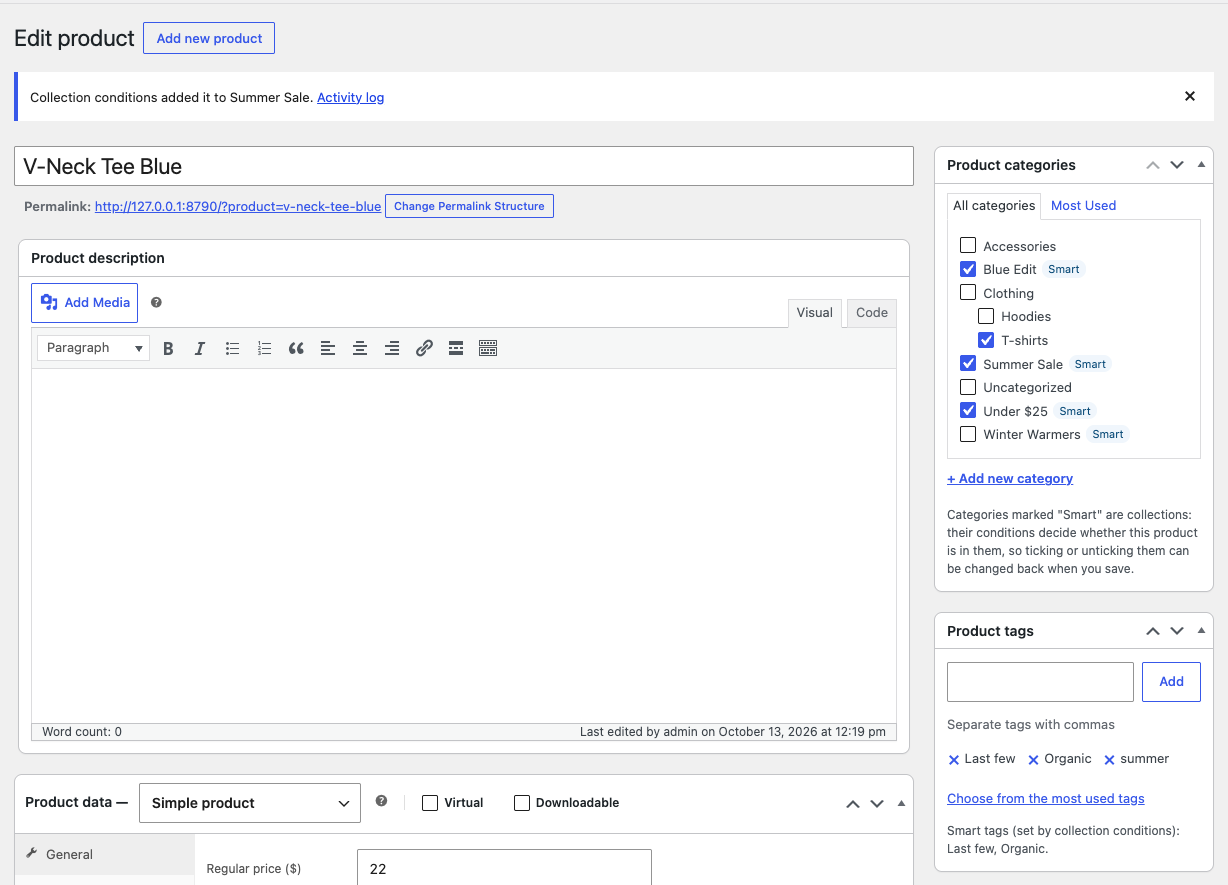
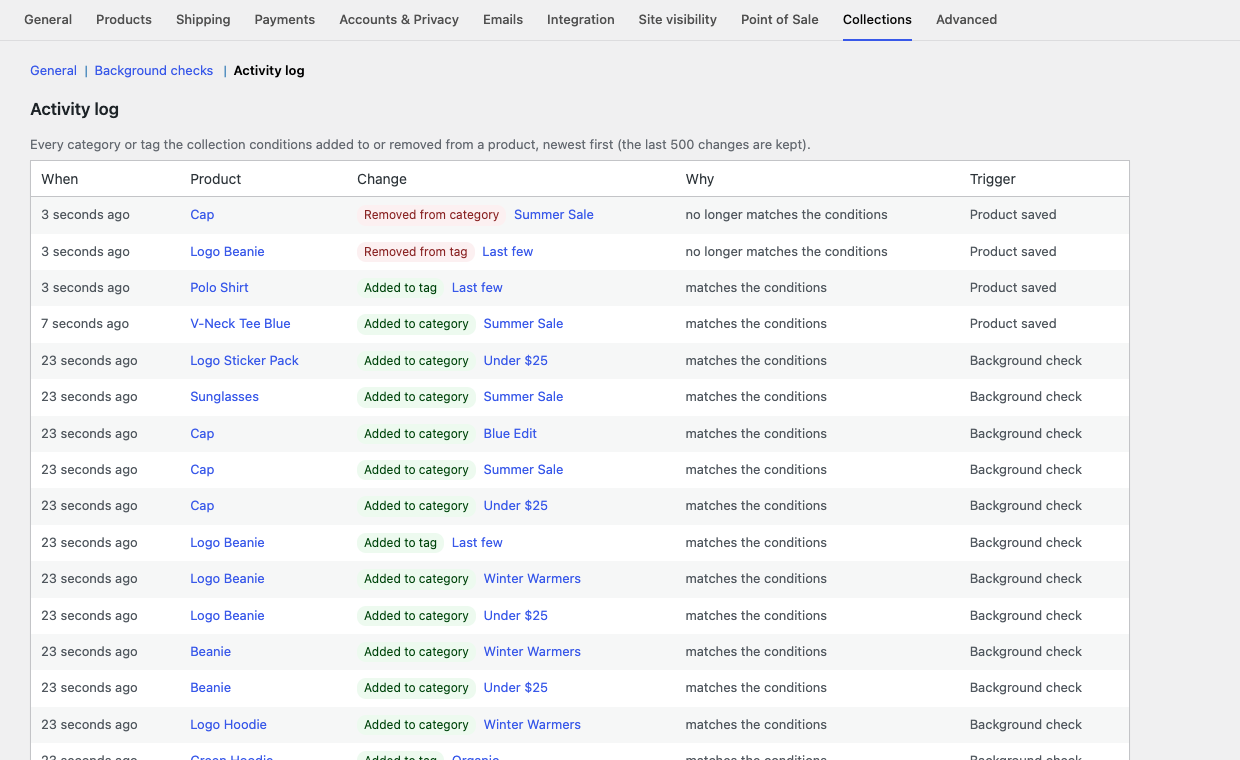
Every category and tag the conditions added or removed, with the reason and what triggered it; the product screen says it too.
Works with Polylang
Every language has its own collections, and a product only joins the collections of its own language.
04
How it works
- 1
Install and activate
Upload the plugin, activate it and your licence, and check the defaults under WooCommerce → Settings → Collections.
- 2
Add conditions
In Products → Categories or Tags, add or edit a term, add its conditions and choose what happens to products that do not match.
- 3
Preview and save
Preview the matching products. If the change would remove products, the plugin lists them and asks first.
- 4
Collections stay current
New and edited products are checked at once and all products in the background; the activity log shows every change.
05
Screenshots & demo
06
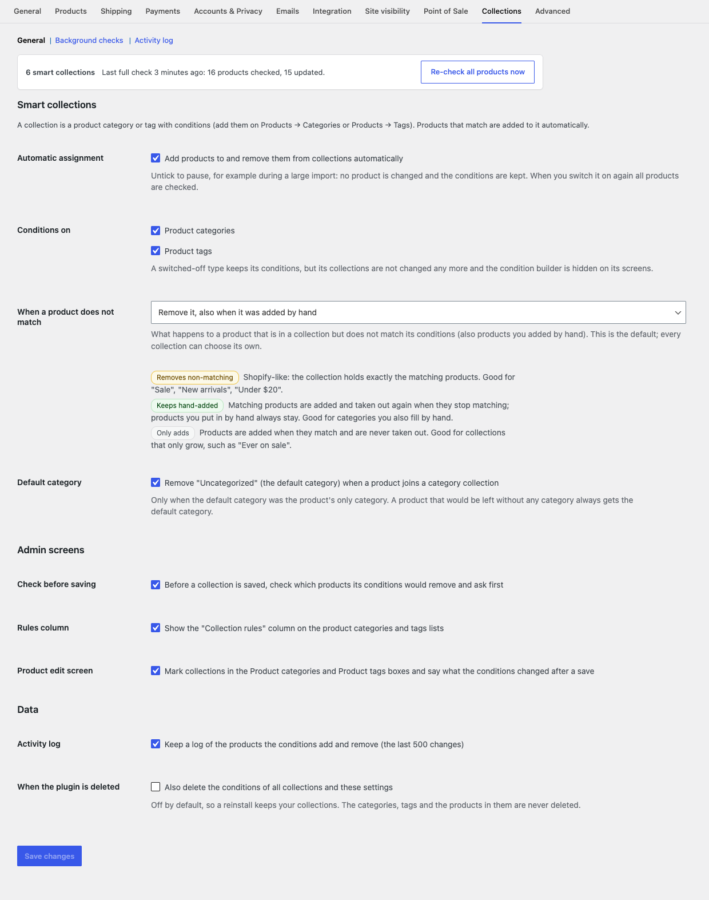
Settings & configuration
Automatic assignment
PAUSESwitch it off for a while, for example during a large import: nothing is changed and the conditions are kept. All products are checked when it is switched on again.
Conditions on
SCOPEProduct categories, product tags or both.
When a product does not match
MODERemove it, also when it was added by hand; remove it only if the conditions added it; or keep it. A store default, and a choice on every collection.
Default category
DEFAULTRemove “Uncategorized” when a product joins a category collection, or keep it. A product left without any category always gets the default one.
Check before saving
CHECKAsk before saving conditions that would remove products.
Admin screens
SCREENSShow or hide the Collection rules column and the marks and notices on the product edit screen.
Full check of all products
SCHEDULEEvery hour, twice a day, once a day or never; products per batch (1-500); whether draft, pending and scheduled products are included.
Activity log
LOGKeep a log of the last 500 changes, with paging and a Clear the log button.
When the plugin is deleted
DATAKeep the conditions (the default, so a reinstall keeps your collections) or delete them with the settings. Categories, tags and products are never deleted.
07
Requirements & installation
Who needs WooCommerce smart collections
Stores with large or frequently changing catalogues. Categories such as Sale, New arrivals, Under $25 or Last few maintain themselves, and so do brand, colour and material collections. Merchants moving from Shopify get the collections they know, and stores that also fill some categories by hand can keep doing so.
Requirements
- WordPress 6.5 or later
- WooCommerce 8.0 or later
- PHP 7.4 or later
Installation
- Upload the plugin via Plugins > Add Plugin > Upload Plugin and activate it, then activate your licence under Plugins > WpExperts Hub Licences.
- Check the defaults under WooCommerce > Settings > Collections.
- Go to Products > Categories (or Tags), add or edit a category and add conditions under Collection conditions.
- Choose what happens to products that do not match, use Preview matching products and save. Existing products are checked in the background.
Updating from version 2.x
Version 3 lives in a new plugin folder (wphub-collections instead of wxp-woo-collections).
- Upload and activate version 3. It switches the old version off, takes over its conditions and licence, and says so in a notice.
- Then delete the old Collection for WooCommerce (folder wxp-woo-collections) on the Plugins screen. Your collections stay.
If you click Update now on version 2.x instead, or WordPress updates it automatically, WordPress replaces the old folder but leaves version 3 switched off and may say “Plugin file does not exist”. Nothing is lost: go to Plugins and click Activate under Collection for WooCommerce, and version 3 takes over your conditions and licence. Never delete version 2.x before version 3 has been activated once: the old version’s uninstall removes its conditions.
Want to control the order of products inside a collection? Category Products Reorder for WooCommerce adds drag and drop ordering per category.
08
Documentation & support
09
Frequently asked questions
Will the plugin remove categories I assigned by hand?
Only the categories and tags that have conditions are managed; a product’s other categories and tags are never touched. With “Remove it, also when it was added by hand” a product you put into a smart collection by hand is taken out again when it does not match. Choose “Remove it only if the conditions added it” or “Keep it” (per collection, or as the store default) to keep products added by hand.
How do I know what will be removed before I save?
A notice next to the conditions explains the chosen setting and how many products are in the category now. When you save changed conditions that would remove products, the plugin lists them first with “Save and remove them”, “Keep the products added by hand” and “Cancel”. Preview matching products shows the numbers at any time.
What happens to products that were in a category before I added conditions?
With “Remove it, also when it was added by hand” they stay only if they match. With “Remove it only if the conditions added it” or “Keep it” they always stay, because the conditions did not add them.
Can I make tags smart too?
Yes. Add conditions on Products → Tags exactly like on categories. A category collection can use a smart tag (“Tag is equal to Last few”) and the other way round.
When are products assigned?
At once when a product is created or updated (admin, Quick and Bulk Edit, REST API, imports, other plugins) or its stock, price or variations change; and for all products in the background after you change a collection’s conditions and on the schedule you choose (every hour by default).
Can I pause the plugin during an import?
Yes. Untick “Automatic assignment” under WooCommerce → Settings → Collections: nothing is changed and the conditions are kept. When you switch it on again, all products are checked.
Which products match an Inventory condition?
Products that manage stock (for a variable product: the total of its variations that manage stock). A product that does not manage stock has no quantity, so no Inventory condition matches it; use the Stock status field for those products.
How do "is not equal to" and "does not contain" work for tags, categories and attributes?
They match products that have no such term, including products without any term of that kind.
Does it work with Polylang?
Yes. Add the conditions on the category of each language (the values are names in that language). A collection only collects products of its own language, and a product only joins collections of its own language.
I use version 2. How do I update?
Version 3 lives in a new folder (wphub-collections). Upload and activate it: it switches version 2 off, takes over its conditions and licence and says so; then delete the old plugin. If you clicked Update now on version 2, WordPress installed version 3 but left it switched off (“Plugin file does not exist” refers to the old folder): click Activate under Collection for WooCommerce and nothing is lost. Never delete version 2 before version 3 has been activated once.
What is removed when I delete the plugin?
By default only its scheduled jobs and temporary data, so a reinstall keeps your collections. Tick “Also delete the conditions of all collections and these settings” before deleting to remove everything. Categories, tags and the products in them are never deleted.
Do I need a special page for collections?
No. Collections are regular product categories and tags, so their archive pages, menus, widgets, filters and blocks work as usual.
How do I activate my licence and get updates?
Your licence key is emailed after purchase and is also shown in My Account → Downloads. In WordPress go to Plugins → WpExperts Hub Licences, paste the key and click Activate licence. New versions then appear on the normal Dashboard → Updates screen. A key can be active on as many live sites as you purchased; staging and local development sites do not count.
How do I get support?
Email support@wpexpertshub.com with your order ID.
10
Customer reviews
Thanks for your review!
It’s waiting for approval and will appear here soon. We’ll email you when it’s live.
Be the first to review it
Used Collection for WooCommerce on your store? A short review helps other store owners decide — and tells us what to improve.
Collection for WooCommerce$49