$49One-time paymentUpdates & support included
01
Overview
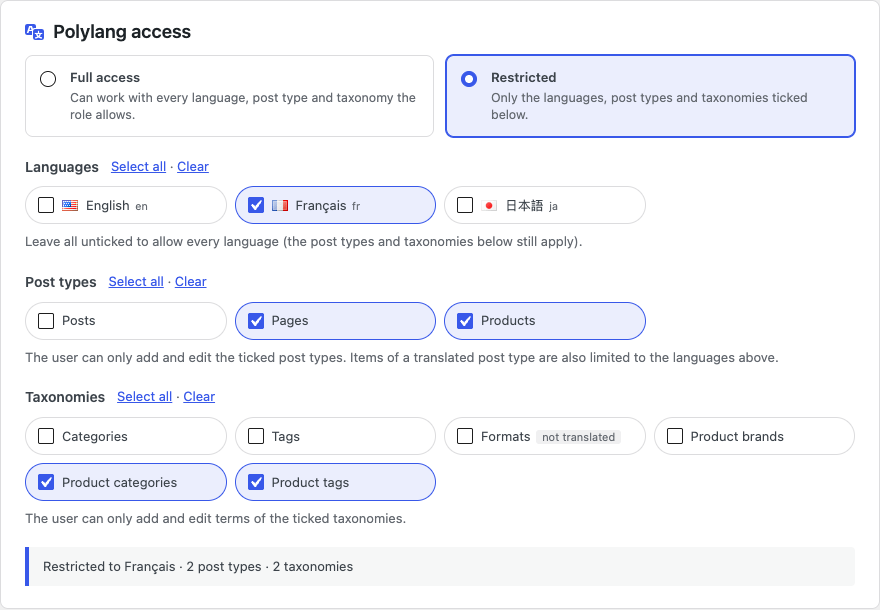
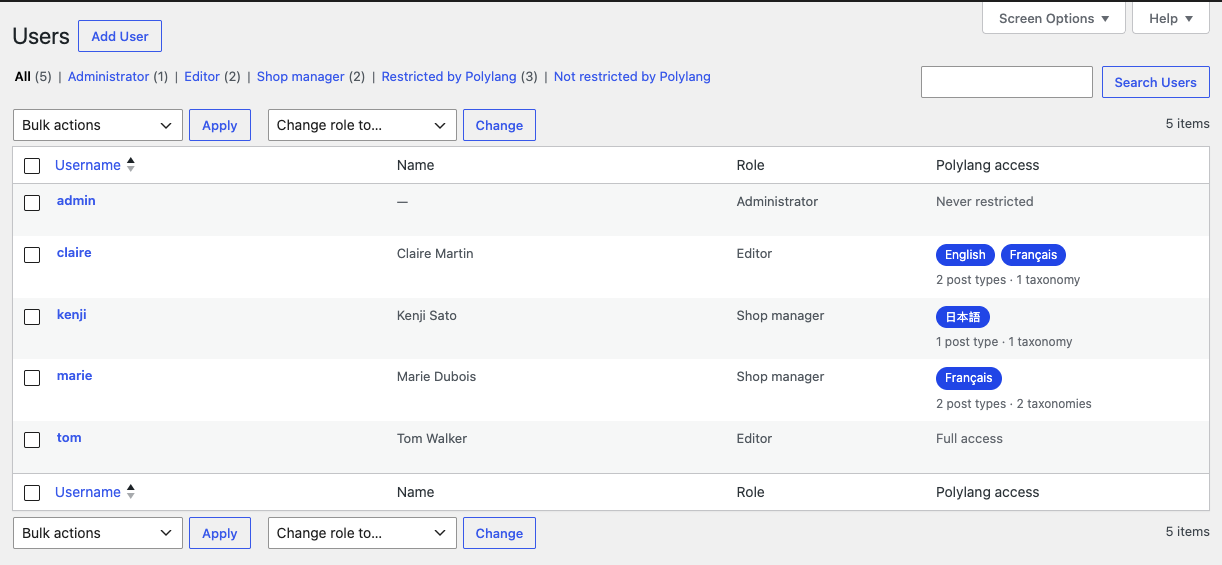
User Manager for Polylang lets an administrator decide which language each team member works in. On the Add User and Edit User screens you choose Restricted, tick the languages, post types and taxonomies the user may use, and save.
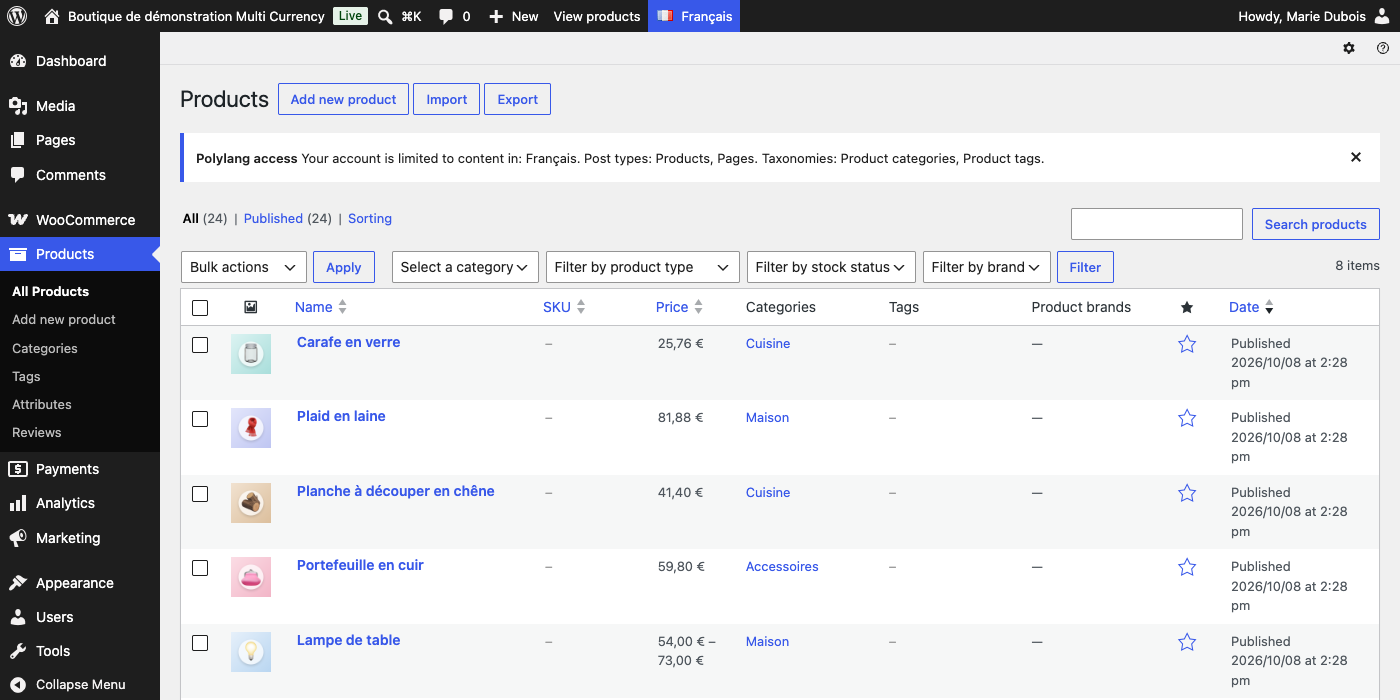
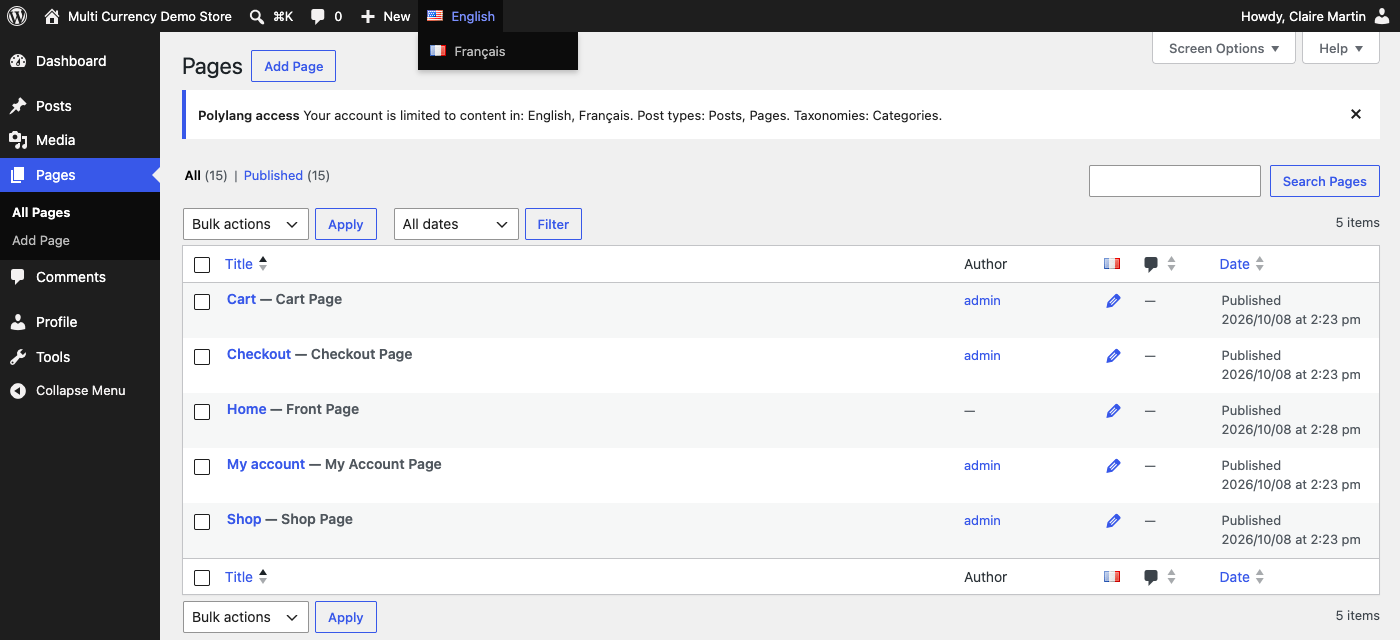
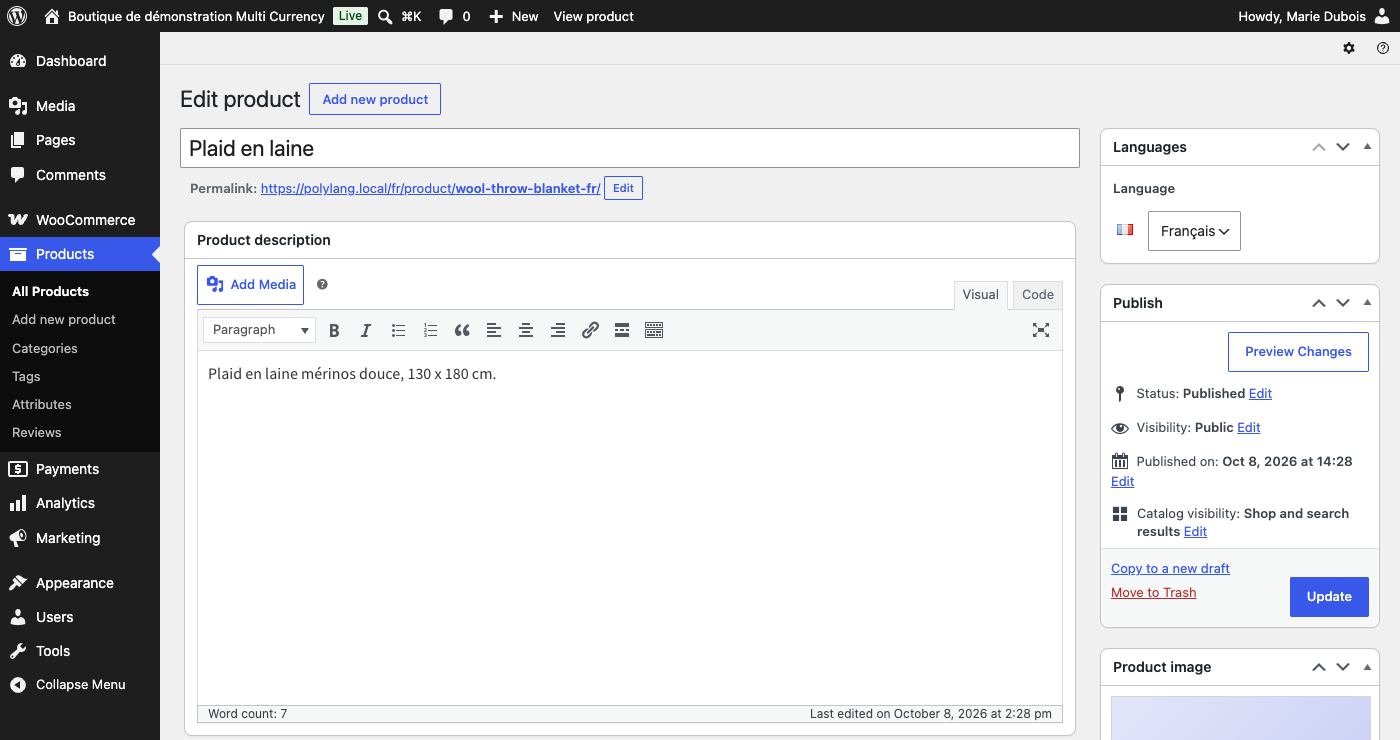
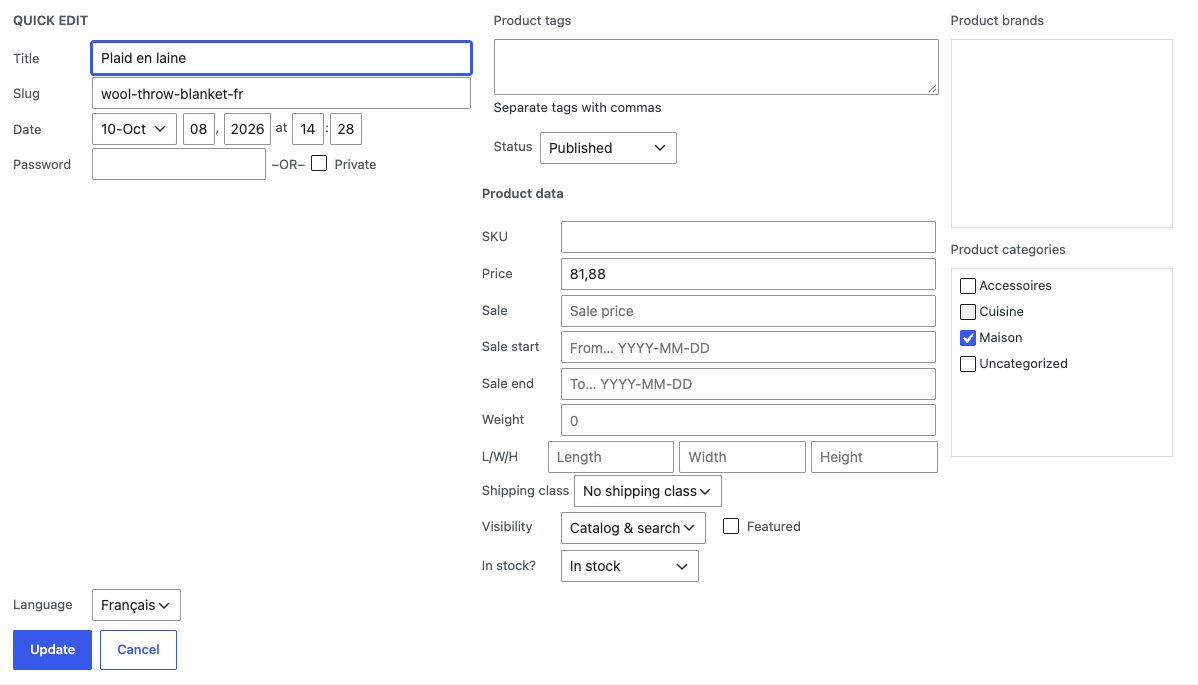
A restricted user only sees content in their languages in the admin lists, can only open, edit, trash or delete posts, pages, products and terms in those languages, and every new post or term they create gets an allowed language. The rules are applied as WordPress capabilities, so they also hold in Quick Edit, bulk actions, AJAX, the REST API used by the block editor and the WooCommerce REST API, and XML-RPC. New items of a post type you did not tick are refused the same way.
Translators can still create the translation of an existing post in one of their own languages; it is linked to the original automatically while the other languages stay read-only, and the links between other languages cannot be changed. Administrators are never restricted, and users set to Full access keep full access.
02
Why store owners choose it
Restrictions are real capabilities, so they also apply to Quick Edit, bulk actions, the REST API and XML-RPC.
Each translator works only in the Polylang languages you assign.
Set everything on the user profile: language, post types and taxonomies.
Works for Editors, Authors, Shop Managers and custom roles; administrators are never restricted.
Users set to Full access keep their normal access, so you only restrict the people you choose.
03
Features
Languages per user
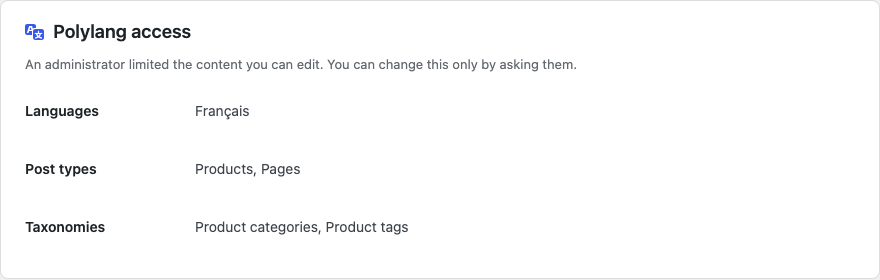
Tick one or more Polylang languages for a user in the Polylang access box on the Add User or Edit User screen.
Allowed post types
Tick the post types (posts, pages, products and other public types) the user may add and edit.
Allowed taxonomies
Tick the taxonomies whose terms the user may add and edit, such as categories, tags or product categories.
Edit and delete blocked
Content in other languages cannot be edited, trashed or deleted from edit screens, quick edit or bulk actions.
REST API protected
The same rules apply to the block editor, the WordPress and WooCommerce REST APIs and XML-RPC, also when new items are created.
Filtered admin lists
Polylang’s admin language filter is locked to the user’s language, so lists show only their content.
Language kept on save
New posts and terms get the user’s language, also through the REST API and XML-RPC, and changes to another language are refused.
Linked translations
A restricted translator can create the translation of an existing post, linked to the original automatically. Links between other languages stay as they are.
04
How it works
- 1
Install Polylang
Activate Polylang and add your site languages.
- 2
Edit a user
Open Users > Add User, or edit an Editor or Shop Manager.
- 3
Assign access
Choose Restricted, then tick the languages, post types and taxonomies.
- 4
Save
The user now only sees and edits content in those languages.
05
Screenshots & demo
06
Settings & configuration
Access and languages
ACCESSFull access (default) or Restricted. For a restricted user, tick the Polylang languages they may use; tick none to allow every language.
Allowed post types
POST TYPESPublic post types the user may add and edit, for example Posts, Pages or Products. New items of other post types are refused.
Allowed taxonomies
TAXONOMIESPublic taxonomies whose terms the user may add and edit, for example Categories or Product categories.
Open post types
DEVELOPERDevelopers can return post types that restricted users may edit in every language with the poly_user_open_access filter.
07
Requirements & installation
Who needs a Polylang user manager
It suits multilingual WordPress and WooCommerce sites that run on Polylang. These sites give translators, regional editors or local shop managers access to the dashboard. With this plugin, each person can only change content in their own language. For per-language pricing, pair it with Multi Currency for Polylang and WooCommerce.
Requirements
- WordPress 6.5 or later (tested up to 7.1)
- PHP 7.4 or later
- Polylang or Polylang Pro (tested with Polylang 3.8)
- WooCommerce is optional; for Shop Managers enable product translation in Polylang or use Polylang for WooCommerce
Installation
- Install and activate Polylang, then upload and activate User Manager for Polylang.
- Next, go to Users > Add User, or edit an existing user.
- In the Polylang access box, choose Restricted, then tick the languages, post types and taxonomies the user may use.
- Save the user. From the next page load, the plugin limits the user to those languages.
- Finally, open Plugins > WpExperts Hub Licences and activate your licence key to receive updates. The restrictions work without a licence.
08
Documentation & support
09
Frequently asked questions
Which users can be restricted?
Any user who is not an administrator, such as Editors, Authors or Shop Managers. Administrators always keep full access, and so do users set to Full access.
Can a restricted user edit content through the REST API or Quick Edit?
Only content in their own language and allowed post types or taxonomies. The rules are applied as WordPress capabilities, so the block editor, the WordPress and WooCommerce REST APIs, XML-RPC, Quick Edit and bulk actions all respect them. Creating new items of a post type you did not tick is refused in the same places.
Can translators create translations of existing posts?
Yes. They can add the translation in their own language from the original post; it is linked to the original automatically. Posts in other languages stay read-only for them, and they cannot unlink or relink translations in other languages.
Does it work with WooCommerce products?
Yes. Tick Products and the product taxonomies for the Shop Manager and make products translatable in Polylang (or use Polylang for WooCommerce). Orders and coupons are not restricted by language.
Can I leave one post type open in all languages?
Yes. Add it with the poly_user_open_access filter in your theme or a small plugin.
How do I activate my licence and get updates?
Your licence key is emailed after purchase and is also shown in My Account → Downloads. In WordPress go to Plugins → WpExperts Hub Licences, paste the key and click Activate licence. New versions then appear on the normal Dashboard → Updates screen. A key can be active on as many live sites as you purchased; staging and local development sites do not count.
How do I get support?
Email support@wpexpertshub.com with your order number and we will help you.
10
Customer reviews
Thanks for your review!
It’s waiting for approval and will appear here soon. We’ll email you when it’s live.
Be the first to review it
Used User Manager for Polylang on your store? A short review helps other store owners decide — and tells us what to improve.
User Manager for Polylang$49