Set up automatic review requests that go out when a WooCommerce order is completed, with timed reminders and a private review page for customers.
Contents10 sections
The simplest way to ask customers for reviews automatically is to use a plugin that emails them when an order is completed and follows up if they have not responded. Reviews for WooCommerce does this by default: it sends a review request when an order becomes Completed, a reminder 5 days later and a final reminder 7 days after that, and it shows the reviews on the product page with a rating summary, customer photos and filters. This tutorial shows how to set it up and what your customers will see.
Why timing and reminders matter
Reviews are social proof, but asking by hand is slow and easy to forget, and a single email is easy to miss. An automatic sequence solves both problems, as long as it does not annoy people who have already written a review.
The plugin handles this by checking again before every email. The order status, refunds and existing reviews are checked at the moment of sending, so a product that was reviewed in the meantime is never emailed. A reminder only lists the products that still wait for a review. Once every product in the order has a review, the remaining reminders are cancelled. Every request also has a one-click Stop review emails link, and an address that uses it is never asked again.
What you need
- WordPress 6.2 or later.
- WooCommerce 8.0 or later, with product reviews enabled under WooCommerce → Settings → Products.
- PHP 7.4 or later.
- Either High-Performance Order Storage (HPOS) or the classic order storage.
- Working email delivery. The documentation recommends an SMTP or email-service plugin with delivery logs.
- Background jobs: Action Scheduler (included with WooCommerce) is used when present, otherwise WP-Cron. On a quiet site, add a real server cron job for reliable timing.
Step-by-step setup
The defaults are chosen so the plugin works without changes, so setup is mostly a matter of checking them.
- Download the plugin zip from your account on wpexpertshub.com.
- In WordPress, open Plugins → Add New → Upload Plugin, choose the zip and press Install Now, then activate it. Activation adds WooCommerce → Review Requests.
- Open Review Requests → Settings → General. Check that Automatic review requests is on and that Completed is ticked under Eligible order statuses. Both are the default.
- Decide who should be asked. In the same tab you can allow or exclude guest orders, virtual and downloadable products, specific products and categories, and set a Minimum order value.
- Open Settings → Email and check the timing: Delay before the first email (hours) is 0 by default, First reminder (days after the request) is 5 and Final reminder (days after the first reminder) is 7. Stars in the email is on by default and puts five clickable stars under every product. Add an Email logo and a Sender email address on your own domain if you wish.
- Open WooCommerce → Settings → Emails. The three review emails are Review request, Review reminder (first) and Review reminder (final); four more answer a review: Review published, Review thank-you coupon, Reply to a review and the Low rating alert to you. Each has the usual enable switch, subject, heading and additional content, and you can use the placeholders {site_title}, {order_number}, {order_date} and {customer_first_name} in the subject and heading.
- Press Preview next to an email, then send yourself a test email from Settings → Email. Real delivery and how the email looks depend on your own mail setup.
- Open a product that has reviews. The Reviews tab now shows the reviews section; Settings → Product page sets the order and the number of reviews per page, or switches the section off if you prefer your theme’s own list.
- Mark a test order Completed. It appears under Review Requests with its initial email scheduled. Open Details and press Send now if you do not want to wait.
To ask for reviews on orders placed before you installed the plugin, go to WooCommerce → Orders, select the completed orders and choose Review request: send initial email from Bulk actions. Each order is checked on its own, and the emails are sent from the background queue.
How the customer leaves a review
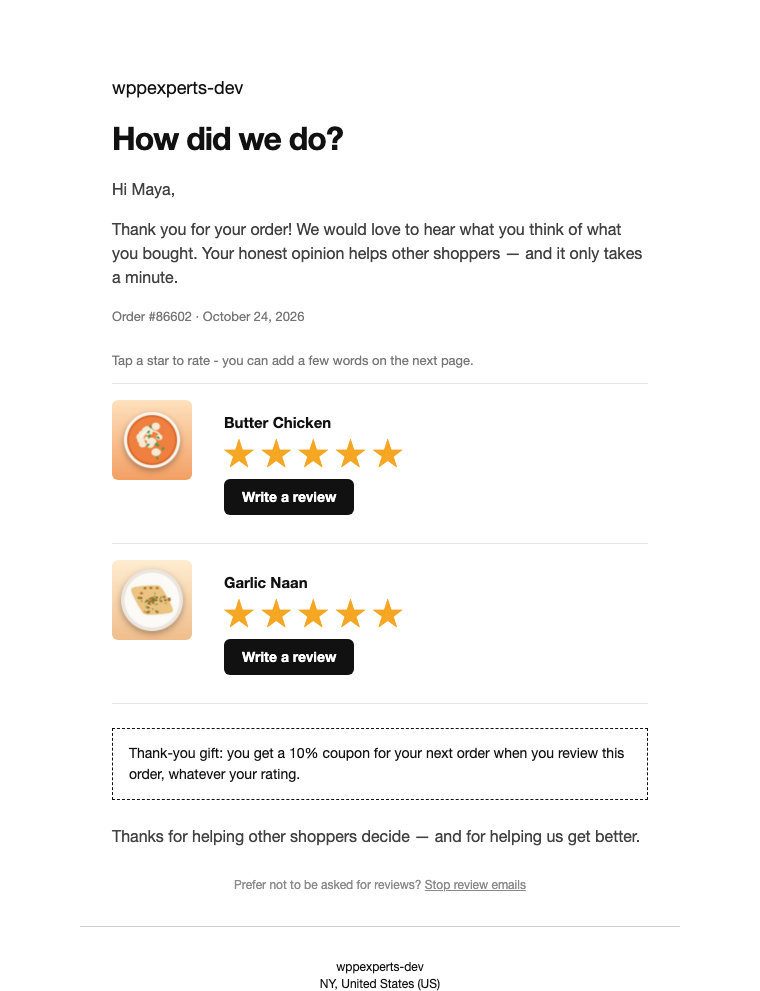
The initial email greets the customer, shows the order number and date, and lists each product with five clickable stars and its own button. A star opens a private review page with that rating already chosen, so the customer only adds a few words; the button opens the same page. No account is needed: the link in the email is enough. Customers with an account can be made to sign in first through the Sign-in requirement setting in Settings → Review form, but guest orders never need one.
Customers with an account can also start from their account. A Leave a review button appears next to View in My Account → Orders on every order that still has a product to review, and the order page lists each product with its review status. The button opens the same private review page; an older order gets its review request at that moment, without an email being sent. You can rename the button or switch it off in Settings → My Account.
What the page asks for
- A star rating (required by default), the customer’s name, and the billing email, which is read-only and never shown publicly.
- An optional title and the review text, with a character counter. The defaults are a minimum of 10 and a maximum of 2000 characters.
- Optional photos (JPG, PNG, GIF and WebP). Image attachments is off by default, with up to 3 images of 2 MB each once you switch it on.
- How their name is shown with the review: the full name, the first name and initial (Maya C.) or the first name only.
If an order has several products, each one that is still open has its own form on the same page. After submitting, the customer sees a thank-you message, and refreshing the page cannot create a second review. If you switch on Customers can edit before approval, the email link keeps working until the review is moderated.
Link security
The link contains a random token and not the order number or email address. It expires after the number of days set in Review link lifetime (days), counted from the last email sent; the default is 60.
Verified Buyer
A review is flagged as verified only when the order exists, is paid, contains the product on a line that is not completely refunded, and has the same billing email as the review. Clicking an email link alone proves nothing. The Verified Buyer label setting lets you show a Verified Buyer badge (the default), WooCommerce’s “(verified owner)” text, or no label.
Moderation
A submitted review is a normal WooCommerce product review and is Pending by default. You approve, reject or trash it in Products → Reviews or Comments, and the request status follows what you do there. Approved reviews of a real purchase then appear on the product page with the Verified Buyer label. Approve reviews automatically is off by default; you can switch it on in Settings → Review form.
When you approve a review, the customer gets a Review published email with a link to it. When you reply to a review in Products → Reviews, the reviewer receives your reply. And when a review with 2 stars or fewer comes in (you can choose 1 or 3), a Low rating alert reaches you straight away, so you can answer while the customer is still waiting for one. Each of these emails is sent once per review.
Showing the reviews on the product page
Approved reviews appear in a reviews section in the Reviews tab of the product page, in place of the theme’s plain list. WooCommerce’s own review form stays below it.
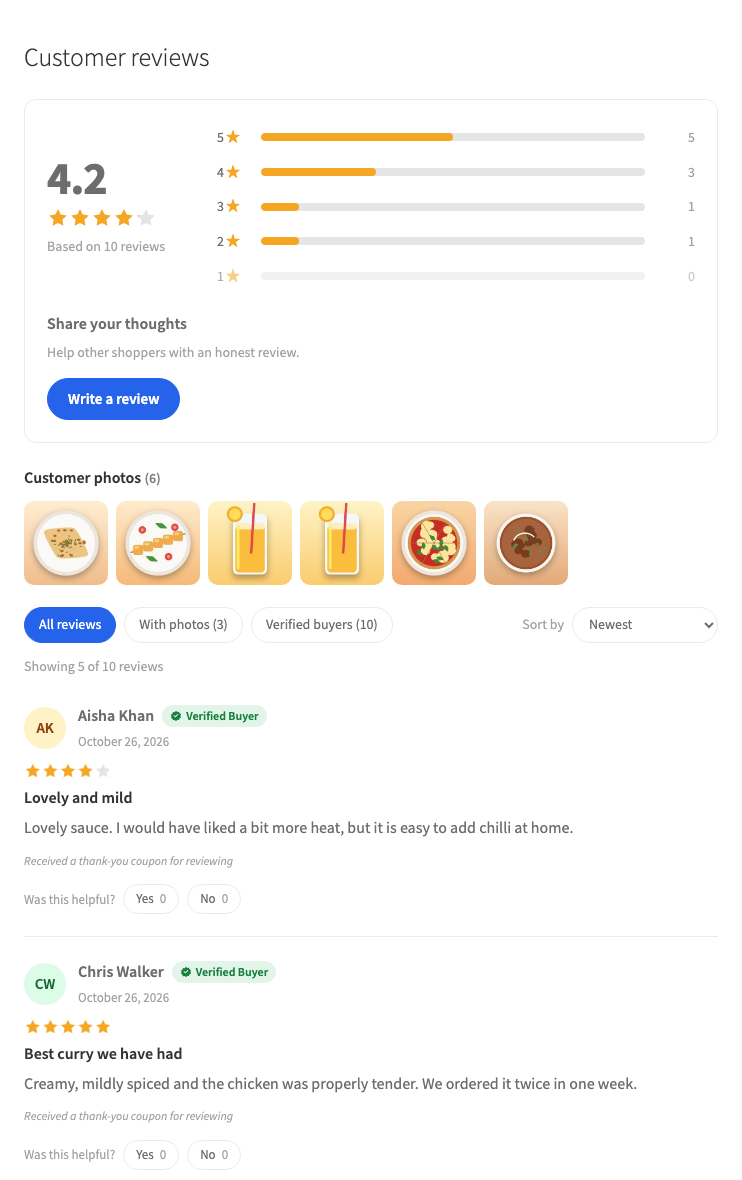
- A rating summary with the average and a bar per star level; a click on a bar shows only those reviews.
- Customer photos in a strip above the list, with a full-screen viewer.
- Filters for photos and verified buyers, sorting by newest, highest, lowest or most helpful, and Show more reviews without reloading the page.
- Was this helpful? votes under every review, one per visitor.
- The same reviews elsewhere with the blocks or shortcodes: a reviews slider, a rating badge, or the section of any product on any page.
Thanking customers with a coupon
Settings → Rewards can send every reviewer a personal, single-use coupon for their next order, limited to the email address of the order. It is off by default. The coupon never depends on the rating: Google, the FTC and EU consumer law do not allow rewarding only positive reviews, so there is no setting for that, and the review page tells customers they get it “whatever your rating”. Send it when you approve the review (recommended, so spam never earns one) or as soon as it is written, and keep Mark rewarded reviews on to show “Received a thank-you coupon for reviewing” under those reviews.
Seeing which email works
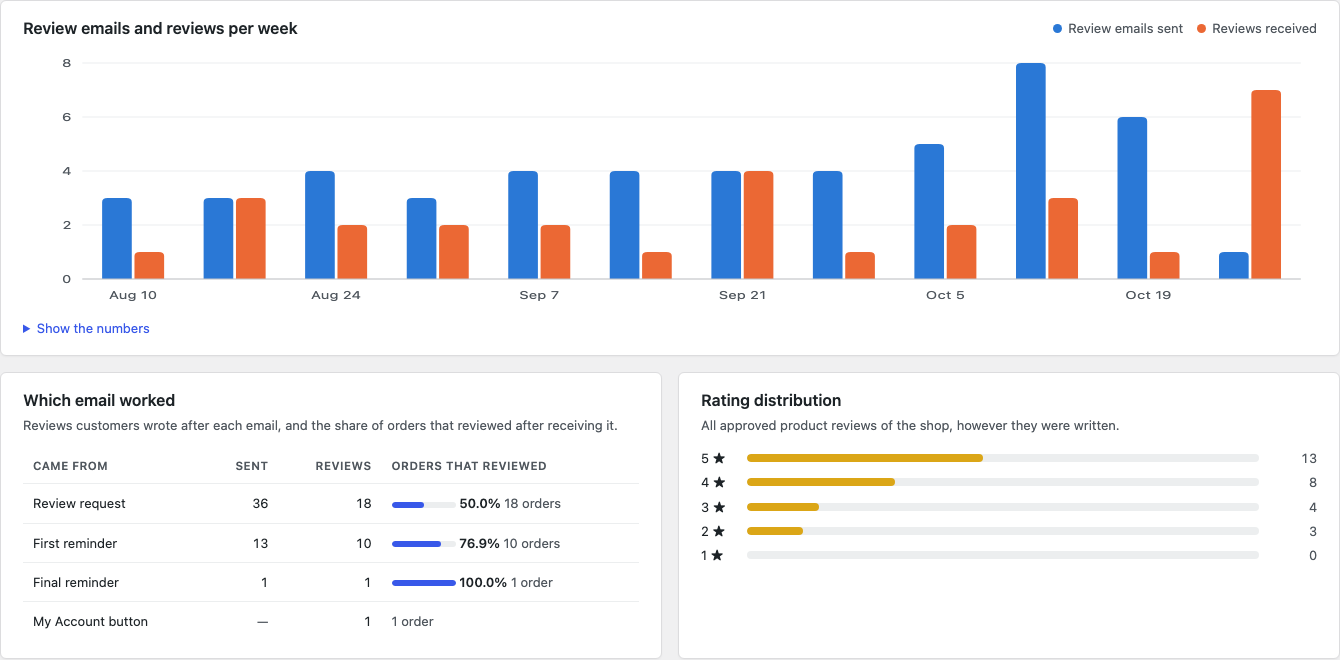
Review Requests → Insights shows the review emails and reviews per week, and for the request and each reminder how many were sent, how many reviews followed and the share of orders that reviewed. It tells you whether the reminders are worth their timing, next to the rating distribution and a table of ratings per product.
Good to know and troubleshooting
- The sequence starts once per order. Moving an order from Completed to another status and back does not restart it. An administrator can use Reset sequence on the order detail screen, which keeps existing reviews.
- If an order is refunded, cancelled or failed, waiting emails are cancelled, controlled by Skip refunded, cancelled and failed orders. A completely refunded product is always skipped.
- “Handed to mail system” in the Email log is not proof of delivery. Check your SMTP or email service’s delivery log, the spam folder, and your domain’s SPF and DKIM.
- An order has no row under Review Requests: its status may not be eligible, the billing email may be missing or invalid, guests may be excluded, or product reviews may be off in WooCommerce. Orders completed before activation need the bulk action.
- An email stays “Scheduled” and never goes out: the queue is not running. Check WooCommerce → Status → Scheduled Actions, or use Tools → Re-create missing queue jobs.
- The review page is cached or shows a login prompt: exclude URLs containing wphub-review from page caching.
- “This review link has expired”: raise Review link lifetime, press Renew link in the Review link box of the order detail screen, or send the email again, because every send renews the expiry. A signed-in customer who presses Leave a review in My Account gets a renewed link automatically.
- A review does not show on the product page: it is probably still Pending, so approve it in Products → Reviews.
- The reviews section does not show: check Enhanced reviews section in Settings → Product page. Some themes, and block themes that show the product details as an accordion, do not print WooCommerce’s review template; add the Product reviews block where the reviews should appear.
- A review earned no coupon: check that the coupon is on, approve the review if coupons are sent on approval, and remember that an order earns its coupon once. Reviews you add for a customer never earn one.
- A customer unsubscribed by mistake: remove the address under Review Requests → Unsubscribed.
- No Verified Buyer label: the order must be paid, contain the product and match the review’s billing email. Also check Settings → Review form → Verified Buyer label.
Next steps
Every setting, hook and screen is covered in the full documentation. If you want to see the plugin itself, visit the Reviews for WooCommerce page, or Browse all plugins. Questions can go to support@wpexpertshub.com with your order ID.