Give each Polylang language its own currency with Multi Currency for Polylang and WooCommerce. You type every exchange rate yourself, and each cart holds one currency.
Contents10 sections
To sell in several currencies on a multilingual WooCommerce store, give each Polylang language its own currency with Multi Currency for Polylang and WooCommerce. A shopper on your French pages then sees prices, shipping and checkout in the currency you chose for French. Two things to know first: the language alone picks the currency, and you type every exchange rate yourself, because the plugin never fetches rates. A currency without a rate is treated as 1.
Why tie the currency to the language
WooCommerce has one store currency, and Polylang does not change it. The plugin adds a Currency and an Exchange rate to every Polylang language. A language with no currency of its own keeps the store currency, so nothing changes until you set one. The shopper never picks a currency, so some things are left out:
- There is no currency switcher, shortcode, widget or block. Polylang’s language switcher is the only switch.
- It does not choose a currency from the visitor’s country or browser.
- It does not fetch exchange rates. You type them and keep them up to date.
- It does not synchronise prices between translations. It removes the price fields from what Polylang for WooCommerce copies between translations, and from the fields Polylang Pro synchronises.
- It does not convert the prices of variable products or variations. They always use the prices entered on the translation.
What you need
- WordPress 6.5 or later and PHP 7.4 or later.
- WooCommerce 8.0 or later (tested up to 11.2). High-Performance Order Storage and the Cart and Checkout blocks are supported.
- Polylang or Polylang Pro, active. No minimum Polylang version is declared; version 2.4.0 was tested with Polylang 3.8.10 and Polylang for WooCommerce 2.1.4. If Polylang or WooCommerce is not active, the plugin shows a notice and does nothing else.
- Polylang for WooCommerce is optional. Without it, the plugin uses your Polylang translations of the Shop, Cart, Checkout and My account pages.
- A payment gateway that accepts every currency you assign to a language.
- A licence key is not needed for the plugin to work. It only lets WordPress deliver updates, through Plugins → WpExperts Hub Licences.
Step-by-step setup
- Open WooCommerce → Settings → General and check Currency. Every exchange rate is counted from this store currency.
- With WooCommerce and Polylang active, open Plugins → Add Plugin → Upload Plugin, choose the zip from your wpexpertshub.com account, then click Install Now and Activate Plugin.
- Make products translatable in Polylang: open Languages → Settings, use the Settings link of the Custom post types and Taxonomies box, tick Products and the product categories and tags you translate, and click Save Changes. Skip this with Polylang for WooCommerce, which makes them translatable itself.
- Without Polylang for WooCommerce, translate the Shop, Cart, Checkout and My account pages in Polylang.
- Open Languages → Languages and click Edit under a language. In Currency, choose its currency. The first entry, “Store currency” followed by your store currency code, suits the default language.
- Type the Exchange rate in the line “1 USD = [ ] EUR”, using your own codes, and click Update. The field appears only when the chosen currency differs from the store currency. Repeat for each language that needs its own currency.
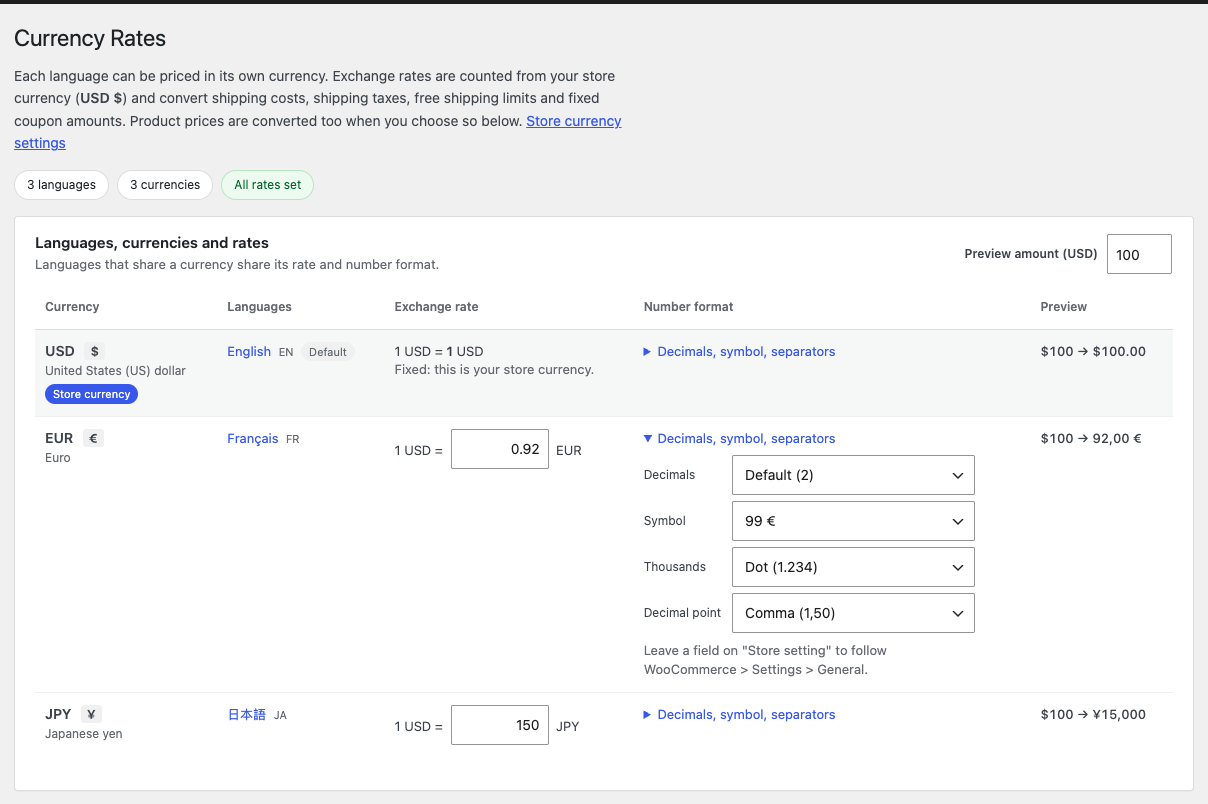
- Open WooCommerce → Currency Rate. Check that the summary says “All rates set”, review the Number format and the Preview, then click Save. You should see “Currency Rate Saved!”.
- Translate your products and type the price on each translation, in the currency of its language. Or choose the converted mode described below.
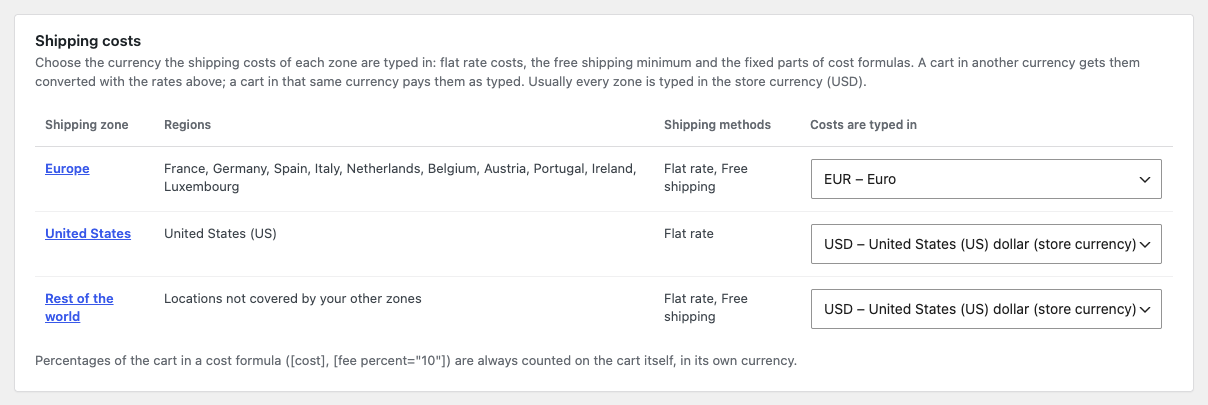
- Type shipping costs and the Free shipping minimum once, in the store currency. If the costs of a shipping zone are typed in another currency, for example a Europe zone in EUR, choose that currency for the zone under Shipping costs on WooCommerce → Currency Rate and click Save.
- Test it: add a product to the cart on a language with its own currency and check price, shipping and total. Open the shop in a language with another currency and confirm you are sent back to the cart’s language. Then place a test order and check its currency in WooCommerce → Orders.
How exchange rates work
A rate always reads “1 store currency = X units of the other currency”, and you can set it on the Edit language form or in WooCommerce → Currency Rate. With a USD store and French priced in EUR at 0.92 (an example rate), a shipping cost of 10 typed in USD becomes 9.20 EUR.
- Rates belong to the currency: French, German and Spanish priced in EUR share one rate and one number format, and they can share a cart.
- How to type it: a dot or a comma as the decimal point, and no thousands separator. A single comma counts as a decimal point, so 1,350 is silently read as 1.35: type 1350. A value that is not a number (for example 1,350.50), or is zero or negative, is refused with a warning that starts “The exchange rate for EUR must be a number greater than zero.”
- An empty field: on the Currency Rate screen it removes the saved rate. On the language form it keeps the saved rate.
- A missing rate counts as 1: shipping, free shipping minimums and coupons are then used as typed, and converted product prices are copied unchanged. The summary shows “Rate missing: EUR”, and the Languages screen shows a warning with a Set the rates link.
- A changed store currency: the plugin warns you if it changed after you entered rates. Re-enter every rate and save.
- Updating: nothing updates by itself. After you save new rates, open carts get new shipping quotes, and orders already placed keep their currency, their totals and the exchange rate they were placed with.
The rate converts shipping costs, shipping taxes, the Free shipping minimum and the amounts of fixed cart and fixed product coupons. Product prices are converted only if you choose that mode. Percentage coupons, tax rates and amounts that other plugins calculate are not converted.
Product prices: your own or converted
Under Product prices on the Currency Rate screen you pick one of two modes:
- Use the price entered on each translated product: the default. Prices are never touched, so you control prices such as 9.99. A translation with no price has no price.
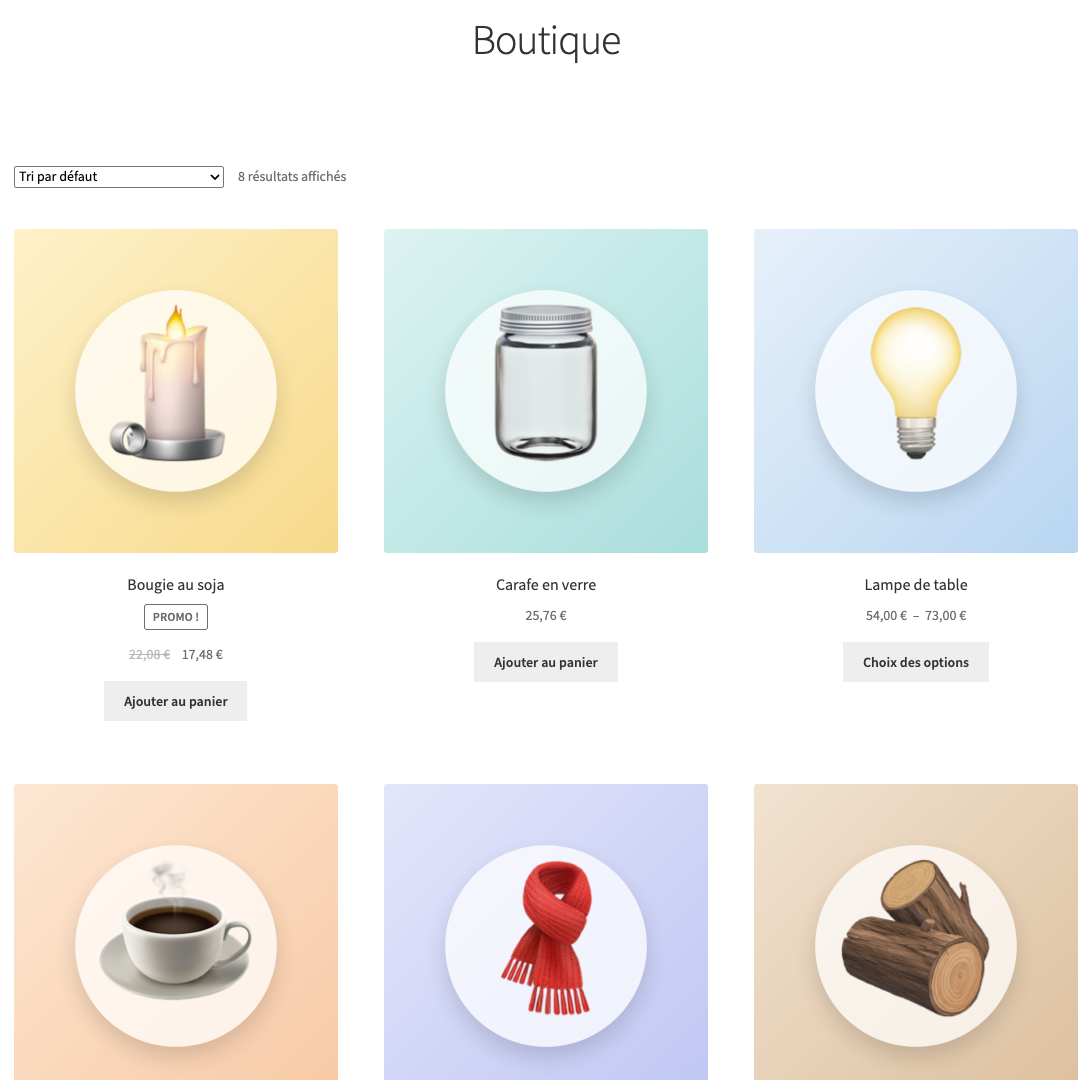
- Convert the default-language price with the rates above: a product takes the price of its default-language translation, multiplied by the rate of its language, divided by the rate of the default language (1 when that language uses the store currency), and rounded to the decimals of its currency.
Conversion applies only to simple and external products in a language other than Polylang’s default, and only when the product has a default-language translation. On a simple product, tick Use Product Price in Product data, next to Virtual and Downloadable, to keep its own price. The checkbox matters only in the converted mode and does not appear in WooCommerce’s block-based product editor. External products have no checkbox, so they are always converted in that mode.
Shipping, coupons and fees
- Shipping costs: type them once in the store currency, and the plugin converts each rate and its taxes to the currency of the cart. A shipping zone whose costs you typed in another currency, such as EUR, can say so under Shipping costs on the Currency Rate screen: carts in EUR then pay them as typed, and carts in other currencies get them converted.
- Cost formulas: flat rate costs such as
[qty] * 2,[cost] * 0.1or5 + [fee percent="10" min_fee="2"]work in every currency. The fixed amounts, min_fee and max_fee are converted, and the percentage is counted on the cart in its own currency. Before version 2.4.0 a formula that used the cart total converted it twice, which made shipping far too expensive in currencies such as KRW or JPY. - Free shipping minimum: the plugin checks WooCommerce’s Free shipping method again with its Minimum order amount converted to the currency of the cart. The cart subtotal, less coupon discounts unless the method’s Apply minimum order rule before coupon discount box is ticked, must reach the converted minimum. A plugin that grants or refuses free shipping on its own still has the last word.
- Live carrier rates: a method that already quotes in the cart currency would be converted twice. Return false from the
wxp_poly_convert_shipping_ratefilter for that method, and fromwxp_poly_convert_shipping_cost_argsif it uses cost formulas. - Fixed coupons: a fixed cart or fixed product coupon of 10, typed in the store currency, takes off the equivalent in the language currency. Its minimum and maximum spend are converted too, for every coupon type. Choose “Use the amounts as entered” under Fixed coupons to switch this off. A fixed coupon added to an order in the admin uses the order’s currency and the exchange rate the order was placed with.
- Fees from other plugins: not converted by default, because a percentage fee is already in the cart currency. For fixed fees typed in the store currency, choose “Convert with the rate” under Fees added by other plugins. The
wxp_poly_convert_feefilter keeps a single fee as it is.
What the shopper sees
Prices, cart and checkout use the currency of the page language. Each currency has its own number format on the Currency Rate screen (Decimals, Symbol, Thousands and Decimal point), and the default follows your WooCommerce setting. Currencies other than the store currency that have no minor units, such as JPY, KRW and VND, are shown and charged without decimals unless you choose otherwise, and KWD and BHD get 3.
One currency per cart
A cart holds products of one currency only. Adding a product priced in another currency is refused with “Empty your cart before you add item in different currency.” When the shopper opens the shop, a product category or tag, a product, the cart or the checkout in a language with a different currency, they are sent to the same page in the cart’s language (the shop in that language if the page has no translation), with the same message. Order received, pay for order, My account and other pages are never redirected, and languages that share a currency trigger none of this.
Cart amounts, such as the header cart, stay in the cart’s currency on pages of another language. With Polylang for WooCommerce, its automatic translation of the cart is switched off to keep one currency per cart.
Checkout, orders and payment gateways
Classic checkout and the Cart and Checkout blocks both create the order in the currency of the cart, with shipping converted by the same rate. The plugin saves the language the order was placed in and the exchange rate of its currency, which the order screen shows next to the order total in the store currency. Without Polylang for WooCommerce, the customer lands on the order received page in that language. With it, the plugin copies the real order language into Polylang for WooCommerce, which uses it for the order emails and the thank-you page.
- Payment gateways: the plugin has no code for them. A gateway reads the order’s total and currency as WooCommerce stores them, so check that it accepts every currency you assign, and test a payment in each.
- Reports: the plugin adds none. Each order shows its exchange rate and its total in the store currency on the order screen, but WooCommerce’s reports add up the amounts as they are stored, so check how your reporting handles several currencies.
- Editing orders: the order screen works in the order’s currency whatever language you filter the admin on, so amounts keep their cents and a fixed coupon added later is converted with the order’s own rate.
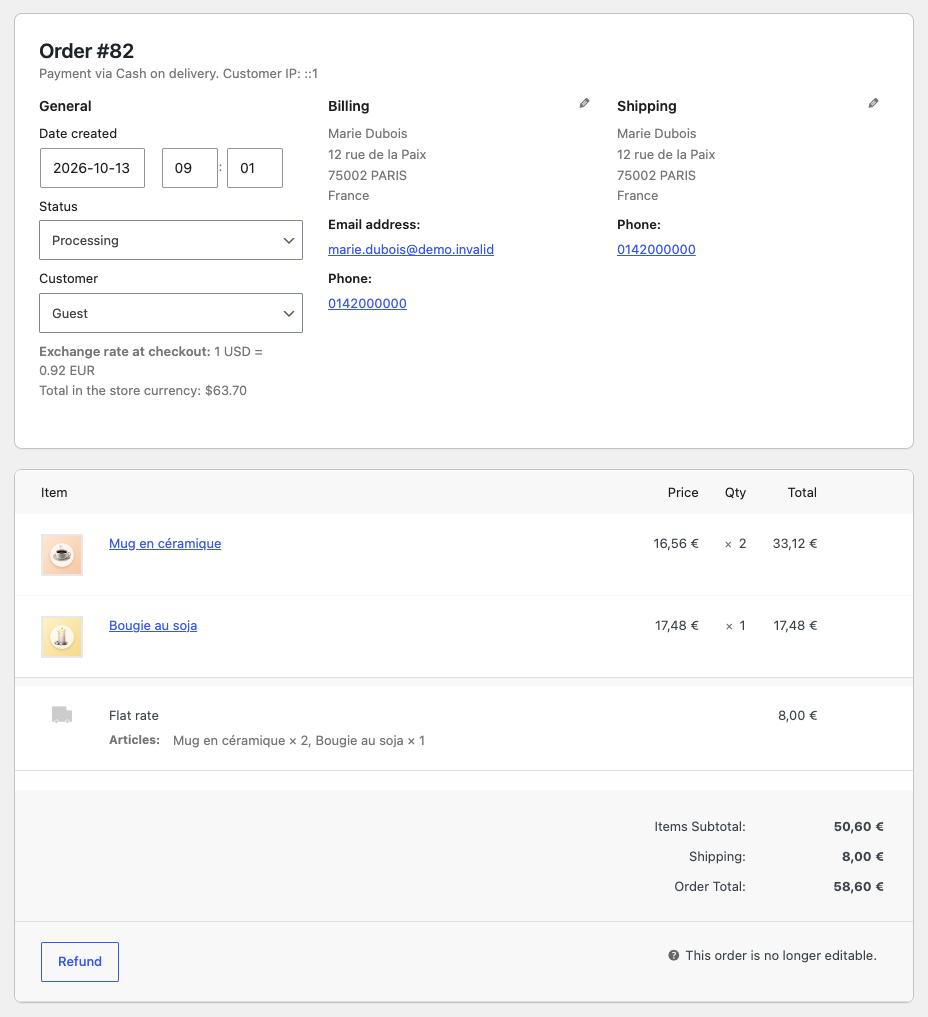
Orders placed before version 2.4.0 have no stored rate: the order screen shows none, and a coupon added to such an order uses today’s rate of its currency.
Good to know and troubleshooting
- A language still shows the store currency: it has no currency of its own. Open Languages → Languages, click Edit and choose one.
- Shipping or coupons are not converted: the currency has no valid rate and counts as 1. Type the rate and save.
- The shopper keeps being sent to another language: that is the cart lock. Empty the cart to shop in the other language.
- “Some products were removed from your cart because they are priced in a different currency.”: a saved cart with two currencies was loaded, for example at login. The plugin kept one currency, so ask the customer to add the rest again.
- A translated product shows no price or the wrong price: in the default mode, each translation needs its own price. In the converted mode, check that the product is simple or external, has a default-language translation and does not have Use Product Price ticked.
- A shipping quote or a fee is too high: the method already quotes in the cart currency, the fee is a percentage and fee conversion is on, or a cost formula with
[cost]or[fee]was converted twice by a version before 2.4.0. Use the filters above, switch fee conversion off, or update. - The costs of a zone are typed in euros but EUR carts pay a converted amount: choose EUR for that zone under Shipping costs on the Currency Rate screen and save.
- Another currency plugin is active: this plugin sets the currency at priority 999, so it overrides earlier changes whenever the language has a currency. Do not run two currency plugins together.
The full documentation covers every setting, the rounding of each converted amount, the developer filters and the changelog.
Links
Plugin page: Multi Currency for Polylang and WooCommerce. Settings reference: Multi Currency for Polylang and WooCommerce documentation. More tools: Browse all plugins.