$79One-time paymentUpdates & support included
01
Overview
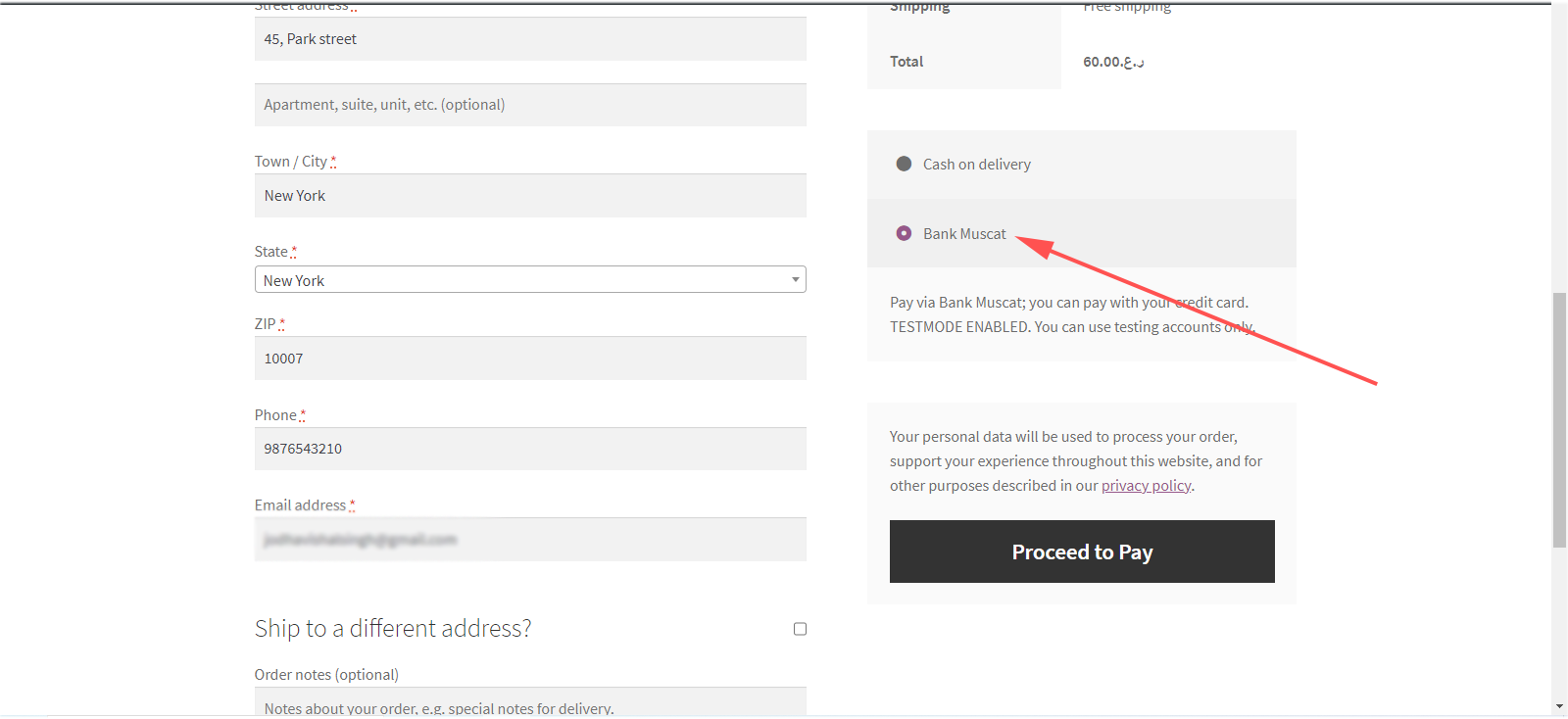
Bank Muscat Payment for WooCommerce adds Bank Muscat as a payment method at checkout. When a customer places an order, they are taken to Bank Muscat’s secure payment page to pay by debit or credit card, then brought back to your store.
The payment request is encrypted with your merchant working key, and the bank’s response is decrypted on your site. A successful payment moves the order to Processing and saves the bank reference number and tracking ID on the order. A failed payment marks the order as Failed, so you always know what happened.
Separate test and live credentials let you try the full payment flow before you go live. Payments are sent to Bank Muscat in Omani rial (OMR).
02
Why store owners choose it
Card details are entered on Bank Muscat’s page, never on your site.
Paid and failed orders update themselves, with the bank reference saved.
Test mode lets you check everything before taking real payments.
03
Features
Bank Muscat payment page
Customers enter their card details on Bank Muscat’s secure page, not on your site.
Encrypted requests
Order details are encrypted with your working key before they are sent to the bank.
Automatic order status
Successful payments set the order to Processing; failed payments set it to Failed.
Bank reference on the order
The bank reference number and tracking ID are saved with every paid order.
Test and live modes
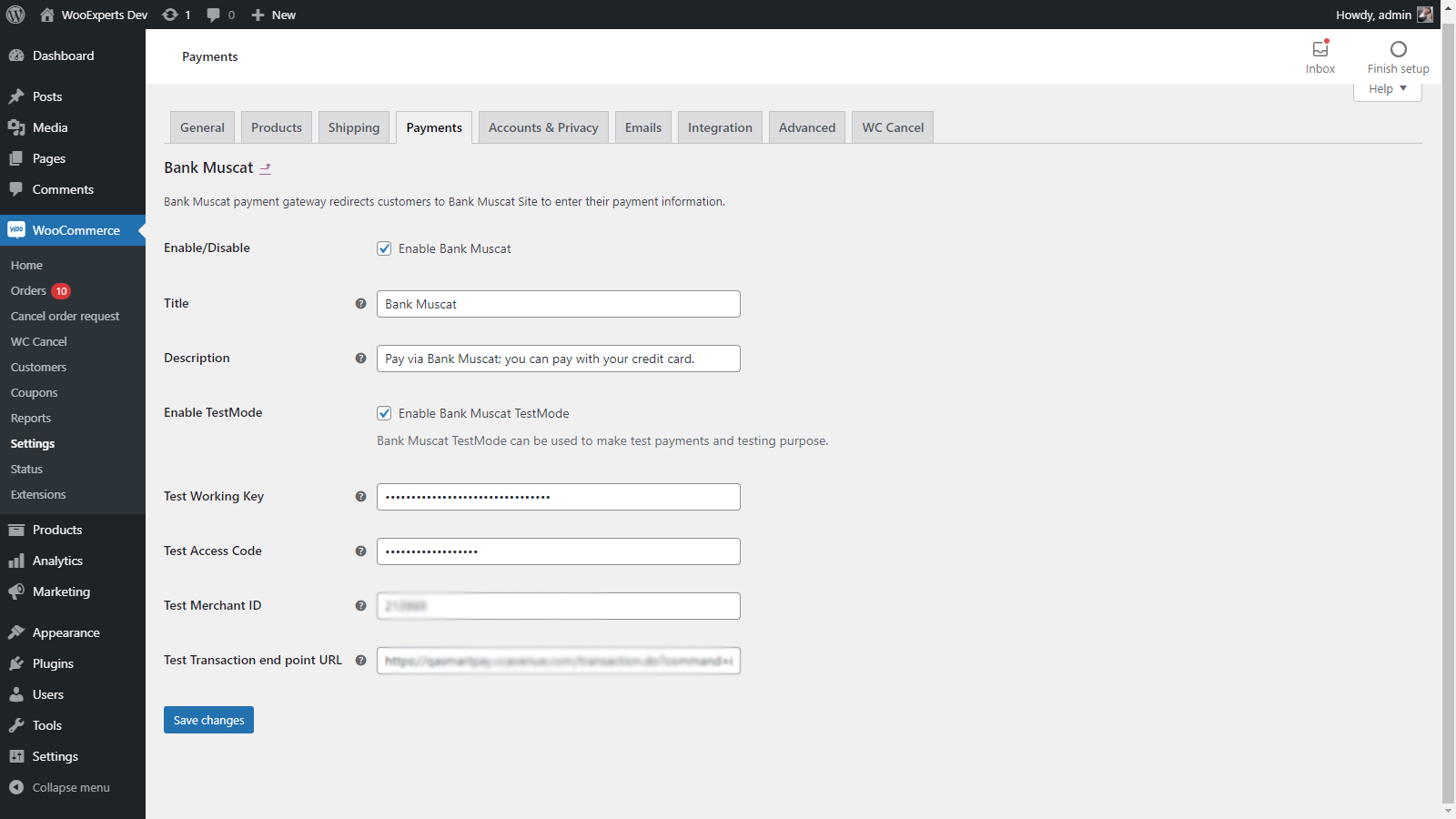
Separate test and live working key, access code, merchant ID and transaction URL.
Your checkout wording
Set the payment method title and description customers see at checkout.
04
How it works
- 1
Install and activate
Upload the plugin to WordPress and activate it.
- 2
Add your Bank Muscat details
In WooCommerce → Settings → Payments → Bank Muscat, enter the working key, access code, merchant ID and transaction URL from the bank.
- 3
Test the payment flow
Turn on test mode, place a test order and complete the payment on Bank Muscat’s test page.
- 4
Go live
Turn test mode off. Customers now pay on Bank Muscat’s live page and orders update automatically.
05
Screenshots & demo
06
Requirements & installation
What you need
You need a Bank Muscat merchant account. The bank gives you the working key, access code, merchant ID and transaction URL. Because payments go to the bank in Omani rial, set your store currency to OMR.
07
Documentation & support
08
Frequently asked questions
Do I need a Bank Muscat merchant account?
Yes. You need the merchant credentials Bank Muscat gives you: working key, access code, merchant ID and the transaction URL.
Which currency are payments made in?
Payments are sent to Bank Muscat in Omani rial (OMR), so your store currency should be set to OMR.
Do customers enter card details on my site?
No. They are redirected to Bank Muscat’s secure payment page and brought back to your store after paying.
What happens when a payment fails?
The order is marked as Failed and the customer returns to your store, so you can see the result straight away.
Can I test before going live?
Yes. Enable test mode and enter the test credentials from Bank Muscat, then place a test order.
09
Customer reviews
Thanks for your review!
It’s waiting for approval and will appear here soon. We’ll email you when it’s live.
Be the first to review it
Used Bank Muscat Payment for WooCommerce on your store? A short review helps other store owners decide — and tells us what to improve.
Bank Muscat Payment for WooCommerce$79