FreeFree on WordPress.orgInstall it from your WordPress dashboard
01
Overview
By default, WordPress sends the "Please moderate" email only to the site admin email address, and to the post author when they can edit the comment. On a site with several editors, moderators or a support team, comments easily wait in the moderation queue without anyone noticing.
WP Comment Notification lets you decide who receives these emails. Add any number of email addresses, optionally include the author of the post, and choose whether the same people are also told about new approved comments.
The emails are sent by WordPress itself, so they keep the usual wording, translations and Approve / Trash / Spam links, and work with any SMTP or email log plugin. Spam and trashed comments are never emailed, and the "New comment" email skips the person who wrote or approved the comment.
02
Why store owners choose it
Comments no longer wait unnoticed: the people who actually moderate them get the "Please moderate" email.
Email any number of addresses, such as editors, moderators or a shared support inbox, plus the post author if you like.
No noise: spam and trashed comments are never emailed, and approved-comment emails skip the person who wrote or approved the comment.
Standard WordPress emails keep their wording, translations and Approve / Trash / Spam links, and work with any SMTP plugin.
One settings screen: Settings > WP Comment Notification.
03
Features
Your own recipient list
Send the “Please moderate” email to any number of addresses, for example your editors, moderators or a shared support inbox.
Post author
Optionally email the author of the post that received the comment as well.
Approved comments
Optionally send the “New comment” email to the same recipients when a comment is published straight away or approved later.
Moderation emails you can rely on
Comments held for moderation are always emailed to your list, whatever the “Email me whenever” options under Settings > Discussion say.
No noise
Spam and trashed comments are never emailed, and the “New comment” email skips the person who wrote or approved the comment.
Address check
Addresses are validated when you save: invalid ones are skipped and listed, duplicates are removed, and the settings page warns you when nobody would be notified.
Standard WordPress emails
The emails are sent by WordPress itself, so they keep the usual wording, translations and Approve / Trash / Spam links, and work with any SMTP or email log plugin.
Works with your site
Pingbacks, trackbacks and WooCommerce product reviews are covered, and every site of a multisite network has its own recipients. Block editor notes keep WordPress’s own notifications.
04
How it works
- 1
Install and activate
Go to Plugins > Add New Plugin, search for “WP Comment Notification”, then install and activate it.
- 2
Add your recipients
Open Settings > WP Comment Notification and enter the email addresses, separated by commas or one per line.
- 3
Choose the options
Tick “Notify post author” and “Approved comments” if you want them, and save.
- 4
Your team is notified
Comments held for moderation are emailed to your list with the usual Approve, Trash and Spam links.
05
Screenshots & demo
-
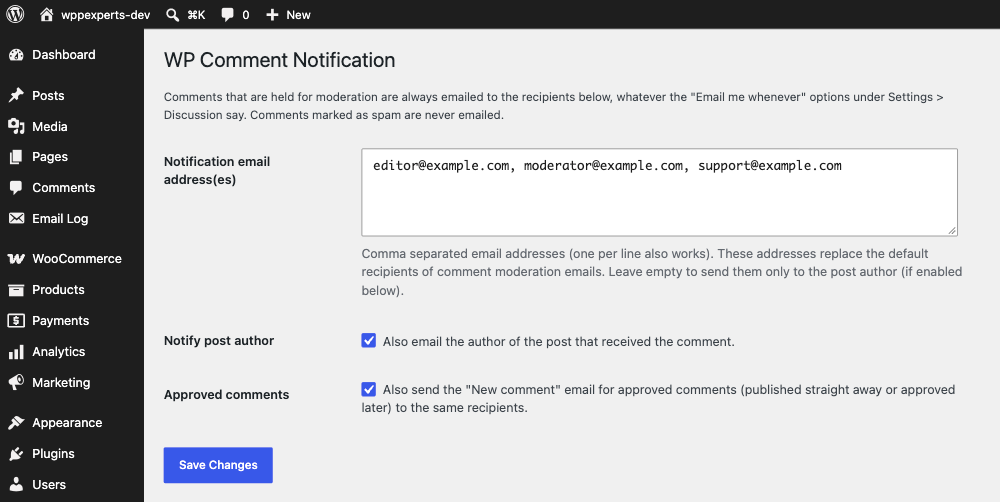
 Settings > WP Comment Notification: the recipient list, the post author option and the approved comments option.
06
Settings & configuration
Notification email address(es)
EMAILSAny number of addresses, separated by commas or one per line. Until you first save, the site admin email address and all administrators are notified.
Notify post author
AUTHORAlso email the author of the post that received the comment. Off by default.
Approved comments
APPROVEDAlso send the “New comment” email to the same recipients for comments published straight away or approved later, whatever Settings > Discussion says. The post author then receives it only if “Notify post author” is ticked or listed. Off by default.
Address check and warning
CHECKInvalid addresses are skipped and listed when you save, duplicates are removed, and a warning appears when nobody would be emailed.
07
Requirements & installation
Who needs a WordPress comment notification plugin
It suits blogs, magazines, membership and business sites where more than one person moderates comments, and WooCommerce stores that want product reviews answered quickly. It also helps when comment emails should go to a shared inbox instead of the site admin address.
Requirements
- WordPress 6.2 or later (tested up to 7.1)
- PHP 7.4 or later
Installation
- Go to Plugins > Add New Plugin, search for “WP Comment Notification”, then install and activate it.
- Go to Settings > WP Comment Notification.
- Enter the email addresses that should receive comment emails, choose the options you want and save.
Until you save the settings for the first time, the site admin email address and all administrators receive the moderation emails.
Privacy
The plugin only stores its settings. It does not track visitors, set cookies or send data to external services. Emails are sent with your site’s normal WordPress mail function, and the settings are removed when you delete the plugin.
For developers
Change the recipients in code with the wp_comment_notification_recipients filter. It receives the email addresses, the comment ID and the context: moderation (comment held for moderation) or approved (new approved comment).
add_filter( 'wp_comment_notification_recipients', function ( $emails, $comment_id, $context ) {
    if ( 'moderation' === $context ) {
        $emails[] = 'team@example.com';
    }
    return $emails;
}, 10, 3 );
08
Documentation & support
09
Frequently asked questions
Which emails does the plugin control?
The “Please moderate” email for comments held for moderation and, if you enable “Approved comments”, the “New comment” email for approved comments and replies. Only the recipients change; the emails themselves are sent by WordPress.
Who receives the emails before I save the settings?
The site admin email address and every administrator of the site.
What happens if I leave the address list empty?
The moderation emails then go only to the post author, if “Notify post author” is ticked. If it is not, nobody is emailed, and the settings page shows a warning.
I do not receive any emails. What can I check?
Make sure your address is saved on the settings page and look in your spam folder. If your site does not send any emails at all (password resets included), set up an SMTP plugin: this plugin uses the standard WordPress mail function.
Why did the person who approved a comment not get the "New comment" email?
For the “New comment” email, the plugin leaves out the person who wrote the comment and the person who approved it. All other recipients are still notified.
Are spam comments emailed?
No. Comments marked as spam (for example by Akismet) and trashed comments are never emailed.
Does it work with WooCommerce product reviews?
Yes. Reviews held for moderation are emailed to your list like any other comment.
Does the plugin change the notifications for block editor notes?
No. Notes (WordPress 6.9 and later) are still sent to the post author, as WordPress does by default.
Does it work on multisite?
Yes. Every site of the network has its own recipients under Settings > WP Comment Notification.
Can I change the recipients in code?
Yes, with the wp_comment_notification_recipients filter. It receives the email addresses, the comment ID and the context: moderation (comment held for moderation) or approved (new approved comment).
What happens to the settings when I delete the plugin?
They are removed from the database, on every site of a multisite network.
Where can I get help?
Please open a topic in the WordPress.org support forum. Bug reports and feature requests are welcome there too.
10
Customer reviews
Thanks for your review!
It’s waiting for approval and will appear here soon. We’ll email you when it’s live.
- pro450
Excellent. Very simple
It simply allows multiple (or different than admin) email addresses to be notified when there are comments. It’s great.
WP Comment NotificationFree
Download