Limit an Editor, Author or Shop Manager to chosen Polylang languages, post types and taxonomies with User Manager for Polylang, and see what the plugin does not restrict.
Contents8 sections
To limit an editor to certain languages on a Polylang site, install User Manager for Polylang, edit the user, choose Restricted in the new Polylang access box and tick the languages, post types and taxonomies that user may work with. Content outside those rules can then no longer be edited, deleted or published, and the user cannot create items of a post type you did not tick, whether in the admin, through the REST API or from a blogging app. One limit to know before you start: the plugin only takes permissions away. It does not hide other-language content from visitors or from REST read requests, and it never restricts administrators.
Why limit users by language
The documentation’s examples are a French editor who works on French content only and a German shop manager who manages German products only. For each non-administrator user the plugin stores a set of rules: which Polylang languages, which public post types and which public taxonomies that user may use. The rules only remove permissions. A user who cannot edit pages because of their role still cannot edit pages when you tick Pages. The plugin deliberately does not do the following:
- It never restricts users with the Administrator role, or super admins on a multisite network.
- It has no settings screen of its own. Every choice is made on the user’s profile.
- It does not restrict orders, coupons or other post types that are not public. Media is never restricted by the post type rule, although the language rule applies to it if Polylang translates Media.
What you need
- WordPress 6.5 or later and PHP 7.4 or later. The readme says it was tested up to WordPress 7.1.
- Polylang or Polylang Pro, active, with at least one language. Version 2.7.1 was tested with Polylang 3.8.10. Without Polylang the plugin does not start, applies no restriction and shows a notice to users who can activate plugins.
- An administrator account to set the rules. The Polylang access box is shown only to users with the
manage_optionscapability. On a multisite network, saving rules for another user also needsmanage_network_users, normally a super admin. - WooCommerce is optional. You need it only to restrict shop managers to products. For the language rule to apply to products, Polylang must be set to translate them (step 2 below); otherwise only the Products tick applies. Version 2.7.1 was tested with WooCommerce 11.2 and Polylang for WooCommerce 2.1.
It is a paid plugin, but the rules apply whether or not a licence is active, because the plugin does not check the licence before enforcing them. The licence is used for updates.
Step-by-step setup
- Install and activate Polylang (or Polylang Pro), then add your languages under Languages → Languages.
- Open Languages → Settings. In the Custom post types and Taxonomies box, click Settings, tick every custom post type or taxonomy that should have a language, then click Save Changes. Polylang always manages languages for Posts, Pages, Categories and Tags.
- Download the plugin zip under My Account → Downloads on wpexpertshub.com.
- In WordPress, open Plugins → Add Plugin → Upload Plugin, choose the zip, click Install Now, then Activate Plugin. The Plugins screen lists it as “Polylang User Manager”.
- Open Users → All Users and click Edit under the user’s name, or open Users → Add User for a new account. Any role except Administrator can be restricted, such as Editor, Author or Shop Manager.
- Scroll to the Polylang access box at the end of the form. At the top of the box, choose Restricted (the other choice is Full access). A new user starts on Full access.
- Under Languages, tick every language the user may work in.
- Under Post types and Taxonomies, tick what the user may add and edit, for example Posts, Pages and Categories.
- Read the live summary at the bottom of the box, for example “Restricted to French, German · 2 post types · 1 taxonomy”. Then click Update User (or Add User).
- Test it: on Users → All Users, check the Polylang access column. Then sign in as the user in a private window and open Posts, which lists only the language selected in the admin bar filter. Open the edit address of an item in another language (
post.php?post=ID&action=edit) and you should see “You do not have permission to access this page.”
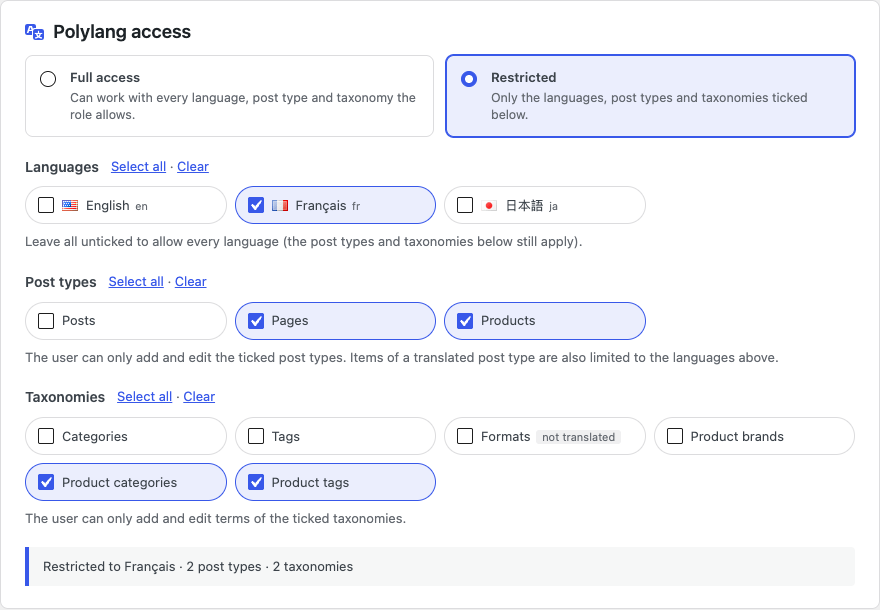
Three choices in the box deserve a closer look:
- Every language or none: ticking all languages limits the user to the languages that exist today, so a language you add later is not included. Ticking none allows every language, including later ones. In both cases the ticked post types and taxonomies still apply.
- Nothing ticked under Post types or Taxonomies: nothing of that kind is allowed, and the menu entries for those types disappear.
- Full access: choosing it hides the three groups but still saves what you ticked, so switching back to Restricted restores them.
What a restricted user can and cannot do
The plugin answers WordPress’s own capability checks for editing, deleting and publishing posts and for editing and deleting terms. Because WordPress checks the same capabilities everywhere, the rules also reach Quick Edit, bulk actions, admin AJAX, the block editor, the REST API (including WooCommerce’s) and XML-RPC.
- Posts, pages and custom post types: the user can edit, delete or publish an item only if its post type is ticked and, for a post type Polylang translates, the item’s language is one of the user’s languages. For a post type Polylang does not translate, only the tick applies.
- Terms: the taxonomy must be ticked and, in a translated taxonomy, the term’s language must be one of the user’s. Creating a term in a taxonomy that is not ticked, or in a language the user may not use, is refused with “You do not have permission to add new term.”
- Screens: the list or Add New screen of a post type that is not ticked, and the edit screen of an item in another language, stop with “You do not have permission to access this page.” A term outside the rules says “You do not have permission to edit term.”
- New content: a post, page or product of a post type that is not ticked cannot be created at all. The Add New screen of that post type is refused, the REST API (used by the block editor and by apps) answers “Sorry, you are not allowed to create items of this post type.” and XML-RPC (used by blogging apps) answers “You do not have permission to add new item.” This check arrived in version 2.7.1.
- Menus and row actions: menu entries and the “+ New” items of the toolbar (in the admin and on the site) for anything not ticked are hidden, and the dashboard’s Quick Draft box disappears when Posts is not ticked. The Edit, Quick Edit, Trash and Delete links are removed from items outside the rules. Quick Edit and bulk actions stay available, and each item is checked.
- WooCommerce: a variation follows its parent product, so a shop manager cannot change variations of a product in another language. Dragging products or product categories of another language to a new position is refused too, and a shop manager without the Products tick cannot create products through the WooCommerce REST API.
Content with no language
An item of a translated post type that has no language counts as outside the rules, so a restricted user cannot edit it. The one exception is a new auto-draft. Terms behave differently: a term in a translated taxonomy that has no language is allowed. Polylang flags such content on Languages → Languages with “There are posts, pages, categories or tags without language.” and a link, “You can set them all to the default language.” That link assigns the default language to all of that content in one go, so use it only if that language is right for every item. If a restricted user should edit that content, give it a language first.
What the user sees day to day
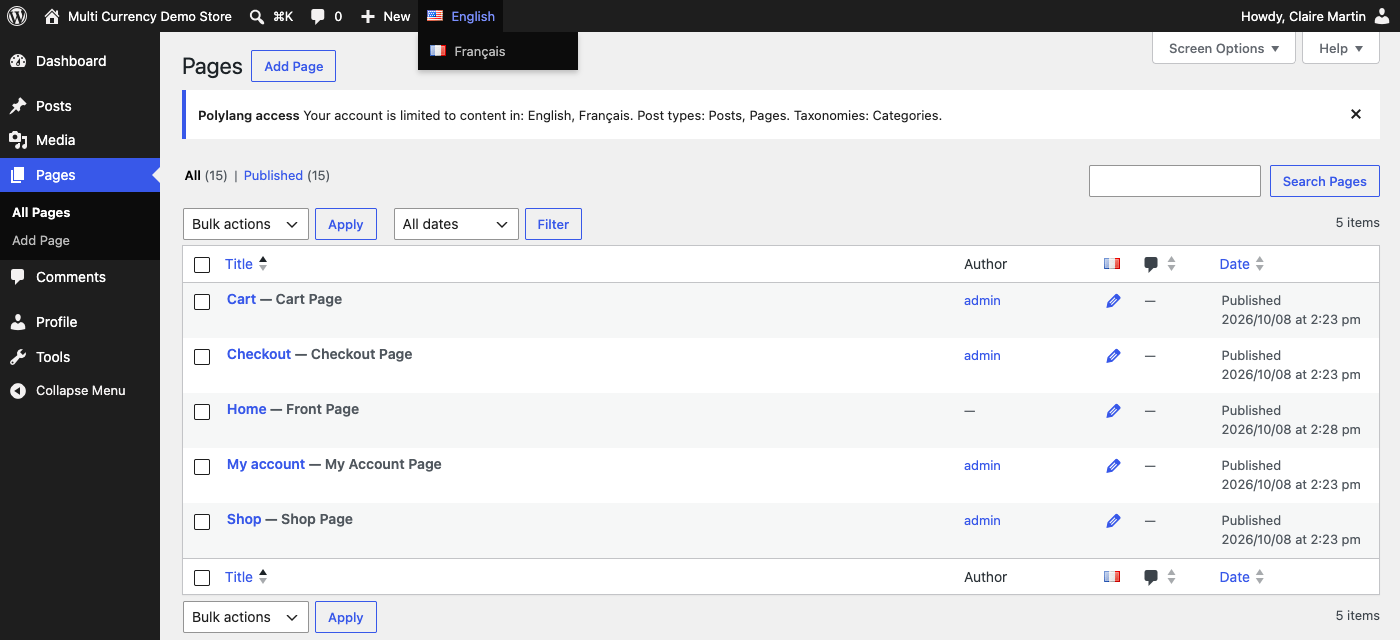
- Language filter: Polylang’s language menu in the admin bar (its tooltip reads “Filters content by language”) lists only the user’s languages. “Show all languages” is removed, even for a user with every language, so that user works in one language at a time.
- New content: Add New opens in the user’s language: Polylang’s preferred language if the user may use it, otherwise the first allowed one. The language drop-downs in the Languages box, Quick Edit and bulk edit list only the user’s languages, and a request for another one is refused with “You do not have permission to edit item.” Quick Edit and Bulk Edit keep their Language field, limited to the user’s languages.
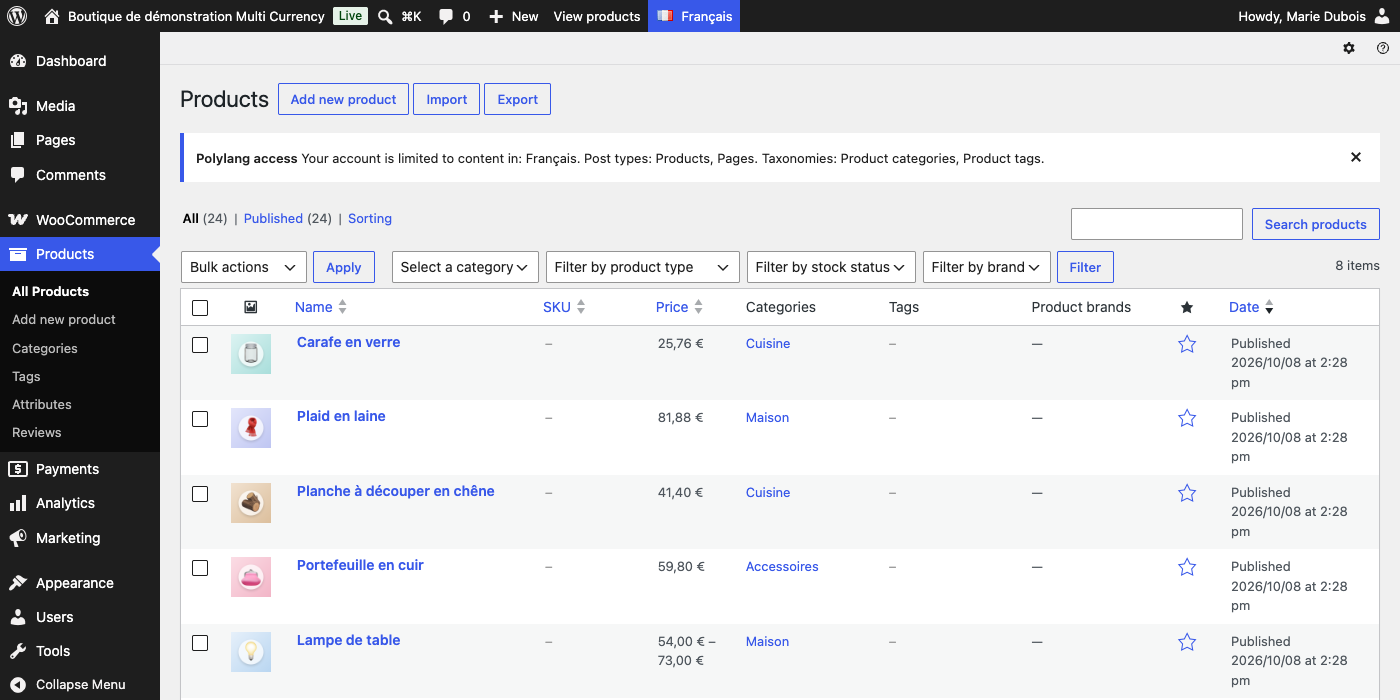
- Notice: a dismissible notice on the Dashboard, post lists and term lists reads, for example, “Polylang access Your account is limited to content in: French, German.” followed by the allowed post types and taxonomies. The Profile screen shows a read-only summary.
Creating a translation
A restricted translator can translate an existing item into any of their own languages. The user clicks the “+” in the Polylang column for their language on the source item’s row, writes the translation and saves, and the plugin links the new item to the source. The link is made only when the language is one of the user’s, the source has the same post type and is readable by the user, and the source has no translation in that language yet.
The user cannot change how items in other languages are linked to each other. Since version 2.7.1 the plugin checks Polylang’s own translation fields first: a change that would, for example, take an English post out of its group or unlink a German translation from its English original is ignored, while the item itself is saved. Linking their own translation to an original and unlinking their own item still work.
Managing many users
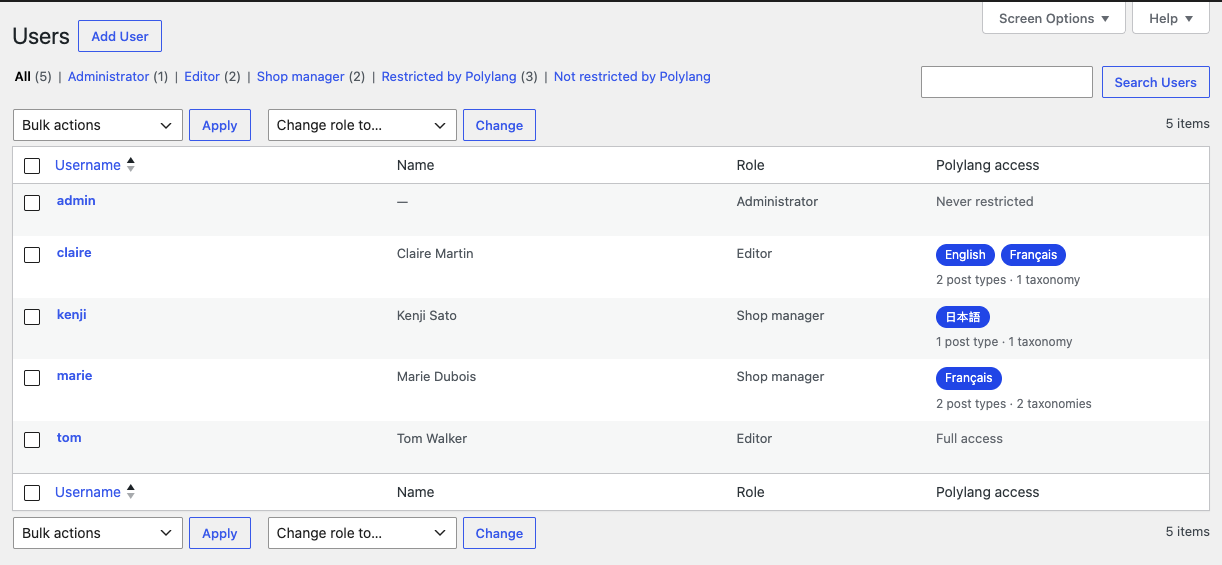
Users → All Users gains a Polylang access column. It reads “Never restricted” for administrators and “Full access” for unrestricted users. For restricted users it shows a badge per language (or “All languages”) and a count such as “2 post types · 1 taxonomy”. Click a language badge to list the restricted users of that language. The views Restricted by Polylang (with a count) and Not restricted by Polylang filter the list.
For many users at once, use WP-CLI. Leave out --languages to allow every language. The set command overwrites the user’s saved rules without asking. The clear command gives a user full access again and keeps the saved rules; add --forget to delete them. Post types and taxonomies that are never restricted, such as Media, are left out of set with a warning.
wp polylang-user-manager set editor_fr --languages=fr --post-types=post,page --taxonomies=category
wp polylang-user-manager list
wp polylang-user-manager clear editor_fr
Good to know and troubleshooting
- A user can still edit everything: check the Polylang access column. The user may be an administrator or super admin (“Never restricted”), set to Full access, never saved with the box, or Polylang is inactive (then the column and the box are missing too).
- The Polylang access box is missing: you need
manage_options, and the box does not appear on your own profile. For an administrator it shows only “Administrators are never restricted. Change the role to Editor, Author or Shop Manager to limit this user.” Save the new role first, then open the user again and set the rules. - A deleted language: the user stays restricted. The profile warns “A language assigned to this user no longer exists.” and the Users list shows a “Language removed” badge. If it was their only language, they cannot edit translated content until you choose another.
- A translation is not linked to the original: one of the conditions under Creating a translation was not met. Link it as an administrator.
- Multisite: the box appears on the Add Existing User and Add User forms but is not saved from them. Create or add the user first, then edit that user under Users → All Users and set the rules there. The rules belong to the user, not to one site, so on a network where several sites use Polylang they apply on every site the user can edit; restrict a user on the one site where they work.
- “Sorry, you are not allowed to create items of this post type.” in the block editor or an app, or “You do not have permission to add new item.” in a blogging app: the post type is not ticked for that user. Tick it on the profile, or create the item from an account that may use it.
- A change in the translations box did not stick: for a restricted user, a change that would alter how items they cannot edit are linked is ignored, while the item itself is saved. Ask an administrator to change those links.
- Deactivating or deleting: deactivating the plugin ends every restriction at once but keeps the saved rules. Deleting it from the Plugins screen removes the saved rules of all users.
- One thing it does not check: assigning an existing term to a post. New posts, pages and products of a post type that is not ticked are refused, also through the REST API and XML-RPC (since version 2.7.1), new terms are checked, and a new post in a translated post type always gets an allowed language.
The full documentation covers the filters, user meta keys, hooks and privacy details.
Links
Plugin page: User Manager for Polylang. Settings reference: User Manager for Polylang documentation. More tools: Browse all plugins.