$99One-time paymentUpdates & support included
01
Overview
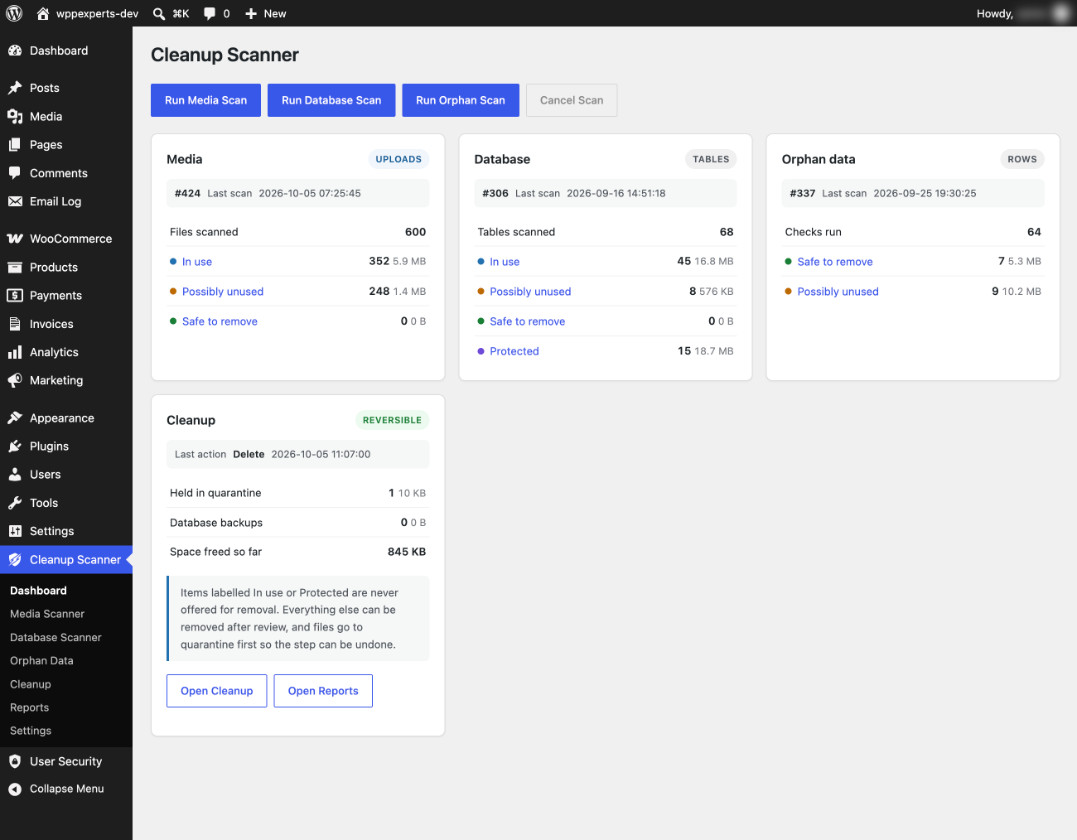
Media and Database Cleaner for WordPress finds unused media files, unused database tables and orphaned database rows, and tells you why it flagged each one. Every result is labelled In use, Possibly unused, Safe to remove or Protected, with a plain-English reason, a confidence level and the evidence behind it.
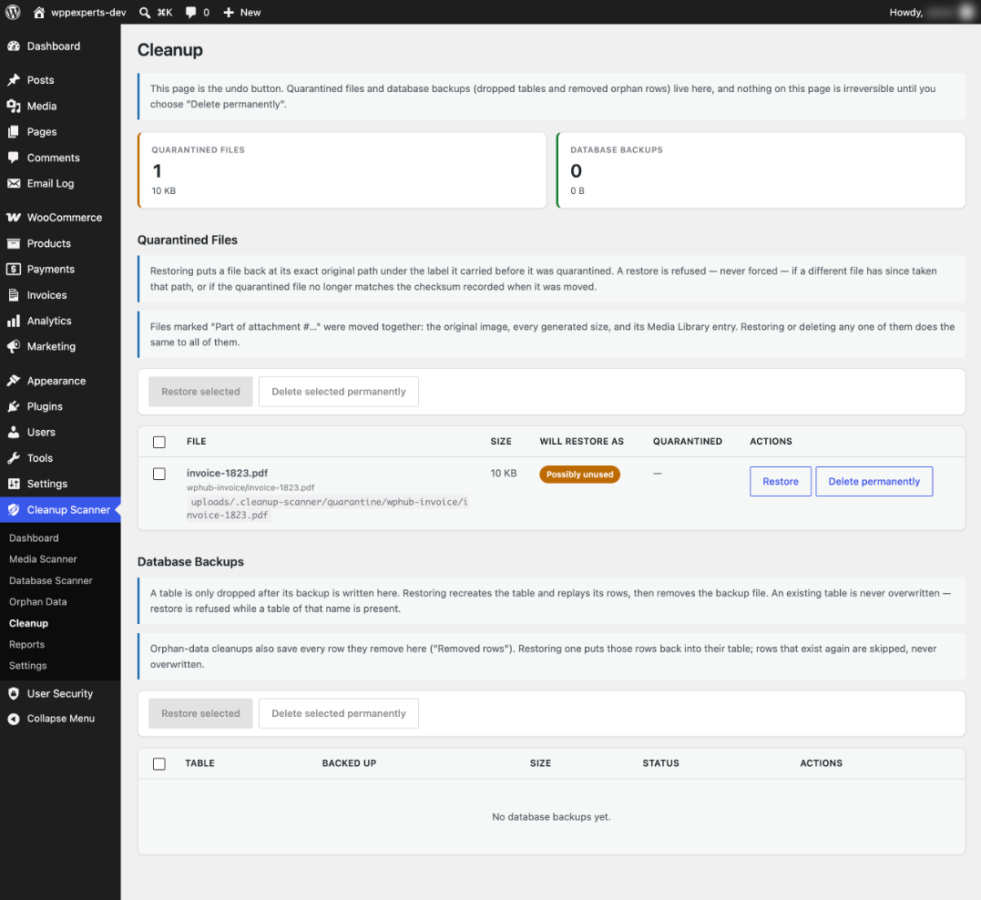
Nothing is removed on its own. You review the findings, then quarantine files, back up and drop tables, or remove orphan rows. Quarantined files, dropped tables and removed rows can all be put back from one Cleanup page.
The scanners only read your site. They run in short batches with a live progress bar, so a page reload does not lose your place, and every scan and cleanup action is kept in reports you can export.
02
Why store owners choose it
See the reason and the evidence for every item, so you decide with facts instead of guessing from file names.
Items that are in use or protected can never be selected, and riskier removals make you type DELETE first.
Files go to a private quarantine and tables and rows are backed up first, so you can restore them from one page.
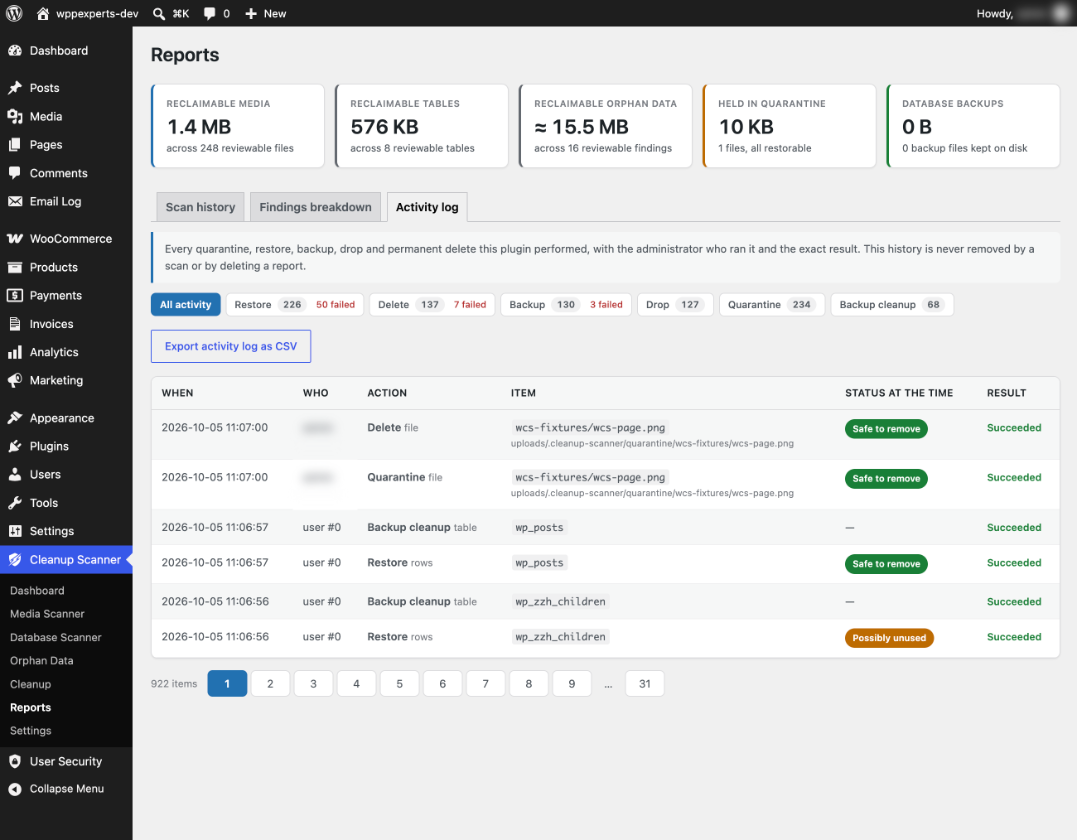
Export any scan with its full evidence as CSV or JSON, and keep an activity log of who removed what.
It scans and reports only. Nothing is removed until an administrator chooses items and confirms.
03
Features
Media scanner
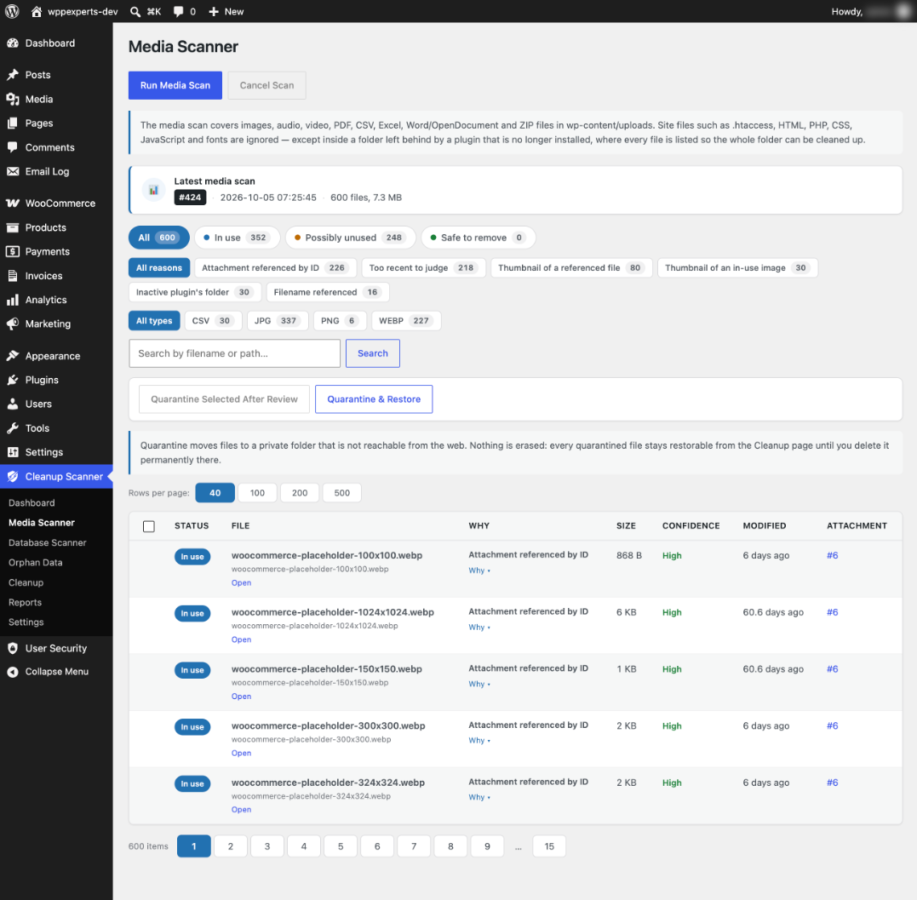
Walks the uploads folder and checks every file against posts, custom fields, options, the active theme, active plugins and WooCommerce data. An attachment is judged as a whole: if its original, any size or its ID is used, every file stays.
Database scanner
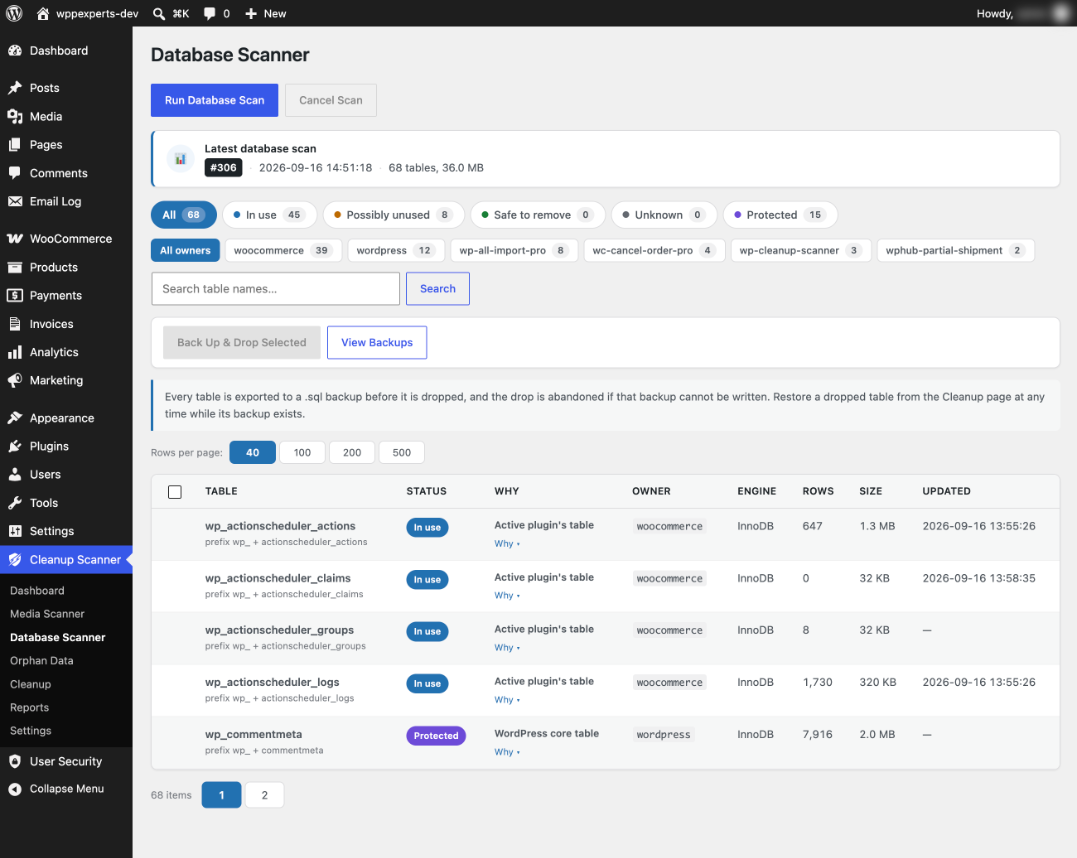
Lists every table with its owner, engine, rows and size, and labels tables that belong to inactive or removed plugins. Owners come from plugin source code and a catalogue of more than 80 well-known plugins.
Orphan data scanner
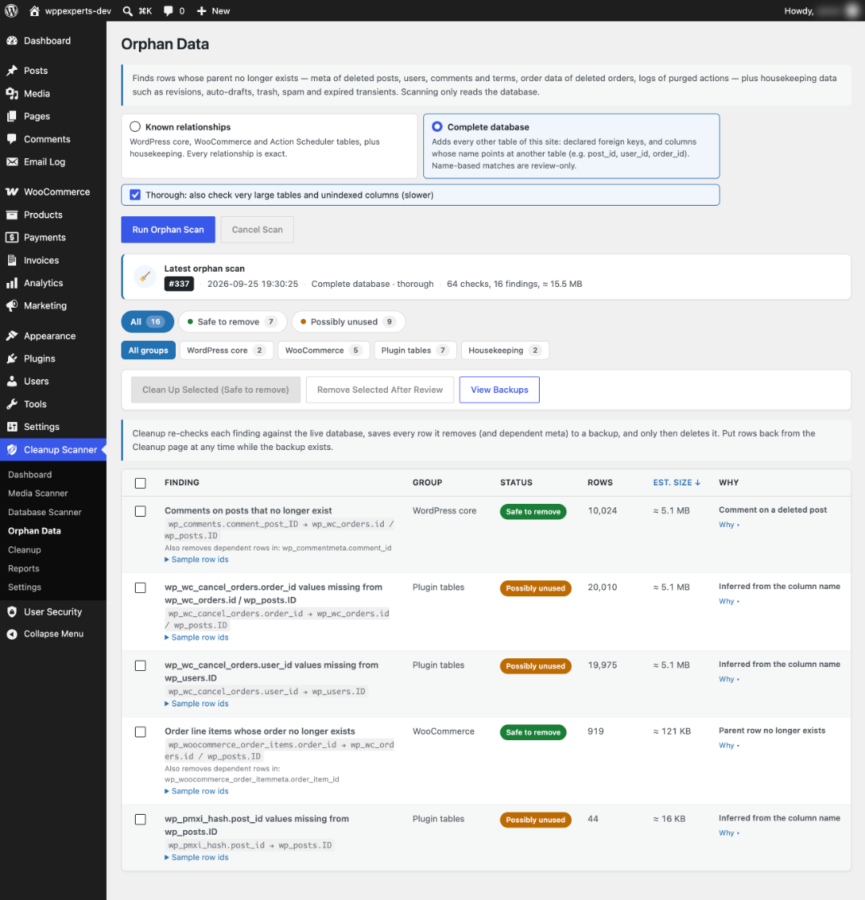
Finds rows whose parent is gone: meta of deleted posts, users, comments and terms, WooCommerce order data of deleted orders, and Action Scheduler logs. A Housekeeping group lists revisions, auto-drafts, trash, spam and expired transients.
Clear verdicts
Each item is In use, Possibly unused, Safe to remove, Protected or Unknown. Open Why on any row to see what referenced it, or why nothing did.
Quarantine, not delete
Media files move to a private quarantine folder first. A restore puts the file back at its original path, and is refused rather than forced if another file has taken that path or the checksum no longer matches.
Backup before drop
A table is exported to a .sql backup before it is dropped, and the drop is abandoned if the backup cannot be written. Removed orphan rows are saved too and can be put back.
Attachments as a unit
A Media Library file moves together with its generated sizes and its library entry, so the Media Library never shows a broken item. Restoring brings back the same ID and meta.
Resumable scans
Scans run in short batches with a live progress bar and carry on after a page reload. Bulk actions can select every item that matches a filter, up to 5,000 at a time.
Reports and export
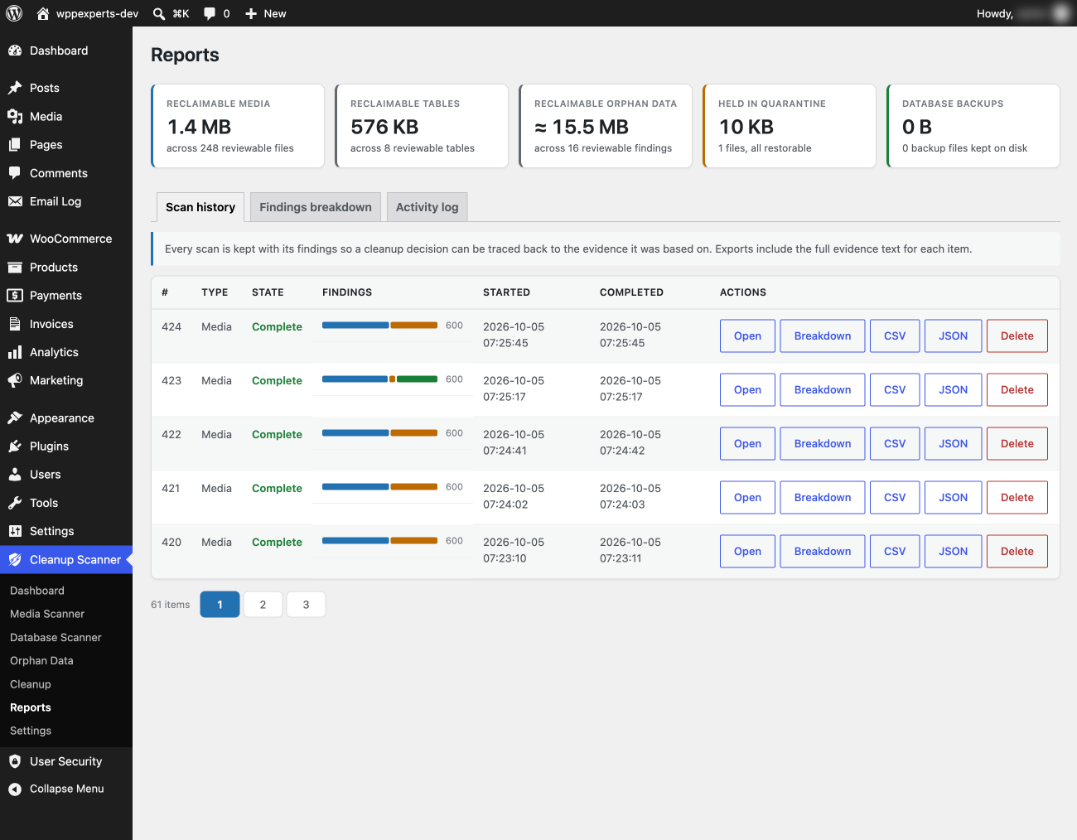
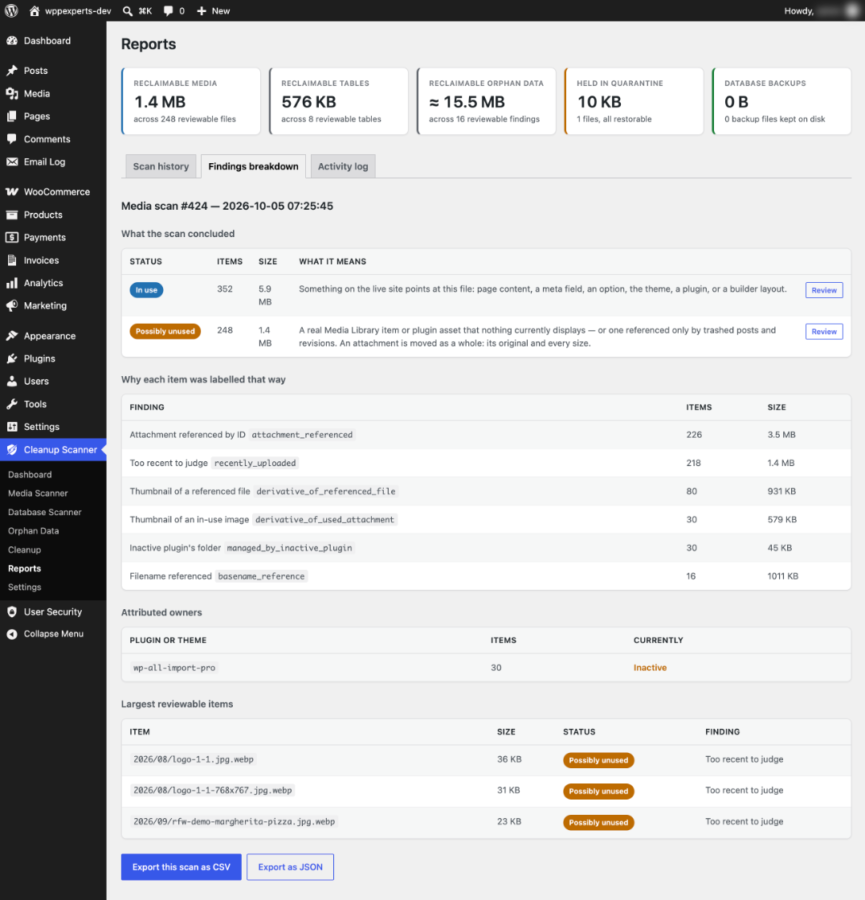
Scan history, a findings breakdown, the largest reviewable items and a full activity log. Export scans as CSV or JSON, and the activity log as CSV.
File types and grace period
Choose which file types are scanned, from images and video to PDF, Office and ZIP files. Recent uploads, 30 days by default, are never marked Safe to remove.
04
How it works
- 1
Install and activate
Upload the plugin and activate it on the site you want to scan. A Cleanup Scanner menu appears in wp-admin. Network activation is blocked, so activate it per site.
- 2
Run a scan
Start a Media, Database or Orphan scan from the Dashboard. Scans only read your site and show live progress.
- 3
Review the evidence
Filter by status, reason, owner or file type. Anything you are unsure about can stay where it is.
- 4
Clean up, and undo if needed
Quarantine files, back up and drop tables, or remove orphan rows. Restore any of it from the Cleanup page until you delete it permanently.
05
Screenshots & demo
-
 Dashboard
 -
 Media Scanner
 -
 Database Scanner
 -
 Orphan Data
 -
 Cleanup
 -
Reports: scan history
-
Reports: findings
-
Reports: activity log
-
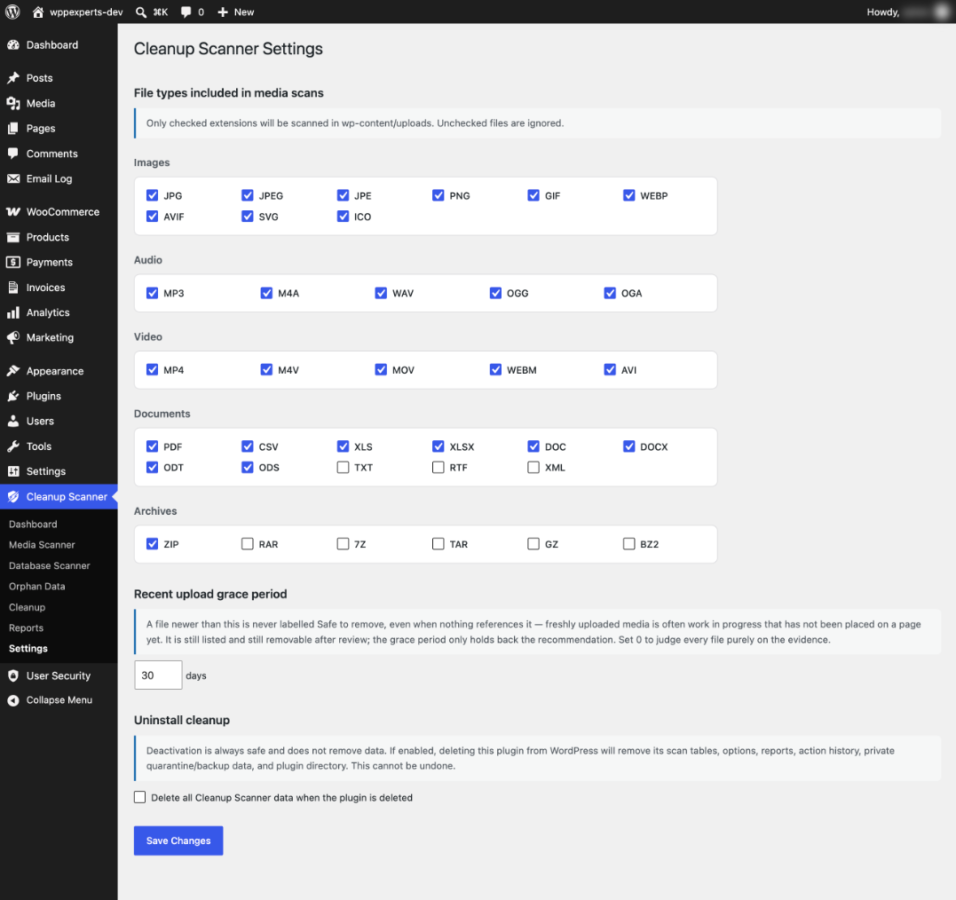
 Settings
06
Settings & configuration
File Types
MEDIATick the extensions to include in media scans: images, audio, video, documents and archives. 28 types are on by default; TXT, RTF, XML, RAR, 7Z, TAR, GZ and BZ2 are off.
Recent Upload Grace Period
AGEFiles newer than this many days (default 30, from 0 to 3650) are never labelled Safe to remove, even with no references. Set 0 to judge on evidence alone.
Orphan Scope
ORPHANSChoose Known relationships (WordPress core, WooCommerce and Action Scheduler) or Complete database, which also checks foreign keys and columns such as post_id. Name-based matches are review-only.
Thorough Mode
SPEEDTick Thorough to also check very large tables and unindexed columns. It is slower; with it off, skipped checks are listed.
Typed Confirmation
CONFIRMQuarantine after review, every table drop, orphan removal after review and bulk permanent deletes need you to type DELETE. This is built in.
Delete Data on Uninstall
UNINSTALLOff by default. When ticked, deleting the plugin also removes its tables, options, quarantine, backups and logs. Leave it off while anything is still quarantined.
07
Requirements & installation
Who it is for
It suits site owners, developers and agencies who want to reclaim disk space and tidy a database without guessing. It is also useful after removing plugins or migrating a site, when files and tables are often left behind.
Requirements
- WordPress 6.0 or later (tested up to 7.1)
- PHP 7.4 or later
- MySQL or MariaDB; InnoDB tables are needed to remove orphan rows
- WordPress must be able to move files in the uploads folder, so that quarantine can work
- WooCommerce is optional
Installation
- Download the plugin zip from your account.
- In WordPress, go to Plugins > Add New > Upload Plugin, choose the zip file and click Install Now.
- Activate the plugin on the site you want to scan. Network activation is not allowed.
- Open Cleanup Scanner > Settings to choose file types and the grace period.
- Open the Dashboard and run your first Media, Database or Orphan scan.
08
Documentation & support
09
Frequently asked questions
Will it delete anything automatically?
No. Scans only read your site. Nothing is removed until an administrator selects items and confirms, and there are no scheduled scans or automatic cleanups.
Can I undo a cleanup?
Yes, until you delete the item permanently. Quarantined files, dropped tables and removed orphan rows are restored from the Cleanup page. A restore of a file is refused if another file has taken its path or its checksum has changed.
What do the labels mean?
In use means something on the live site points at it. Possibly unused covers items only used by trashed content, data of an inactive plugin, or a Media Library file nothing displays. Safe to remove means no record, no reference and no surviving original. Protected items, such as WordPress core tables, are never offered for removal.
Why does it say Possibly unused instead of unused?
It cannot see links from outside your site, a CDN, or addresses a theme builds at runtime. It only says Safe to remove when there is no record, no reference and no surviving original, and the file is older than the grace period.
Does it work with WooCommerce?
Yes, and WooCommerce is optional. It protects product, gallery, variation and category images and the images chosen in WooCommerce settings, and its orphan checks cover order, product, analytics and lookup tables, including HPOS order tables.
Does it work with page builders?
Gutenberg content is read in full. Builders that keep images in shortcodes or HTML are covered by the general URL and filename scan, but no builder has its own parser. If your site uses a page builder, run the first media scan on a staging copy.
Can I use it with WebP/AVIF Images for WordPress or another image optimiser?
Yes, with one setting. Copies such as photo.jpg.webp have no Media Library record, so once they are older than the grace period they can be labelled Safe to remove. Untick WEBP and AVIF under Settings → File types before you clean up, so the copies are not scanned.
Does it send data anywhere?
No. The plugin makes no external requests: no tracking, no licence check and no remote services.
Will it time out on a large site?
Scans run in short batches of a few seconds and resume after a reload. Row counts are exact for InnoDB tables up to 64 MB and marked ≈ above that. On very large databases, run the first scan outside busy hours.
Can I use it on multisite?
Network activation is blocked, so activate it on one site at a time. On a network, test on a staging copy first.
What does uninstalling remove?
Deactivating removes only its scheduled task. Deleting the plugin removes nothing unless Delete all Cleanup Scanner data when the plugin is deleted is ticked; then it also removes quarantined files and backups.
How do I get updates?
New versions are published under My Account → Downloads. Upload the new zip under Plugins → Add New → Upload Plugin and choose Replace current with uploaded. Your settings and data are kept.
How do I get support?
Email support@wpexpertshub.com with your order details and a description of the issue, and our team will help you.
10
Customer reviews
Thanks for your review!
It’s waiting for approval and will appear here soon. We’ll email you when it’s live.
Be the first to review it
Used Media and Database Cleaner for WordPress on your store? A short review helps other store owners decide — and tells us what to improve.
Media and Database Cleaner for WordPress$99